Earn stablecoin yield in Trezor Suite
Trezor Suite lets you earn yield on USDC and USDT (on Ethereum) directly in the app. Your stablecoins go into a , where they earn interest from lending. Every transaction is signed on your Trezor device, and you never need to leave the app.
To understand Morpho vaults and where yield comes from, see How DeFi Yield works with Morpho vaults.
Before you start
You'll need:
- USDC or USDT on Ethereum in your Trezor Suite wallet
- A small amount of ETH in the same account to cover network (gas) fees
- Trezor Suite for desktop or mobile updated to the latest version
If you don't hold USDC or USDT yet, you can move them from an exchange or another wallet, or buy them in Trezor Suite. See Receive crypto in Trezor Suite or Buy crypto in Trezor Suite.
Depositing requires two on-chain transactions: an approval (allowance) and the deposit itself. You sign both on your device and pay gas on both. If you choose the unlimited approval option, future deposits of the same coin skip the approval step.
Deposit on desktop
1. Open the Earn tab
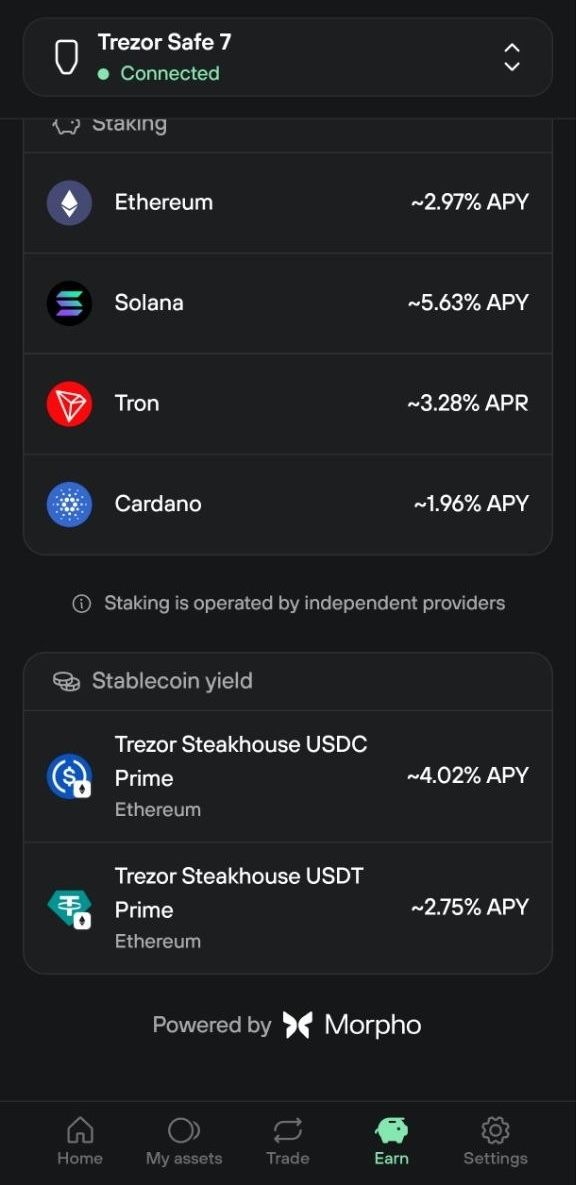
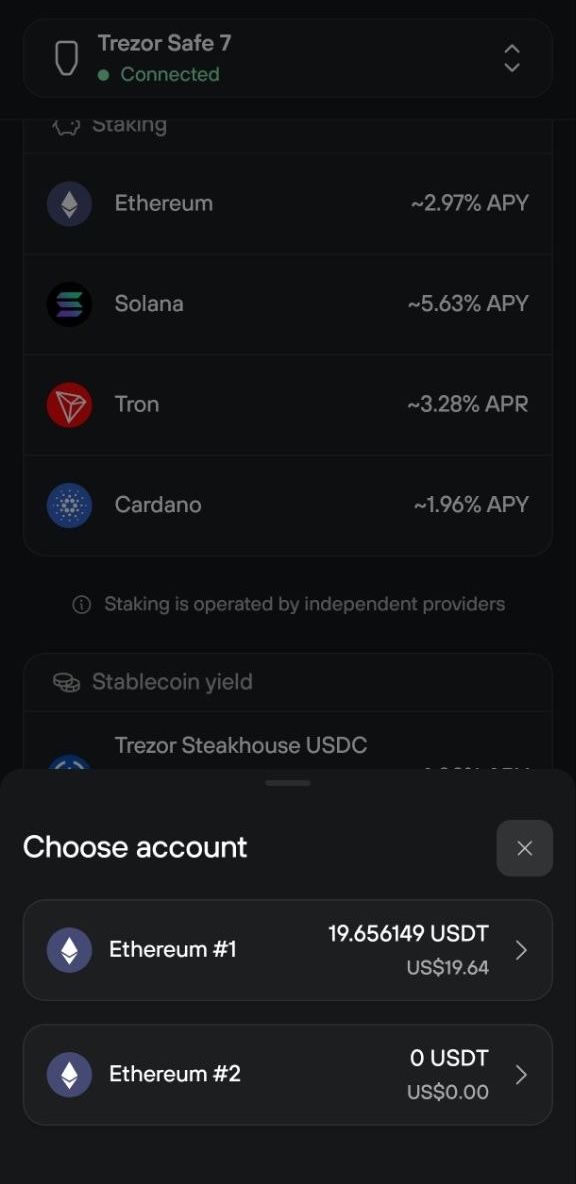
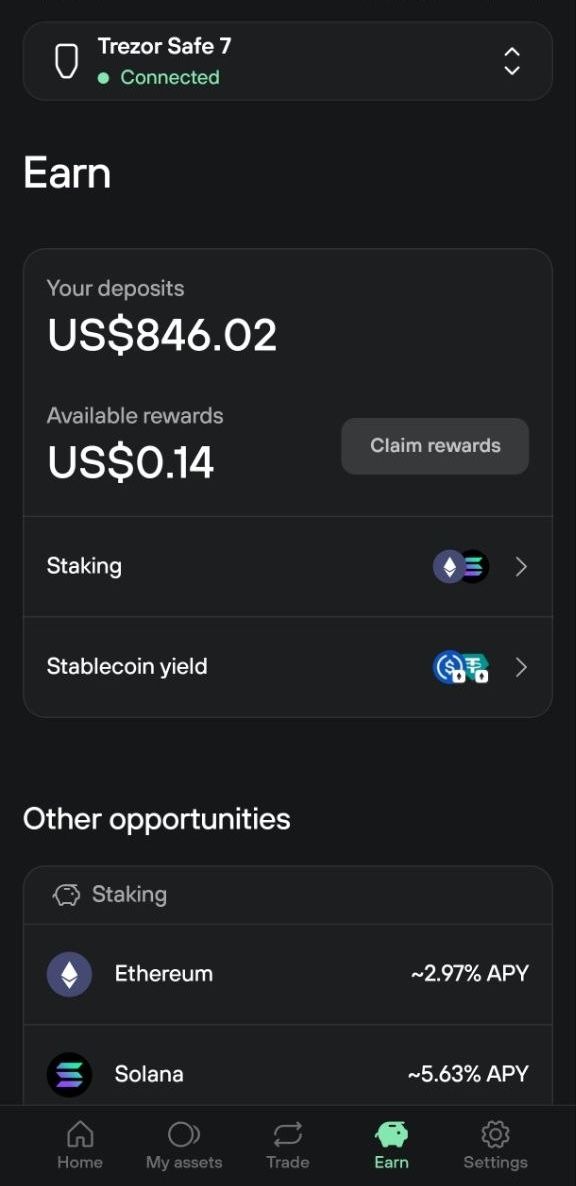
Click Earn in the Trezor Suite sidebar, then scroll to the DeFi Yield section. This shows the assets you can deposit.
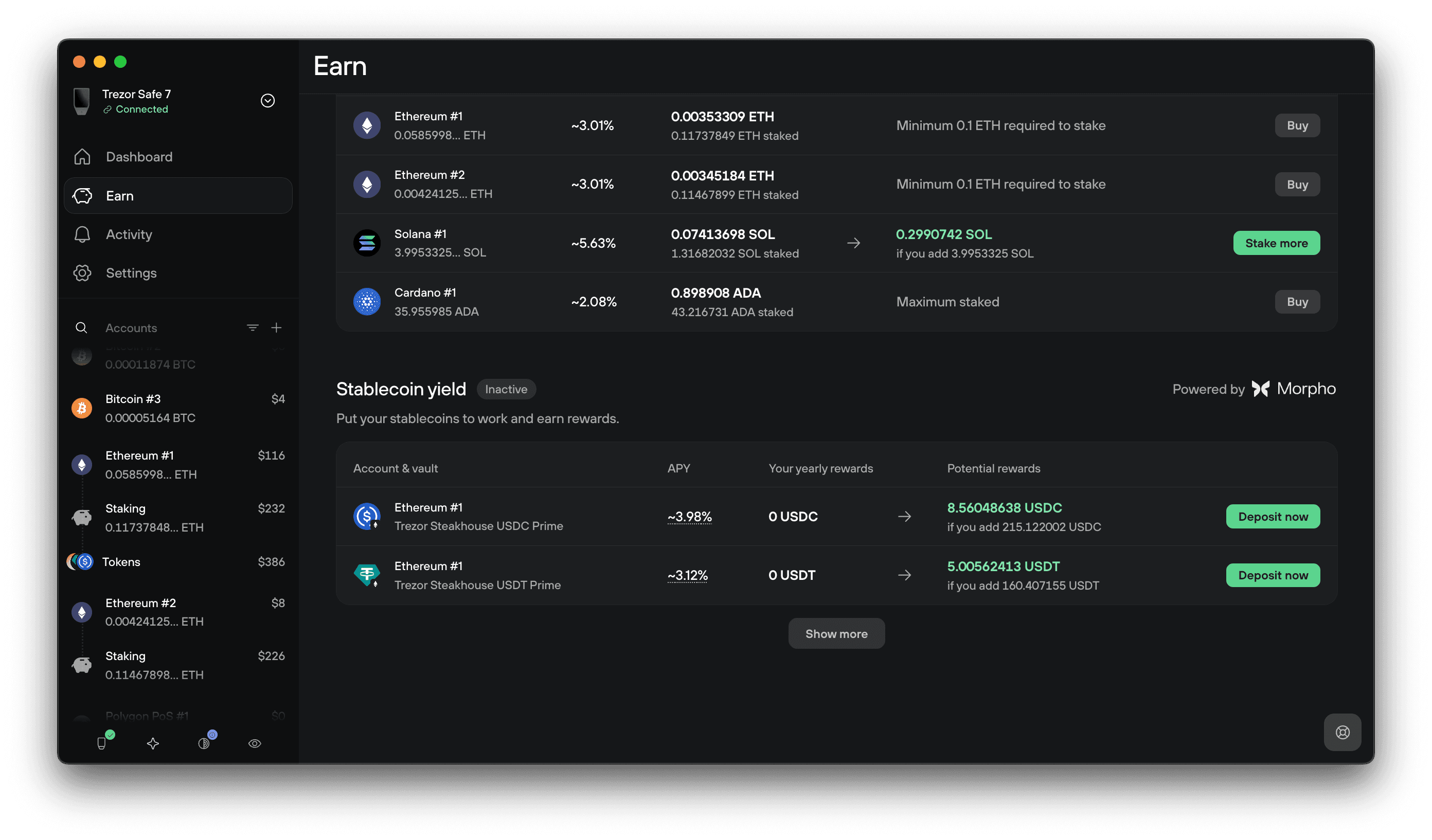
Find the vault you want and click Deposit now.
2. Read the explainer
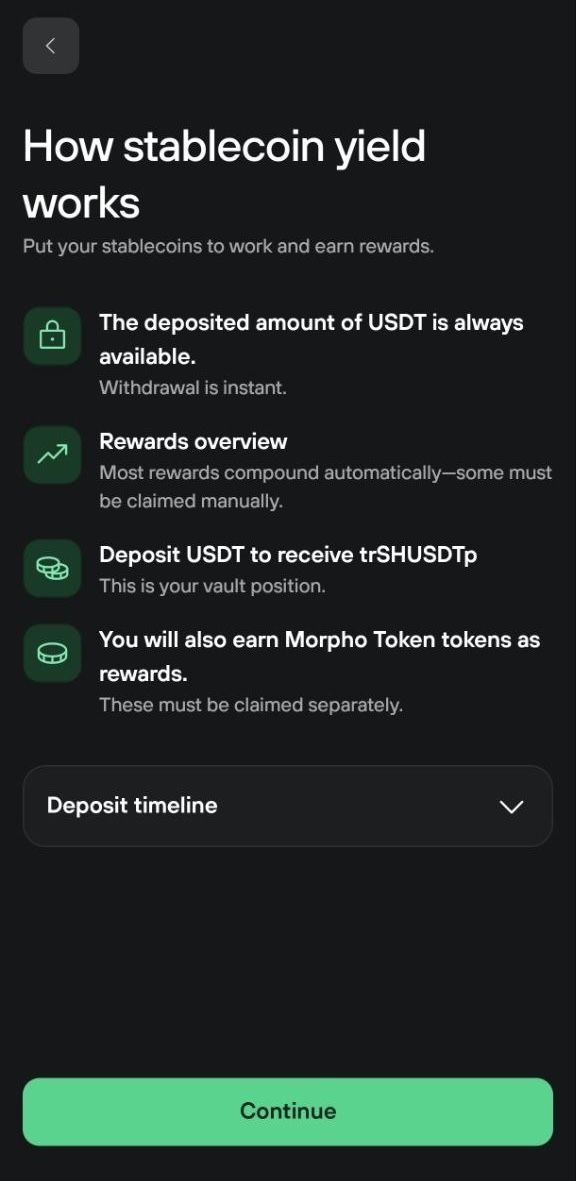
The DeFi Yield explained window summarizes how it works: your deposit stays available to withdraw, it earns yield that compounds, you receive a vault token representing your position, and any bonus token rewards can be claimed in the Earn tab.
You can expand the Deposit, Withdraw, and Claim rewards rows to see the steps and fees for each.
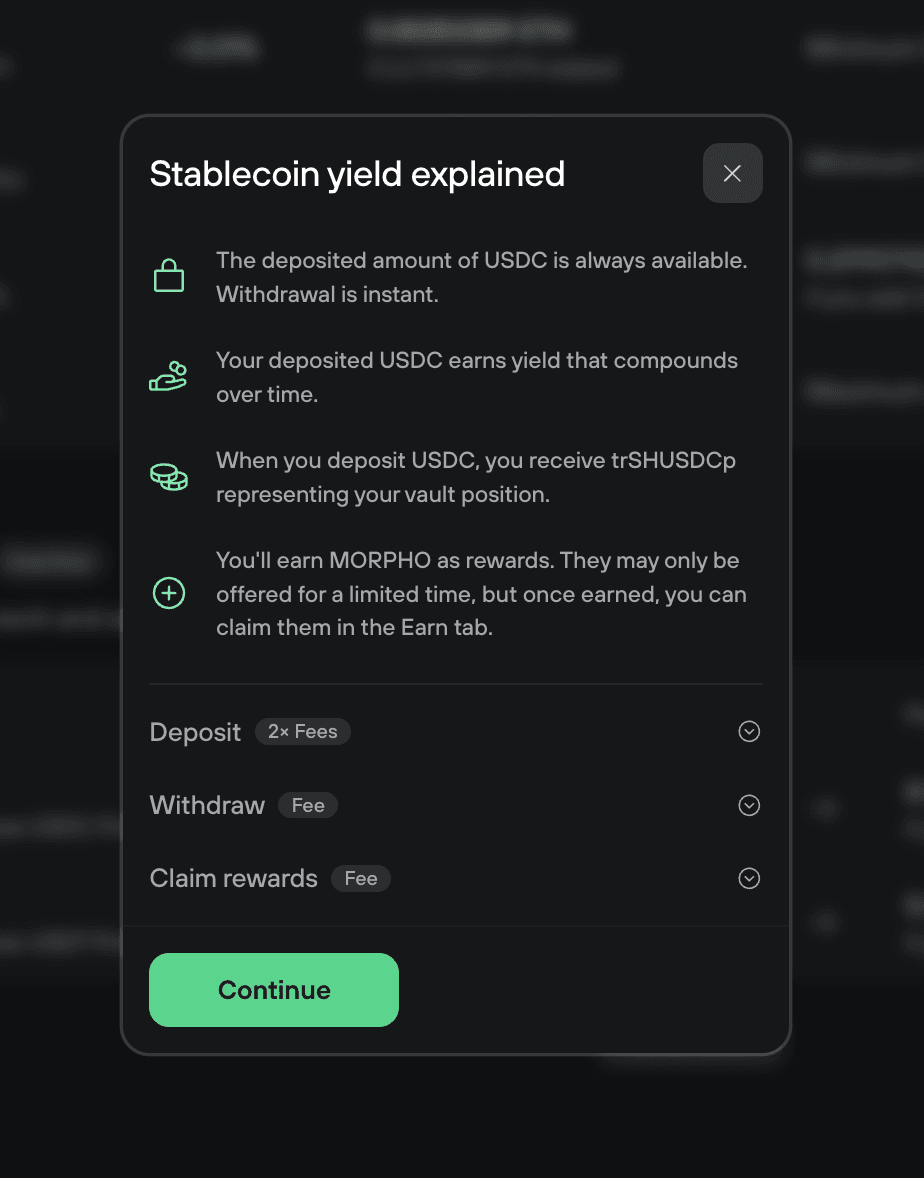
Click Continue.
3. Accept the terms
Check the box to confirm you accept Trezor's Terms of Use and acknowledge Morpho's Disclaimer.
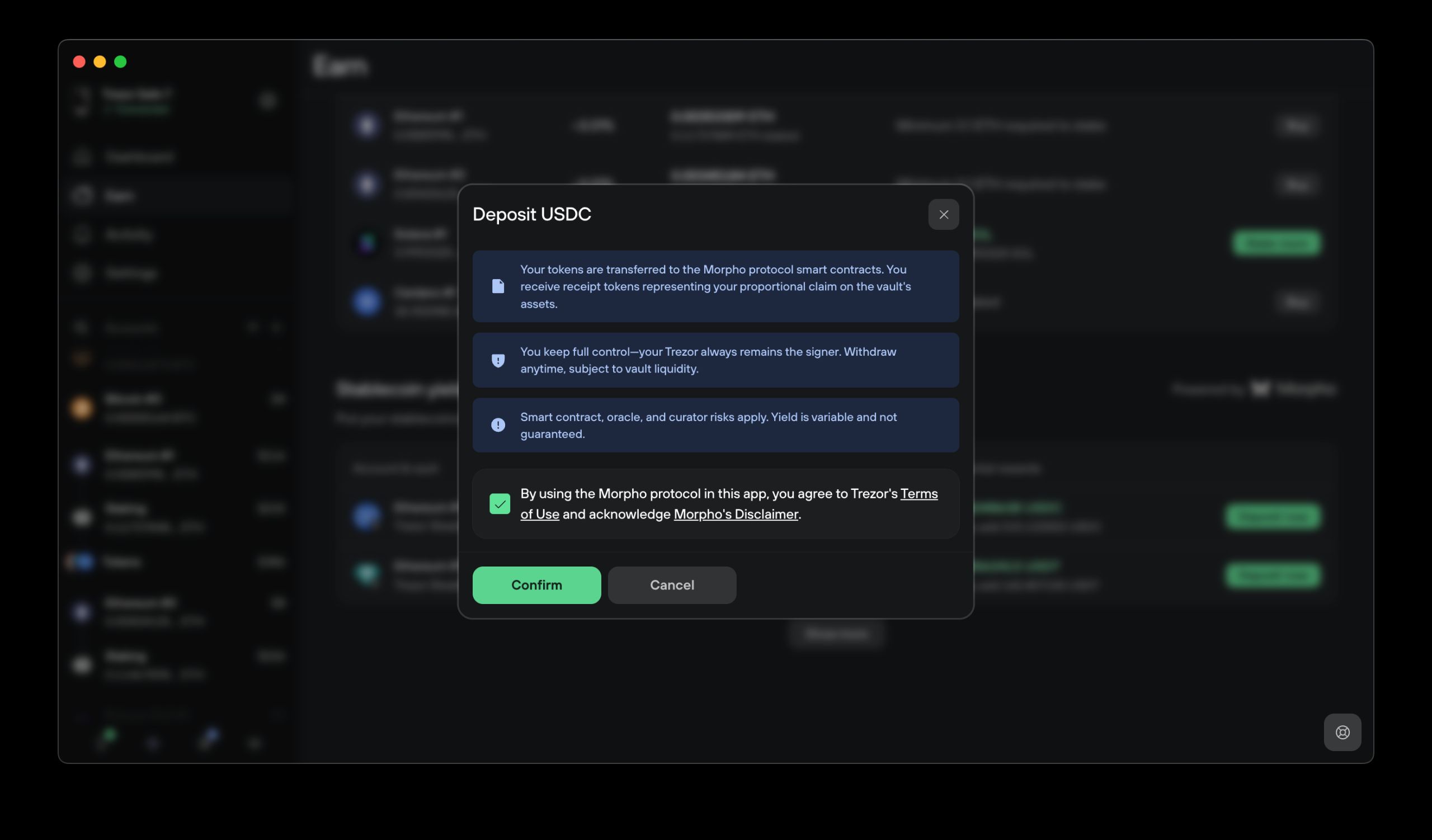
Click Confirm.
4. Enter the amount and approve
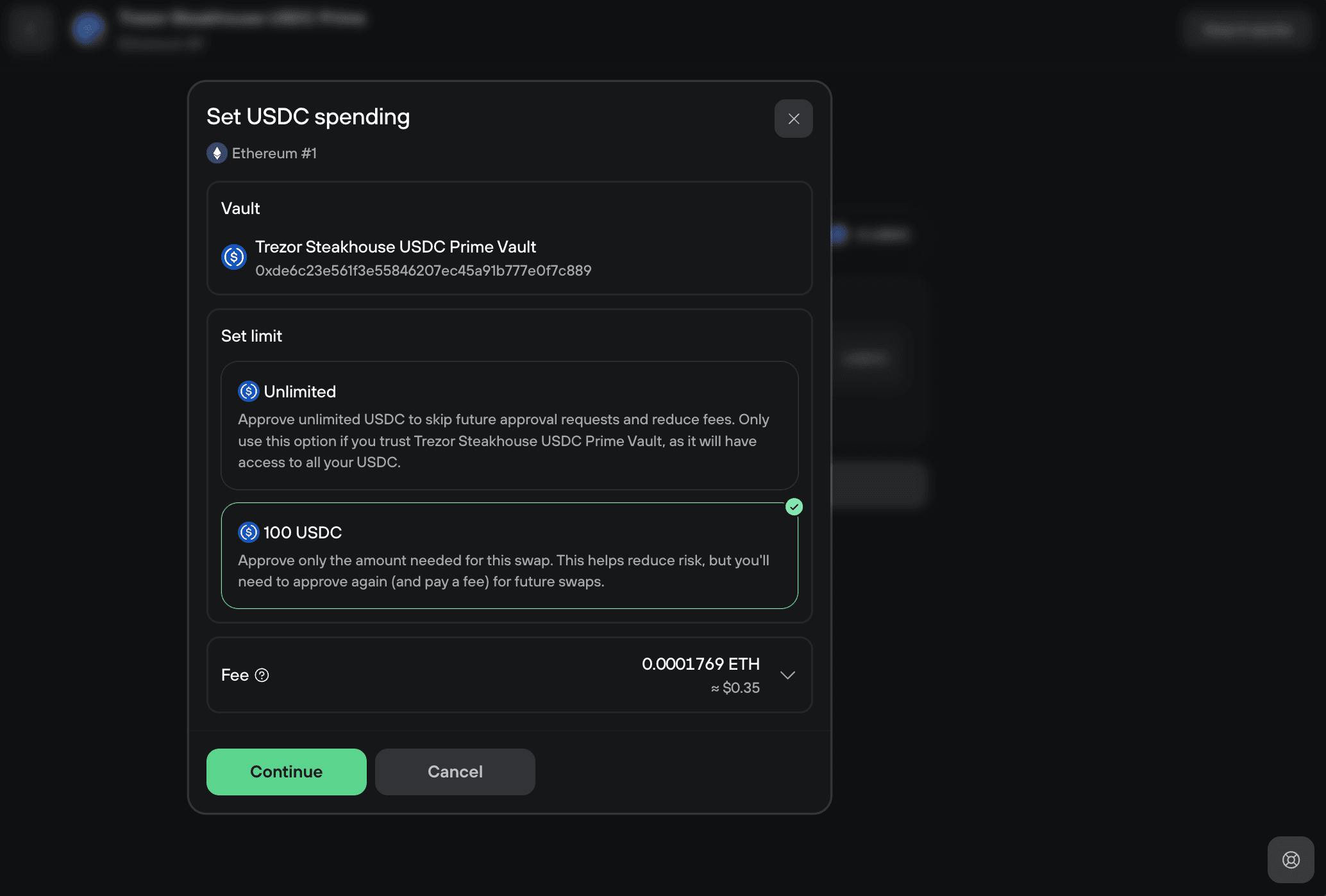
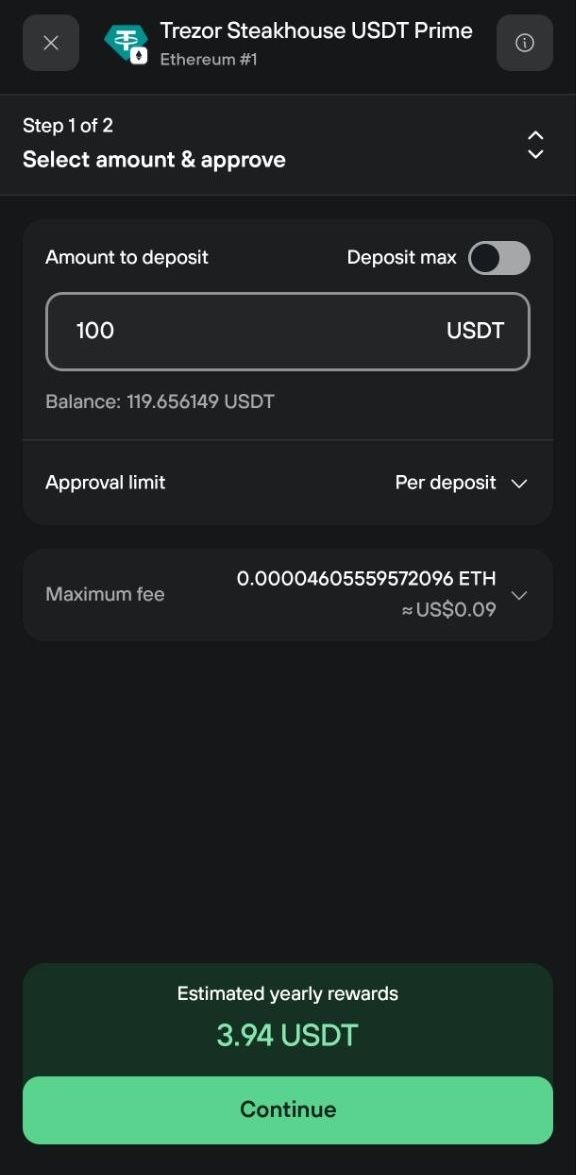
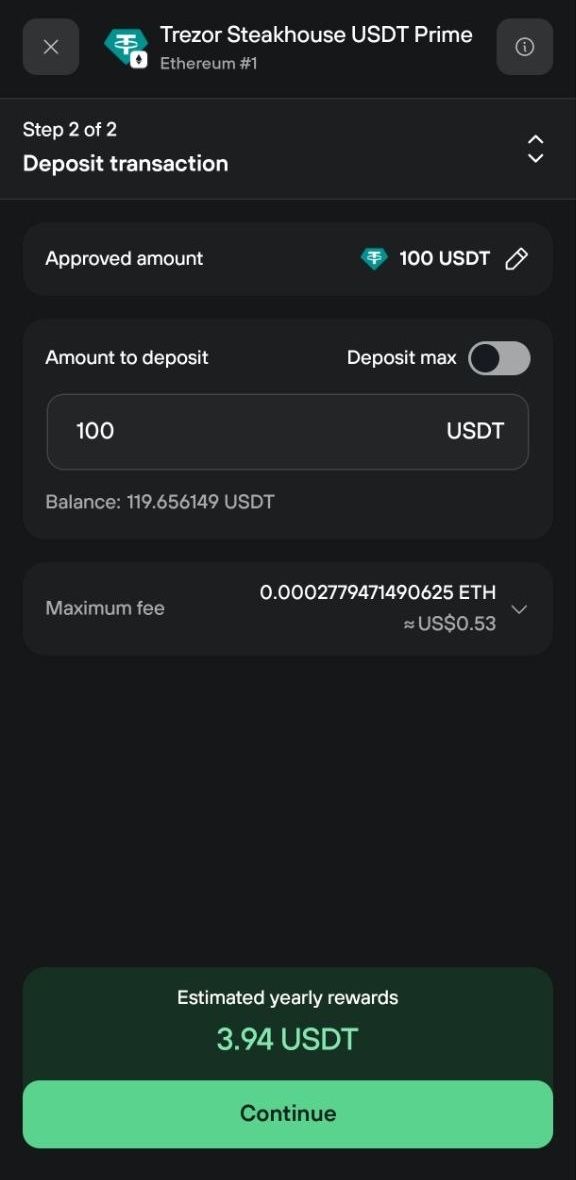
Enter the amount you want to deposit, then click Approve. This authorizes the vault to use that stablecoin. It doesn't move your funds yet.
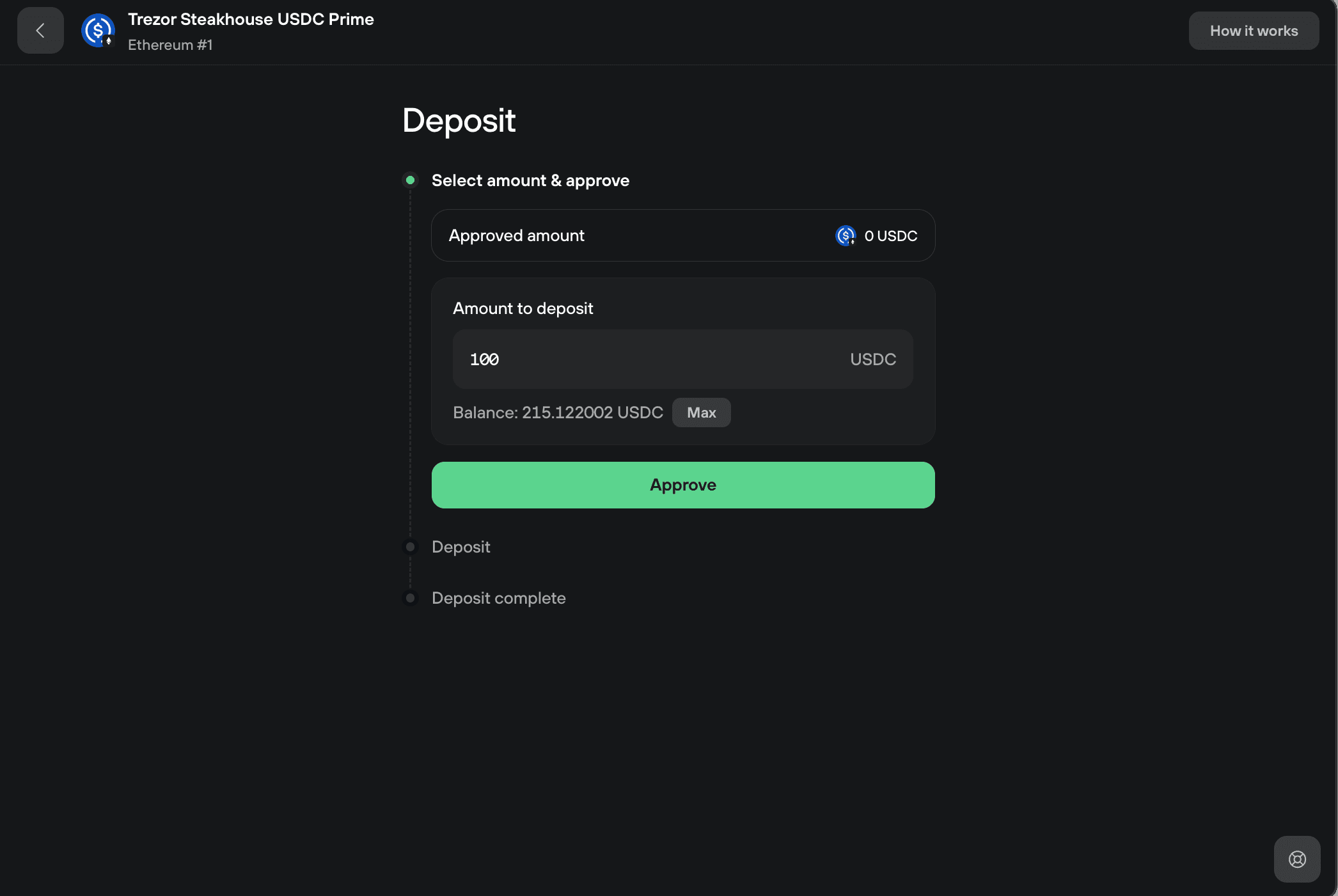
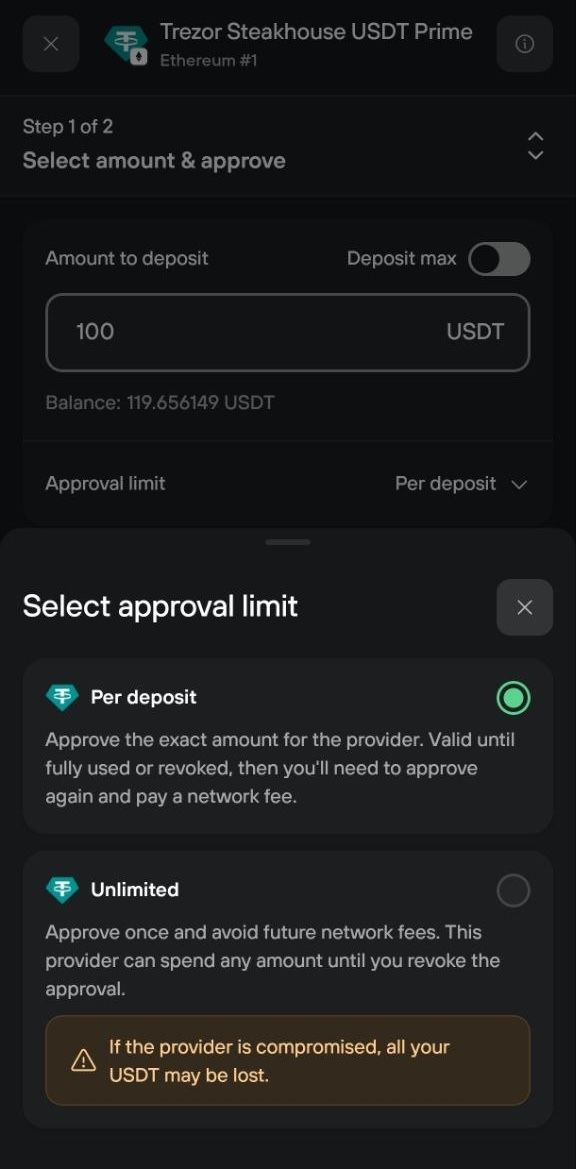
You'll be asked to set a spending limit:
- 100 USDC (exact): approves only the amount you're depositing now. More secure, and you'll approve again next time.
- Unlimited: approves the vault to use any amount of that coin in future, so you skip approval on later deposits. More convenient, but riskier if the contract were ever compromised.
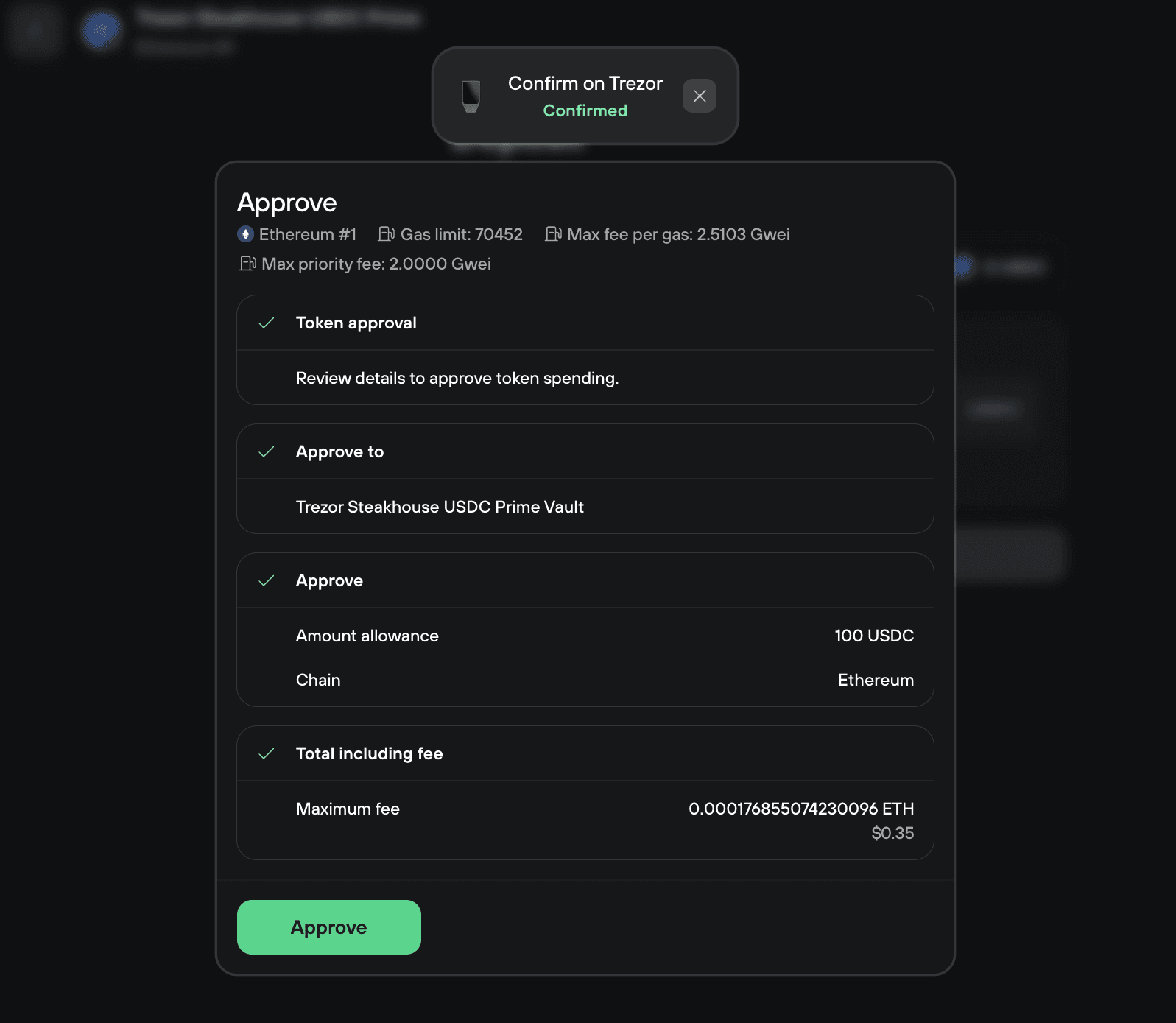
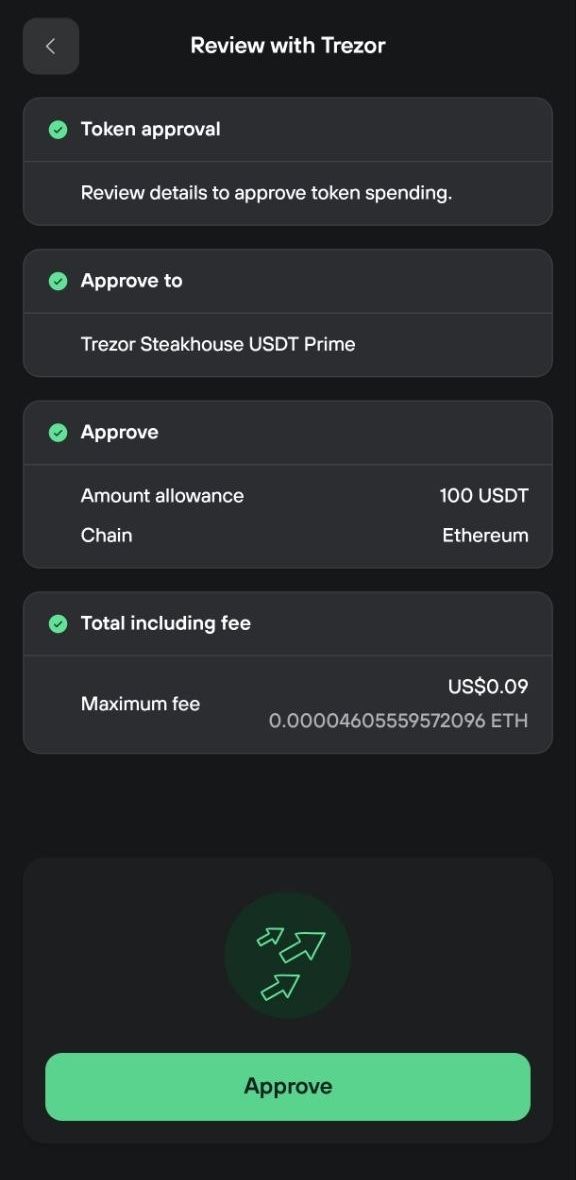
5. Confirm the approval on your Trezor
Review the approval on your device screen and confirm it there. Trezor Suite shows the approval being broadcast and waits for it to confirm on-chain.
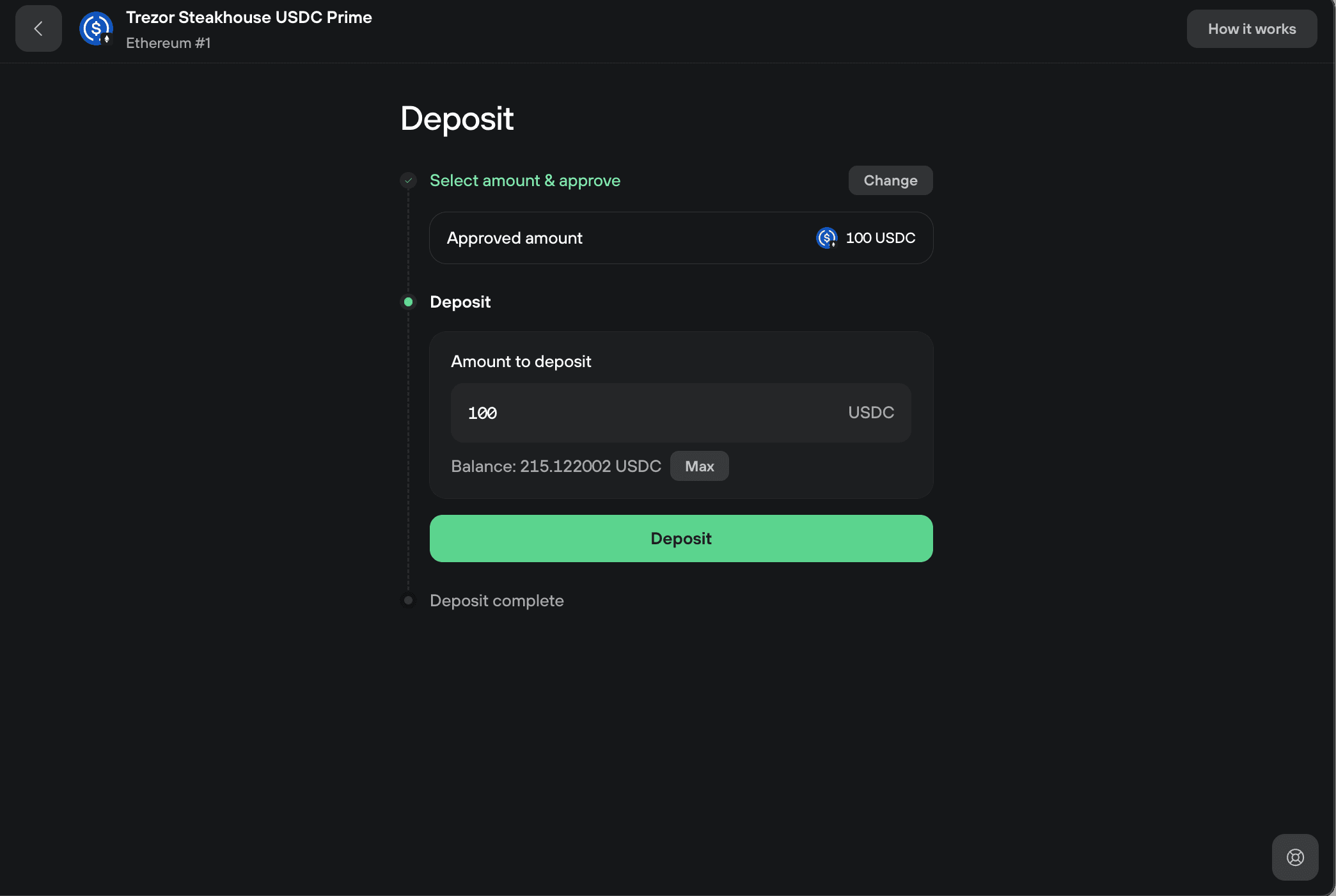
6. Deposit
Once the approval confirms, the Deposit step unlocks. The amount carries over. Click Deposit.
7. Review and confirm the deposit
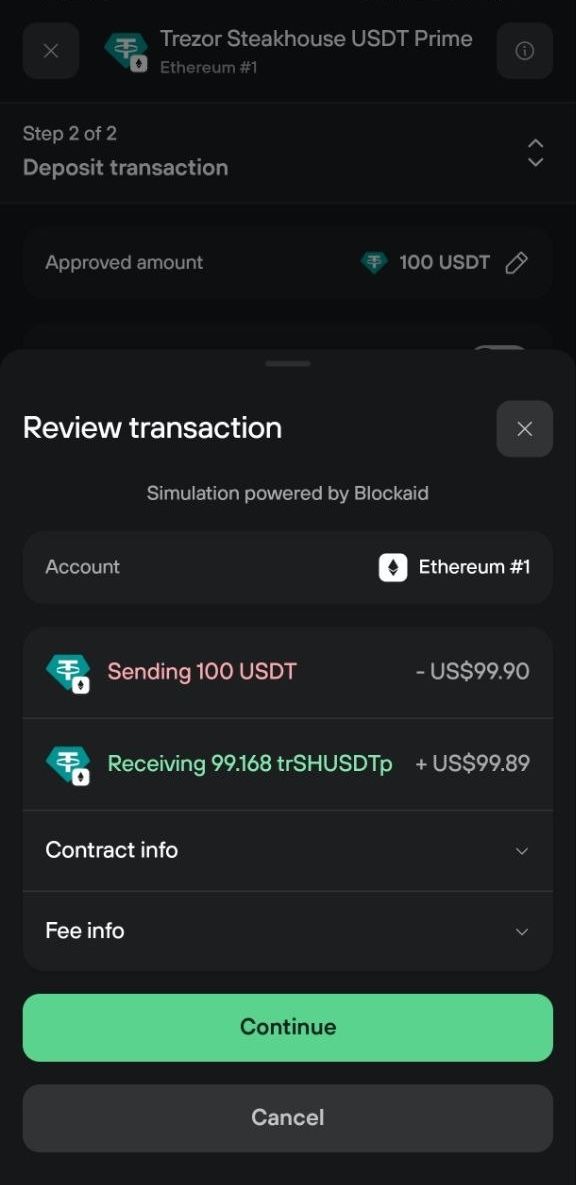
Trezor Suite shows a transaction simulation: the USDC leaving your account and the vault token (trSHUSDCp) you'll receive in return. You can expand Contract info to check the vault address and adjust the fee.
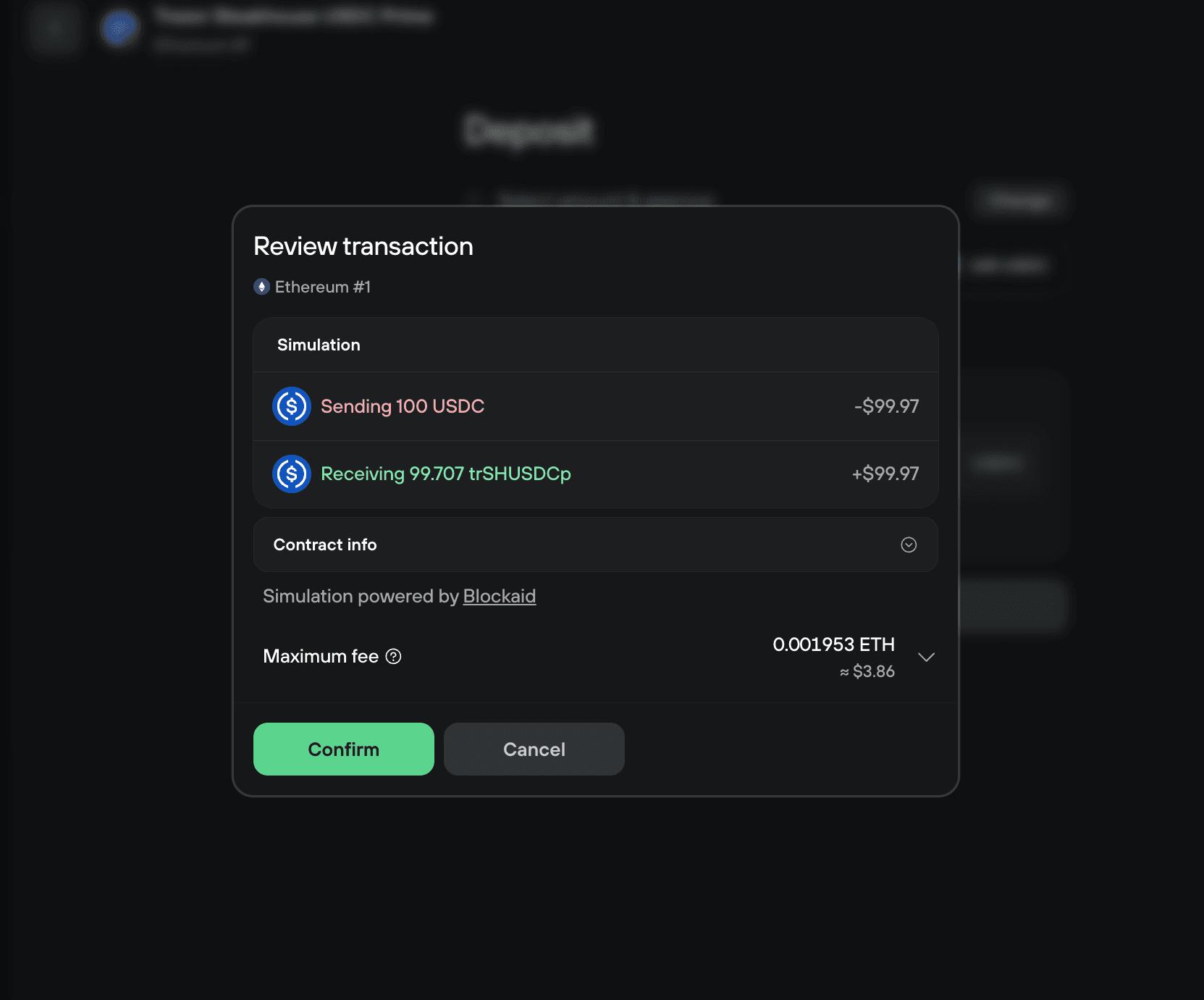
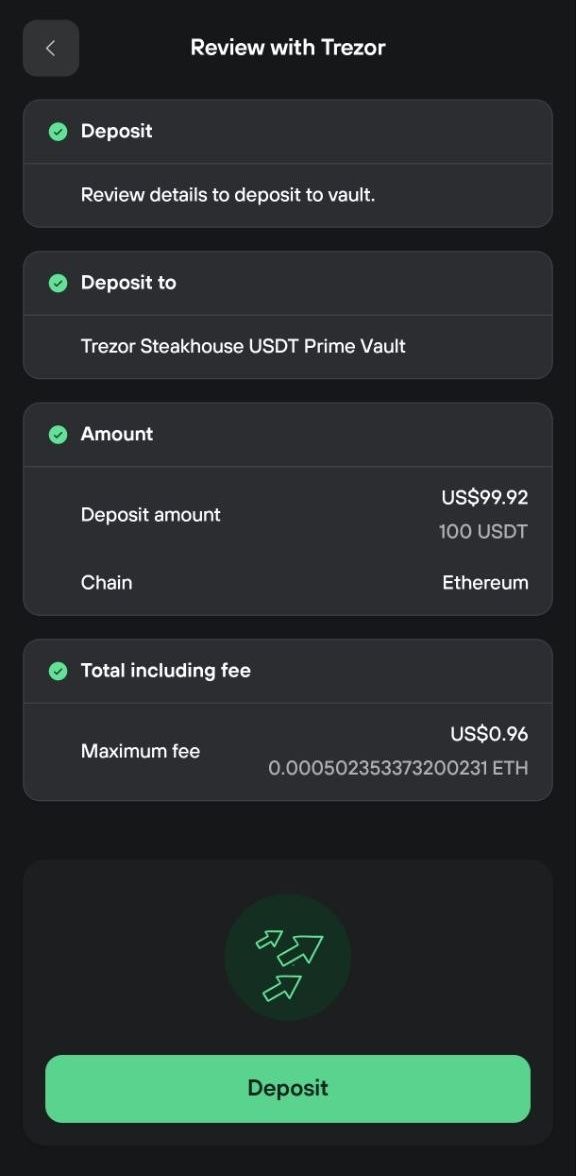
Click Confirm, then review and confirm the deposit on your Trezor device.
8. Done
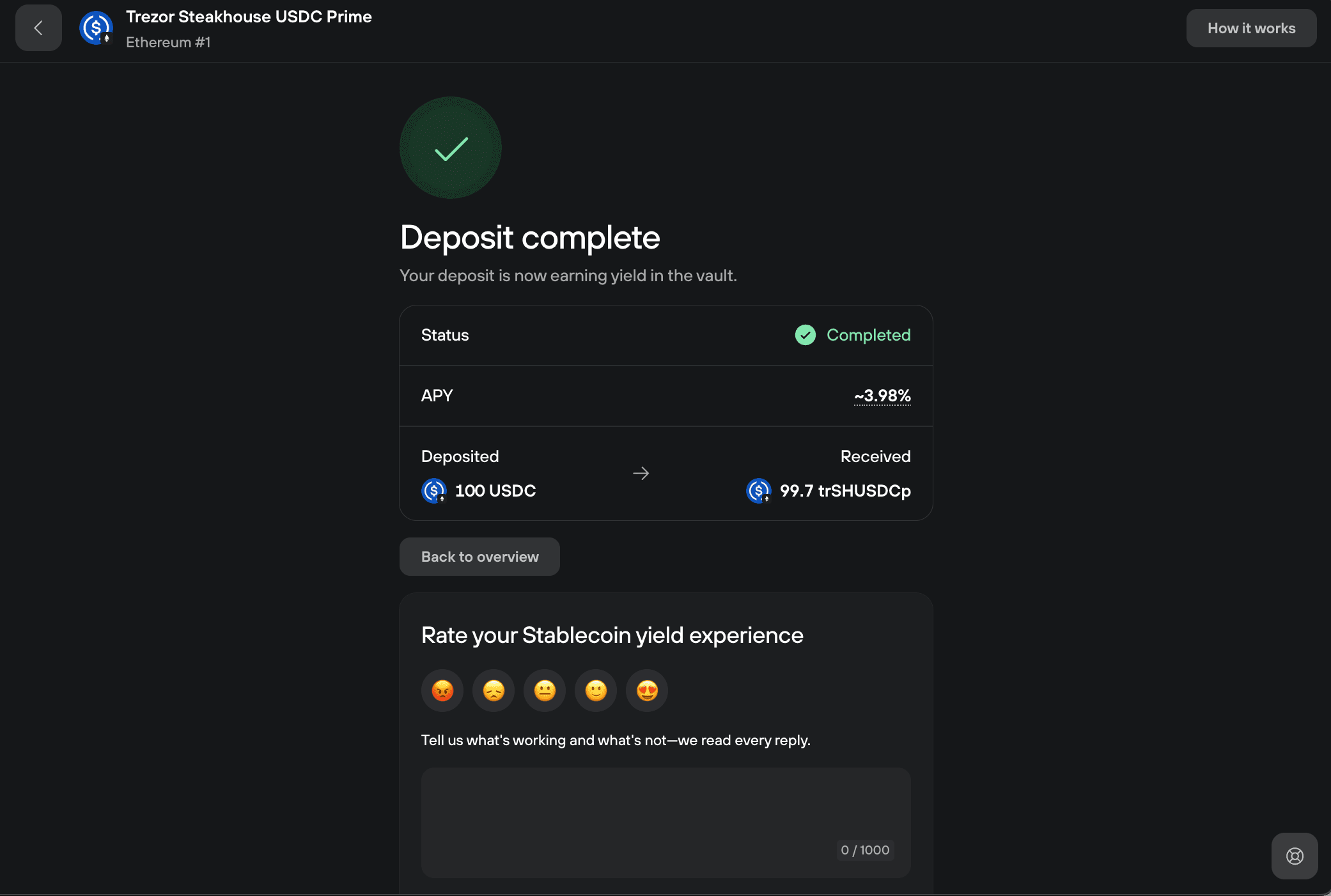
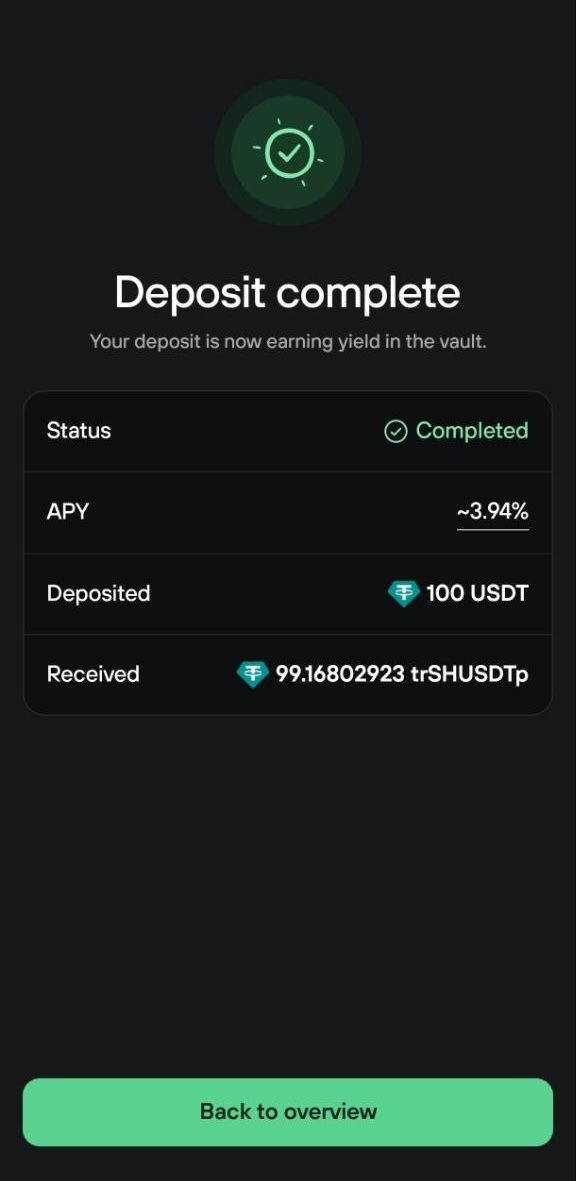
You'll see a Deposit complete confirmation showing the amount deposited, the vault tokens received, and the current APY. Your stablecoins are now earning yield in the vault.
Withdraw on desktop
You can withdraw at any time. There's no lockup period and no withdrawal fee (only the Ethereum network fee applies).
1. Find your position
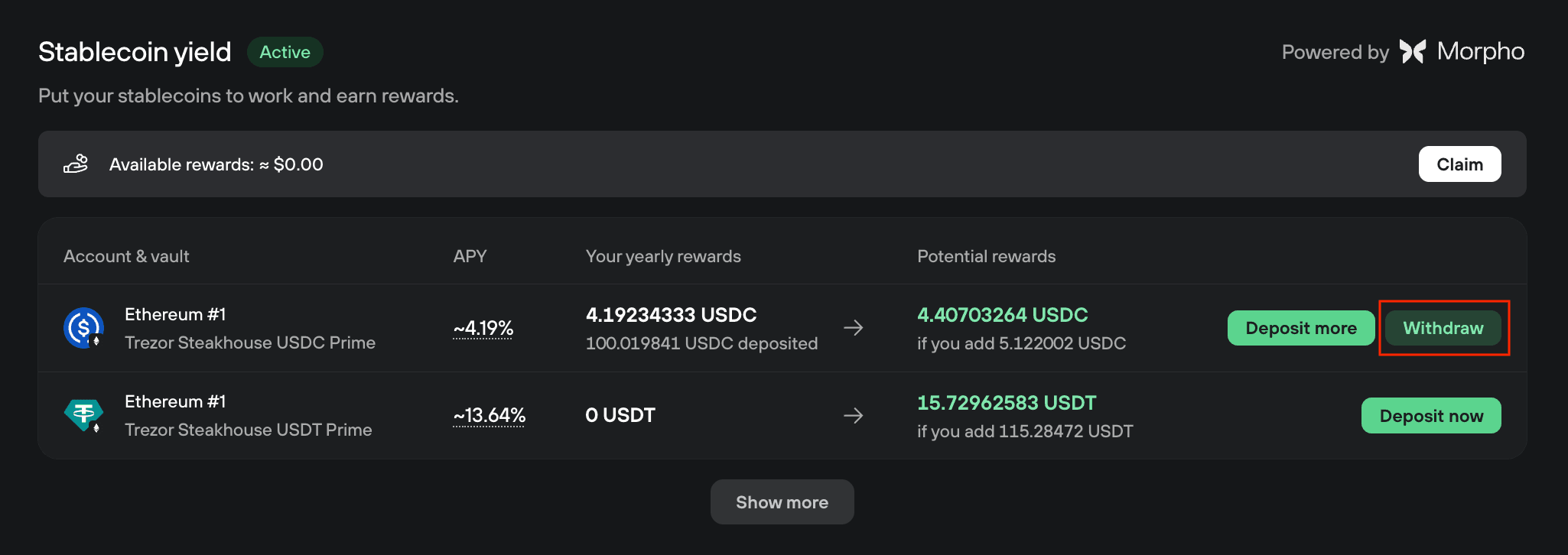
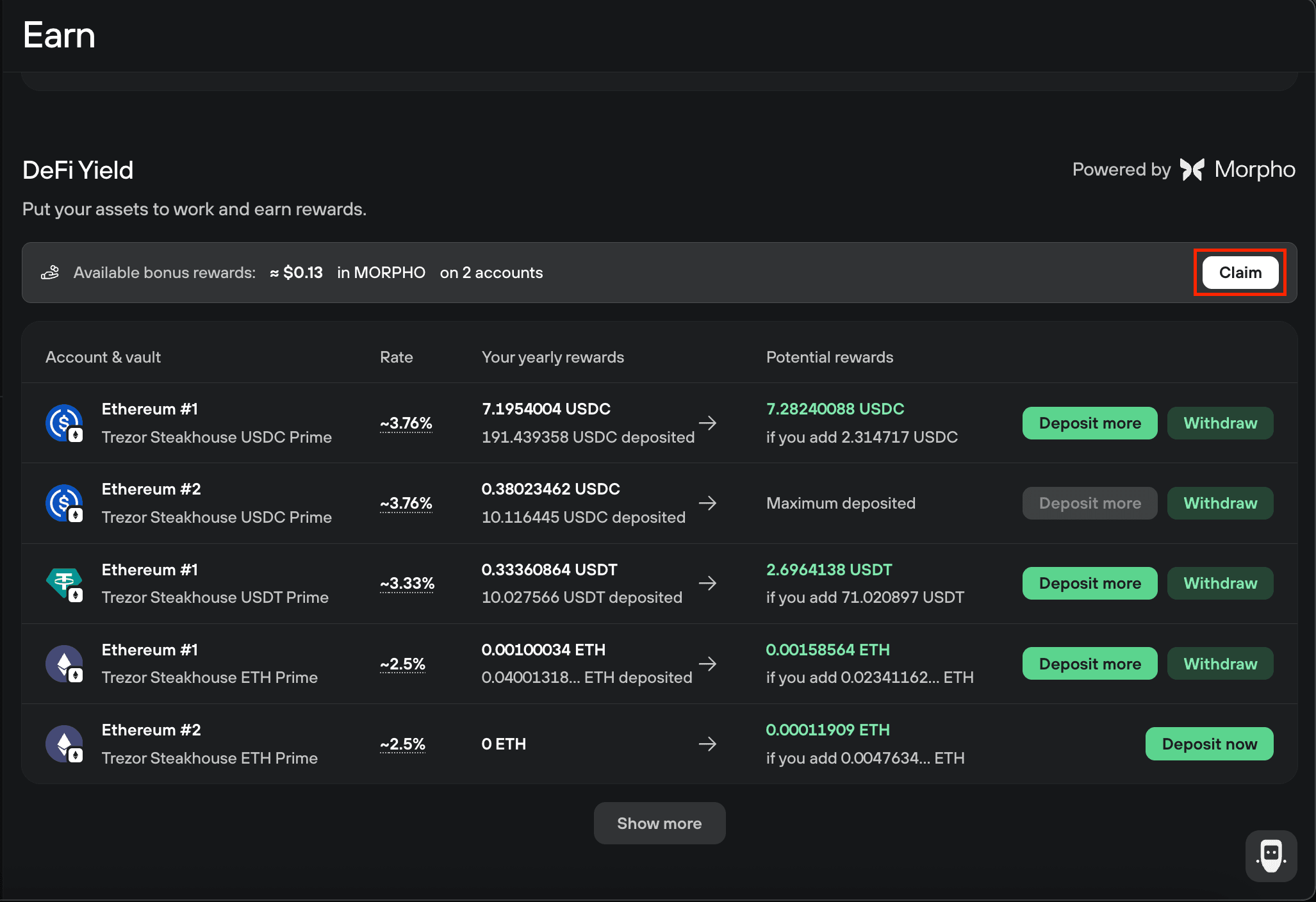
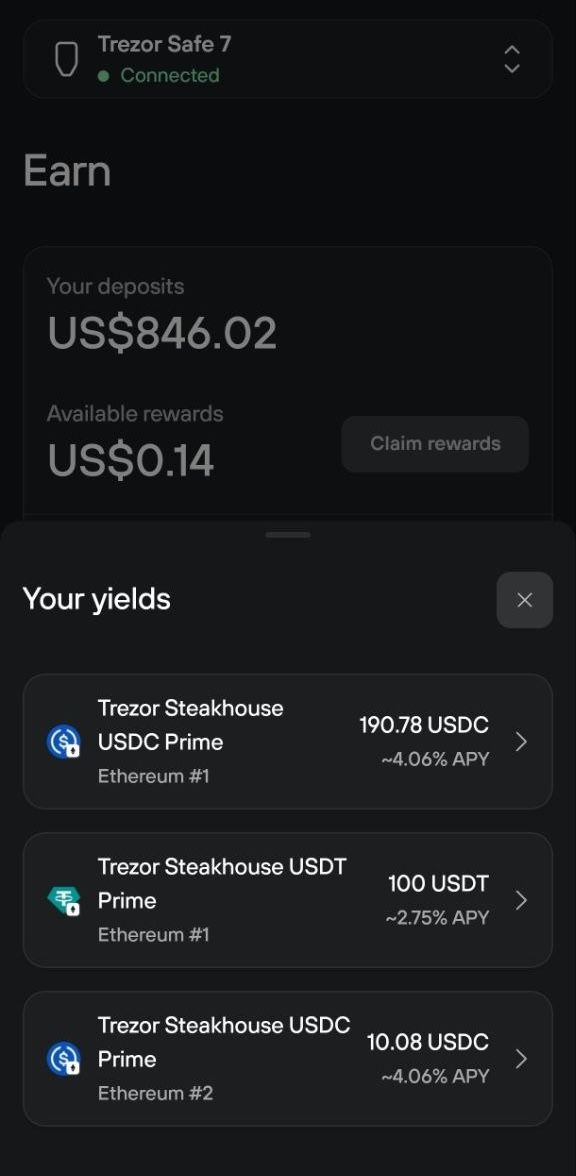
Open the Earn tab in Trezor Suite and scroll to DeFi Yield. You'll see your active vaults with the current APY and your deposited amount. Click Withdraw next to the vault you want to exit.
2. Enter the amount and withdraw
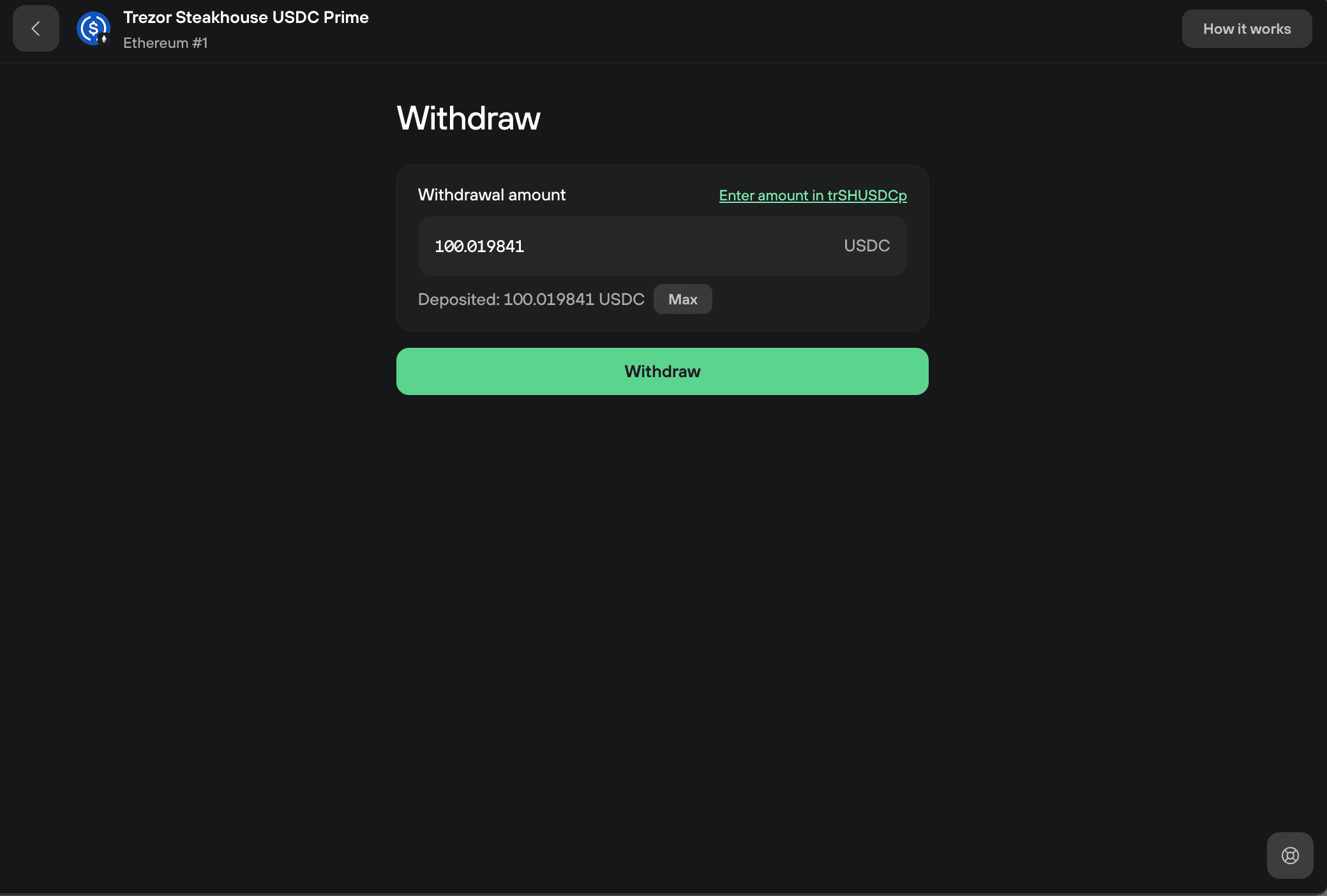
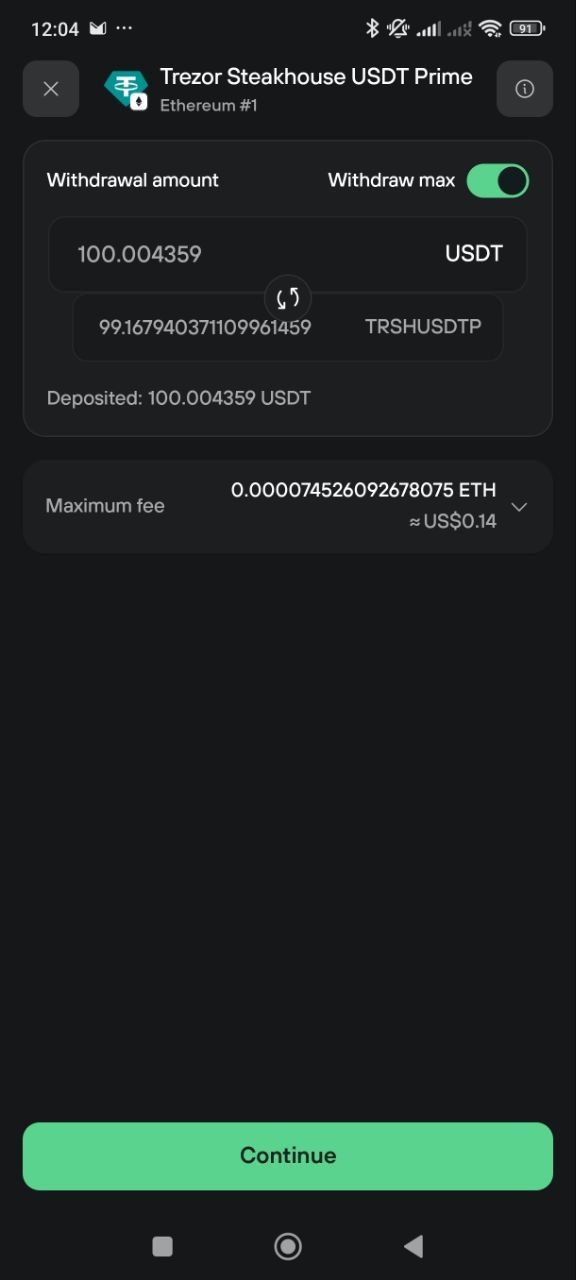
Enter the amount you want to withdraw, or click Max to withdraw the full amount. Then click Withdraw.
3. Review and confirm on your Trezor
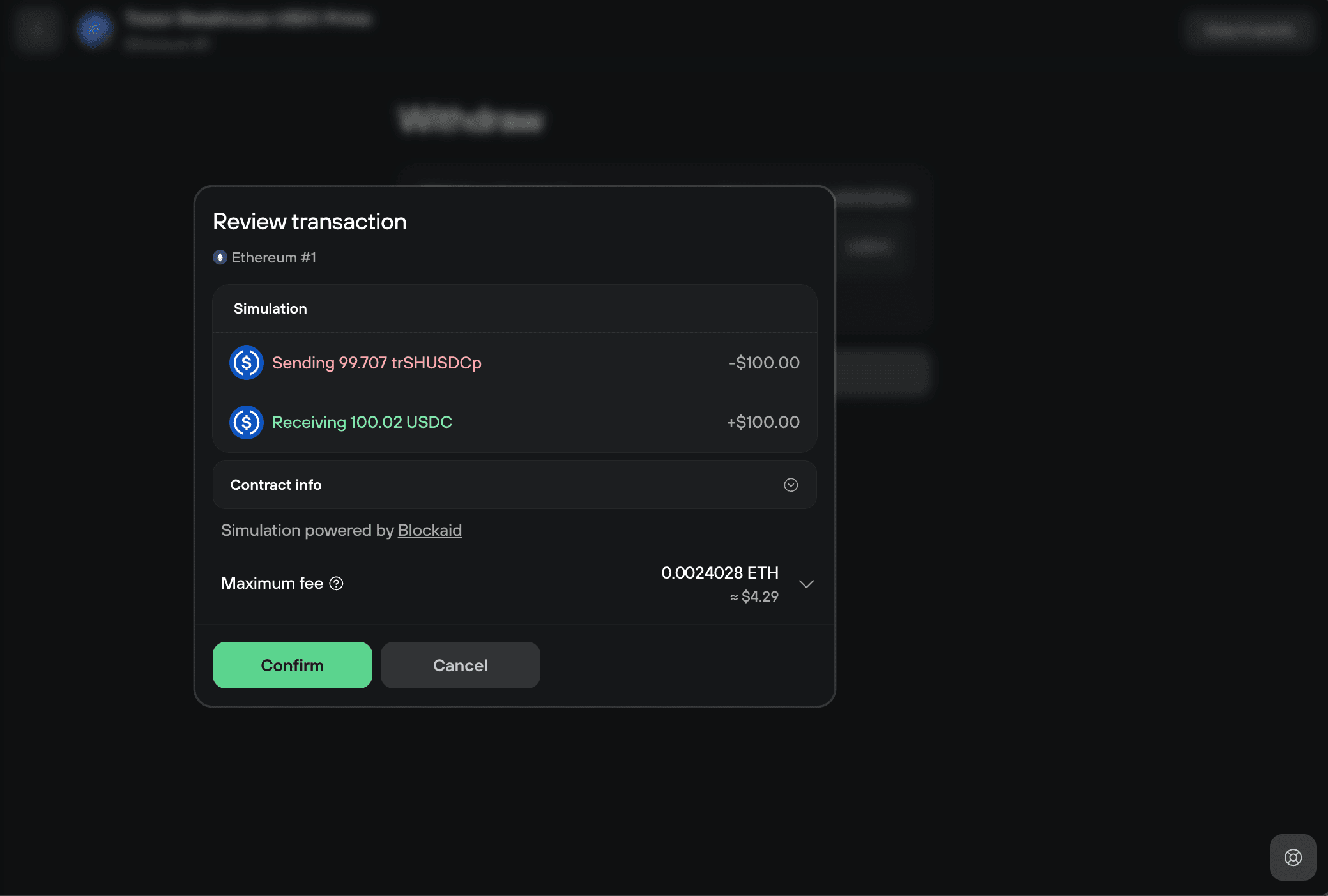
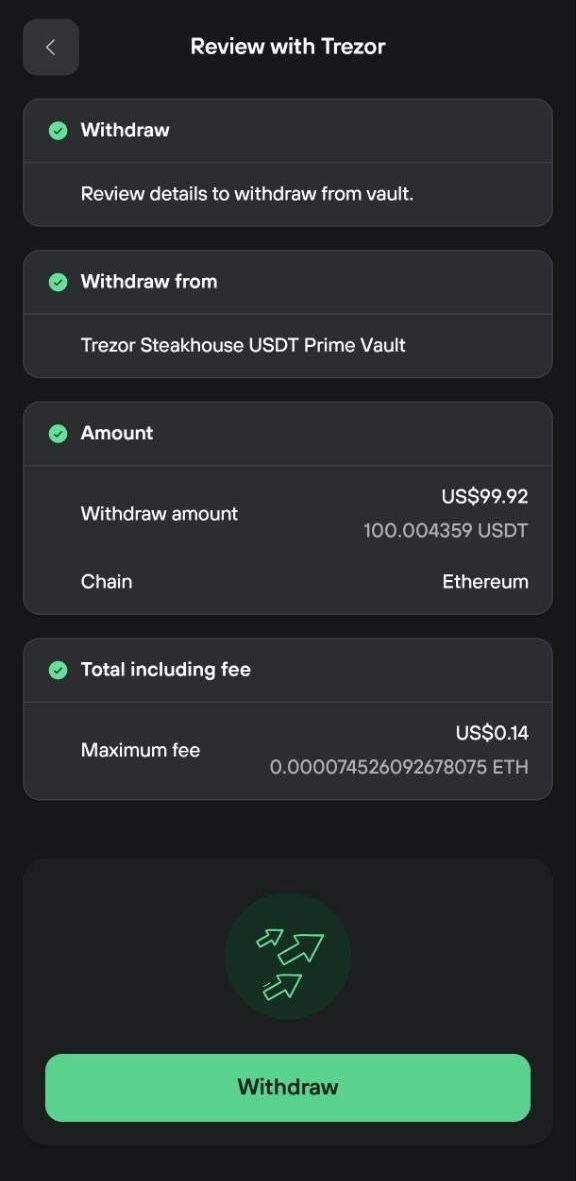
Trezor Suite shows a transaction simulation: the vault tokens leaving your account and the stablecoins you'll receive back. Review the amount, the network fee, and the vault details, then click Confirm.
Confirm the withdrawal on your Trezor device. Once signed, click Withdraw to broadcast the transaction.
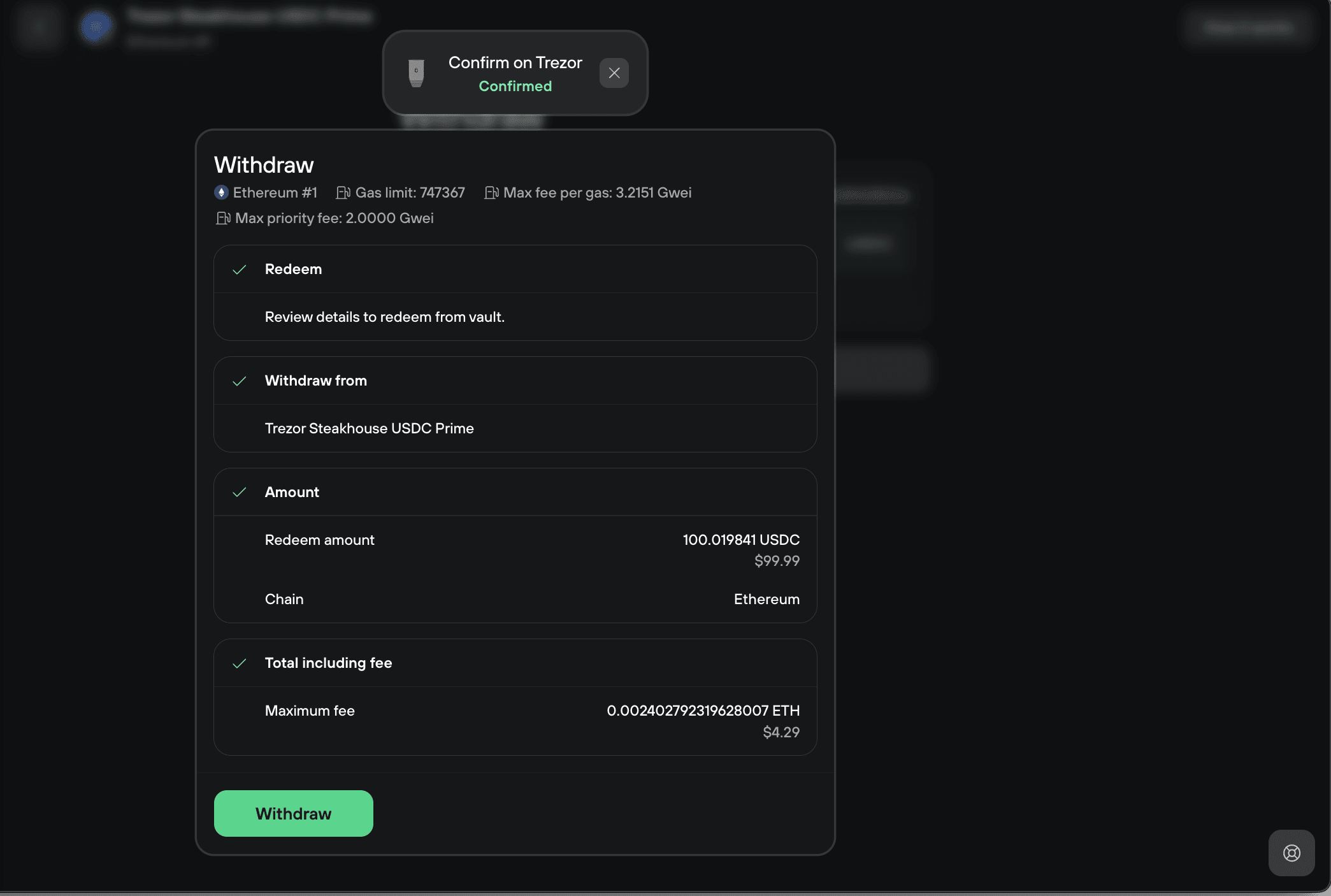
Your vault tokens are exchanged for your stablecoins plus the yield they earned. The funds arrive in your account once the transaction settles on-chain.
How to check your position
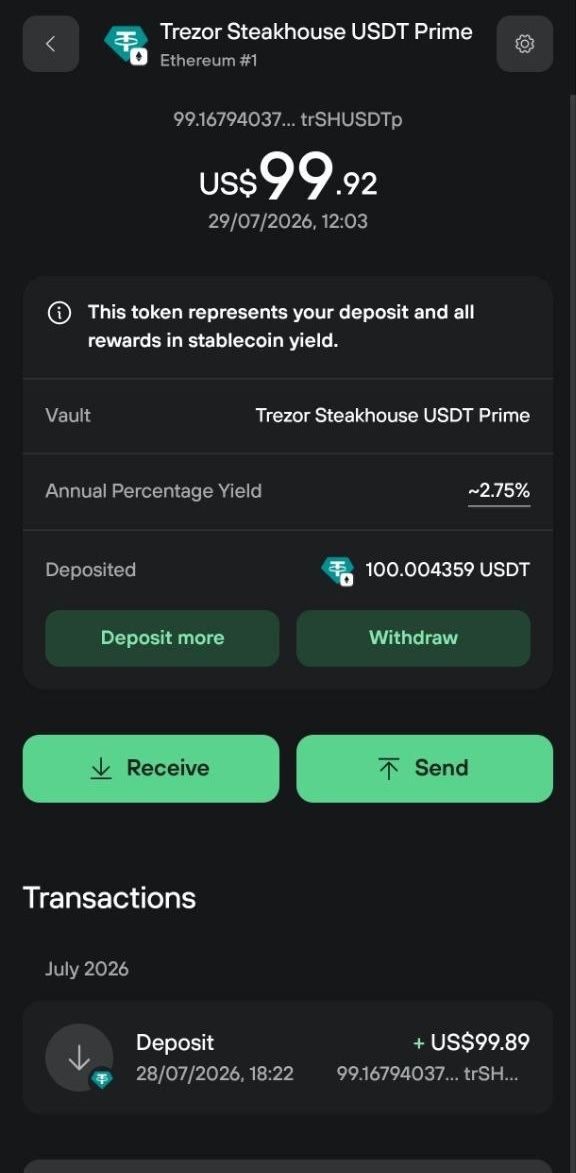
You can see what you've deposited in two places in Trezor Suite:
- In the Earn tab, under DeFi Yield, next to the relevant vault.
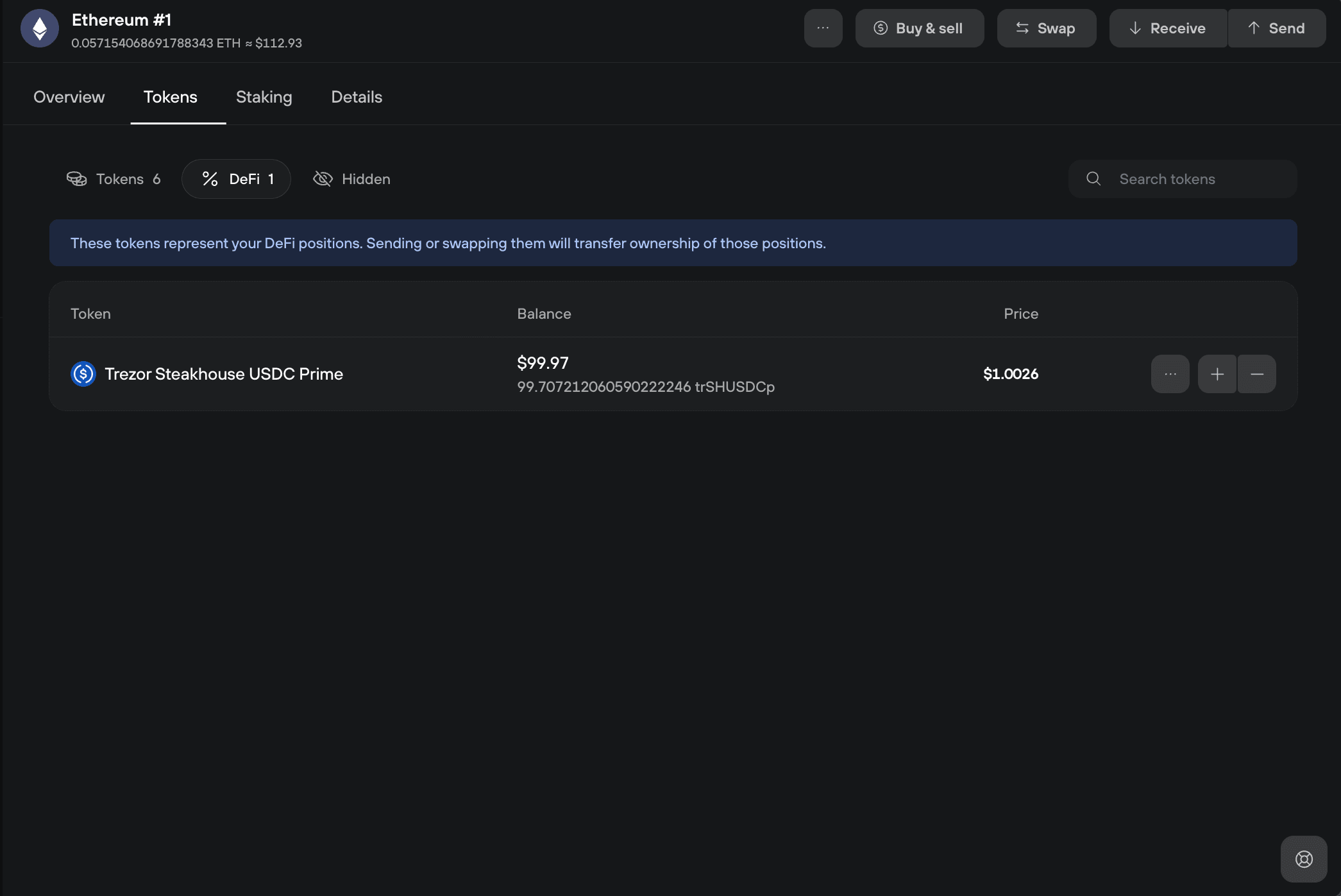
- In your Ethereum account under Tokens, in the DeFi section, where your vault token balance is listed.
How to claim bonus rewards
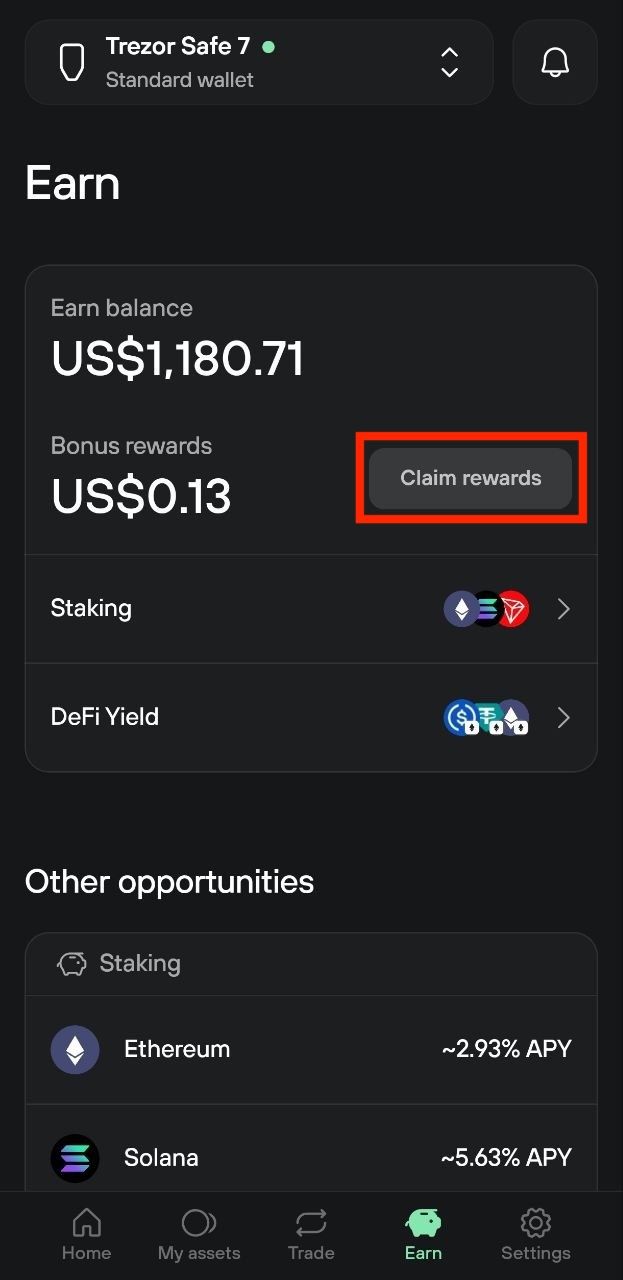
When you have MORPHO to claim, a Claim button appears in the Earn tab. Claiming is a transaction you sign on your Trezor. Anything you've earned stays claimable even after a campaign ends.
See the article How DeFi Yield works with Morpho vaults to learn more about bonus rewards.
See the article How DeFi yield works with Morpho vaults to learn more about bonus rewards.
Which Trezor devices are compatible?
Any device running universal firmware, updated to the latest version. Devices with Bitcoin-only firmware won't see the Earn section.
Trezor Safe 3, Safe 5, Safe 7, and Model T show vault transactions in plain language on the device screen (clear signing). Model One does not support clear signing for these transactions, so you'll see raw transaction data instead.
For how your Trezor decodes transactions, see our article Clear Signing.
What if Trezor Suite is unavailable?
Access to your funds doesn't depend on Trezor Suite. Your position is held as a vault token in your wallet. If Trezor Suite were ever unavailable, you could move the tokens or withdraw through any compatible DeFi wallet.
Get help
Contact Chatbot Hal if a transaction fails or a balance looks wrong.