Send and receive Tron and TRC-20 tokens in Trezor Suite
This guide covers how to receive and send TRX and TRC-20 tokens (such as USDT) in Trezor Suite, and how Tron's bandwidth and energy fees work in practice.
For background on the network itself, see Tron: what it is and how it works with Trezor.
Supported devices and tokens
Tron works on Trezor Safe 7, Trezor Safe 5, Trezor Safe 3, and Trezor Model T. It is not available on Trezor Model One.
Trezor Suite supports all TRC-20 tokens. Each token shows its name, and widely listed tokens like USDT also show their logo. It does not support TRC-10 tokens, an older Tron token type.
Any TRC-10 transaction in your history is labelled as a potential scam. TRC-10 tokens are cheap to create and send to any address, so they are often used for spam. You can ignore these entries.
Tron fees: bandwidth and energy
Tron does not charge a single network fee. Every transaction uses one or both of two resources: bandwidth and energy.
Bandwidth covers simple transactions, like sending TRX. Every account gets a free daily bandwidth allowance of 600 points, which refreshes every 24 hours, so basic TRX transfers are usually free.
Energy covers smart contract transactions. A TRC-20 token transfer, such as sending USDT, is a smart contract transaction, so it uses both bandwidth and energy.
Trezor Suite shows each resource as available out of total. A new account shows energy as 0 / 0, because your energy capacity stays at zero until you get energy. You can still send tokens with no energy: the network covers the cost by burning TRX from your balance instead. Bandwidth is cheap to cover this way, but energy is not.
The energy a transfer needs depends on the recipient. Sending USDT uses about 64,000 energy if the recipient already holds USDT, or around 130,000 if their balance is currently zero. With no energy, covering that costs roughly 6 to 13 TRX at the current price.
The energy cost of a token transfer can be high and changes with network conditions. Always check the fee before you sign.
How to get energy
Native staking for energy is coming soon to Trezor Suite. It will let you stake (freeze) TRX to earn energy, instead of burning TRX on token transfers.
Activation fee for new addresses
The first transfer to a brand-new Tron address activates the account on-chain, which costs a one-time 1 TRX account-creation fee. Suite shows this on the Send screen.
Tron in Trezor Suite
Tron on desktop
Add a Tron account
You can add an account in two ways:
- From the dashboard: click the plus sign next to Accounts, find Tron in the list, and click Add.
- From settings: go to Settings → Coins and enable Tron.
View bandwidth and energy
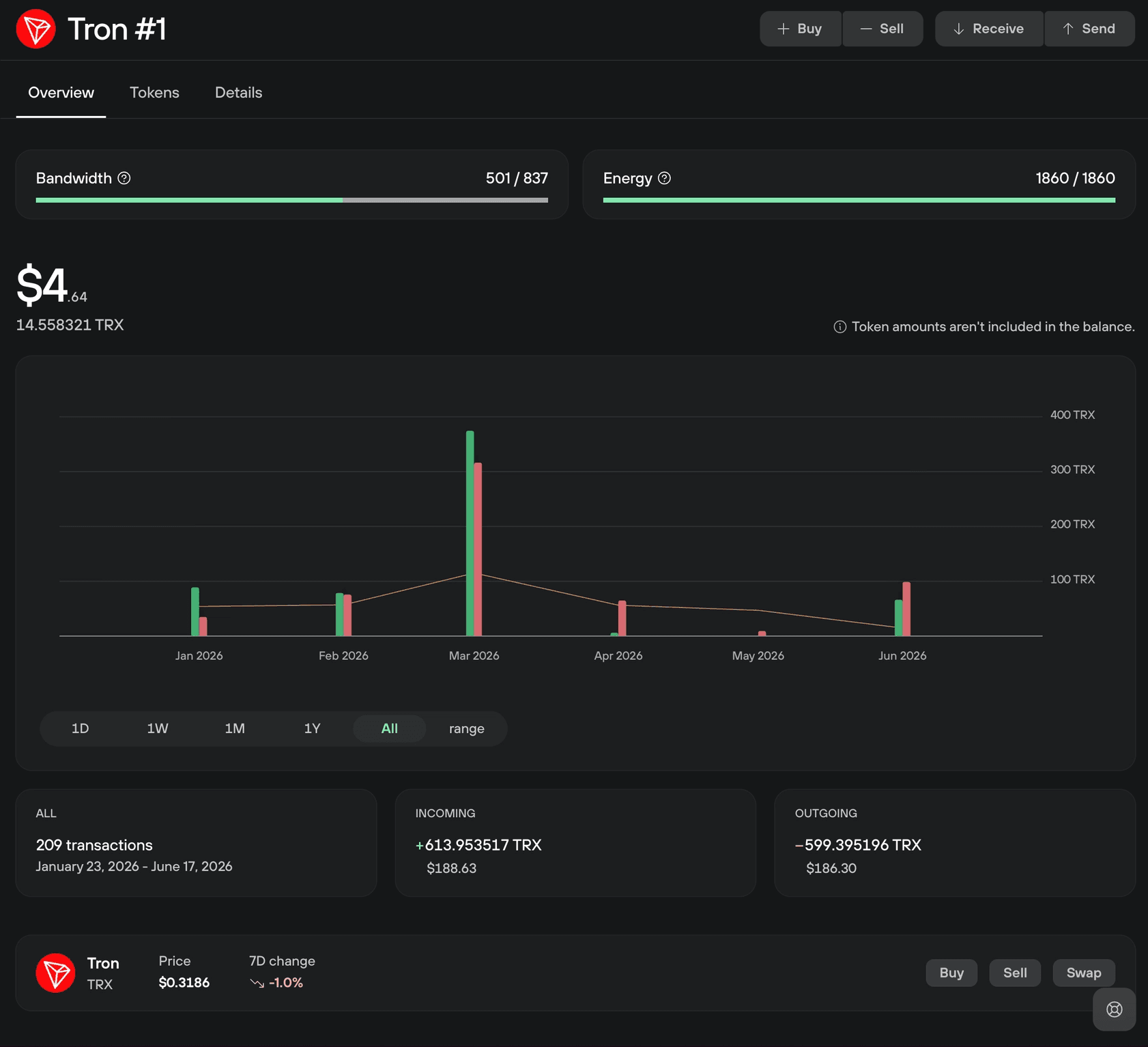
Your Tron account shows your current bandwidth and energy at the top of the Overview tab.
Receive TRX and tokens
From your Tron account, click Receive in the top right corner. The same address works for TRX and every TRC-20 token.
Click Show full address to reveal the full address, QR code, and copy button.
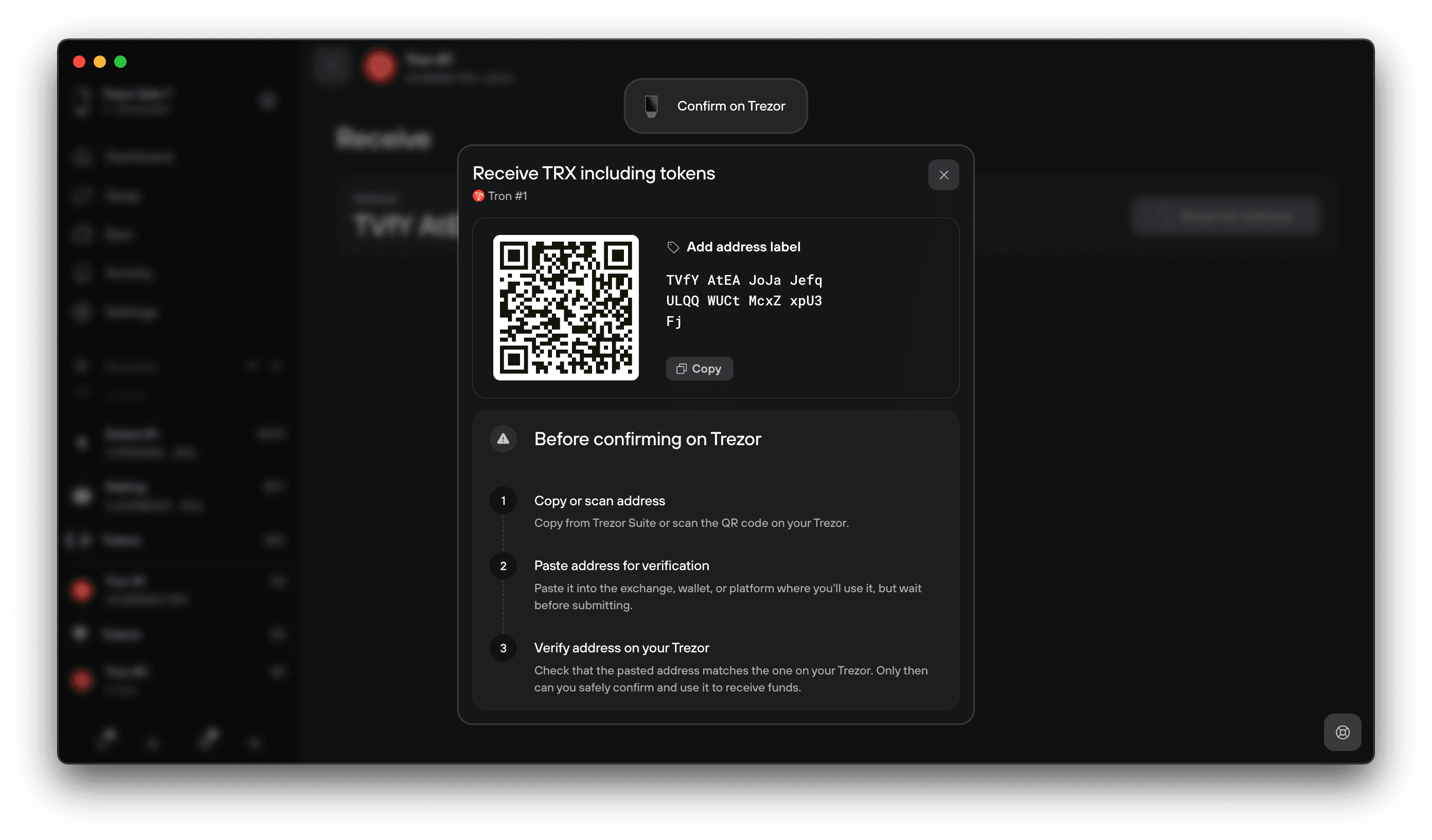
Copy the address and paste it into the exchange, wallet, or platform you are sending from, or scan the QR code. Before using it, check that it matches the address shown on your Trezor screen.
Send TRX
From your Tron account, click Send in the top right corner. Enter the recipient's address and the amount.
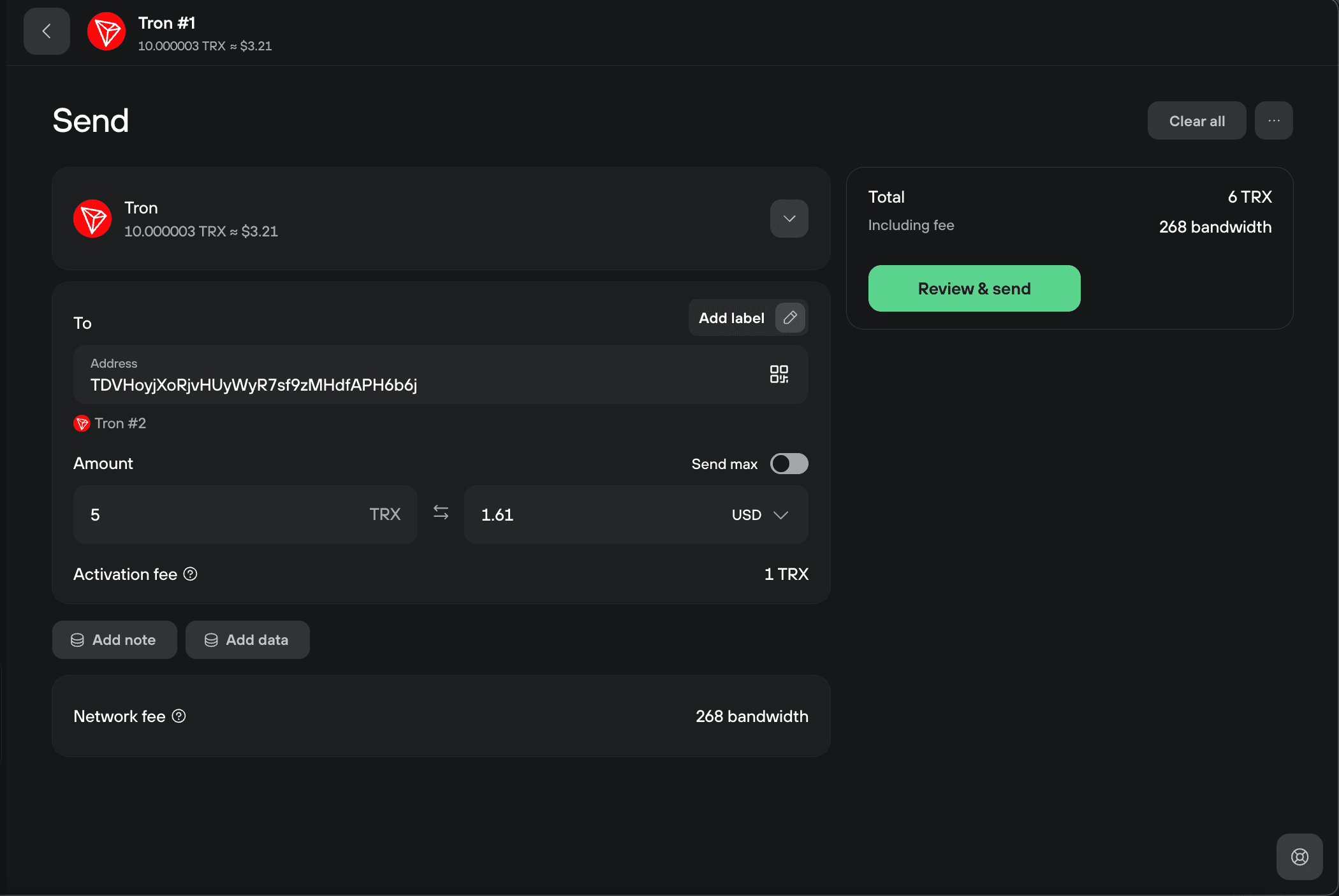
The network fee is shown in bandwidth. If you have enough bandwidth, the transfer costs you nothing.
Click Review & send, then check the recipient address and amount on your Trezor screen.
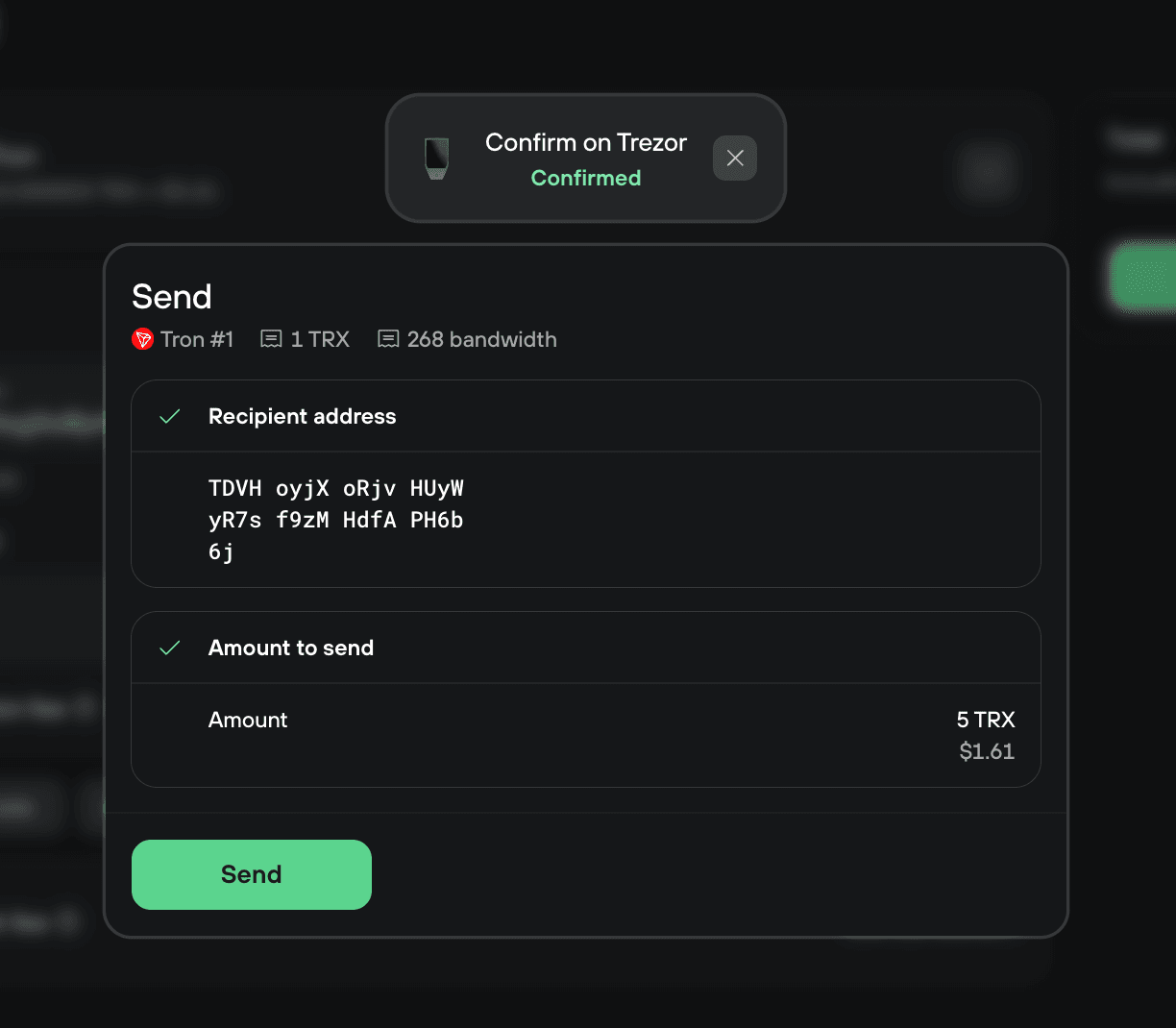
Confirm on your device and click Send to broadcast the transaction.
Send TRC-20 tokens
Open the Tokens tab in your Tron account, find the token, and click the send icon (the up arrow) in its row. You can also click Send at the top and switch the asset from TRX to your token.
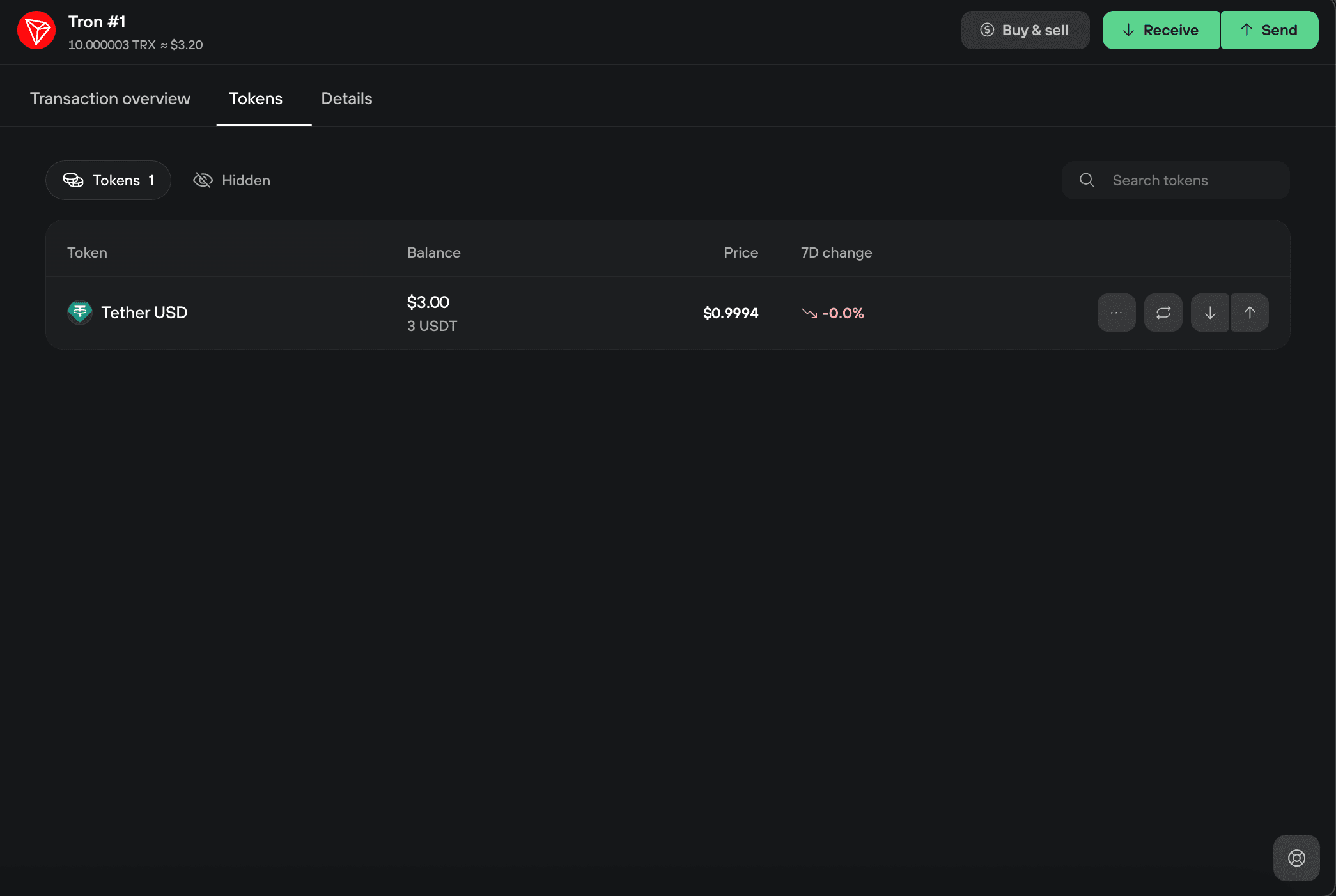
Enter the recipient's address and amount, then click Review & send and confirm on your device.
Add a note
The Add note option attaches a short text memo to your transaction.
A note is stored on the blockchain. Anyone can read it, and it cannot be removed. Adding a note costs an extra 1 TRX. Never put private information in a note, and treat any link inside a note you receive as suspicious.
Add data
The Add data option attaches custom contract data (calldata) to a transaction, for manually triggering a smart contract.
Buy, sell, and swap Tron
You can buy, sell, and swap TRX and tokens in Trezor Suite. See Buy crypto in Trezor Suite and Swap crypto in Trezor Suite.
Staking (freezing) Tron
You can stake (freeze) TRX in Trezor Suite to earn bandwidth or energy and vote for Super Representatives. See our guide Staking Tron (TRX) in Trezor Suite.