All articles
Downgrade firmware Model One
Before you start, please note that we do not recommend downgrading your firmware, unless there is a strong reason for it.
Installing custom firmware on your Trezor device could erase its memory and may make it unusable. Never use this process unless you really know what you are doing!
Table of Contents
Process
- With your device connected, navigate to the Device settings in Suite by clicking the "Settings" sign in the top-left corner and selecting the "Device" tab
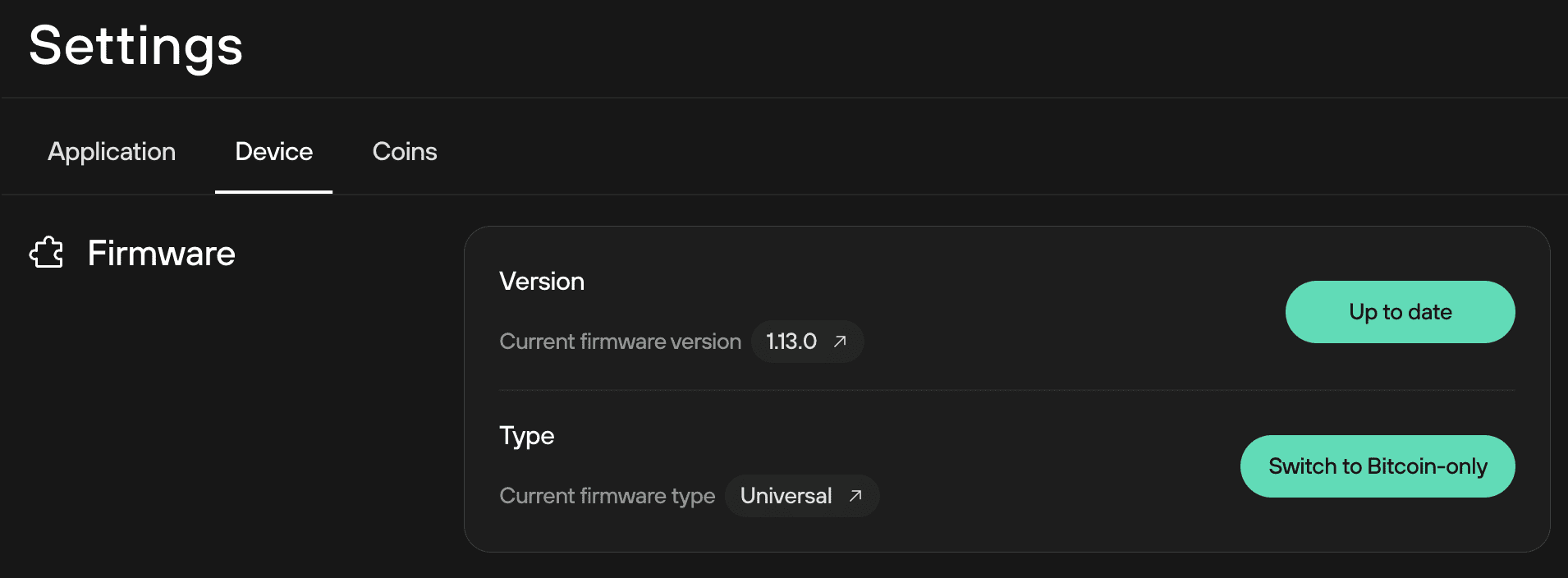
- To check which firmware version you currently have installed, scroll down to the ‘Firmware’ section, which displays the information about the firmware version:
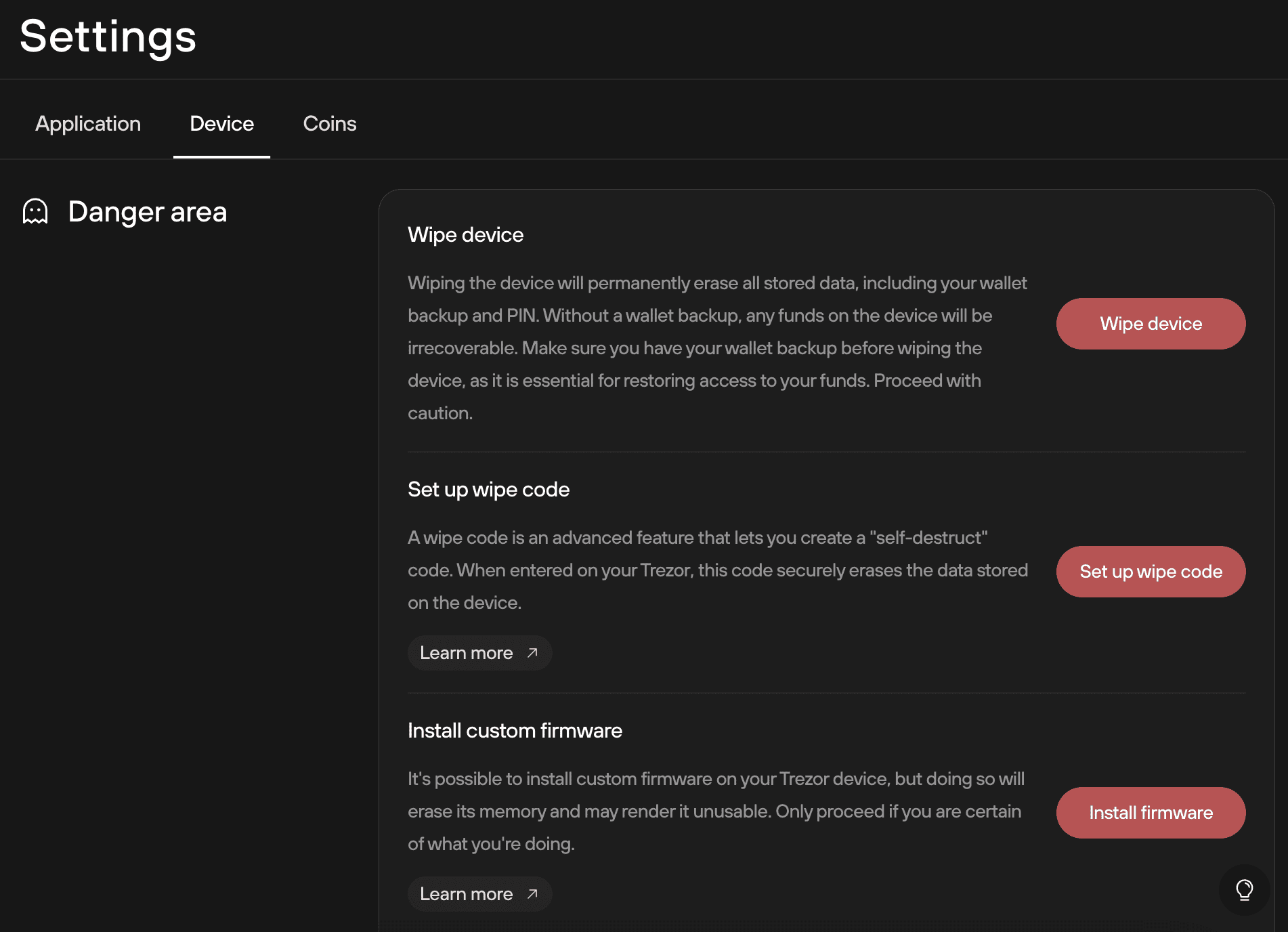
- To proceed with installing custom firmware, scroll to the bottom of the page where you will find the "Danger Area":
- Select the third option "Install firmware", which will bring up the "Install custom firmware" window:
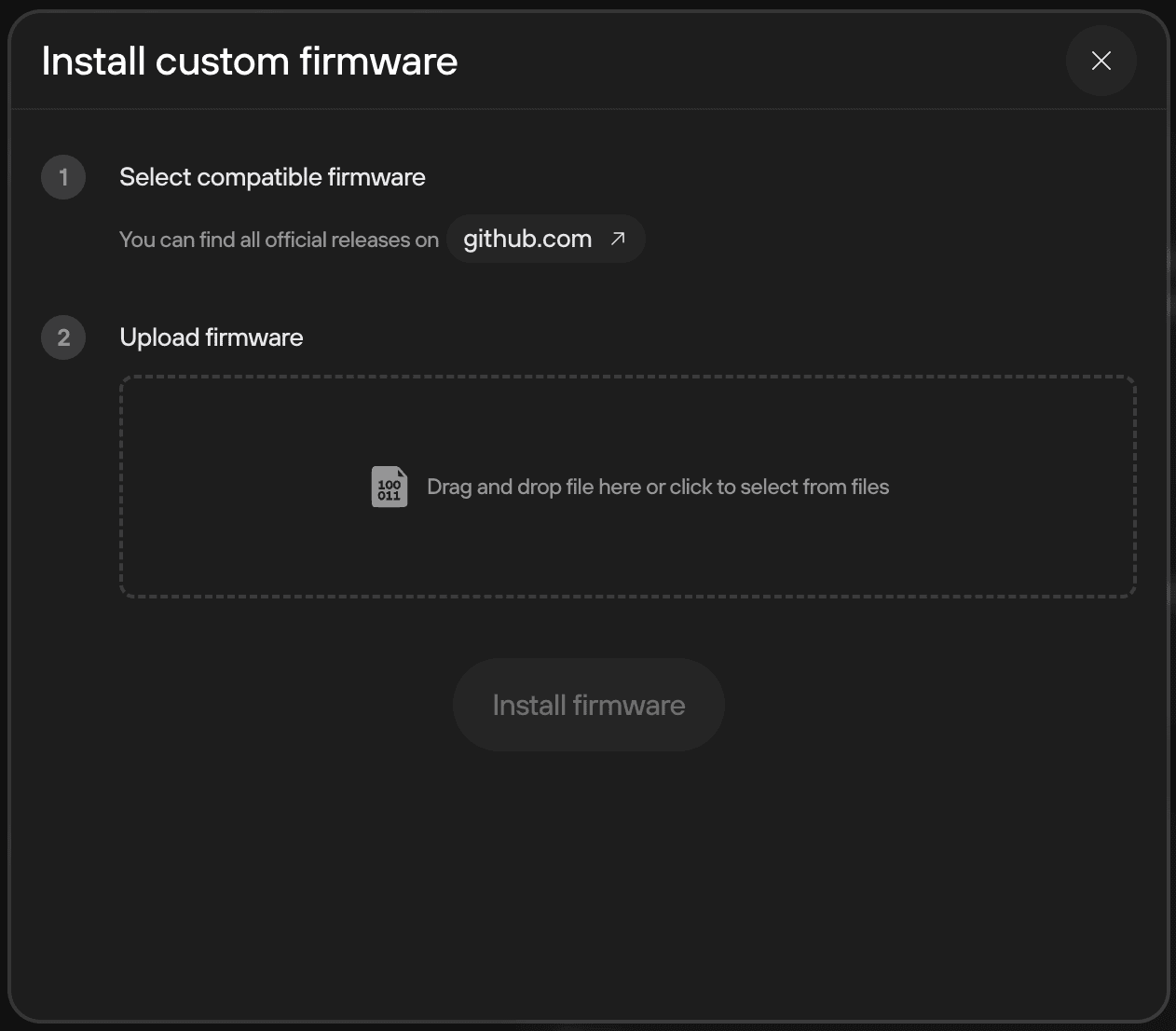
- For step 1, click the link "Download on github.com", which will take you to the Trezor firmware repository on Github:
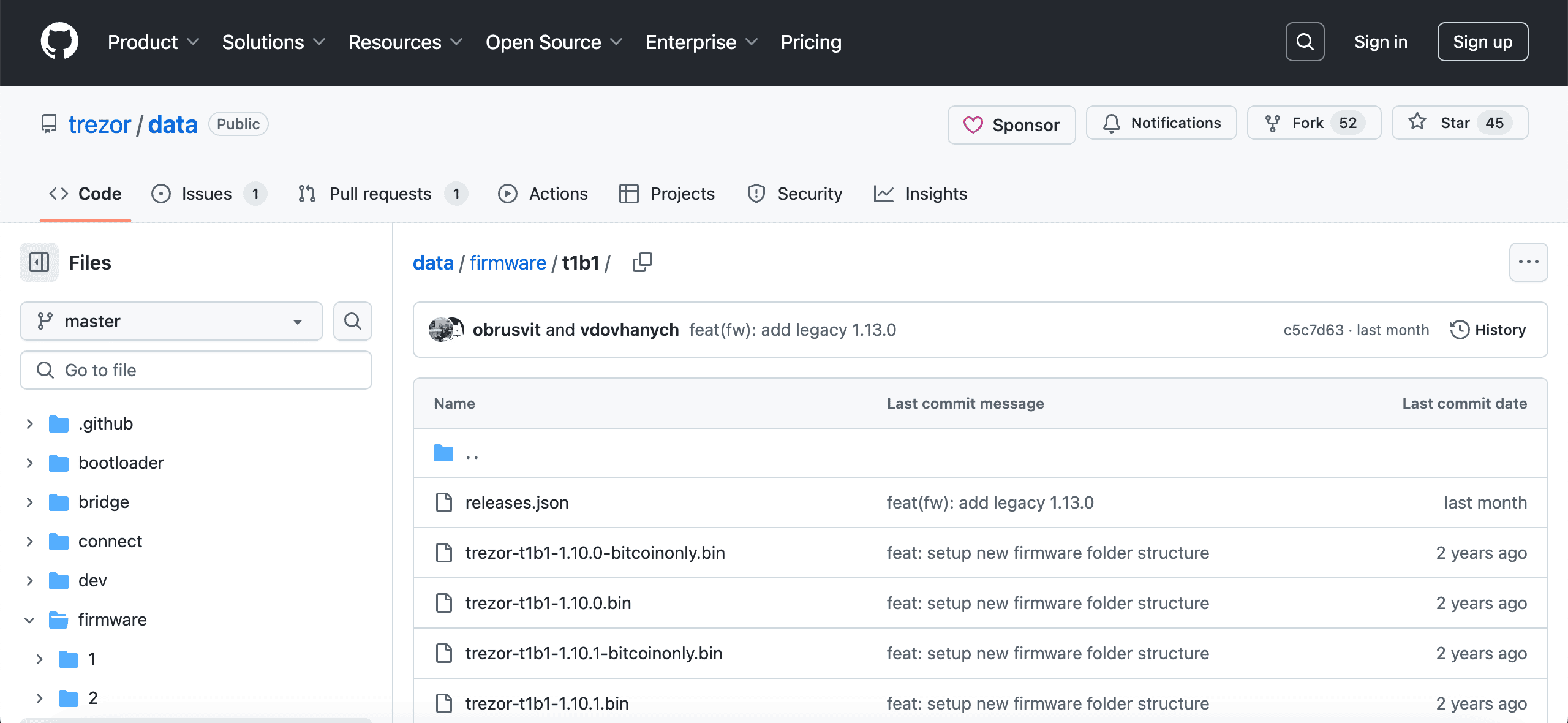
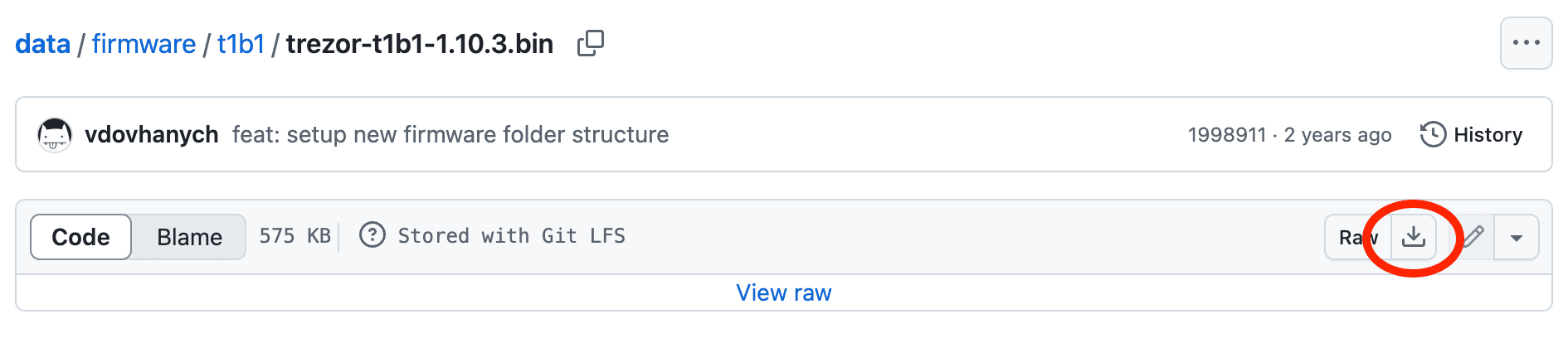
- Select the firmware version you wish to install, and download the appropriate .bin file to your computer
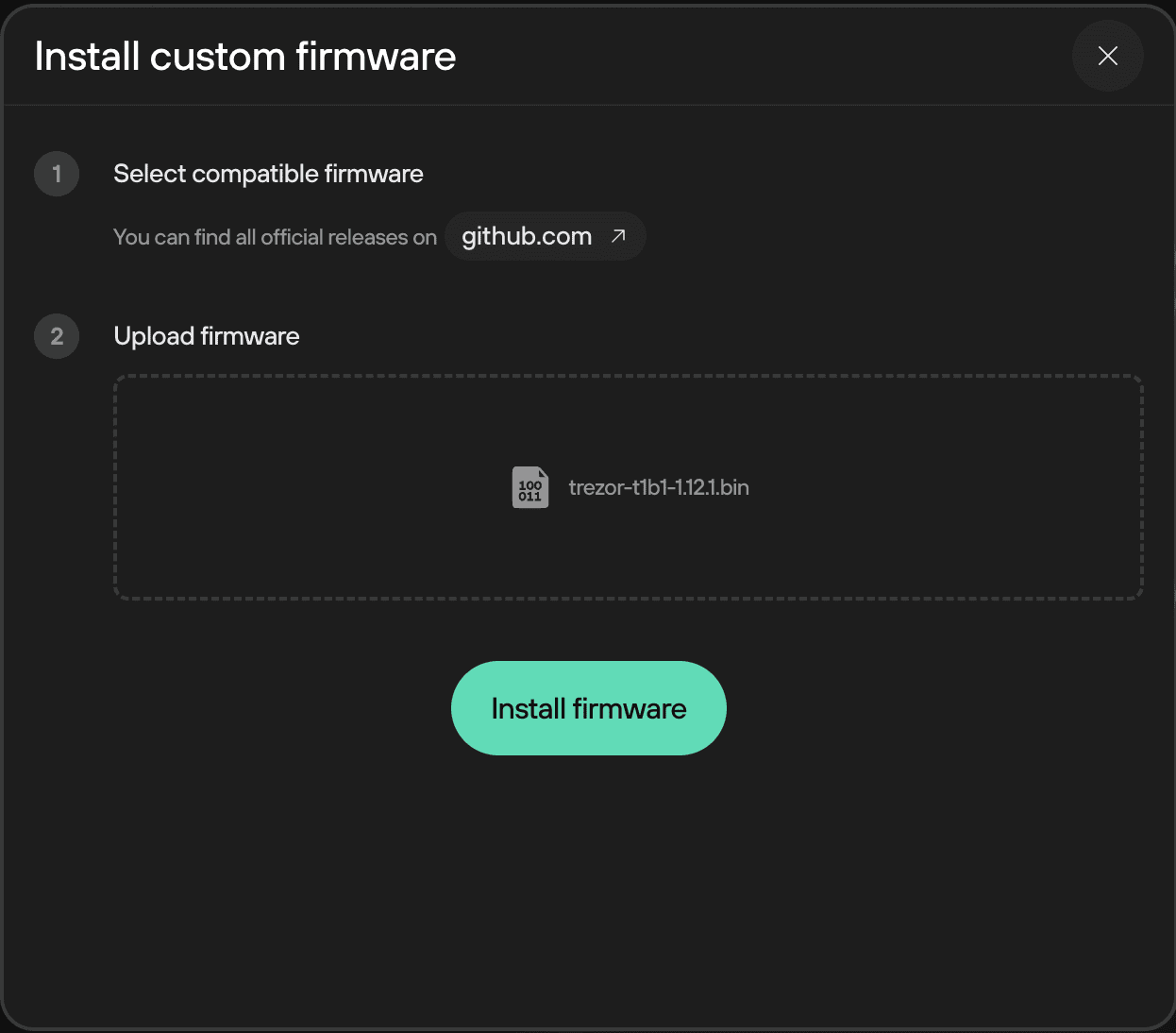
- In step 2—"Upload firmware"—you can either ‘drag and drop’ the downloaded file into the dashed box, or click the box and select the file manually:
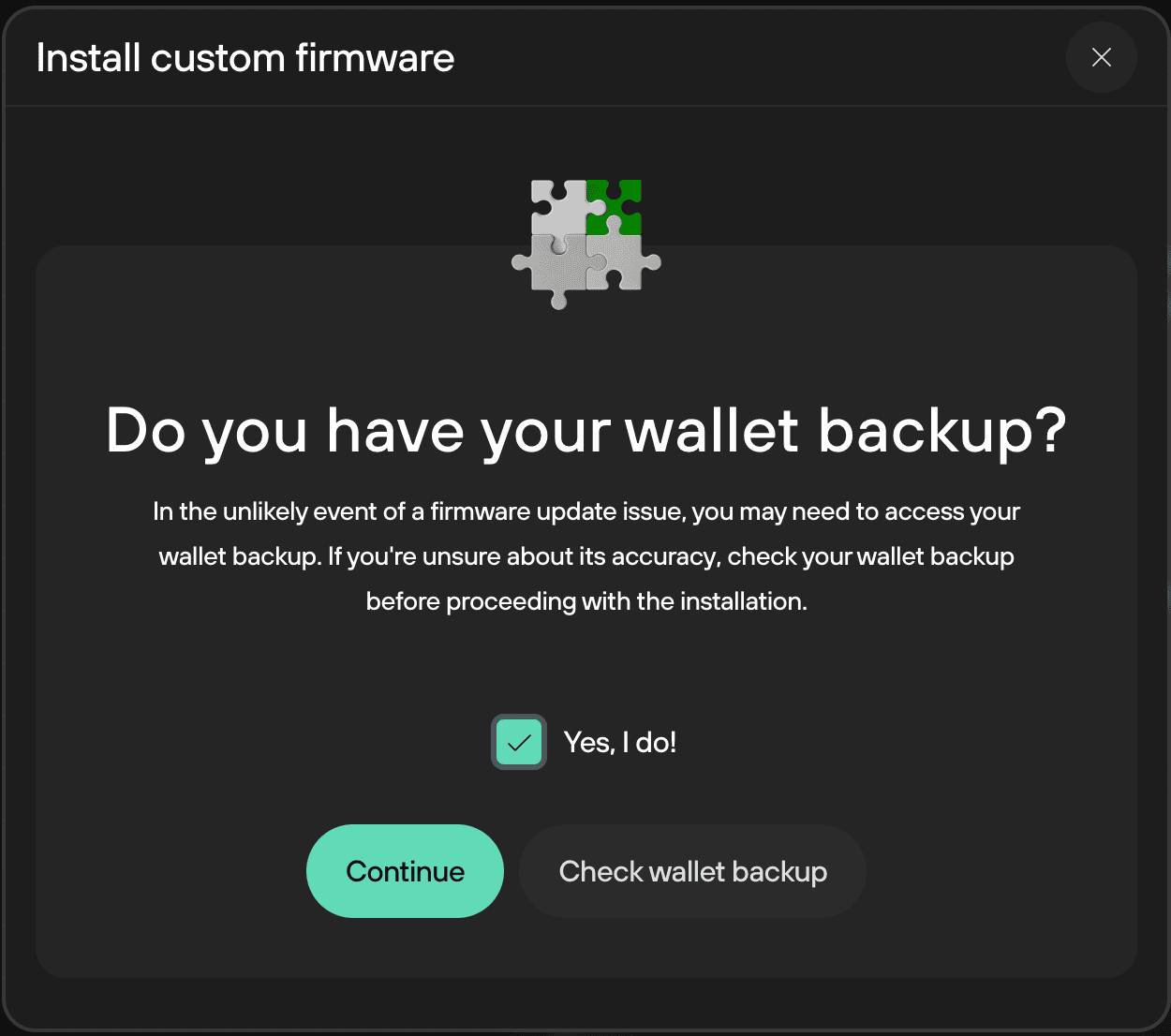
- When you’ve done this, click the Install firmware button. You will then face a security checkpoint asking whether you have your Recovery Seed handy. Make sure that you do have your Recovery Seed with you, check the "Yes, I do!" box, and then click Continue
- You’ll then be prompted to reboot your Trezor in bootloader mode by clicking the Confirm button on the device:
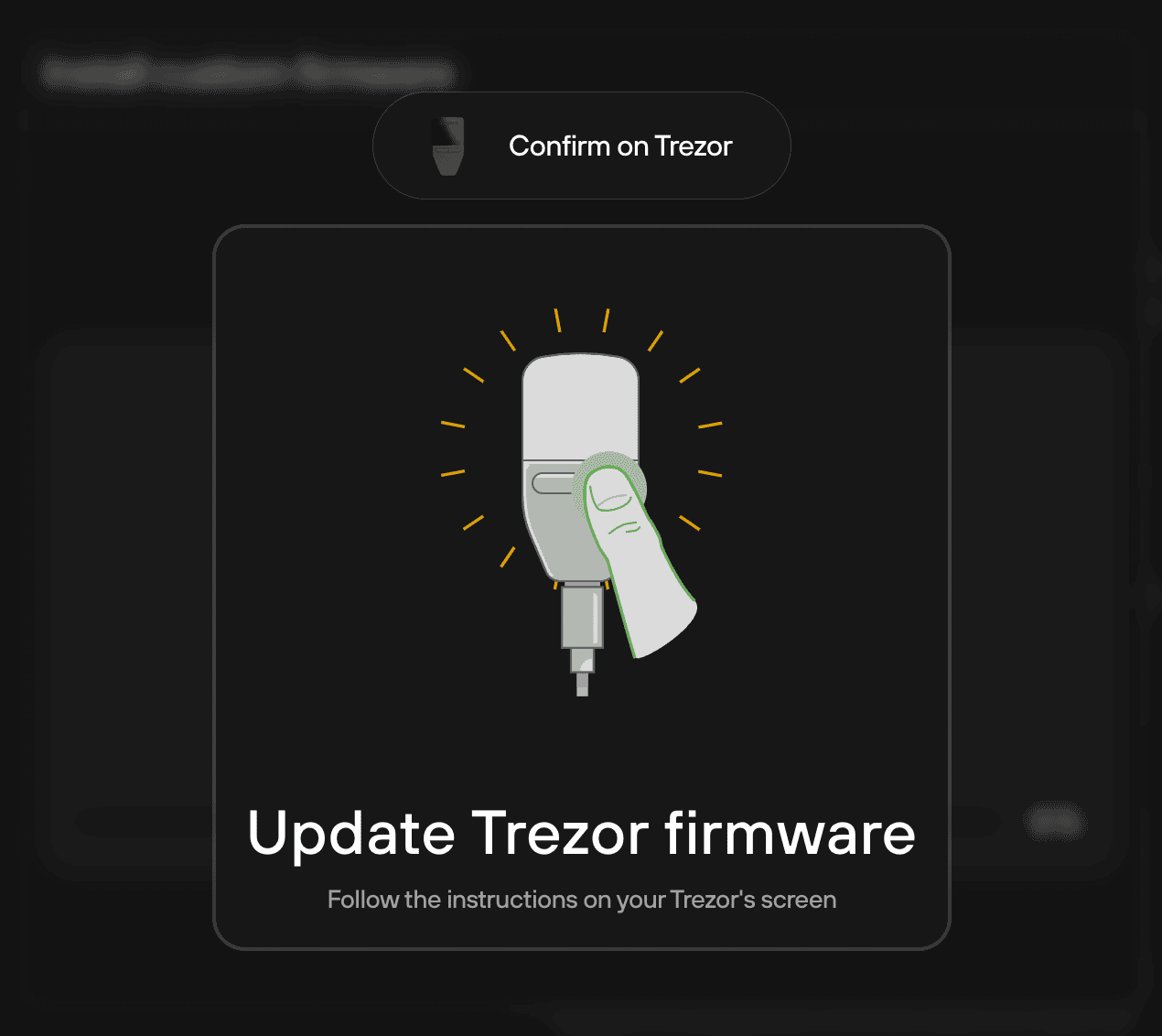
- You’ll then be prompted once more to confirm this action on the device.
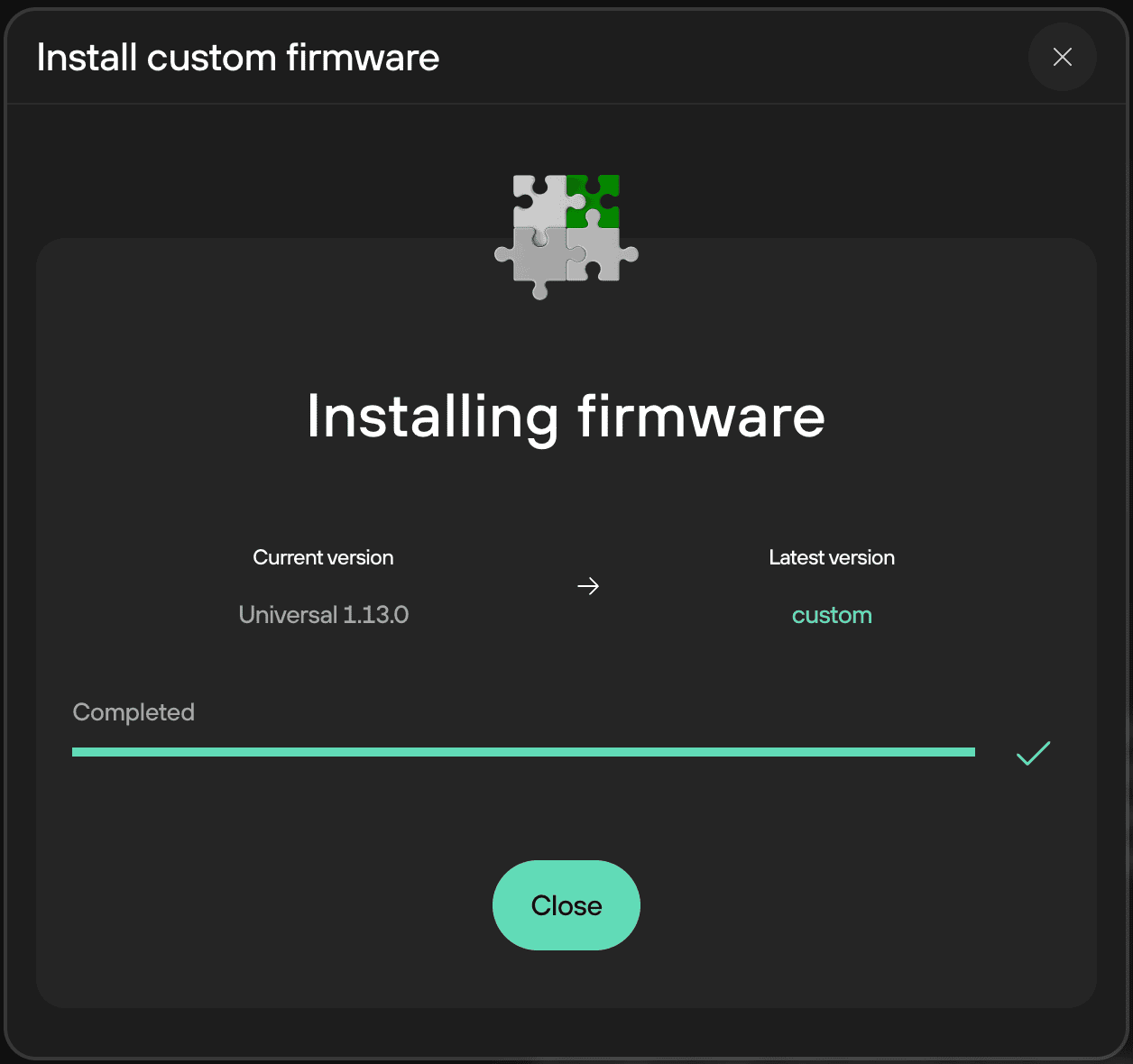
- Once the process is complete, you’ll receive a confirmation dialogue, and can simply click Close to end the downgrade process:
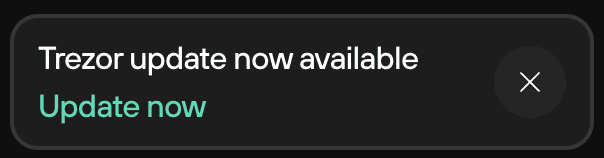
- As you’ve downgraded your firmware, Trezor Suite will display an update banner at the bottom left of the app. If you want to update your device, simply click on ”Update now” and follow the instructions:
When upgrading the device firmware, you do not have to download any files from the Trezor firmware Github repository, and the process is automated as much as possible.
Trezor Model One downgrade options
| Installed FW version | Possible to downgrade |
|---|---|
| 1.6.0 or older | Yes, to any version |
| 1.6.1 | No |
| 1.6.2 | No |
| 1.6.3 | No |
| 1.7.0 | No |
| 1.7.1 | Yes, to 1.7.0 |
| 1.7.2 | Yes, to 1.7.1 and 1.7.0 |
| 1.7.3 | No |
| 1.8.0 | No |
| 1.8.1 | Yes, to 1.8.0 |
| 1.8.2 | Yes, to 1.8.1 and 1.8.0 |
| 1.8.3 | Yes, to 1.8.2, 1.8.1 and 1.8.0 |
| 1.9.0 | Downgrading to 1.8.3, 1.8.2, 1.8.1 and 1.8.0 is possible, but it always erases the wallet. |
| 1.9.1 | Yes, to 1.9.0 without erasing the wallet. 1.8.3 and older always erases the wallet. |
| 1.9.2 | Yes, to 1.9.1 and 1.9.0 without erasing the wallet. 1.8.3 and older always erases the wallet. |
| 1.9.3 | Yes, to 1.9.2, 1.9.1, and 1.9.0 without erasing the wallet. 1.8.3 and older always erases the wallet. |
| 1.9.4 | Yes, to 1.9.3, 1.9.2, 1.9.1 and 1.9.0 without erasing the wallet. 1.8.3 and older always erases the wallet. |
| 1.10.0 | No |
| 1.10.1 | Yes, only to 1.10.0. Wallet won't get erased. |
| 1.10.2 | Yes, to 1.10.1 and 1.10.0. Wallet won't get erased. |
| 1.10.3 | Yes, to 1.10.2, 1.10.1 and 1.10.0. Wallet won't get erased. |
| 1.10.4 | Yes, to 1.10.3, 1.10.2, 1.10.1 and 1.10.0. Wallet won't get erased. |
| 1.10.5 | Yes, to 1.10.4, 1.10.3, 1.10.2 and 1.10.1. Wallet won't get erased. |
| 1.11.1 | No |
| 1.11.2 | Yes, to 1.11.1 |
| 1.12.1 | No |