Sell crypto in Trezor Suite
Use Trezor Suite to sell crypto and receive fiat directly to your bank, card, or another payment account. This guide walks through the steps on desktop and mobile.
Desktop
1. Open the Sell tab
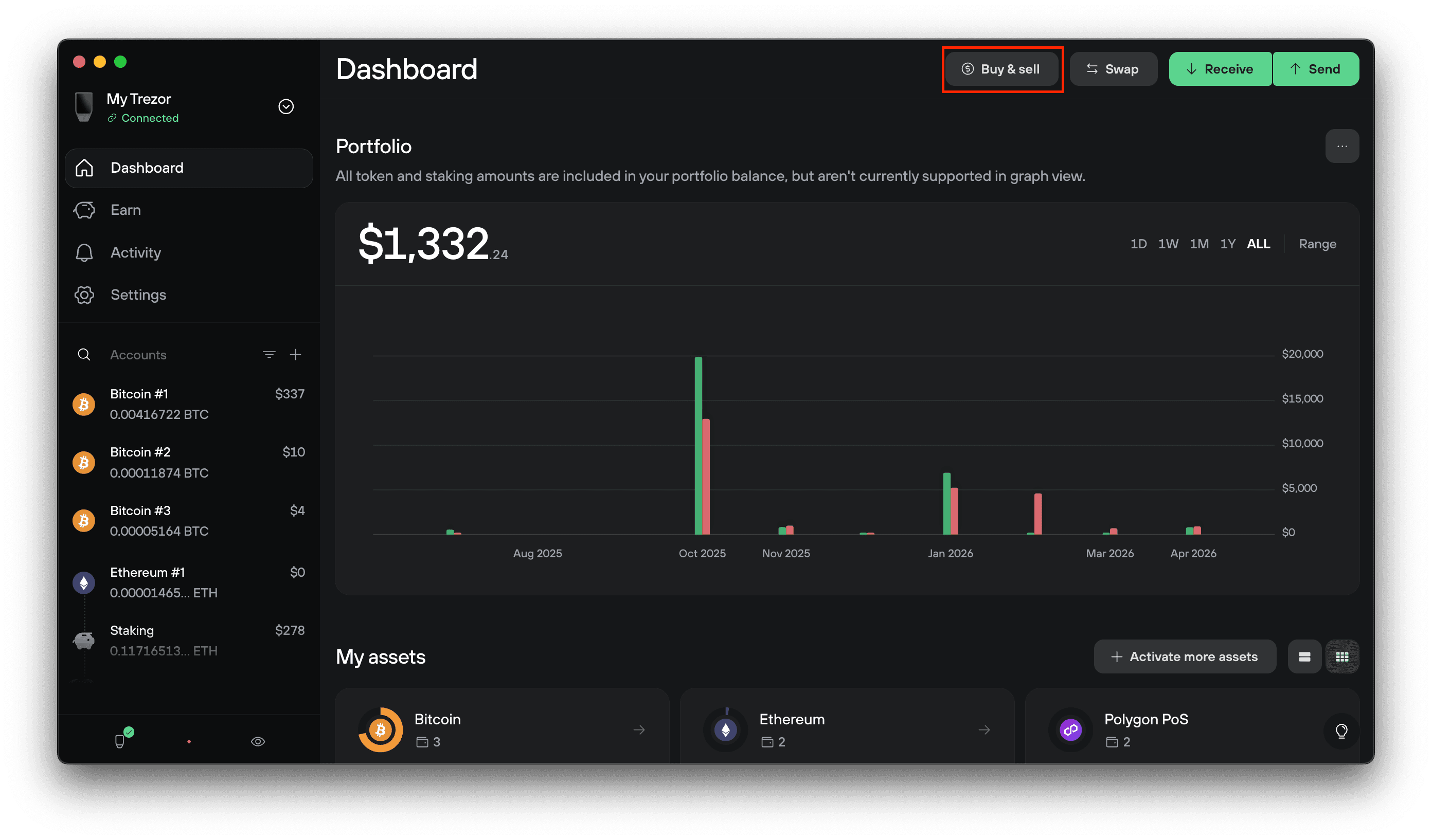
Connect and unlock your Trezor, open Trezor Suite, and select the account holding the crypto you want to sell. Click Buy & Sell in the top menu, then select the Sell tab.
2. Set up your sale
Fill in the form:
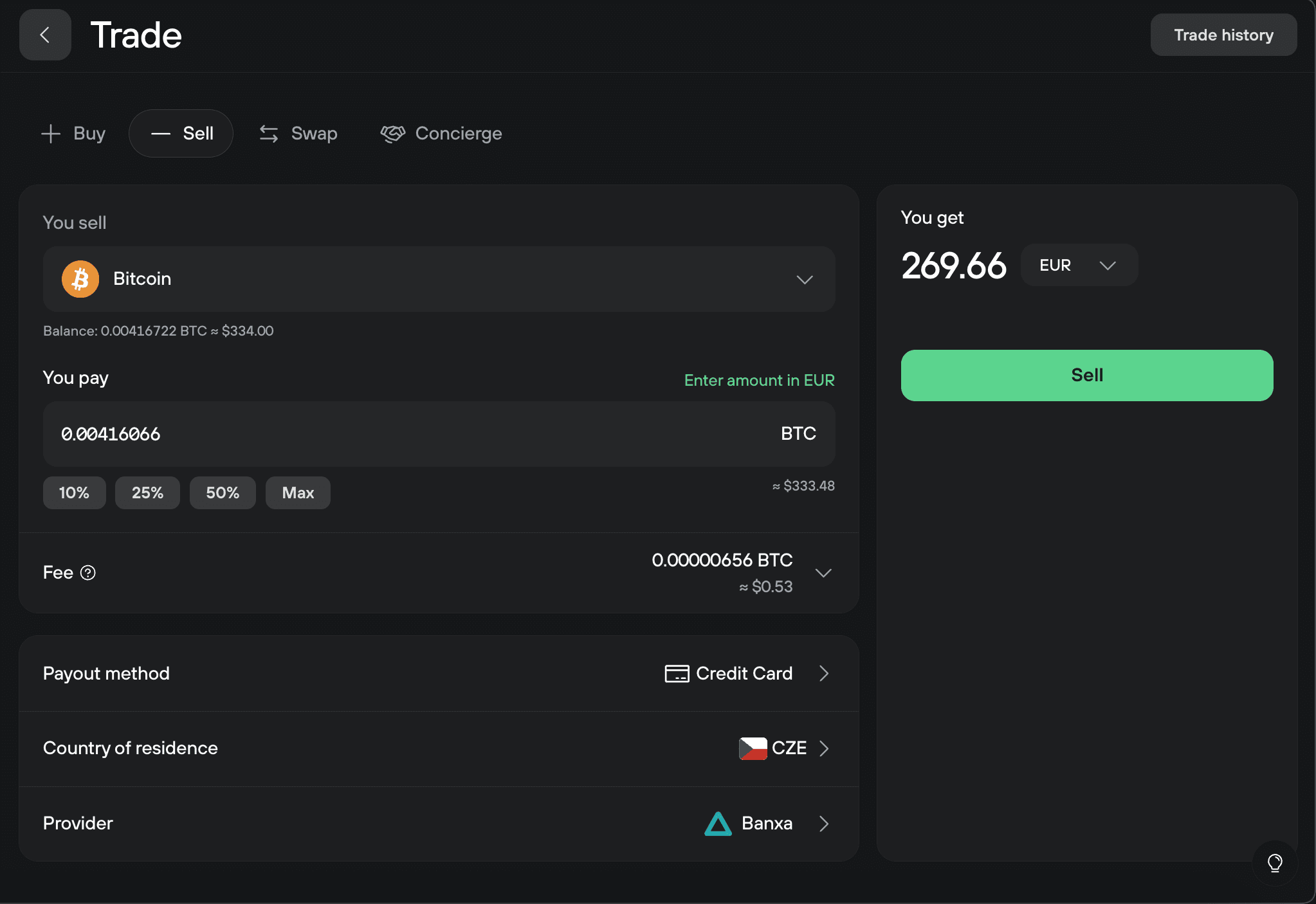
- You sell: the cryptocurrency you want to sell. The form shows your account balance below the field.
- You pay: the amount of crypto to sell. Use the 10% / 25% / 50% / Max shortcuts to set the amount, or type a value. To enter a fiat amount instead, click Enter amount in USD (or your local currency).
- Fee: the network fee for the sell transaction. Normal or High is recommended for Bitcoin. A Low fee can delay the transaction and cost you the offered exchange rate.
- Payout method: how you want to be paid (card, bank transfer, etc.).
- Country of residence: so Suite can show offers available to you.
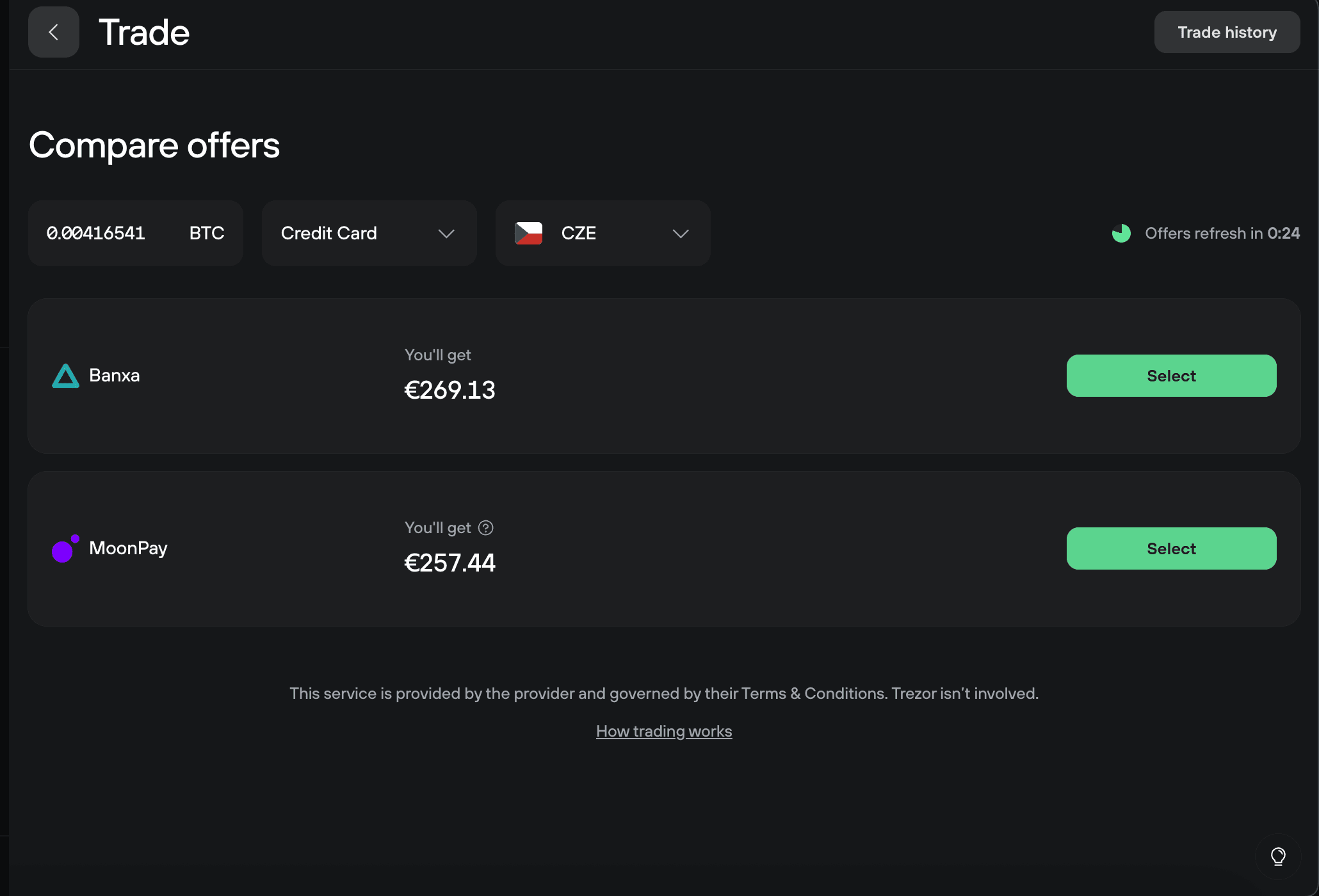
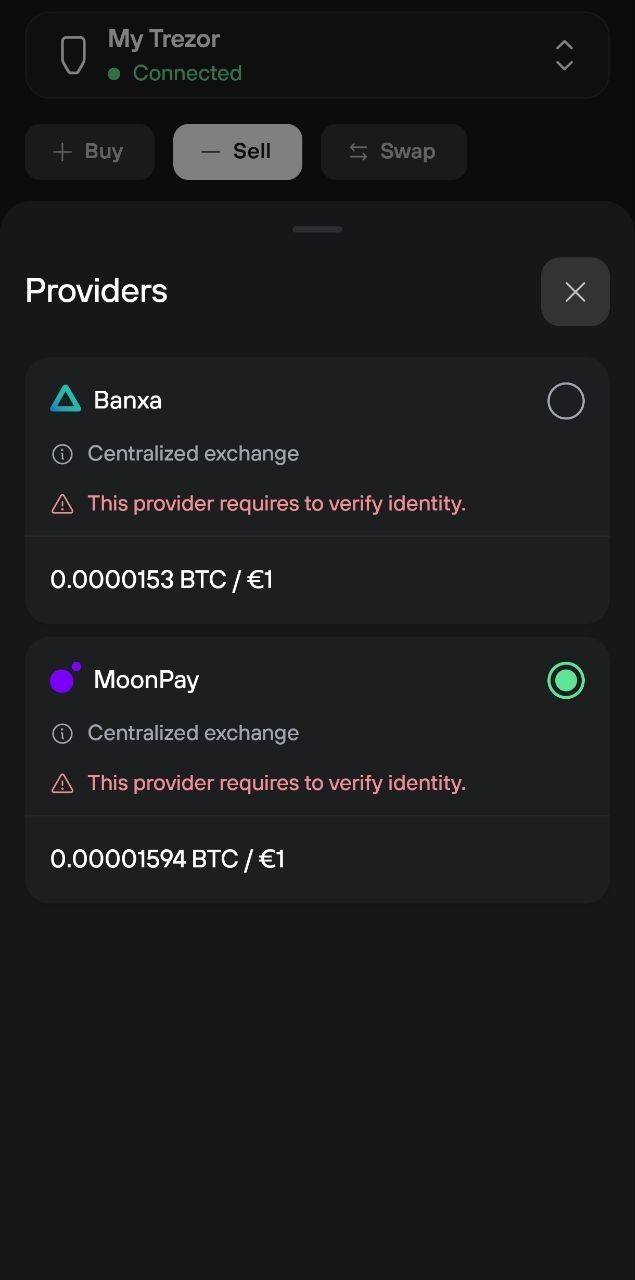
- Provider: the matched provider. Click to compare alternatives.
3. Complete the sale with the provider
Click Sell. You'll be redirected to the provider's website to finish the transaction. From there, the provider walks you through identity verification (where required), payout details, and the deposit instructions for your crypto.
Confirm the address and amount shown on your Trezor's display match what you expect before approving.
First-time sales with a provider usually take longer because of KYC. Some providers only generate a deposit address once your identity is verified.
4. Wait for payout
Once the provider receives your crypto and processes the trade, your fiat is paid out to the account you specified during checkout. Timing depends on the payout method and provider. Bank transfers can take a few business days; card payouts are usually faster.
View your sell history
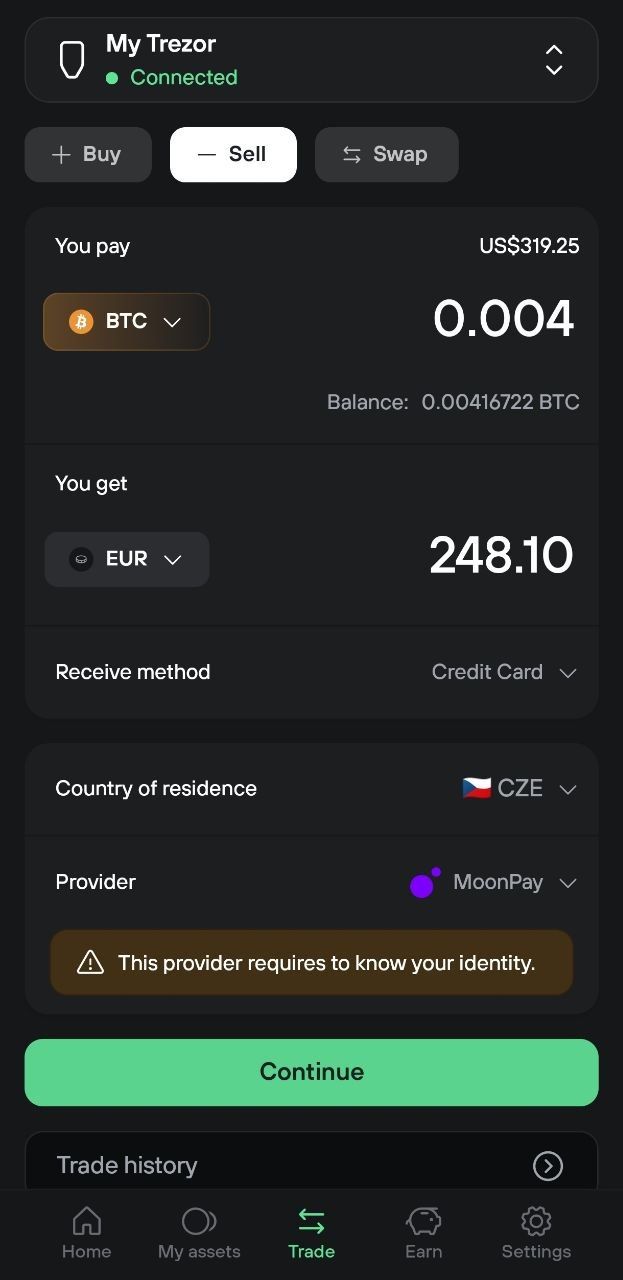
Here is where you can find information about your past sales:
- Desktop: open the Sell tab in Trezor Suite, then click Trade history in the top right corner.
- Mobile: open the Trade tab, then tap Trade history at the bottom.
About KYC
KYC ("know your customer") is a legal requirement for financial services. Most Sell providers require it before they'll process a payout, typically a phone number, ID, and sometimes a selfie. Once verified with a provider, you usually don't need to repeat the process for future trades with that same provider.
Trezor doesn't collect or store the data you provide to a Sell provider. KYC and payout details flow directly between you and the provider.