Importante: los artículos de nuestro blog solo están disponibles en inglés de momento.
Trezor Suite Settings
Trezor Suite lets you customize how the app works and how your Trezor device behaves. This guide covers all settings available in both desktop and mobile versions.
Select your platform below:
Desktop Settings
How to access settings
Click Settings in the left sidebar of Trezor Suite.
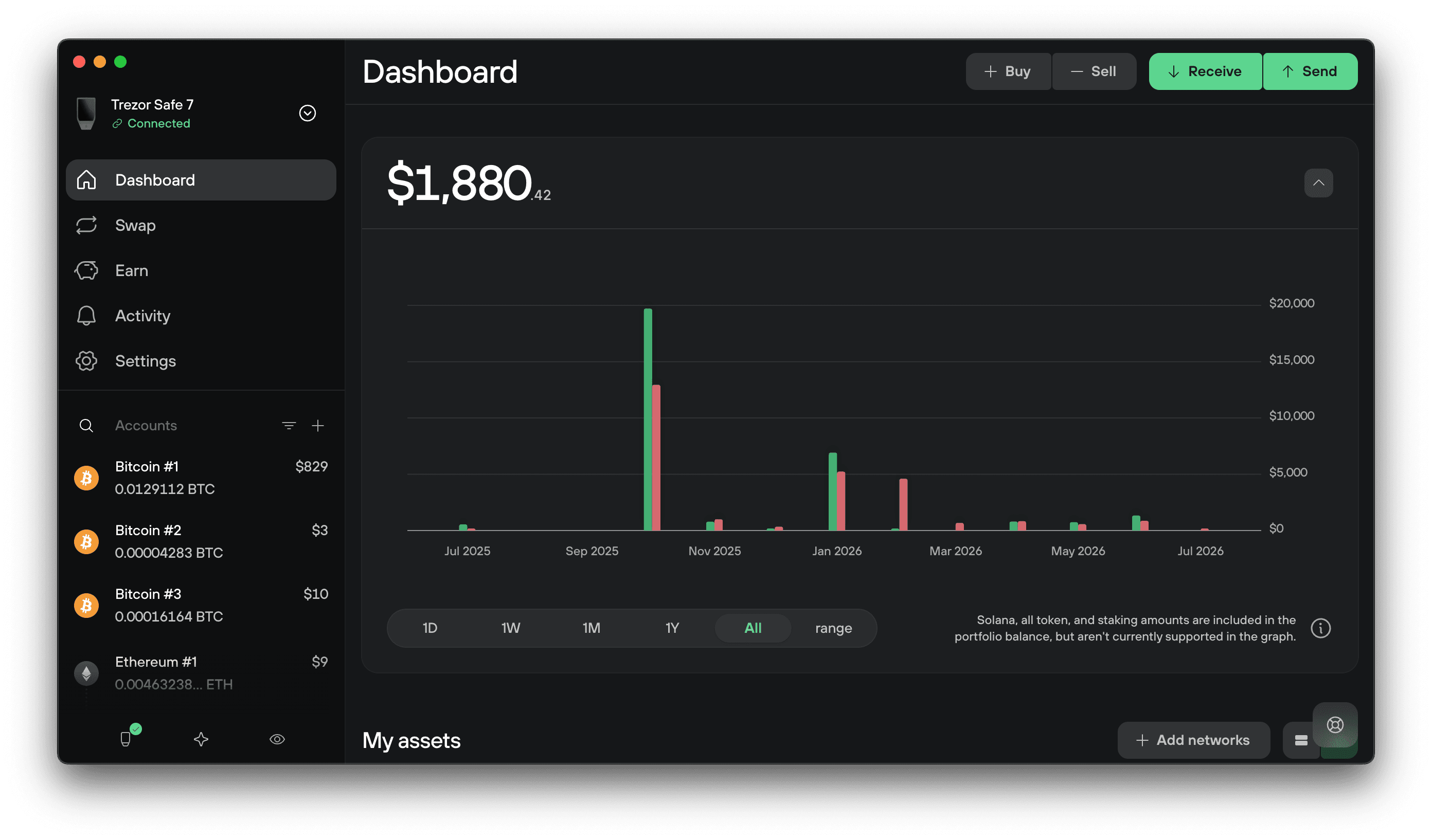
You'll see four tabs at the top: Application, Device, Networks, and Connected apps.
Application settings
These settings control how Trezor Suite looks and behaves on your computer.
Localization
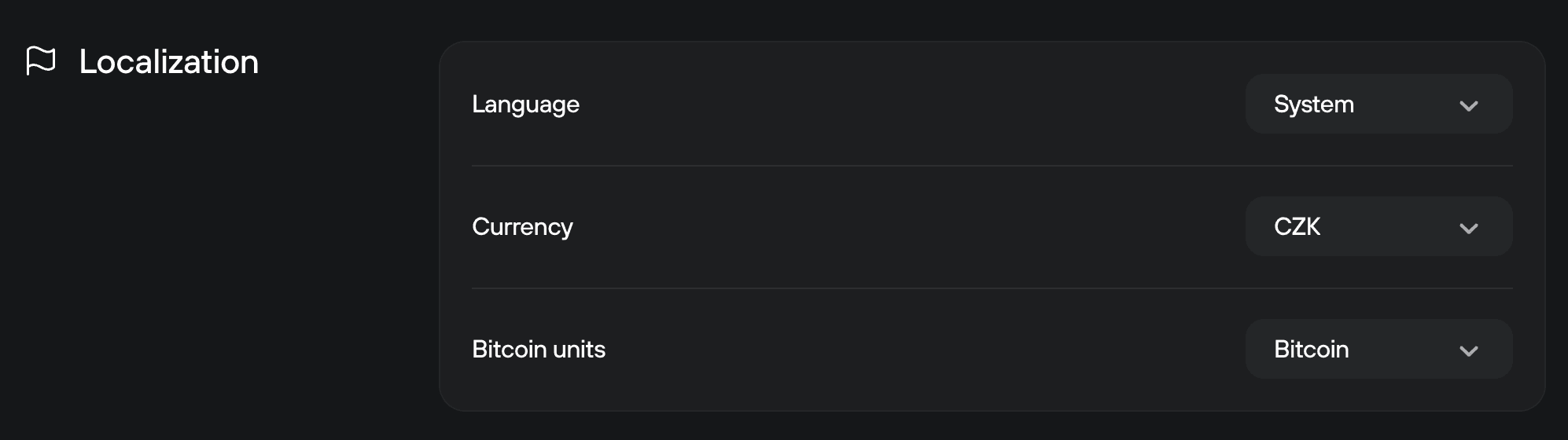
Language
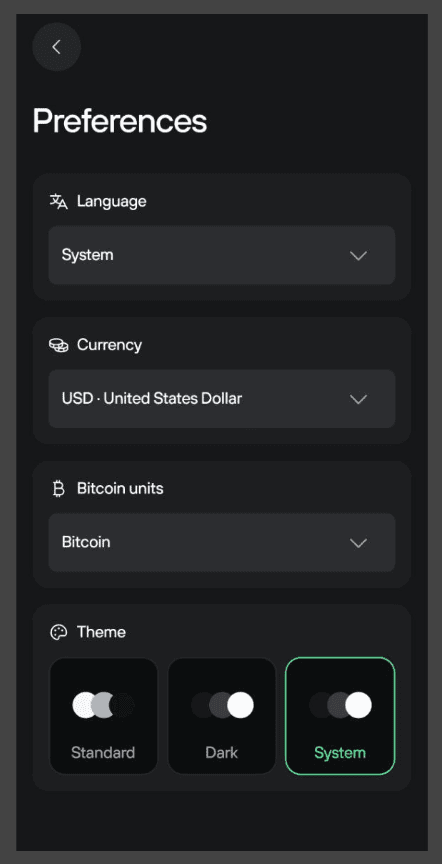
Choose your preferred language for Trezor Suite. The default is English or your system language if available.
Supported languages include English, Spanish, Czech, German, French, Italian, Brazilian Portuguese, Turkish, and several community translations.
Fiat currency
Choose which currency Trezor Suite uses to display your crypto balances in fiat terms.
Bitcoin units
Display your Bitcoin balance in BTC or satoshis. You can also toggle between the two by clicking any Bitcoin balance in Trezor Suite.
Labeling

Turn labeling on to rename your wallets, accounts, and addresses.
Labels sync via Dropbox or Google Drive, or you can store them locally on your computer. This makes it easier to organize and identify your accounts.
To learn more, please visit Labels in Trezor Suite.
Privacy
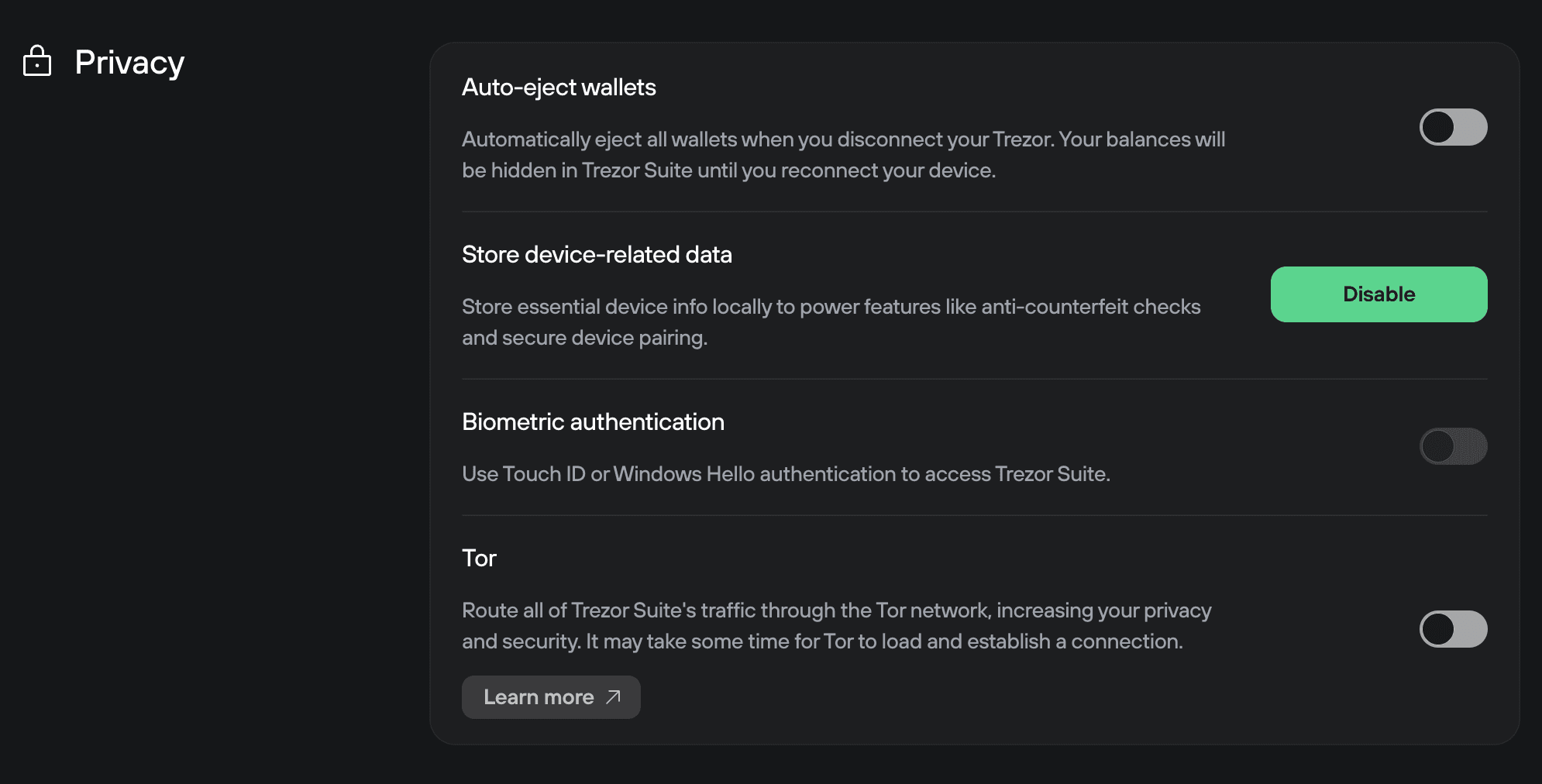
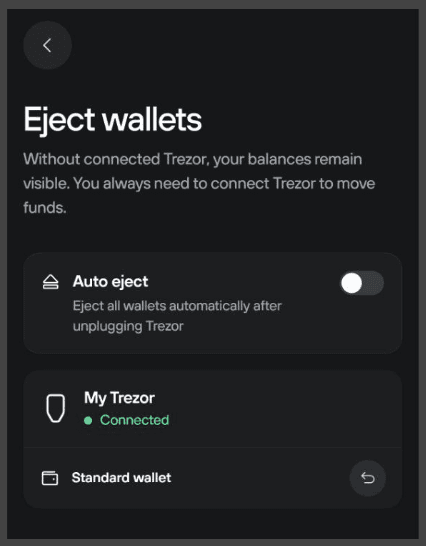
Auto eject wallets
When disabled, you can view wallet balances even after disconnecting your device. When enabled, Trezor Suite never remembers wallets and automatically ejects all wallets when you disconnect your Trezor.
Store device related data
Saves device information locally to speed up reconnection and remember security checks.
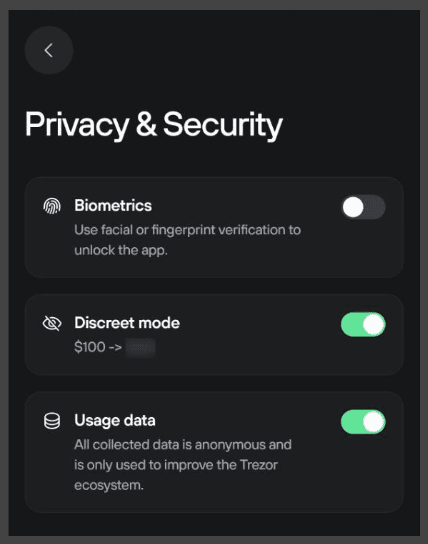
Biometric authentication
Use Touch ID or Windows Hello authentication to access Trezor Suite.
Tor
Turn Tor on to route your connection through the Tor network for additional privacy.
When enabled, you can also open trezor.io links as .onion links.
Visit Tor in Trezor Suite to learn more.
Application
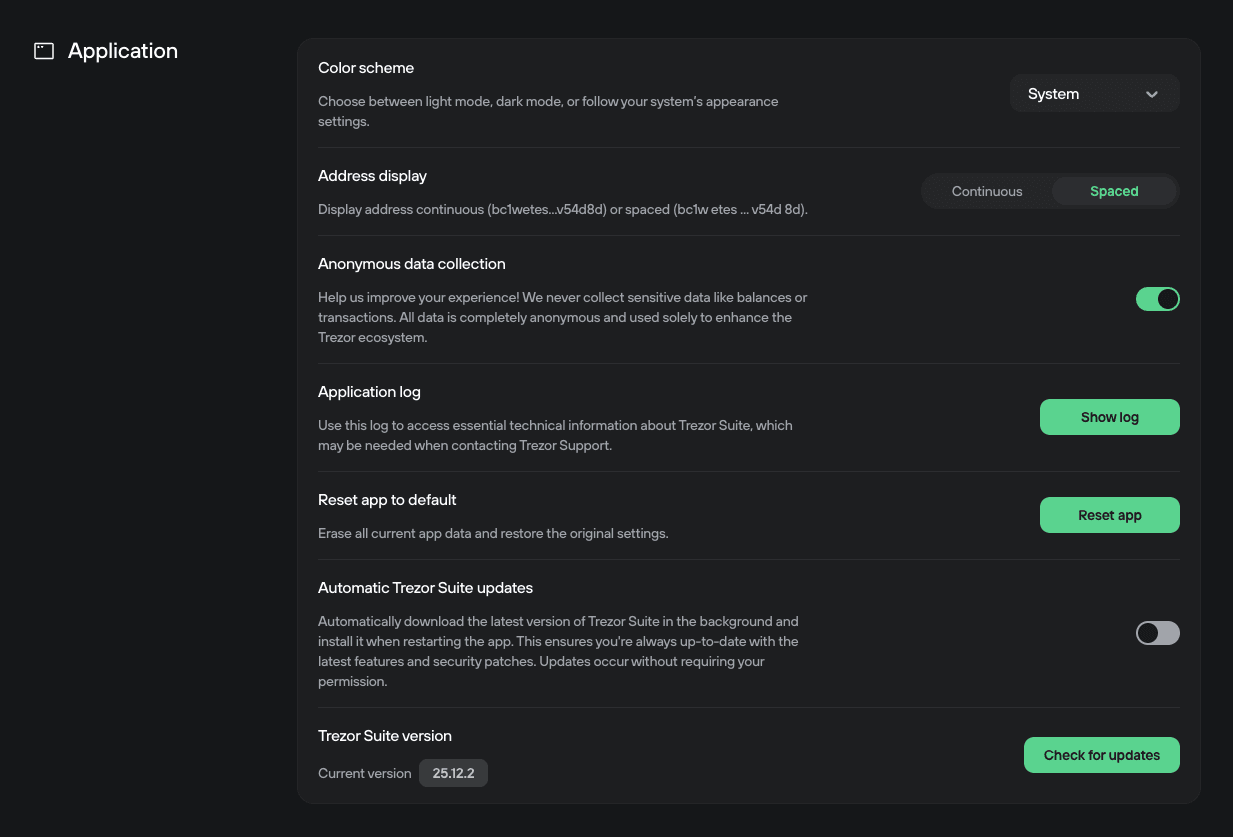
Color scheme
Choose between light mode, dark mode, or sync with your system settings.
Address display
Choose how addresses appear in Trezor Suite:
- Continuous: Shows the full address without breaks
- Spaced: Shows the address in chunks of 4 characters for easier verification
Anonymous data collection
Toggle anonymous usage data on or off. This data helps improve Trezor Suite.
Application log
Click Show log to view technical information. You may need this if you contact Trezor Support for help.
Reset app to default
Reverts Trezor Suite to default settings. This can help troubleshoot problems.
After resetting, you'll need to reconnect your Trezor and re-enable networks in the Networks tab.
Automatic Trezor Suite updates
Turn this on to download Suite updates in the background. Updates install automatically the next time you restart the app.
Trezor Suite version
Shows your current version of Trezor Suite. Click the version number to view the changelog.
If an update is available, you'll see a prompt to download it.
Networks

Network reserve
Reserves a small amount of native tokens on Base, Optimism, and Solana to cover network fees when you send, swap, or sell. This prevents transactions from failing due to insufficient fees.
Learn more: Network reserve for Base, Optimism, and Solana
Trezor Connect
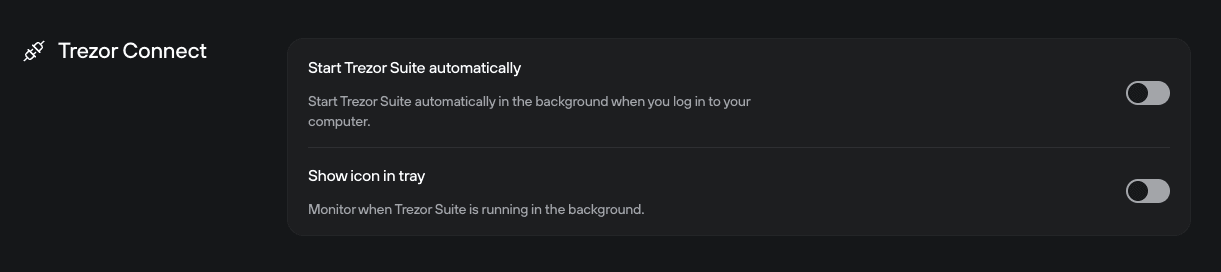
These settings help using third-party wallet apps with your Trezor device. Visit Trezor Connect to learn more.
Start Trezor Suite automatically
Launches Trezor Suite when your computer starts.
Show icon in tray
Keeps Trezor Suite running in your system tray for quick access.
Experimental
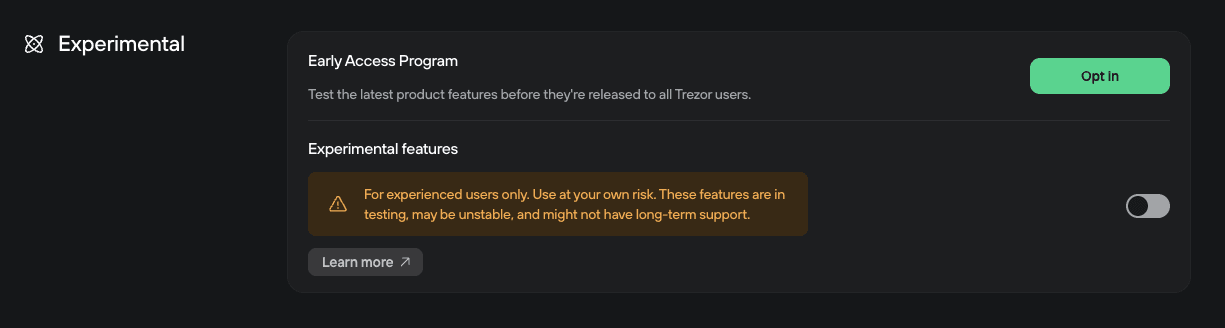
Early Access Program
Opt in to receive beta versions of new updates about a week before their official release.
Experimental features
Enable this to test new Trezor Suite developments before they're released to everyone.
Visit Experimental Features in Trezor Suite to learn more.
Experimental features may not work perfectly and could change before final release.
Device settings
Connect your Trezor device to access device-specific settings.
These settings control your Trezor hardware wallet directly.
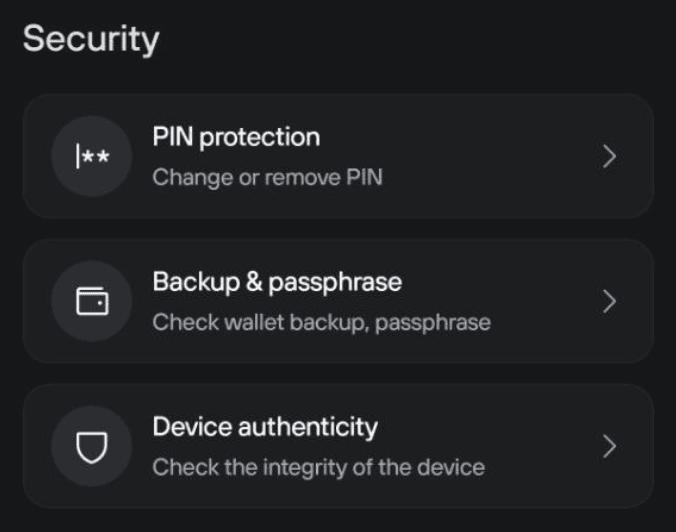
Wallet backup
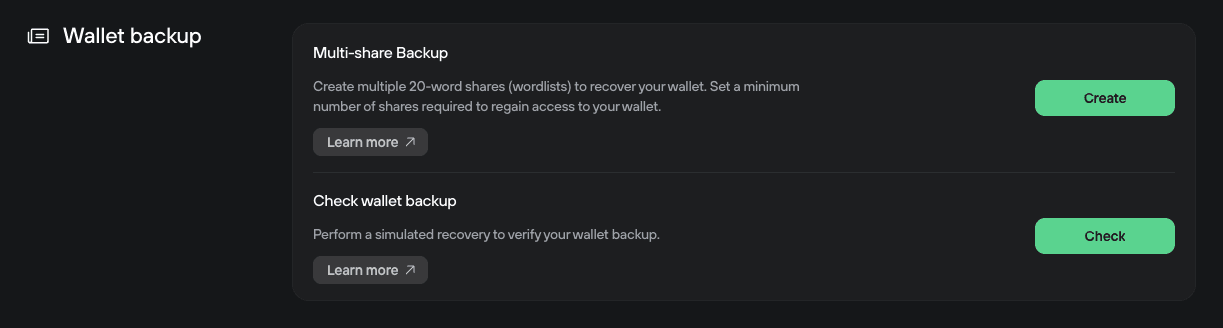
Your wallet backup is the only way to recover your crypto if you lose your device. Learn more about wallet backups: Understanding Trezor wallet backups: 12, 20 or 24 words
Backup status
Shows whether you've created your wallet backup.
If you see "Backup successful," you're all set. If not, create your backup immediately.
Create Multi-share Backup
If you're using a 20-word backup, you can upgrade to a multi-share backup for added security.
Multi-share backups split your backup into multiple parts. You choose how many parts to create and how many you'll need to recover your wallet.
Check wallet backup
Run a simulated recovery process to verify your wallet backup is correct and matches the one on the device.
Step-by-step guides:
• Trezor Safe 7 • Trezor Safe 5 • Trezor Safe 3 • Trezor Model T • Trezor Model One
Passphrase
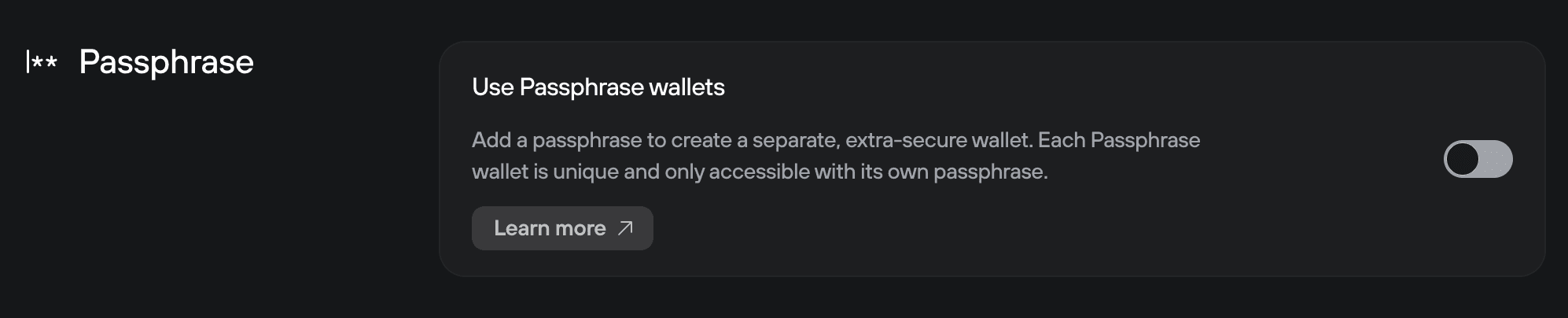
Use passphrase wallets
Turn passphrase protection on or off.
When off, Trezor Suite hides the + Passphrase option in the wallet switcher, and your Standard wallet loads by default.
Passphrase wallets are an advanced security feature. If you forget your passphrase, your funds will be lost. Only use this feature if you fully understand how it works.
Learn more: How to use a passphrase wallet
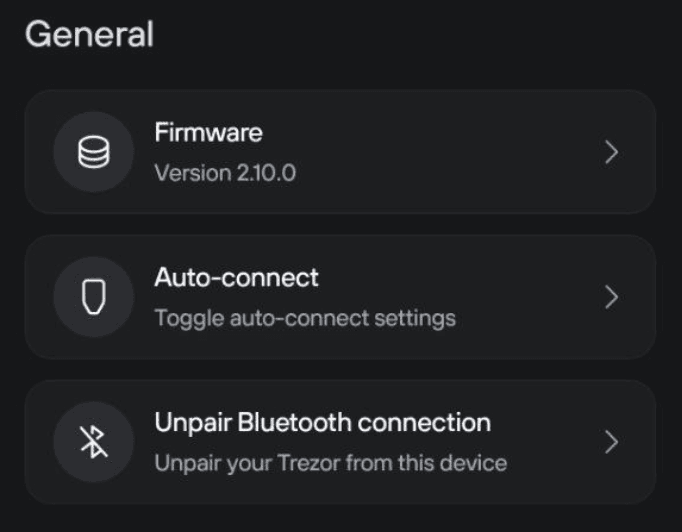
Firmware
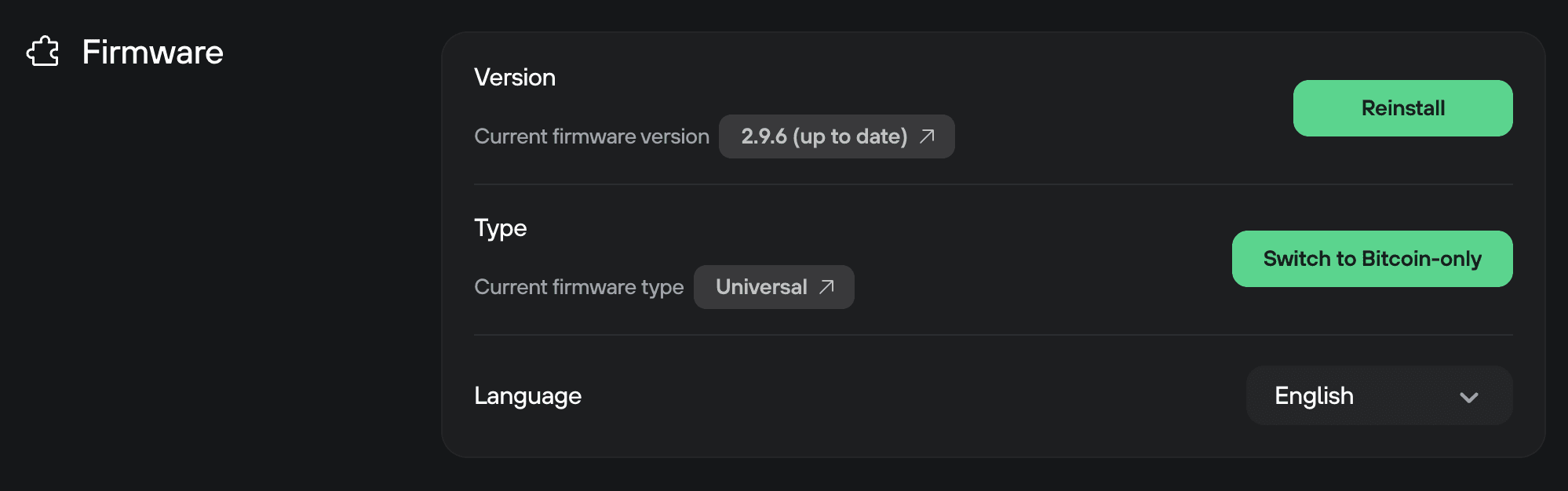
Firmware version
Shows which firmware version is installed on your device. Click the version number to view the changelog.
Firmware type
Shows whether you're using Universal or Bitcoin-only firmware. You can switch between them here.
Switching firmware types will wipe your device. Make sure you have your wallet backup before switching.
Device language
Set the language displayed on your Trezor device.
Supported languages include English, Czech, German, Spanish, French, Italian, and Portuguese (beta).
Security
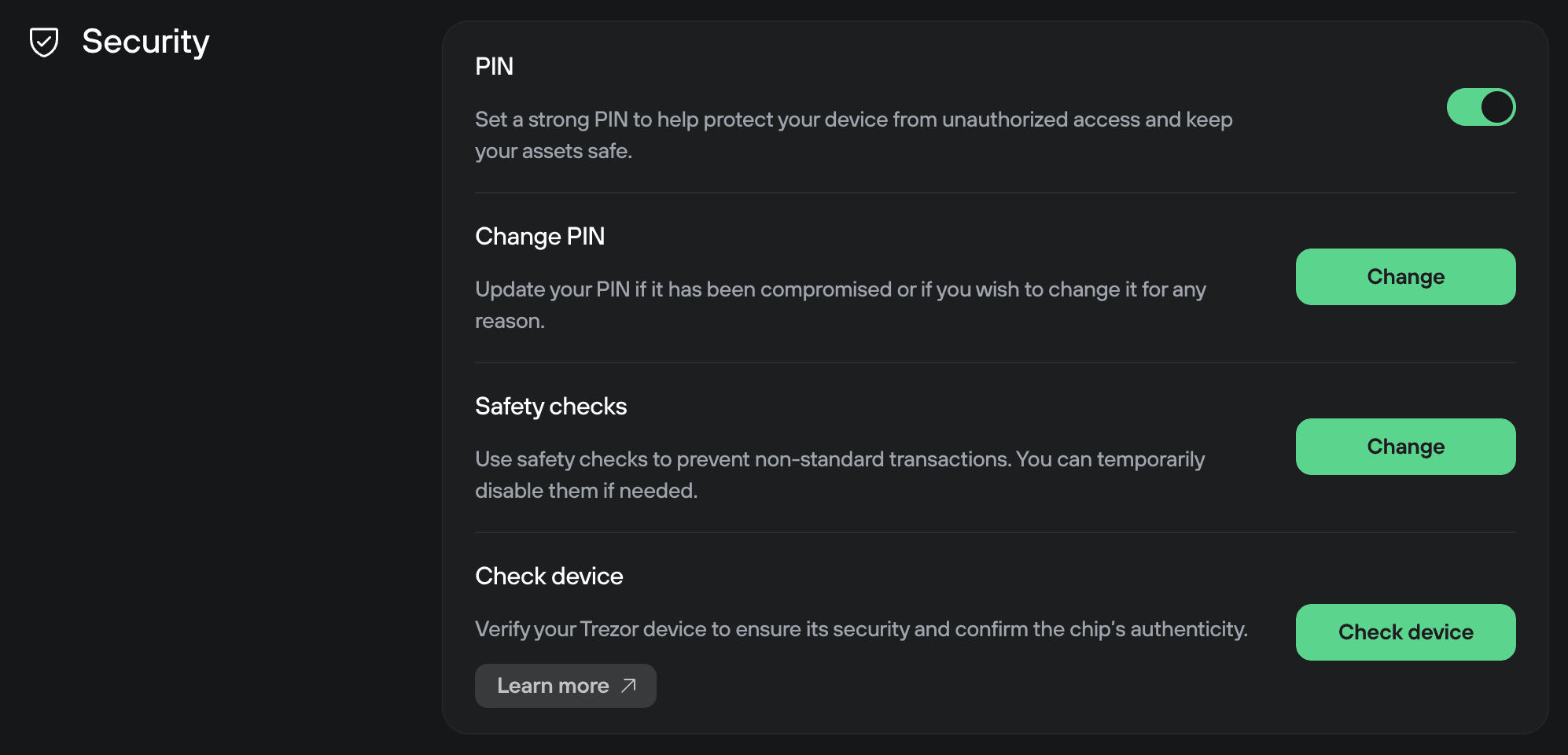
PIN
Toggle PIN protection on or off. Your PIN protects your device from unauthorized access.
Learn more: PIN protection on Trezor devices
Change PIN
Change your PIN if needed. Follow the on-screen instructions.
Safety checks
Controls whether Trezor Suite allows potentially unsafe actions like mismatched coin keys or extreme fees.
Check device (Trezor Safe devices only)
Reruns the device authentication check normally performed during setup.
This verifies your device is genuine using the secure element.
Customization
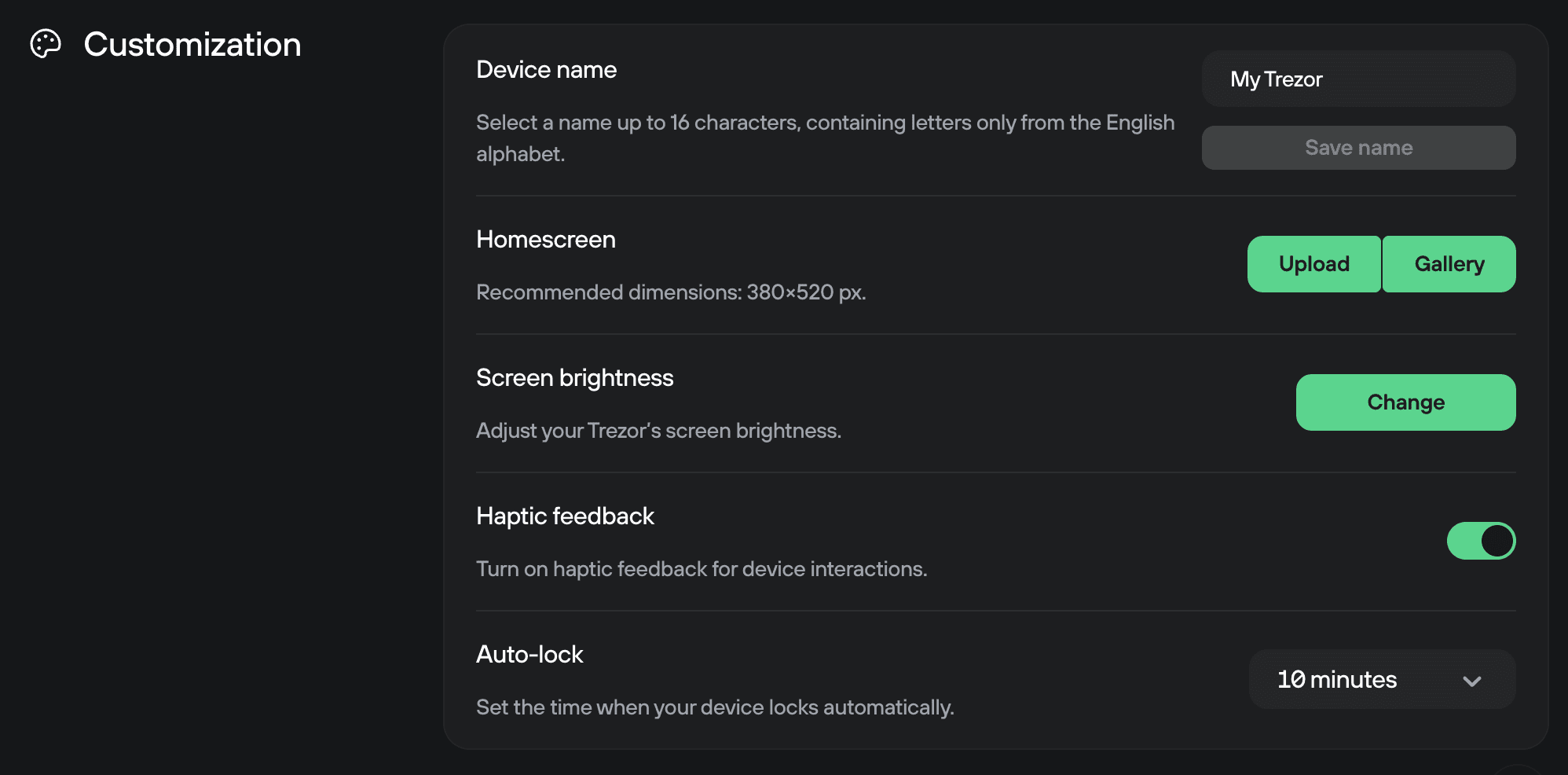
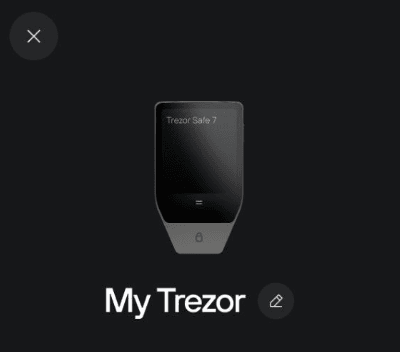
Device name
Rename your Trezor device.
Homescreen
Upload a custom image or choose from the gallery to personalize your device's homescreen.
Find out more details in our article Set a custom homescreen on your Trezor.
Display rotation (Safe 5 and Model T)
Rotate your device's display.
Display brightness (Safe 5 and Model T)
Adjust the brightness of your device's touchscreen.
Haptic feedback (Safe 7 and Safe 5)
Enables and disables vibration
Auto-lock time
Set how long before your device automatically locks itself.
Device connection
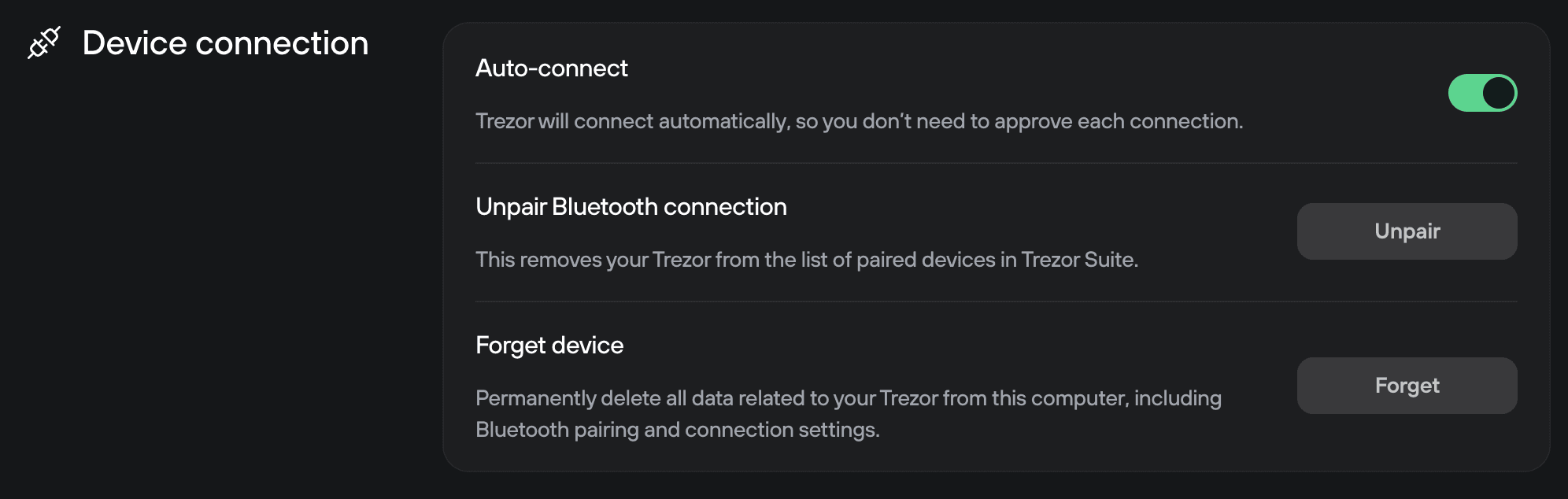
Auto connect
When enabled, Trezor Connect automatically connects to permitted apps without asking for confirmation each time.
Manage Bluetooth pairing
Manage paired Bluetooth devices. All connections are encrypted using Trezor Host Protocol.
Learn more: Trezor Bluetooth connections.
Forget this device
Removes this Trezor from Trezor Suite's list of remembered devices.
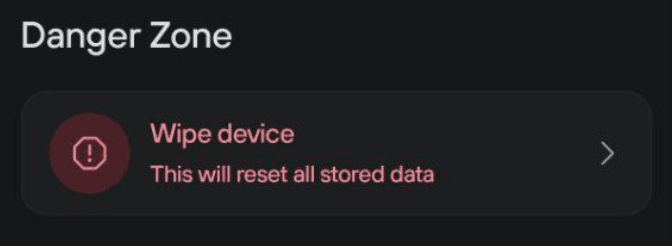
Danger area
These options can erase your device. Use with caution.
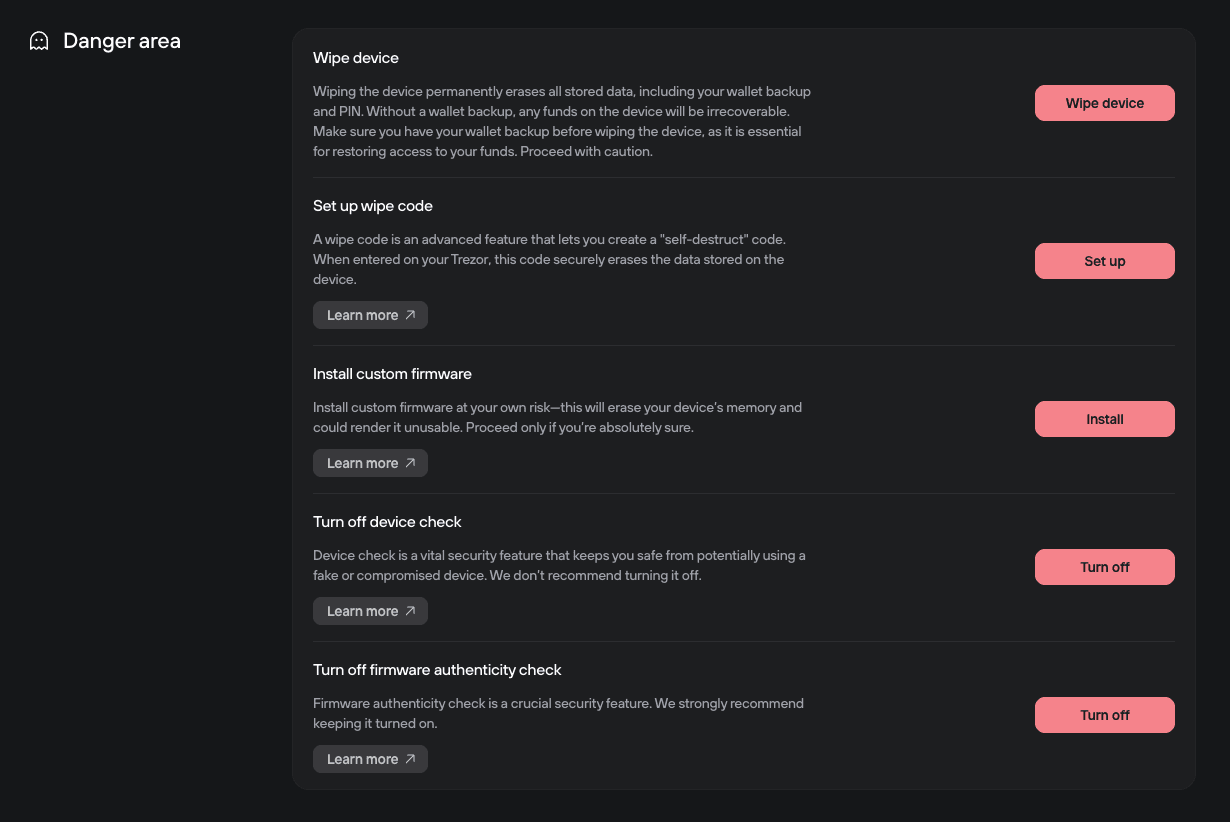
Factory reset / Wipe device
Completely erases your wallet backup (and firmware, if doing a factory reset) from your Trezor.
This cannot be undone. You can only recover your wallet if you have your wallet backup.
Set up wipe code
Create a special PIN that instantly erases your device when entered.
To learn more about this feature, please visit Create wipe code to erase device.
Install custom firmware
Install an older firmware version or universal firmware on a Bitcoin-only device
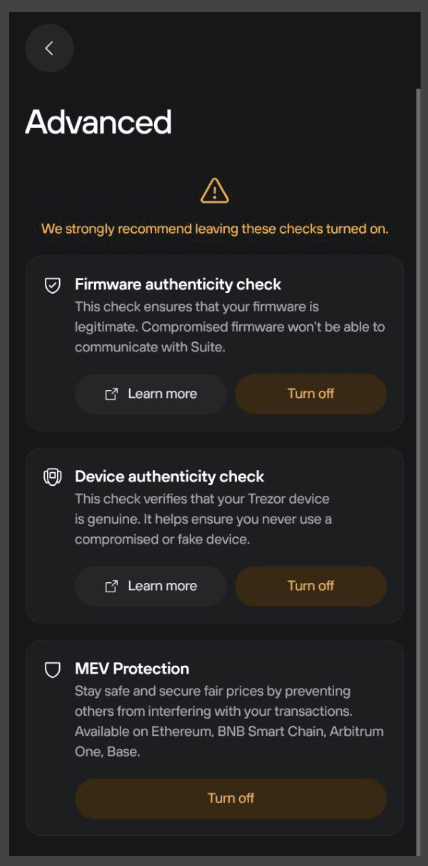
Turn off device check (Trezor Safe devices only)
Disables the device authentication check during setup.
This is not recommended. Learn more: Trezor Safe device authentication check.
Turn off firmware authenticity check
Disables security checks that detect counterfeit devices and firmware.
Only disable this for testing and development purposes. Learn more: Trezor firmware authenticity check.
Networks settings
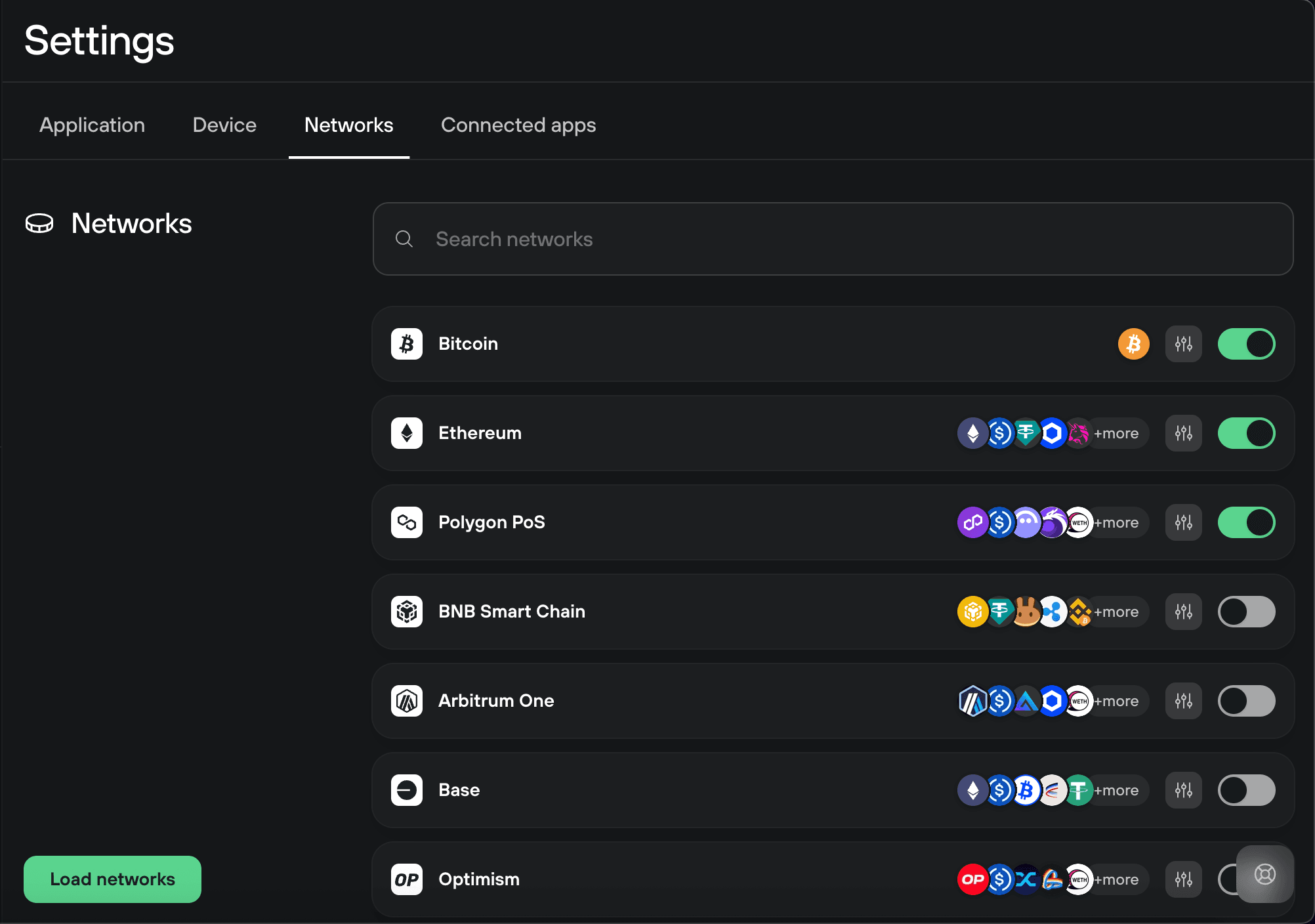
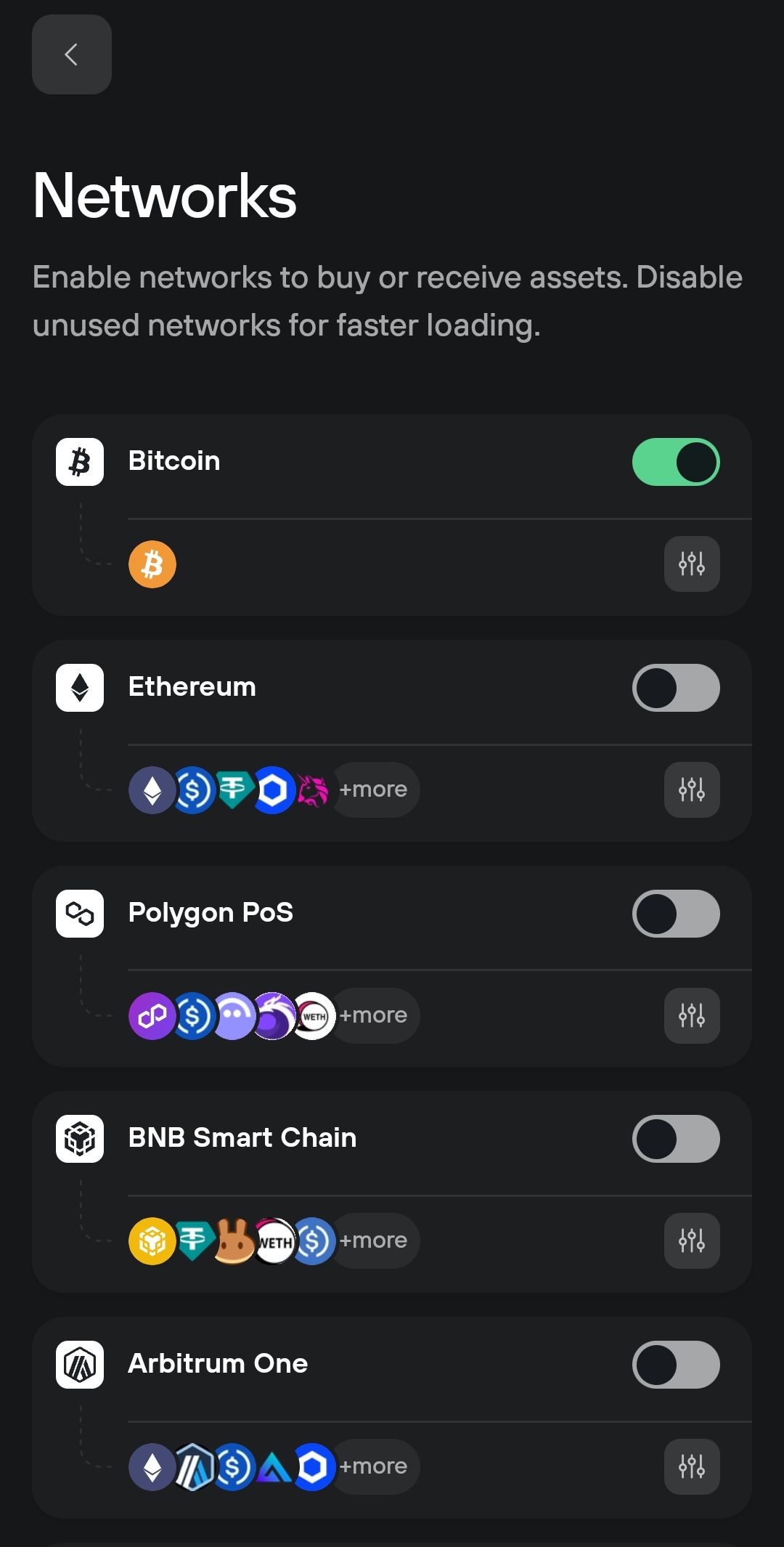
The Networks tab lets you enable or disable cryptocurrency networks in Trezor Suite.
Click on any network to enable or disable it. When you're done, click the Load networks button at the bottom of the tab or of the Accounts menu on the left.
Disabling a network only removes it from Trezor Suite's interface. Your assets remain safe on the blockchain. You can enable networks again anytime without affecting your wallet or backup. For the full list of supported assets, visit trezor.io/coins.
Custom backends
Click the sliders icon next to any network to open its backend settings. From there, you can connect to a custom Blockbook or Electrum server.
Visit Connect Trezor Suite to your own node to learn more.
Connected apps
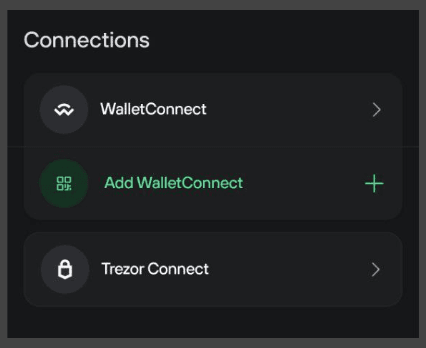
The Connected apps tab has two sections: Wallet Connect and Trezor Connect.
Wallet Connect
Shows all active WalletConnect connections.
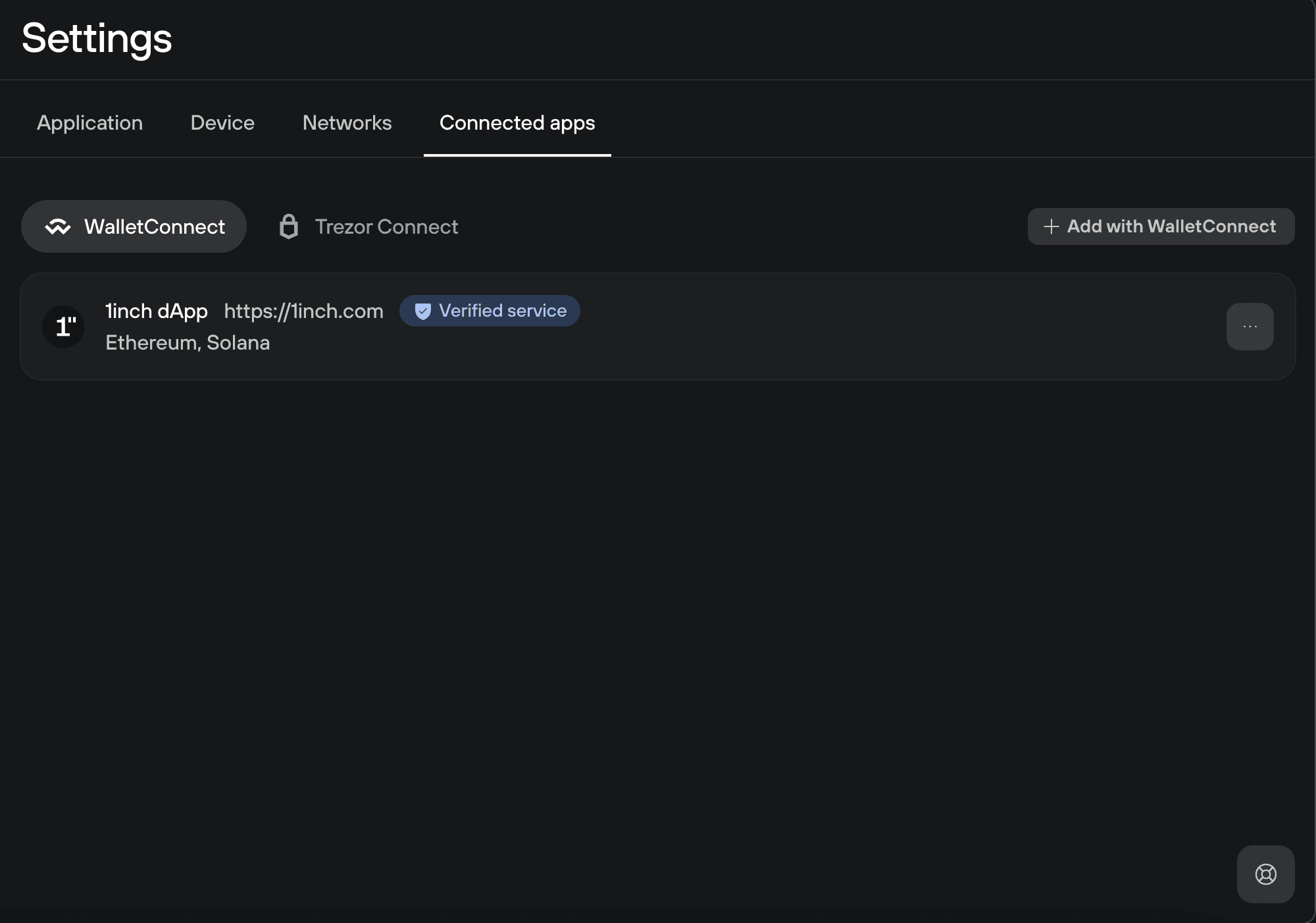
Click the three-dot menu on any connection to disconnect or switch which account that app uses.
Add Wallet Connect (+ button)
Connect to Web3 dApps directly using WalletConnect.
Click the + button, then copy and paste the WalletConnect connection link from the dApp.
Learn more: WalletConnect in Trezor Suite
Trezor Connect
Shows third-party wallet apps that have been granted "Always allow" permission to connect to your Trezor using Trezor Connect.
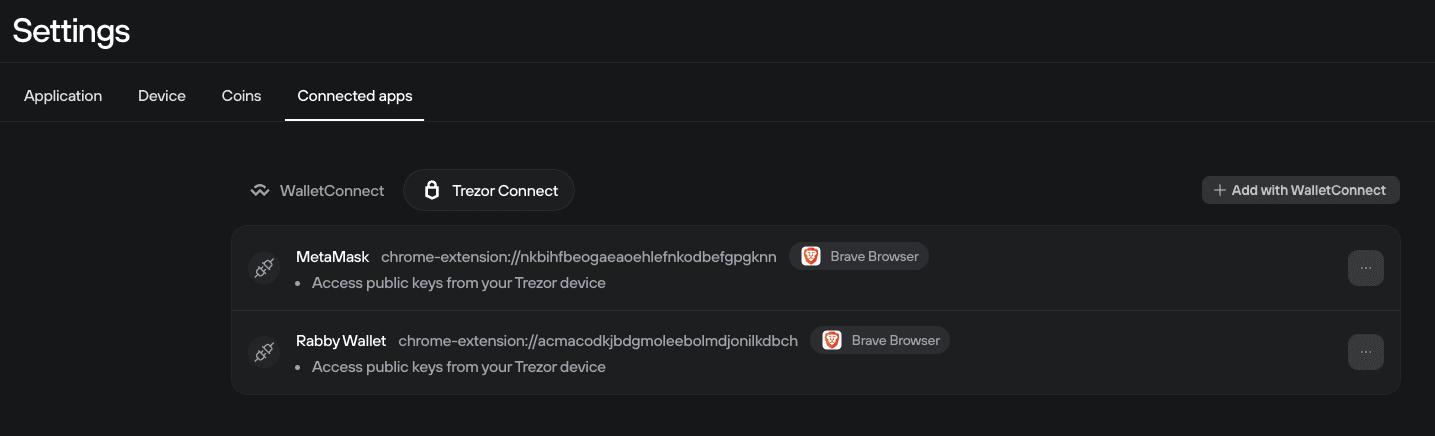
Apps appear here when you check "Always allow for this app" during connection. You can remove apps from this list to revoke permission.
Examples include MetaMask, Rabby Wallet, and other Web3 wallet browser extensions.
Learn more: Trezor Connect
Wallet menu
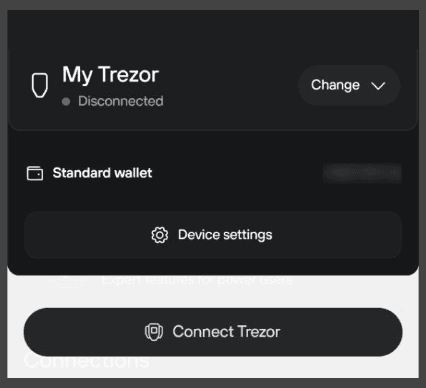
The wallet menu appears in the top-left corner of Trezor Suite Desktop.
It shows which wallets are remembered in Trezor Suite and which one is currently active.
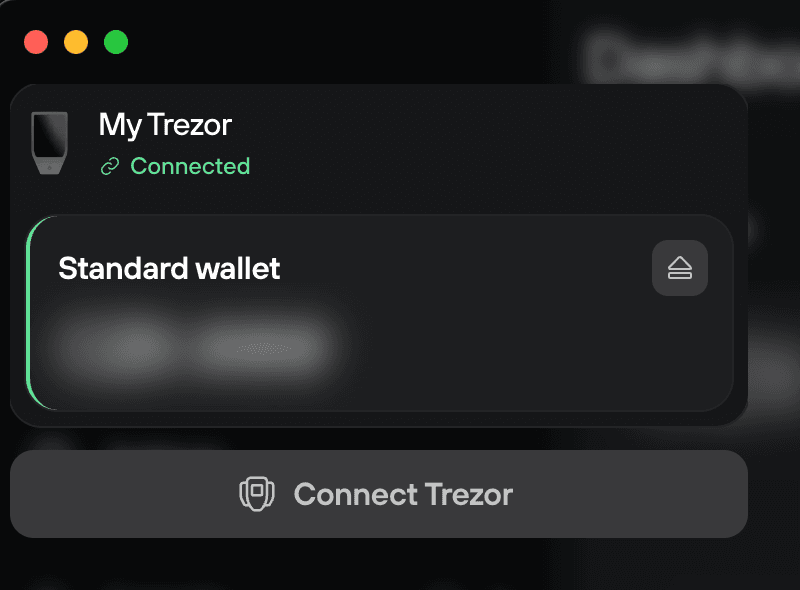
Switch wallets
Click the wallet name to switch between wallets.
Eject button
Remove wallets from Trezor Suite's memory.
Connect Trezor
Connect a new Trezor device via USB or Bluetooth.