Moving to Trezor from another wallet
This guide shows you how to move your crypto to Trezor safely from any other wallet.
To check if Trezor supports all your assets, visit trezor.io/coins.
The secure way: Create a new wallet and transfer funds
The best way to move your crypto from another wallet is to set up a new wallet on your Trezor and transfer your funds to it.
Your new wallet backup is generated completely offline on your Trezor device. It has never been exposed to any computer, phone, or software.
Starting fresh is the only way to ensure your wallet is 100% free from any previous vendor's vulnerabilities. If you're coming from a closed-source provider, your old backup may carry risks you can't verify or eliminate by recovering it on new hardware.
Trezor's open-source security model means independent experts can verify every line of code. Everything is transparent and auditable.
Trezor Safe devices (Safe 3, Safe 5, and Safe 7) use 20-word single-share backups by default. That means you can upgrade to multi-share backups later for extra security. Visit Multi-share Backup on Trezor to learn more.
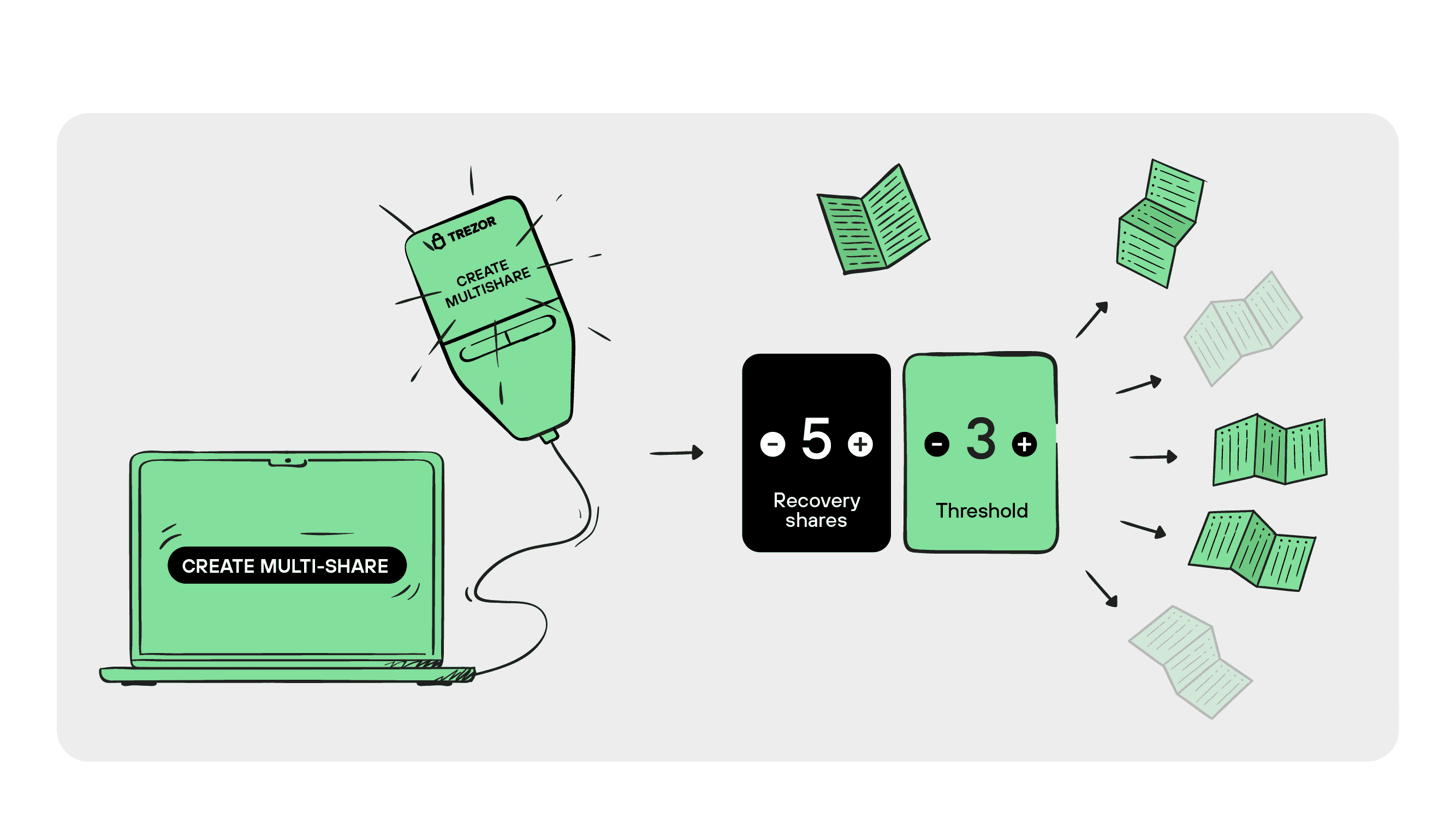
Learn more about Trezor wallet backup options and how SLIP39 works: Understanding Trezor Wallet Backups
How to do it
The entire process takes about 30 minutes. Setup takes 15-20 minutes. Transfers take 10-30 minutes depending on blockchain confirmations. A small time investment for long-term security.
Step 1: Set up your new Trezor wallet
Connect your Trezor and follow the setup process. The device will generate a new wallet backup for you.
For example, if you have a Trezor Safe 7, follow this guide: Get Started with the Trezor Safe 7
Write down your wallet backup carefully. Store it somewhere safe offline. Never take a photo or type it on your computer or mobile device.
Step 2: Generate a receiving address
Open Trezor Suite and select the cryptocurrency you want to receive, then click Receive.
Your Trezor will show you a new receive address. Always verify that the address matches what you see on your Trezor screen.
For detailed instructions, see: Receive Crypto in Trezor Suite
Step 3: Send a test transaction first
If you're moving a large amount of funds, start with a small test transaction; send a small amount from your old wallet to your new Trezor address.
Wait for the transaction to confirm on the blockchain. Check that it appears correctly in Trezor Suite.
Once you confirm the test worked, transfer the rest of your funds.
Step 4: Transfer your remaining funds
Send your crypto from your old wallet to the Trezor address you verified. Always double-check the address on your Trezor screen before confirming.
Wait for blockchain confirmation. Your funds will appear in Trezor Suite once confirmed.
Get yours now
Things to watch out for
Network fees: You'll pay blockchain transaction fees when you move your crypto.
Network selection for EVM coins: If you're moving Ethereum or ERC-20 tokens, make sure you select the correct network. Sending on the wrong network can result in lost funds. Learn more: How to choose the right network when withdrawing from or sending to Trezor
Bitcoin privacy: If you're transferring Bitcoin (or other similar coins) and want to preserve privacy, consider using Coin Control. This prevents unnecessarily merging UTXOs (unspent transaction outputs) in a way that could link your addresses. Learn more: What is a UTXO?
Can I just use my existing hardware wallet backup on Trezor instead of creating a new one?
Yes, it's technically possible. Trezor supports BIP39 (12 or 24 words) and SLIP39 (20 words). Most hardware wallets use either of these.
However, if you're coming from a closed-source hardware wallet, recovering that backup on Trezor doesn't eliminate any vulnerabilities that may exist in how it was originally generated. Creating a fresh wallet on Trezor means your backup is generated on open-source, auditable hardware from the start.
If you do recover an existing backup: Go to Settings during setup and choose "Recover wallet" instead of "Create new wallet." Enter your backup words directly on the Trezor device.
For example, check out the overview of the recovery process on Trezor Safe 7: Recover Wallet on Trezor Safe 7
Frequently asked questions
Can I use my MetaMask or other software wallet backup in Trezor?
Technically yes, but we strongly recommend against it.
Recovering a software wallet backup on Trezor doesn't give you hardware wallet security for funds that were previously managed in software.
The safer approach is to create a new Trezor wallet and transfer your funds to it.
Can I move from a paper wallet to Trezor?
Yes, but this is an advanced procedure.
For Bitcoin: Use Electrum wallet's sweep function. Connect your Trezor to Electrum and sweep your paper wallet's private key directly to your Trezor addresses.
For other coins: You'll need an intermediate wallet like Coinomi. Sweep the paper wallet into Coinomi, then send the funds to your Trezor.
If you're not confident with this process, contact support for guidance.
Need help?
Our support team is here to guide you through the migration. Chat with our support Chatbot Hal for quick answers, or speak to member of our support team if you need more assistance.
Taking time to migrate safely protects your crypto for the long term. Don't hesitate to ask for help if you need it.