Send and receive Stellar and tokens in Trezor Suite
This guide covers how to manage Stellar (XLM) and Stellar tokens in Trezor Suite, including how to activate tokens, send and receive XLM, and use destination tags.
For more about how the Stellar network works, see Stellar: what it is and how it works with Trezor.
Before you start
Minimum account balance
The Stellar network requires every account to hold a minimum balance of 1 XLM. This amount is locked and can't be spent.
Token activation process
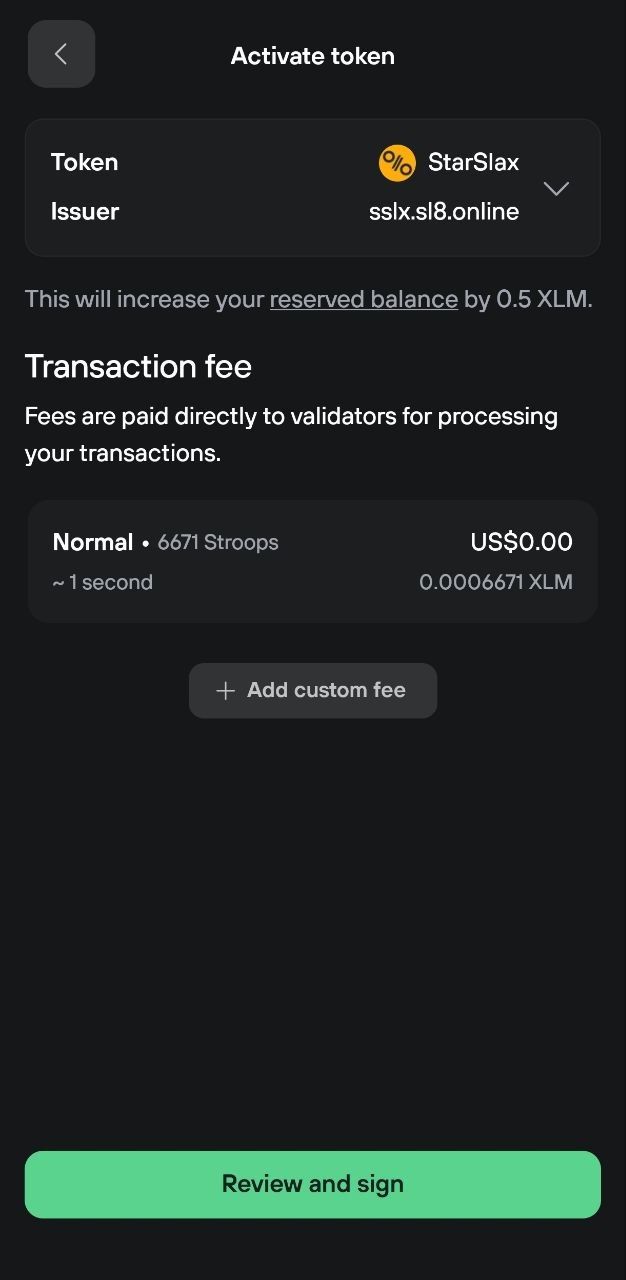
Each token you activate adds 0.5 XLM to your locked balance, plus a small network fee. For example, if you activate three tokens, your minimum locked balance becomes 2.5 XLM (1 XLM base + 3 × 0.5 XLM).
You need to activate a token before your account can hold it. If someone sends you a Stellar token you haven't activated, the transaction fails and the sender keeps their tokens.
For detailed instructions, see Desktop or Mobile app below.
Stellar on desktop
Receive XLM
Make sure Stellar is activated in Settings > Coins. You can receive in two ways:
- Click Receive on the Dashboard and select your Stellar account. From this screen you can also add a new account or activate Stellar if needed.
- From your Stellar account, click Receive in the top right corner
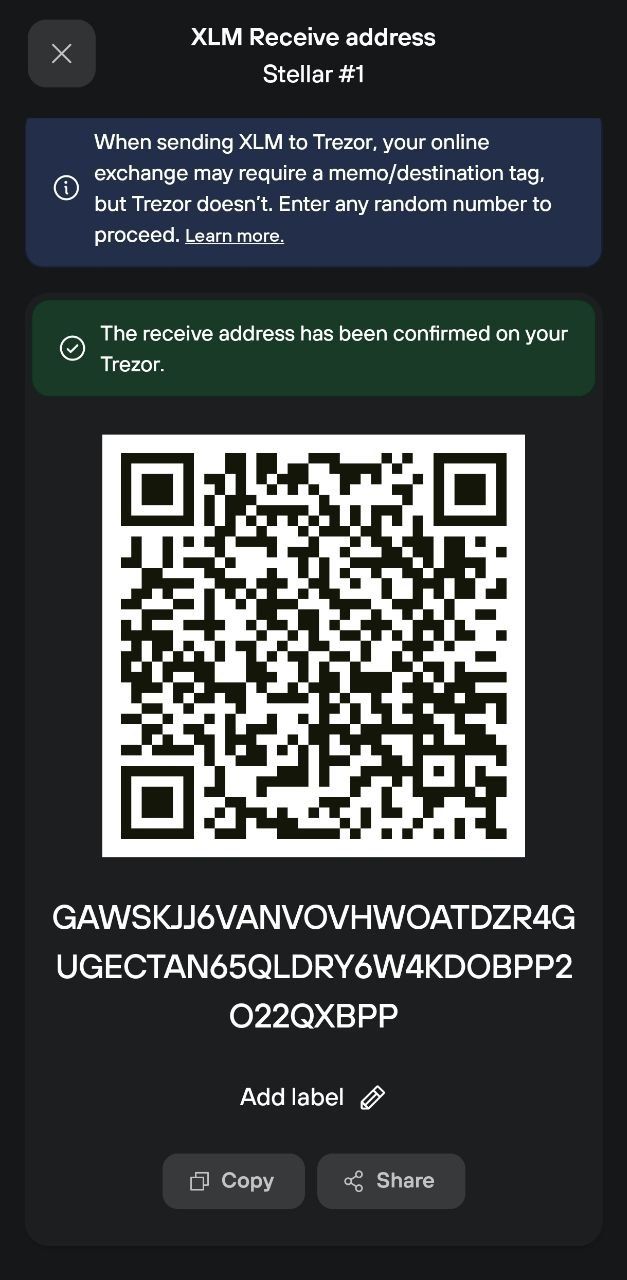
Click Show full address to reveal the full address, QR code, and Copy button.
A Stellar account always uses the same address for receiving XLM and tokens.
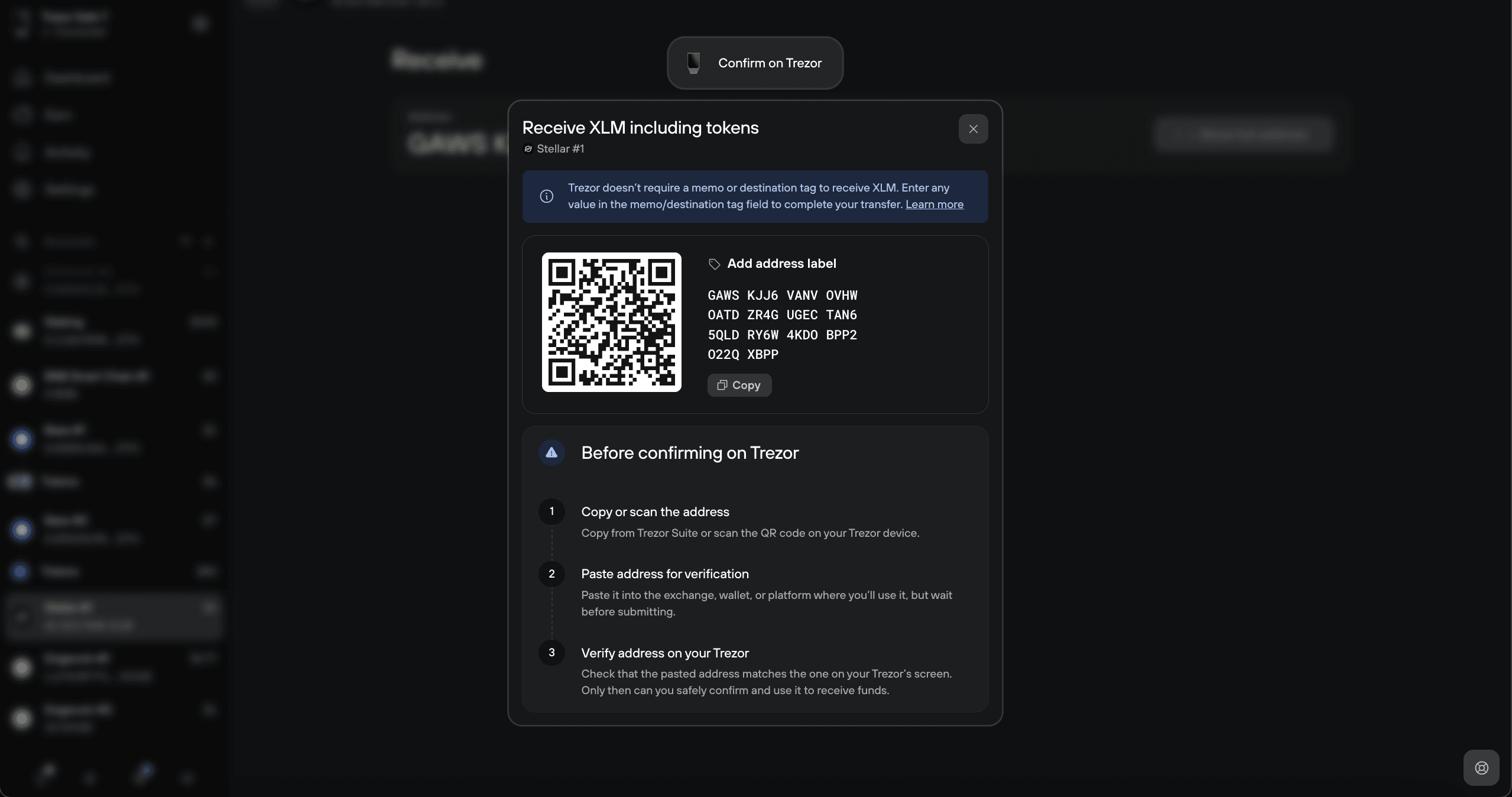
Copy the address and paste it into the exchange, wallet, or platform you're sending from, or scan the QR code.
Before sending to the Trezor address you pasted or scanned, check that it matches the one shown on your Trezor screen.
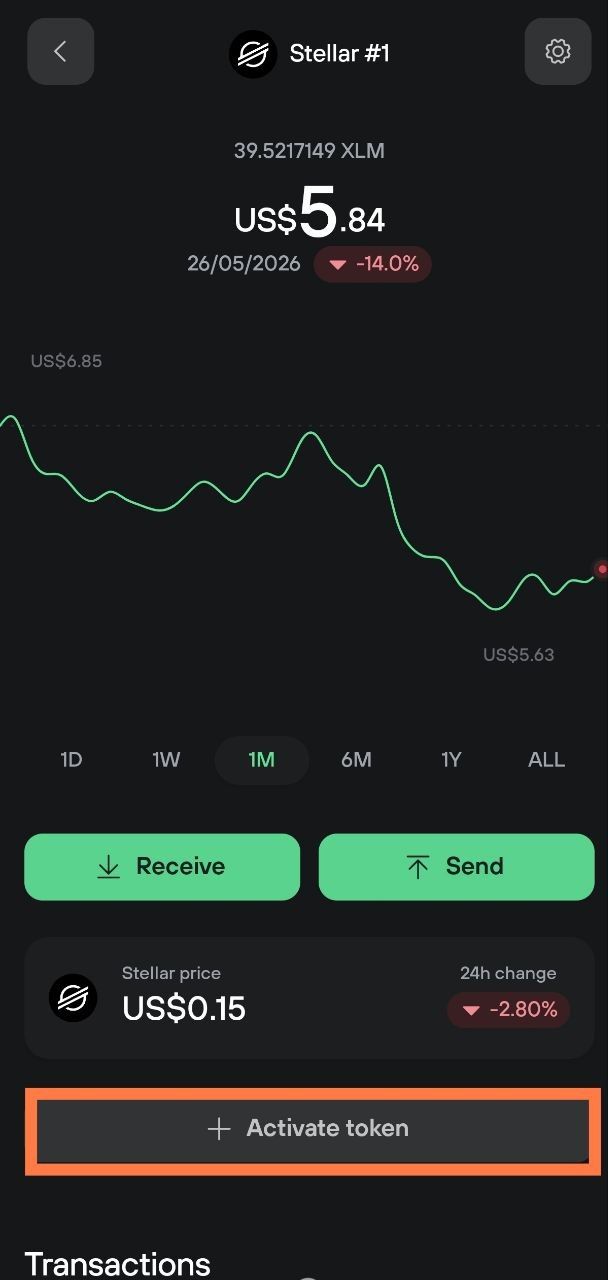
You need to activate Stellar tokens before you can receive them. Go to the Tokens tab, select Inactive tokens, and activate the token you need. See Activate tokens below.
Activate tokens
Activate from the token list
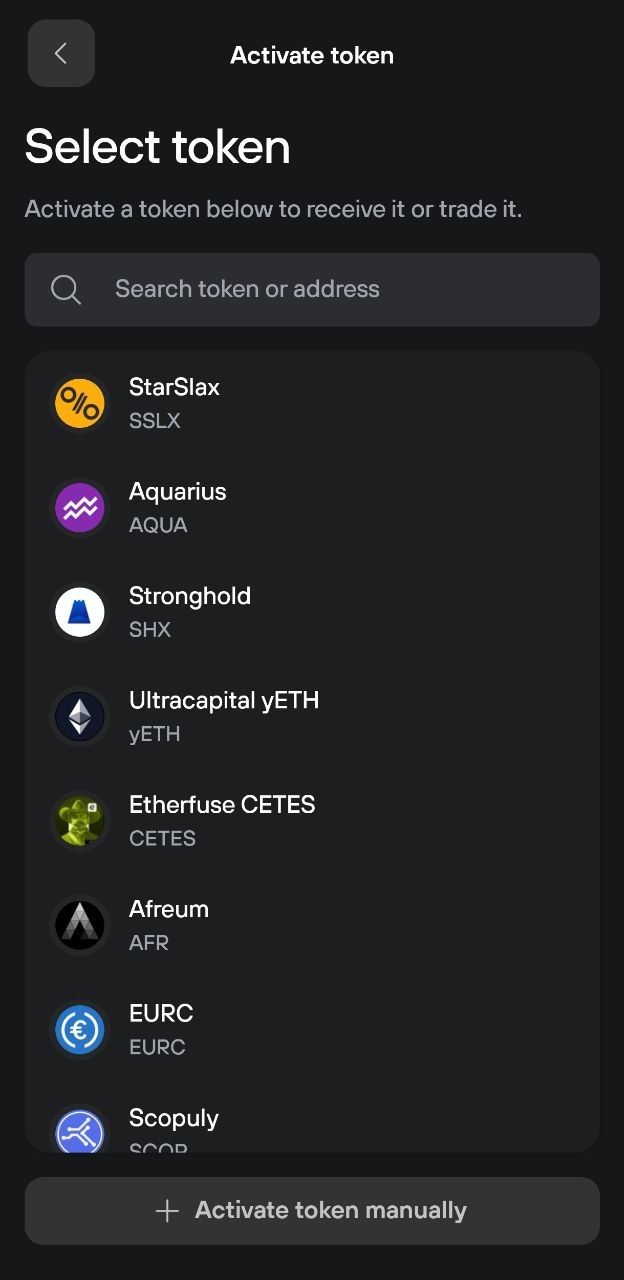
Open your Stellar account and go to the Tokens tab. Select Inactive tokens to see available tokens.
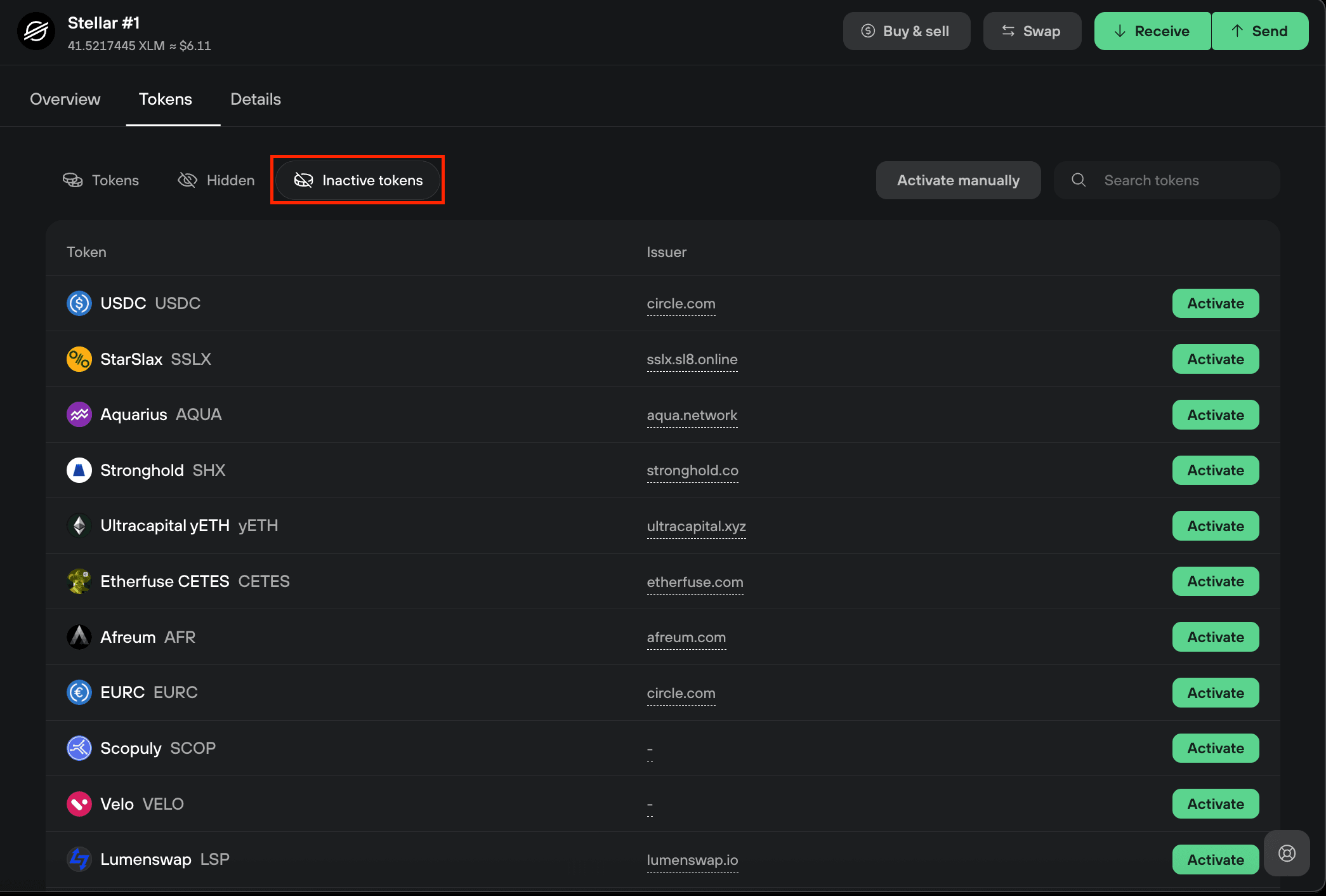
Find the token you want and click Activate.
A confirmation dialog will appear showing the token name, the reserve increase (0.5 XLM), and the network fee.
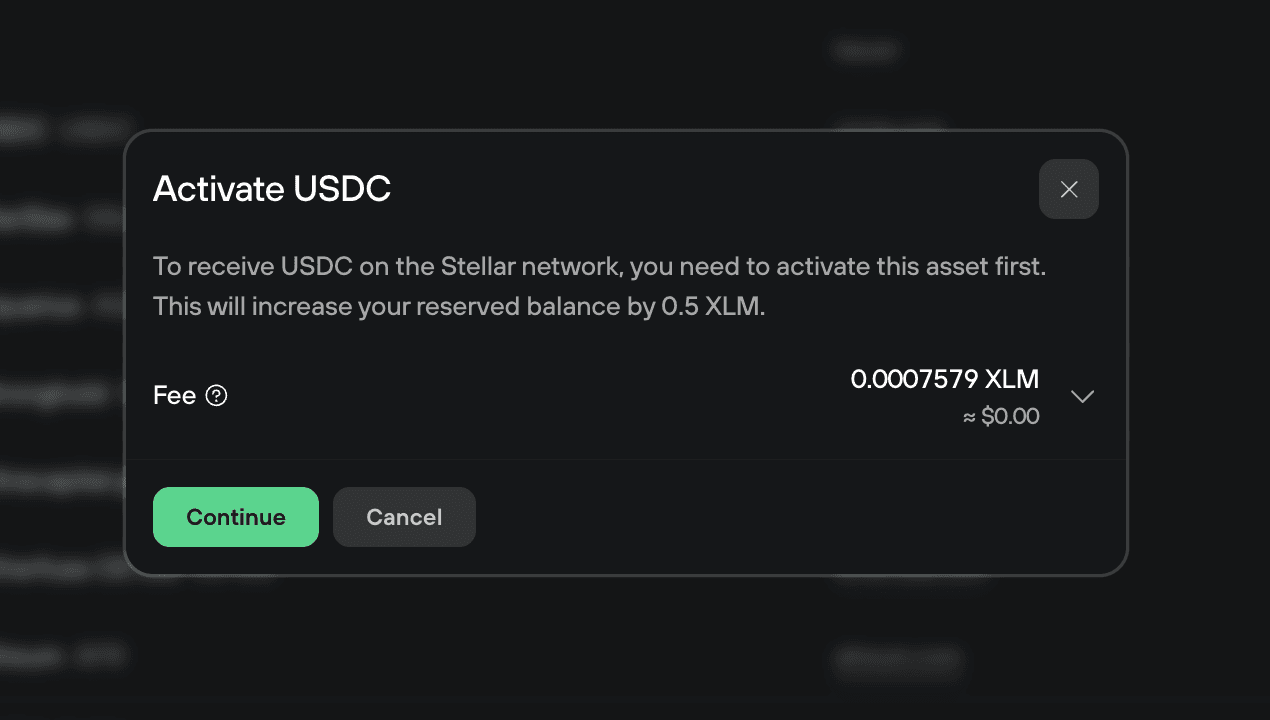
Click Continue. Your Trezor device will ask you to review and confirm the activation. Check the contract address and fee on the device screen, then sign. The transaction is broadcast automatically.
Once activated, the token moves from the Inactive tokens list to the Tokens tab.
Activate a token manually
If the token you need isn't in the Inactive tokens list, you can activate it manually.
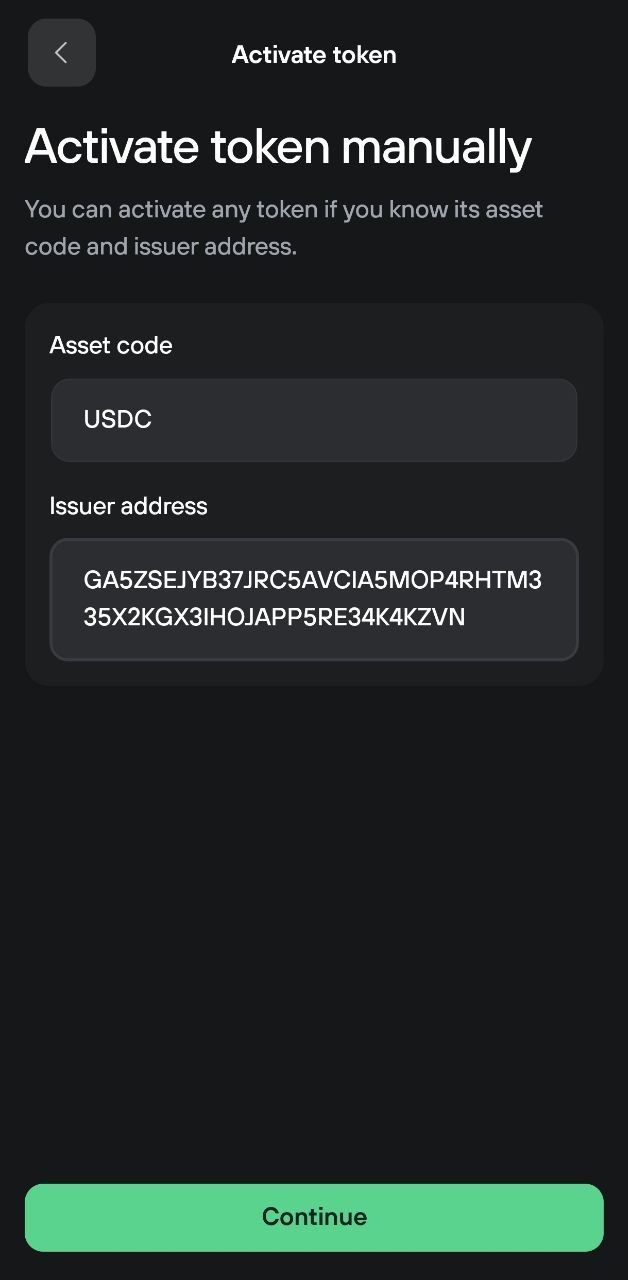
On the Inactive tokens tab, click Activate manually.
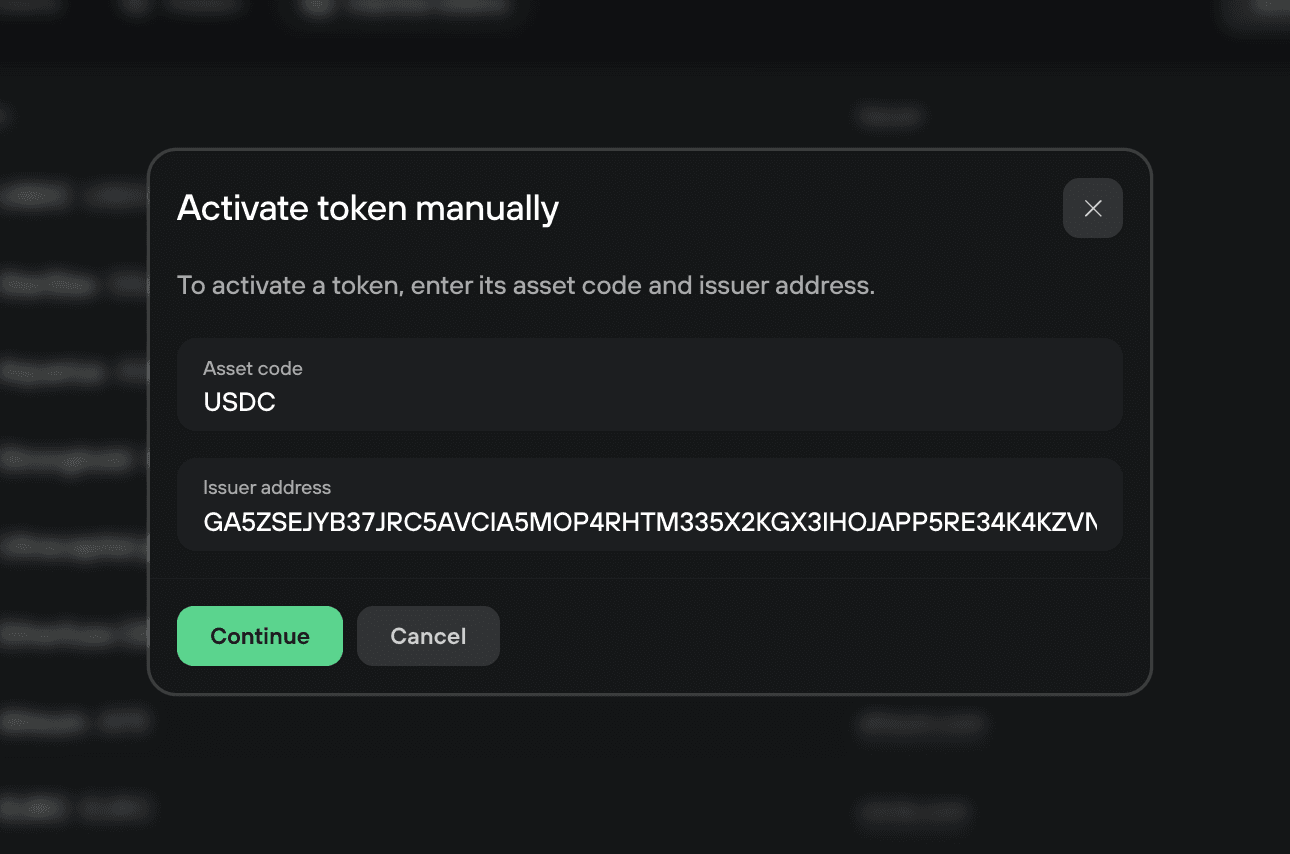
Enter the token's asset code (for example, USDC) and the issuer address (the Stellar address of the organization that issued the token). Both values are provided by the token issuer.
Click Continue. Your Trezor will ask you to review and sign the transaction on the device.
When activating a token manually, make sure you trust the issuer. Verify the asset code and issuer address through the token's official sources before activating.
Activate during a swap
When you swap into a Stellar token you haven't activated yet, Trezor Suite shows an Activate button in the swap confirmation panel instead of the swap button.
For more information, please visit Swap crypto in Trezor Suite.
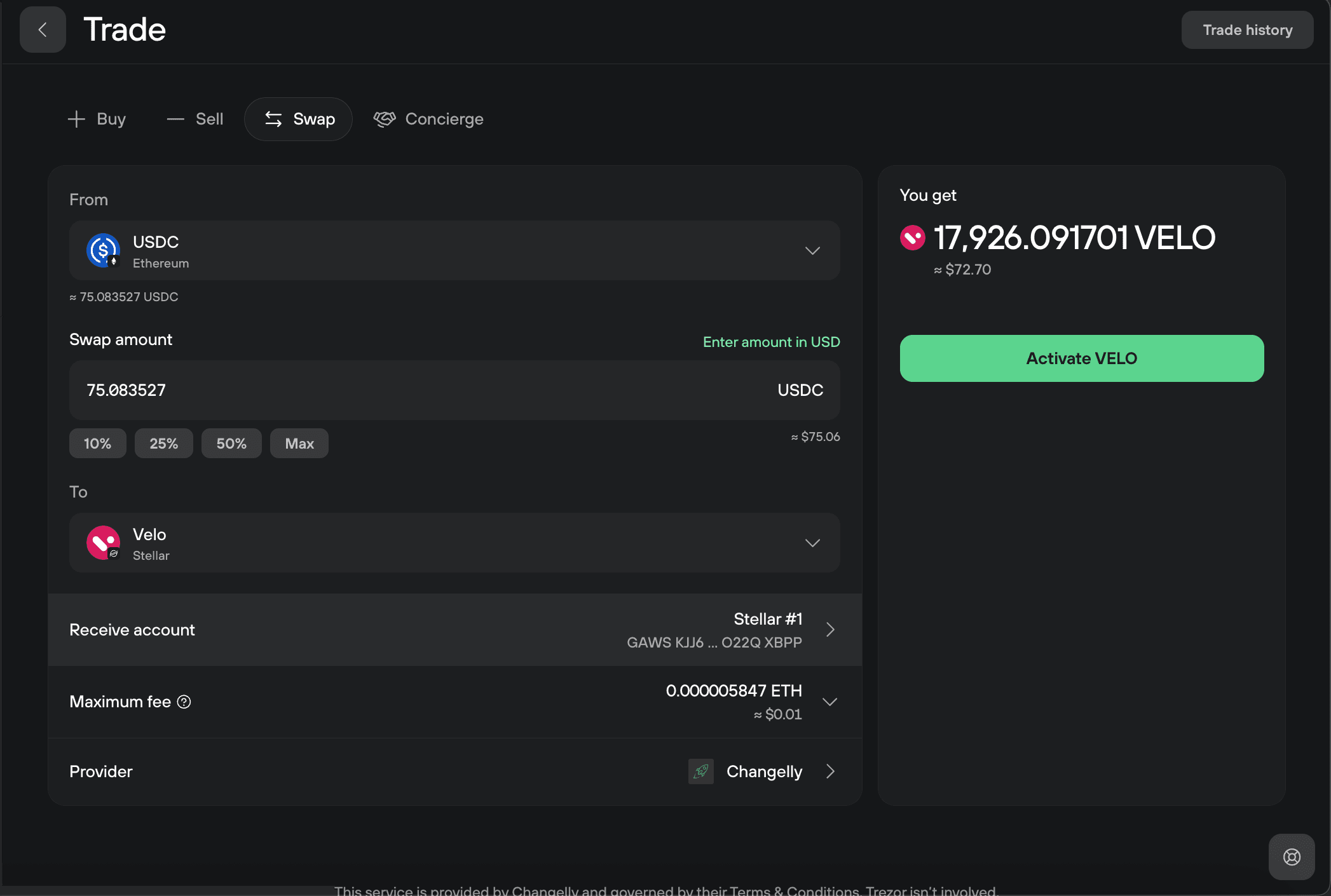
Click the Activate button to create the trustline first. Once the token is activated, you can proceed with the swap.
Send XLM and Stellar tokens
Make sure Stellar is activated in Settings > Coins. You can send in two ways:
- From the Trezor Suite Dashboard, click Send and select your Stellar account
- From your Stellar account, click Send in the top right corner
Enter the recipient's Stellar address and the amount.
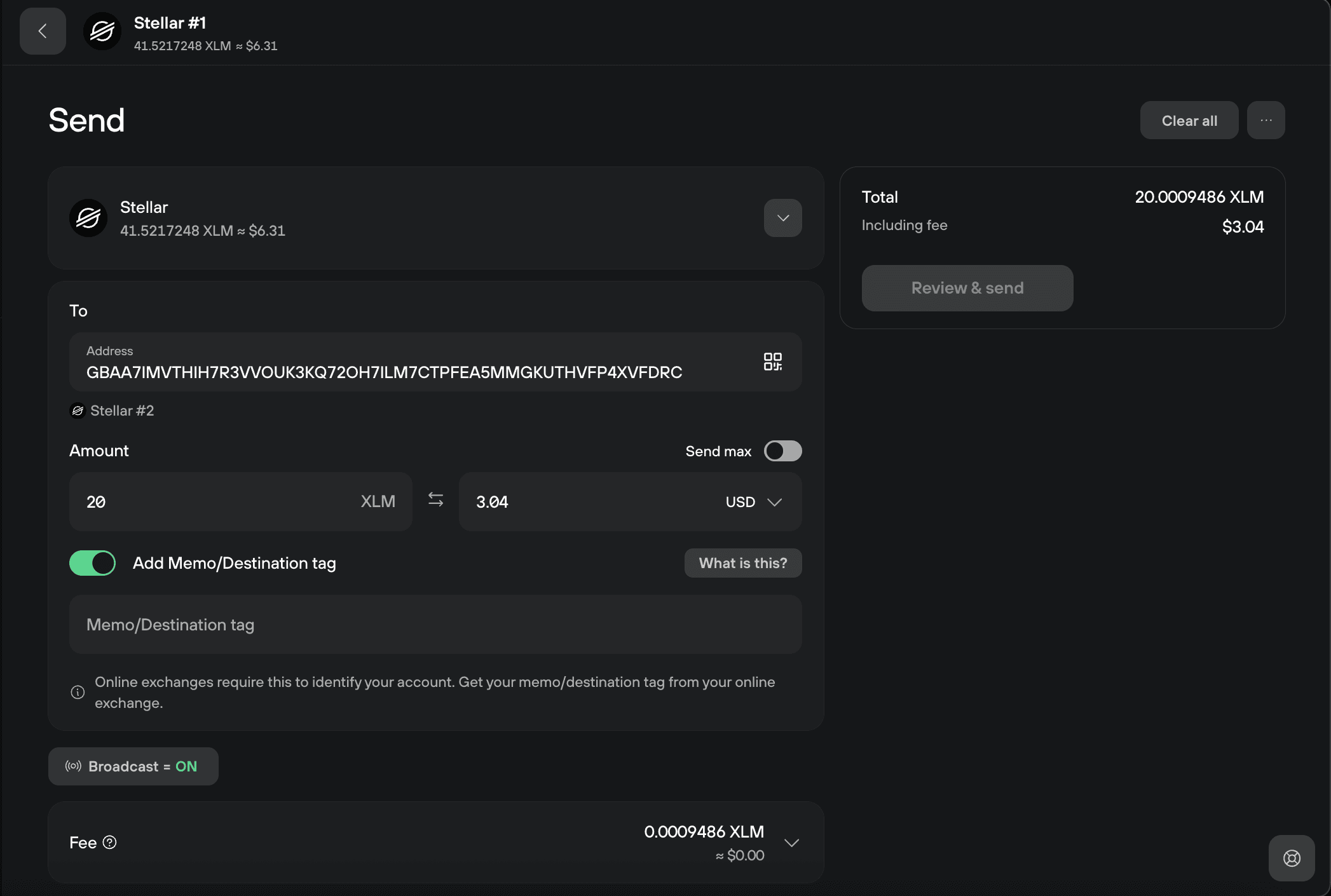
Before signing, check that the recipient address shown on your Trezor screen matches the address you were given by the recipient.
If the recipient requires a destination tag (memo), toggle on Add Memo/Destination tag and enter the tag.
Destination tags are not required when sending to another Trezor or personal wallet.
When sending XLM to an exchange, you almost always need a destination tag. Sending without it when required can result in lost funds. The exchange will provide the tag alongside the deposit address.
Learn more at Destination Tags (Memos) explained for XRP, XLM, and more
Deactivate a token
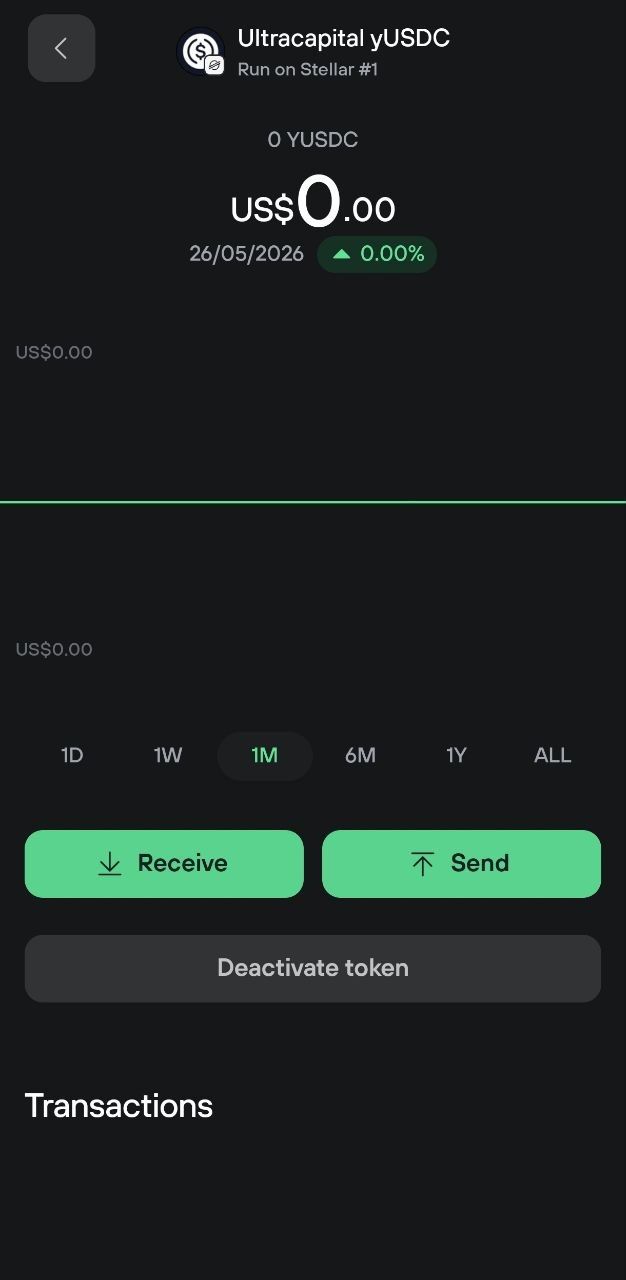
If you no longer need a Stellar token, you can deactivate it to remove the trustline and free up the 0.5 XLM reserve.
Go to the Tokens tab in your Stellar account. Find the token you want to deactivate under Zero-balance tokens, click the three-dot menu (⋯) next to it, and select Deactivate token.
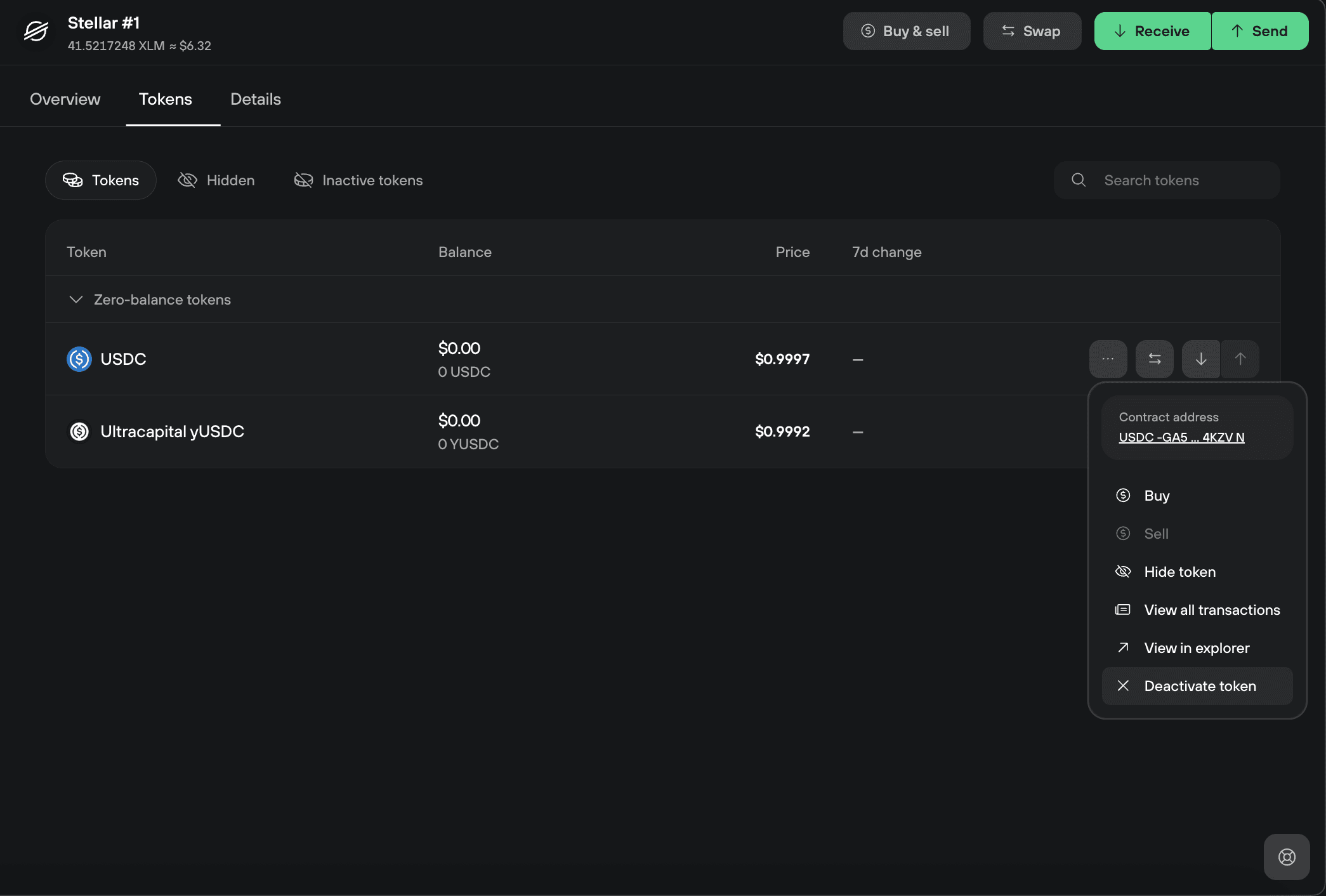
You can only deactivate a token if your balance for that token is zero. If you still hold any amount, you'll need to send it elsewhere or swap it before deactivating.