Update Trezor firmware
This article guides you through the process of updating your Trezor device firmware on both desktop and mobile.
Before updating firmware
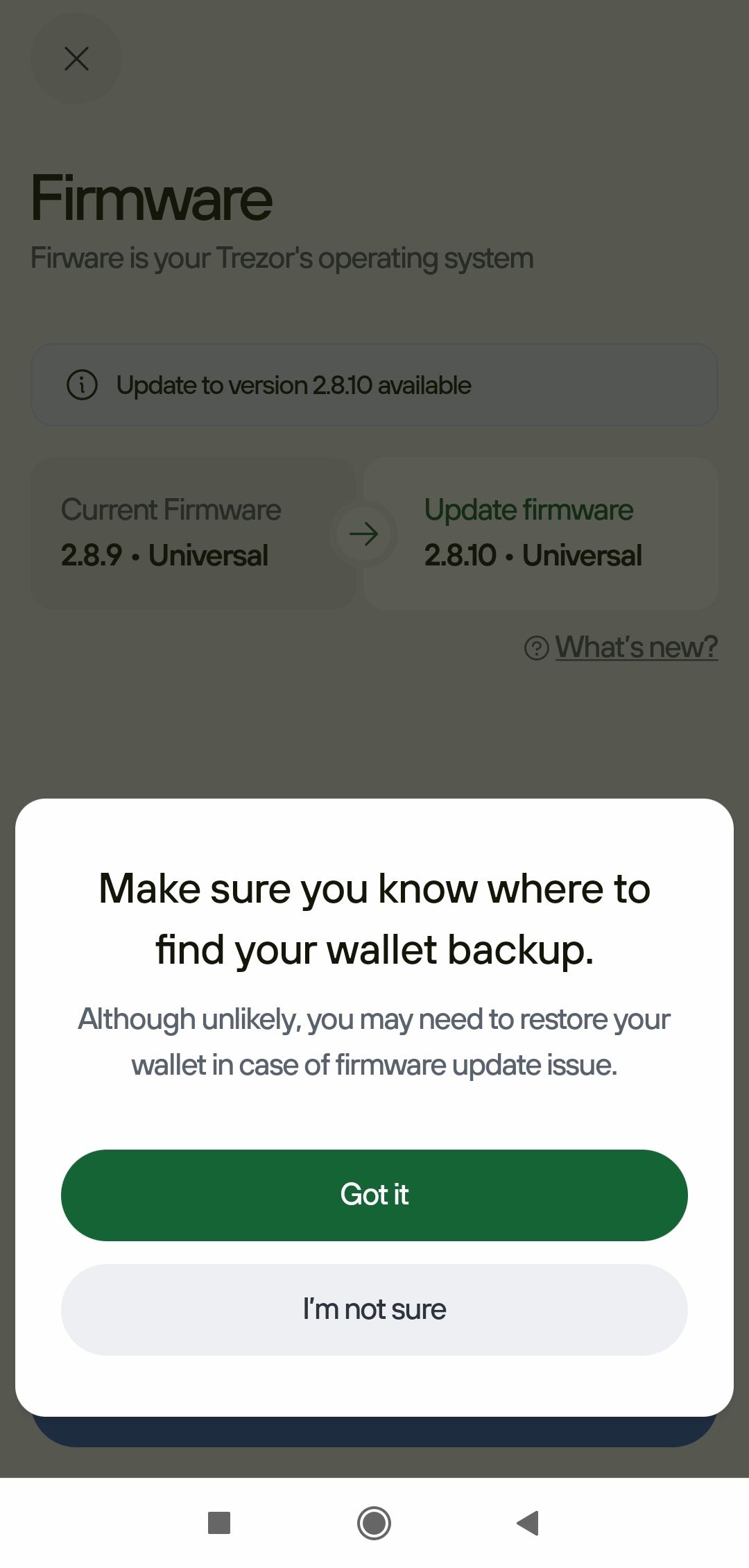
Before proceeding with any firmware update, make sure your wallet backup (formerly recovery seed) is available and within reach.
If the update malfunctions it could erase the Trezor device memory, so having your wallet backup ready lets you immediately recover your wallet.
You can verify your wallet backup is correct at any time by performing a dry-run recovery:
- Check wallet backup on Trezor Safe 7
- Check wallet backup on Trezor Safe 5
- Check wallet backup on Trezor Safe 3
- Check wallet backup on Trezor Model T
- Check wallet backup on Trezor Model One
Updating Trezor device firmware via the notification in Trezor Suite
When a new firmware version is released, Trezor Suite will display a notification along the top of the interface:

To update the device firmware, simply click on Update now and follow the on-screen and on-device instructions.
Updating Trezor device firmware via the Settings menu in Trezor Suite
To check the firmware version currently installed:
- Go to Settings > Device
- Under the Security section you will see which firmware version is currently installed. If your device is running the latest version of the firmware it will show Up to date:

- If a firmware update is available, you can proceed with the update by clicking on Update available:

Firmware update process
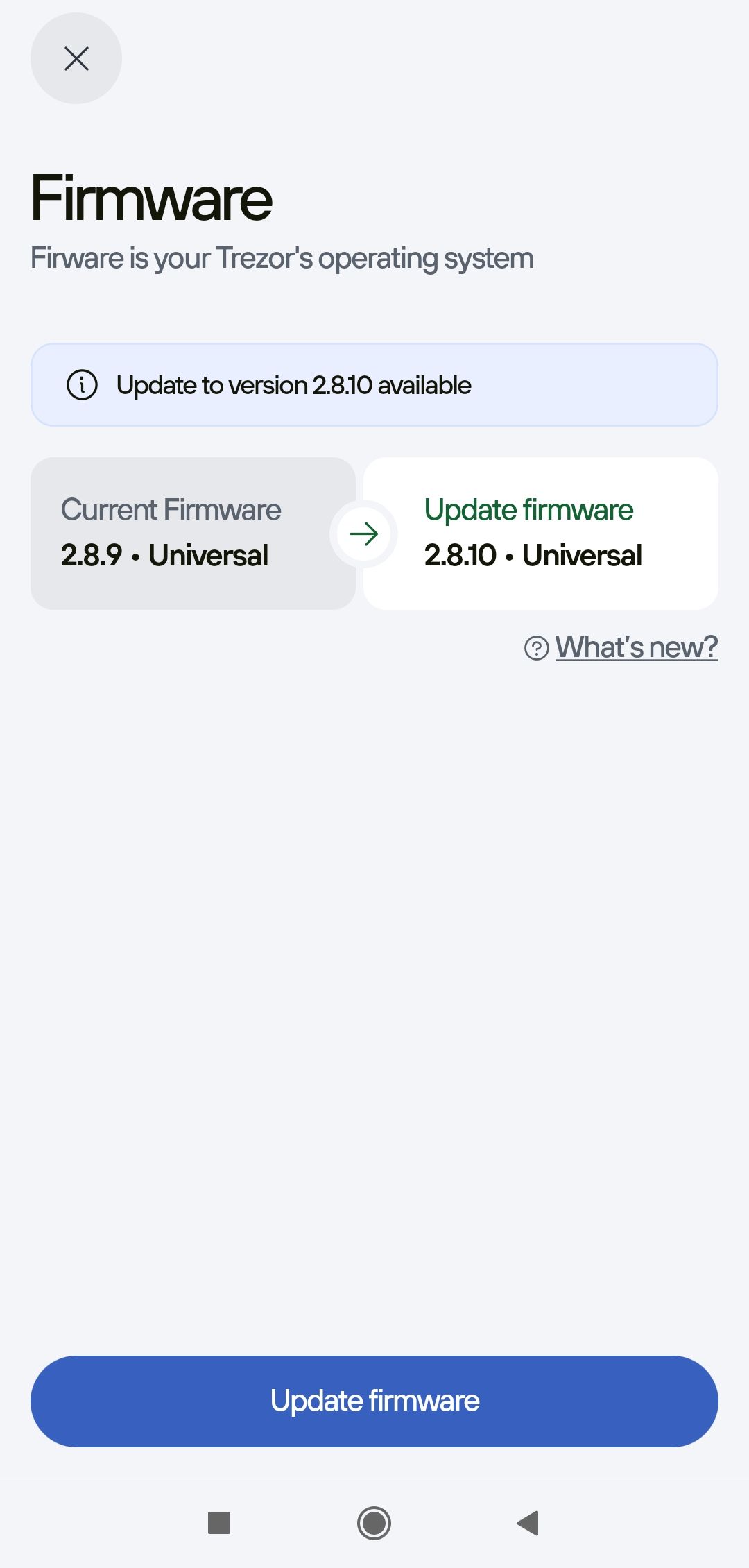
Once you've started, you will see the Firmware installation window:
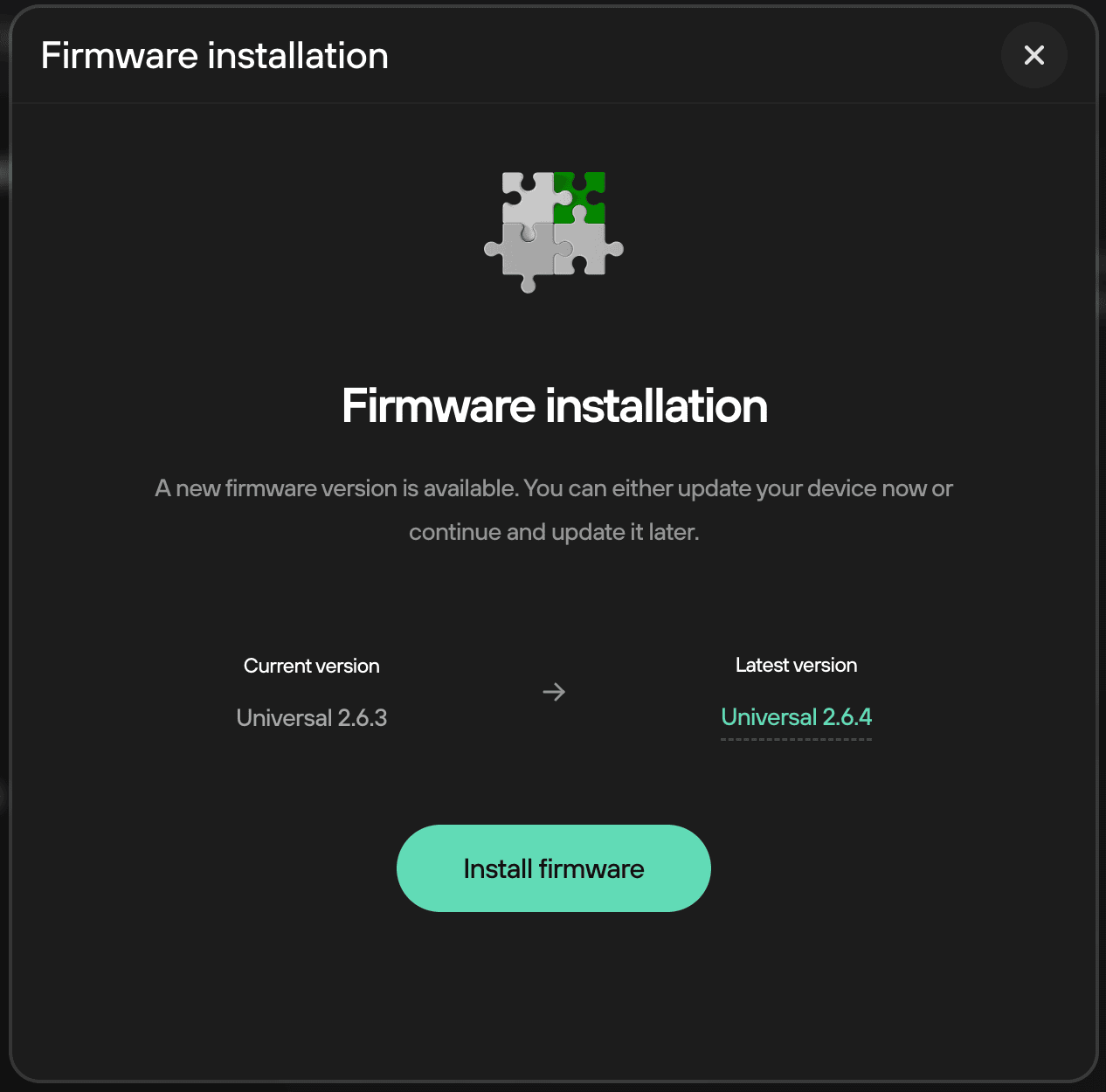
To proceed with the firmware update, click on Install firmware and follow the on-screen instructions.
Your Trezor may prompt you that it is restarting in bootloader mode; select Restart.
On Trezor Model One only: If you are using firmware 1.11.2 or earlier, you must complete two update steps for bootloader and firmware installation, so the process may require two confirmations depending on the state of the device.
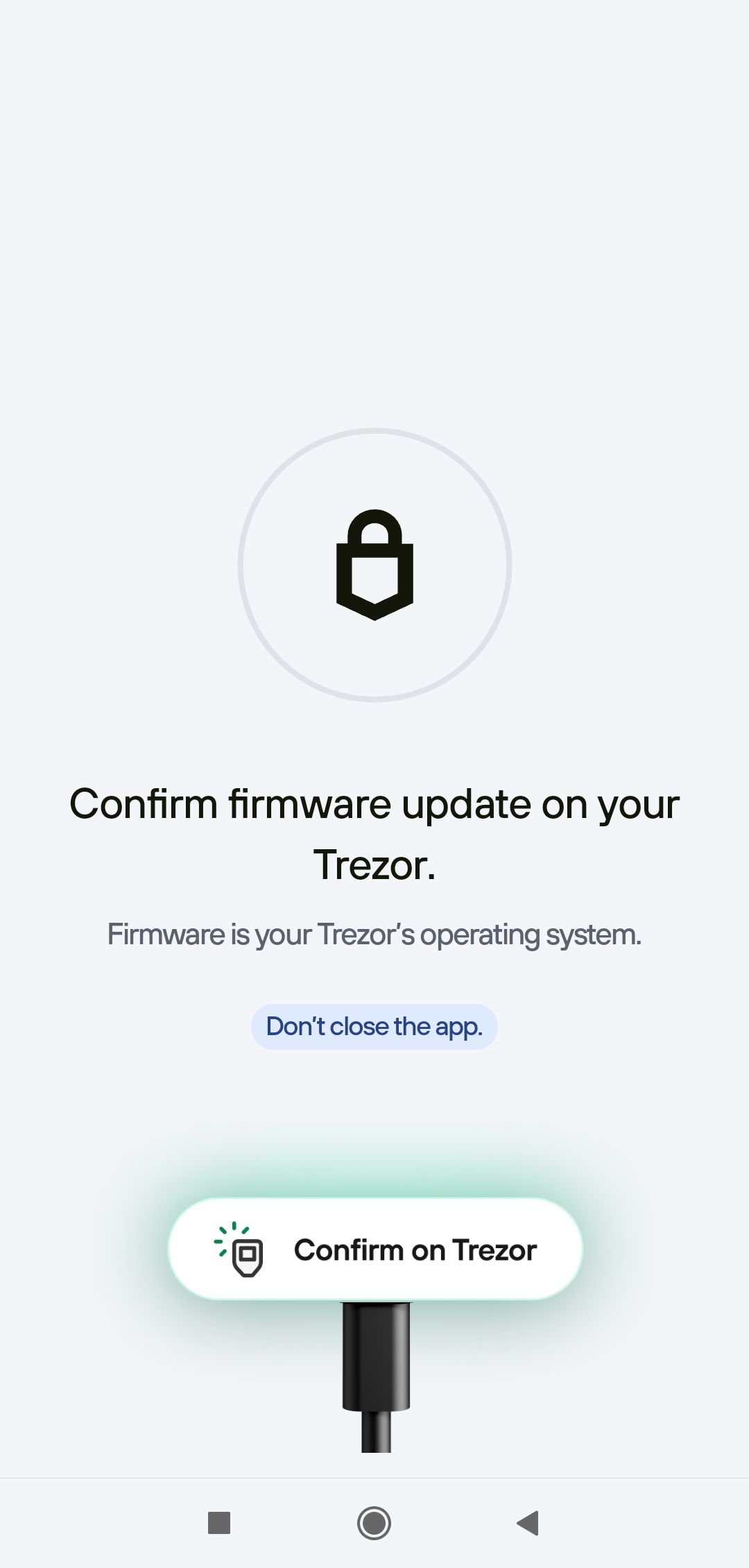
The firmware version will be displayed on the Trezor screen. Follow the on-screen instructions to confirm you wish to install the firmware update.
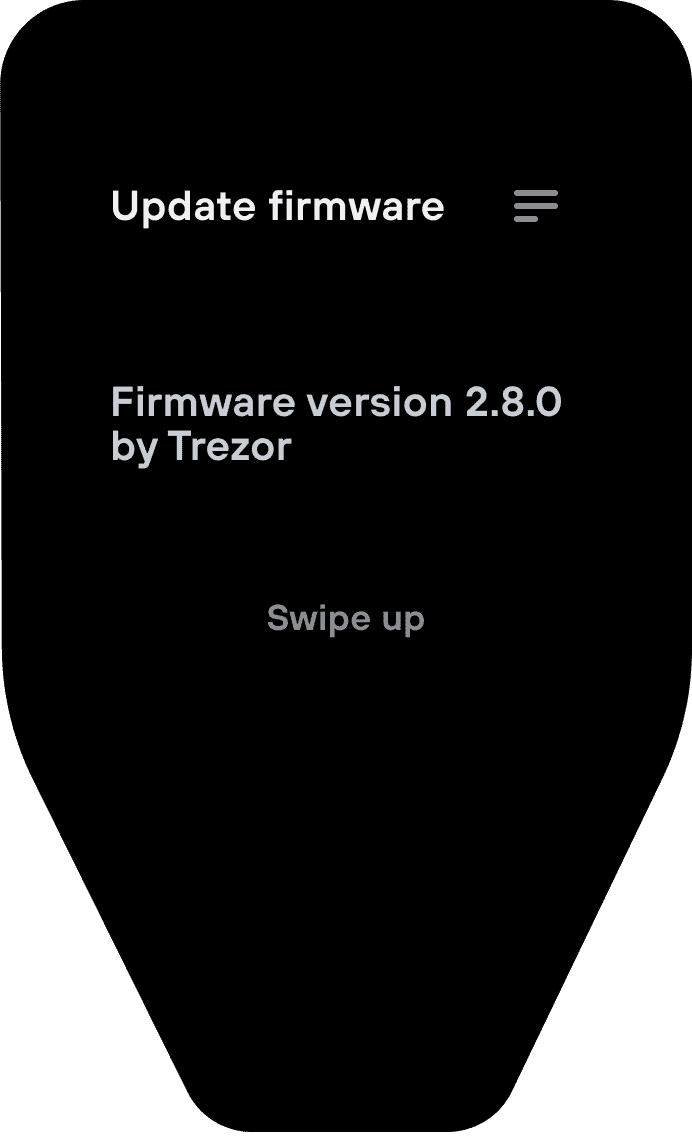
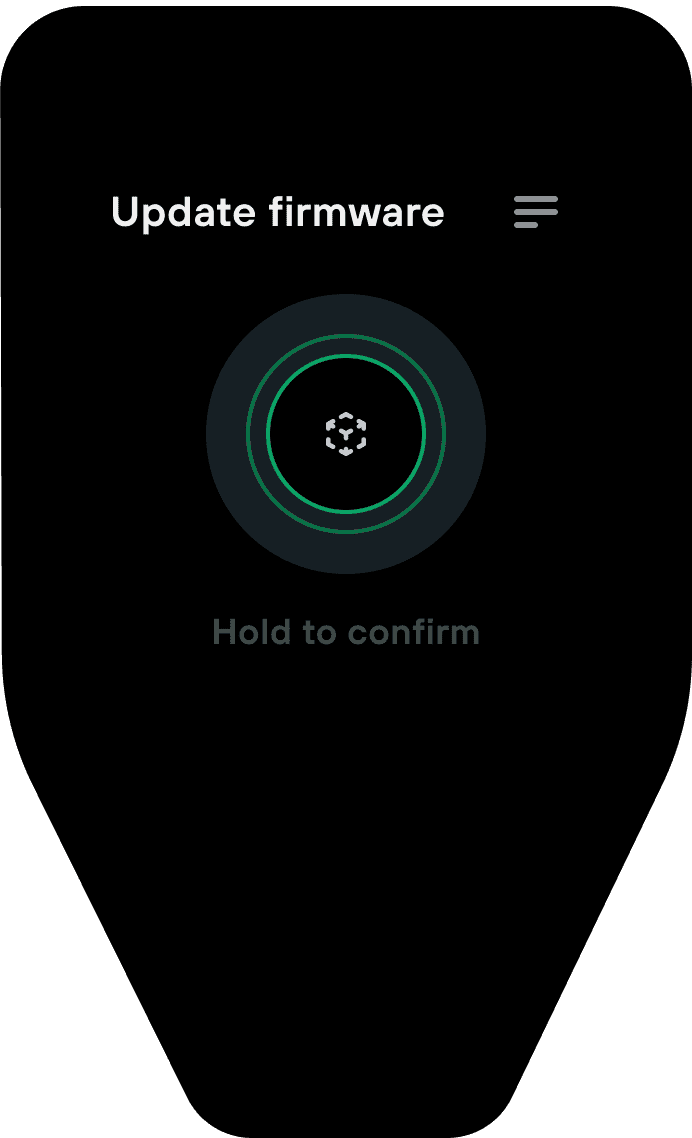
Review and confirm any additional prompts on your Trezor.
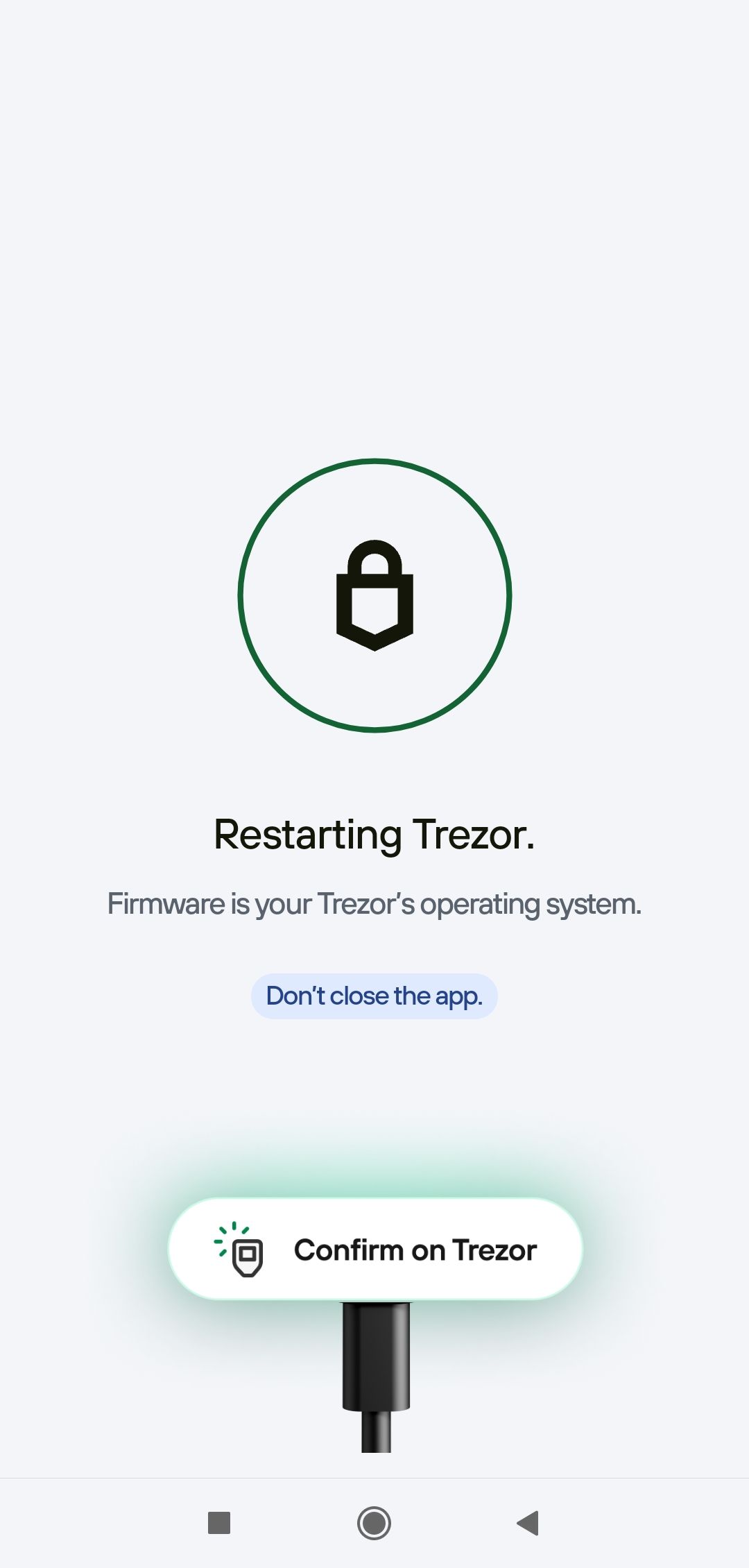
You can track the firmware installation progress via Trezor Suite.
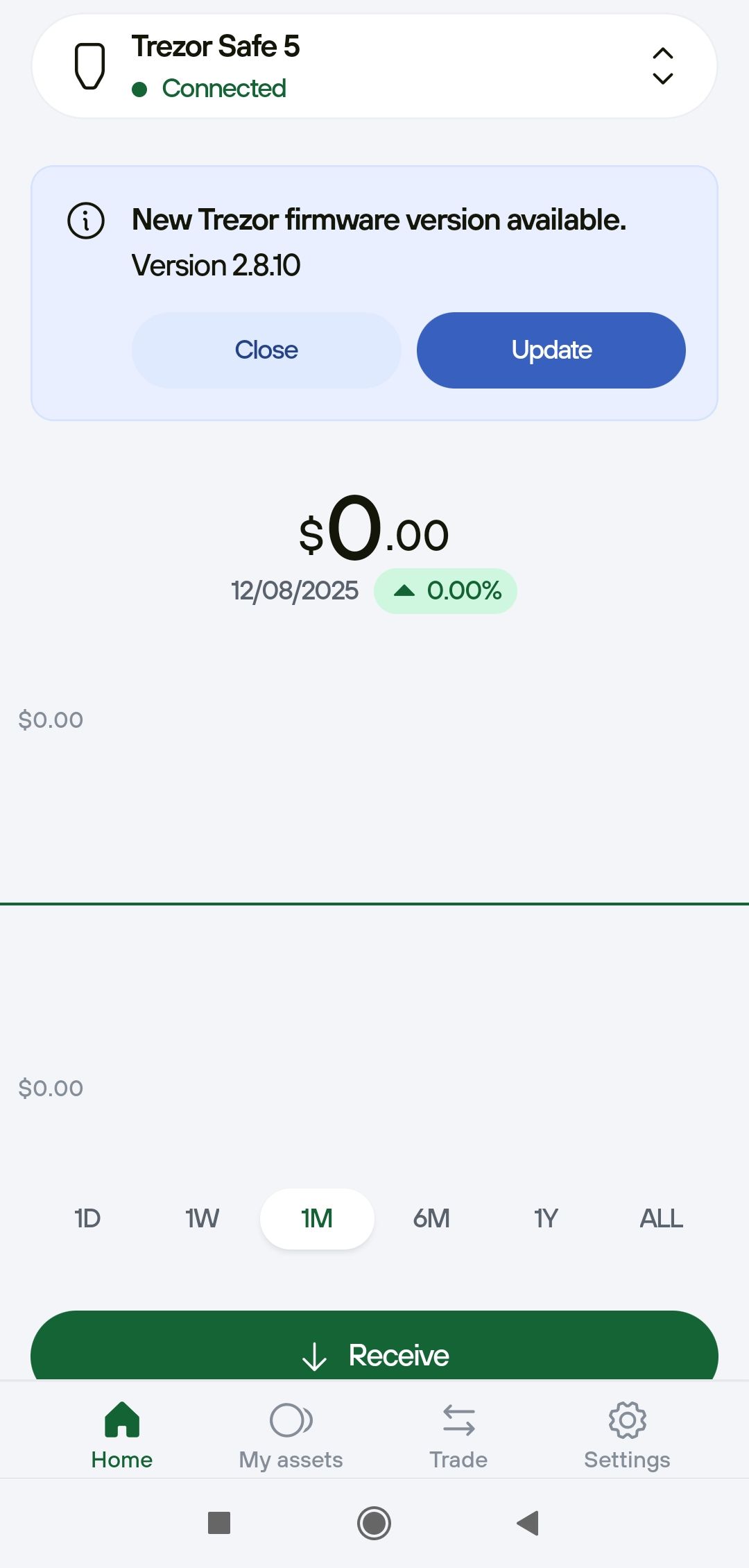
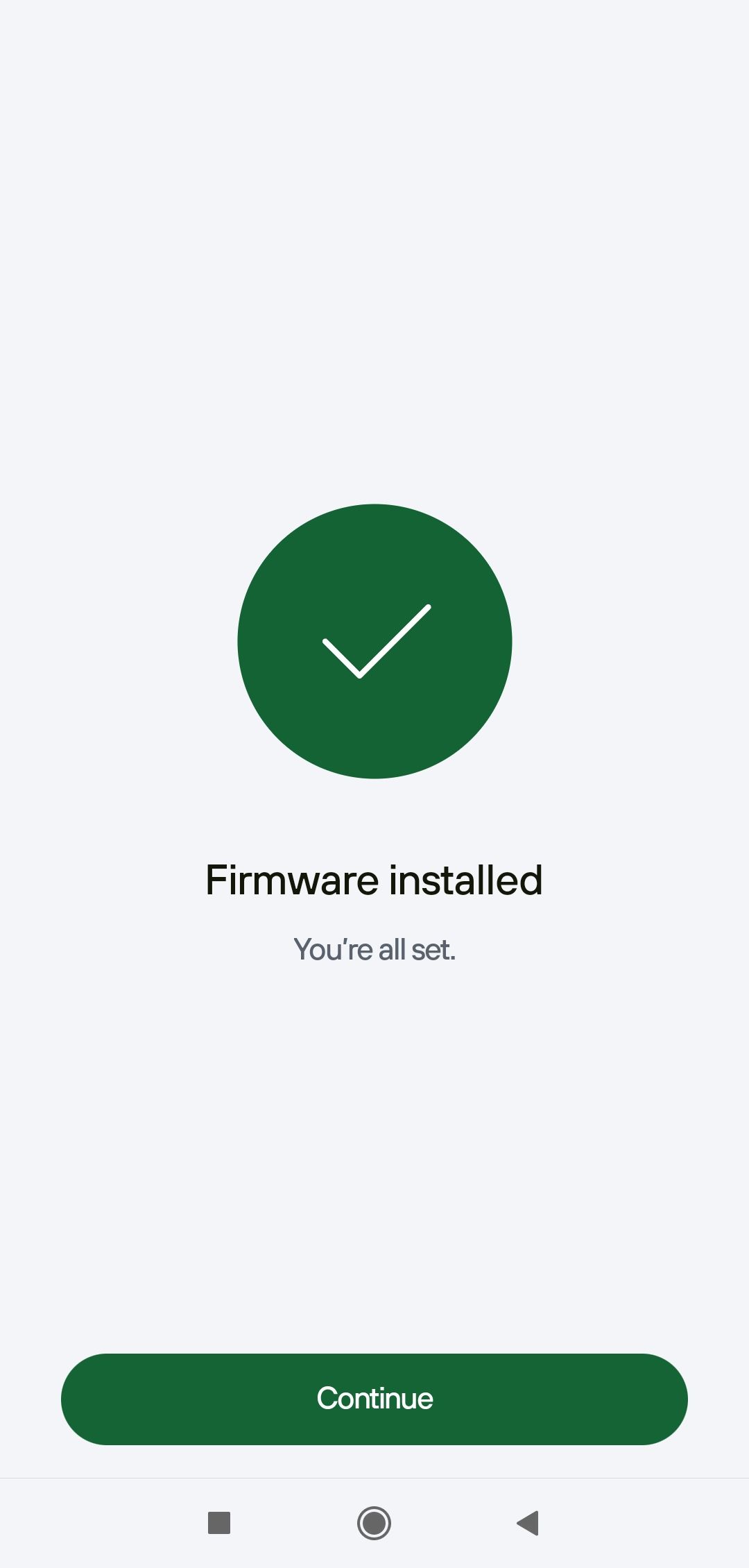
Your Trezor will be wiped if the device connection is lost while loading the new firmware.
This can sometimes happen due to a faulty or disconnected cable. If this happens, reconnect your Trezor and repeat the installation process and prepare to recover your accounts afterwards.
See also: firmware changelog