Swap crypto in Trezor Suite
Trezor Suite lets you swap one cryptocurrency for another directly within the app. This article explains the difference between centralized (CEX) and decentralized (DEX) exchanges, and how to swap crypto on desktop and mobile.
Swap services in Trezor Suite are subject to the Trezor Suite Terms of Use. Third-party exchange providers may have additional terms.
How to swap
Swap on desktop
1. Open Swap
Select Swap in the left sidebar. The Trade page opens on the Swap tab.
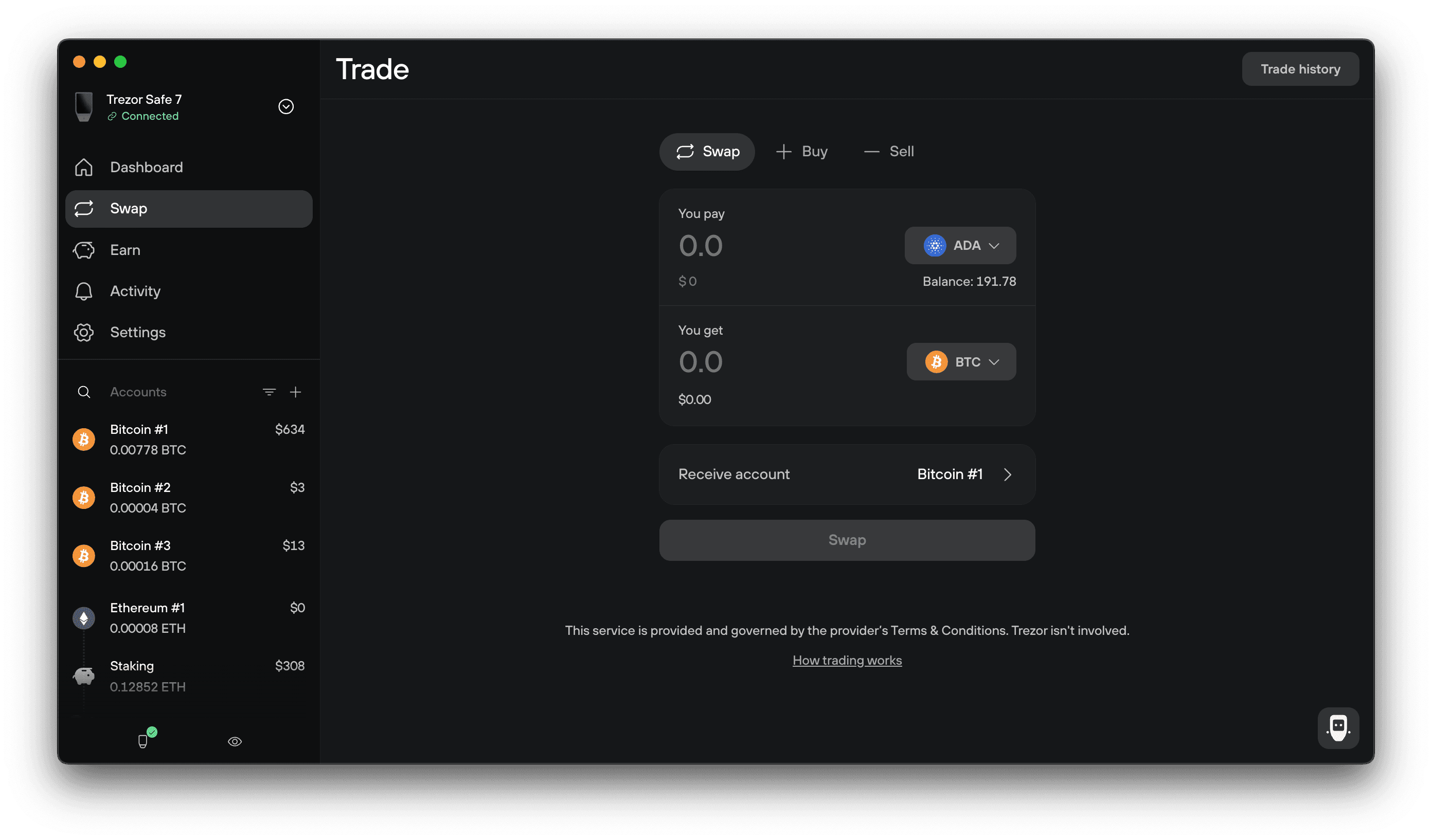
2. Set up your swap
Fill in the swap form:
- You pay: the asset and amount to swap. Enter the amount in crypto, or in your local currency in the smaller field below it. Hover over the field to use the 25%, 50%, or Max shortcuts.
- You get: the asset you want to receive, with the expected amount.
- Receive account: the Trezor account for the swapped assets.
- Provider: the provider Trezor Suite matched for you. It appears once you enter an amount.
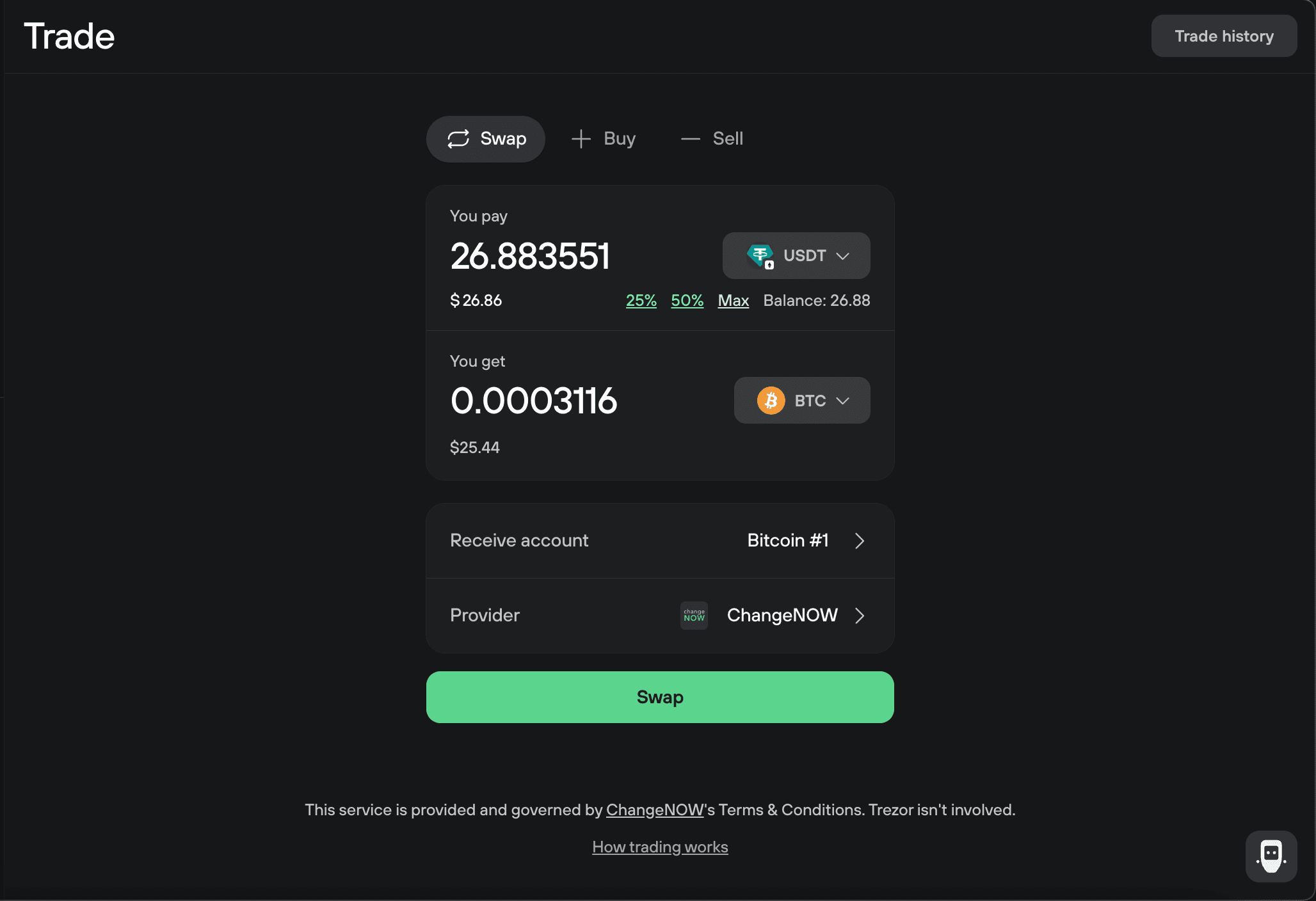
3. Choose a provider
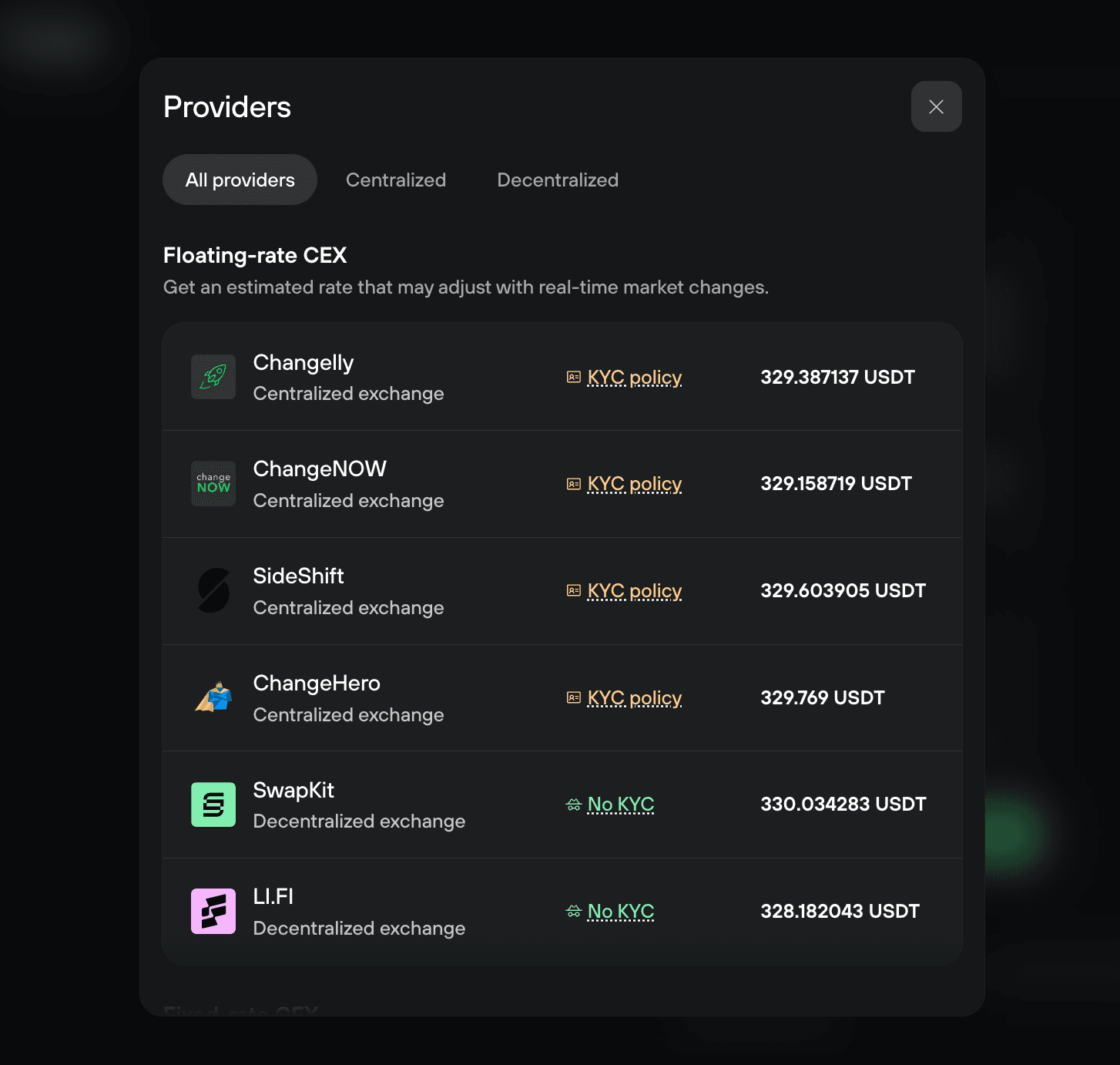
Trezor Suite picks a provider for you. To compare offers, select the Provider row. In the Providers window, filter by All providers, Centralized, or Decentralized. Each group splits offers by rate type:
- Floating-rate: an estimated rate that may adjust with real-time market changes. The amount you receive may differ slightly from the quote.
- Fixed-rate: locks in your exchange rate for 15 minutes. Useful when prices move fast, but fees are higher. Complete the swap within 15 minutes or the rate expires.
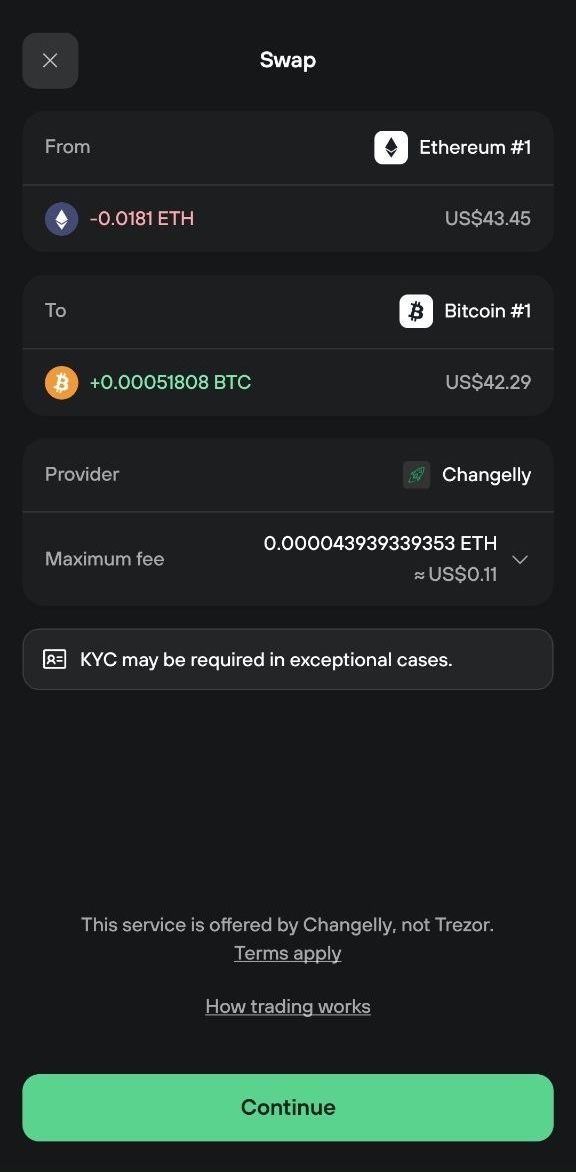
Centralized exchanges (CEX) may ask for identity verification (KYC). Each one shows a KYC policy link. Decentralized exchanges (DEX) never require KYC and are marked No KYC.
Select a provider to use its offer.
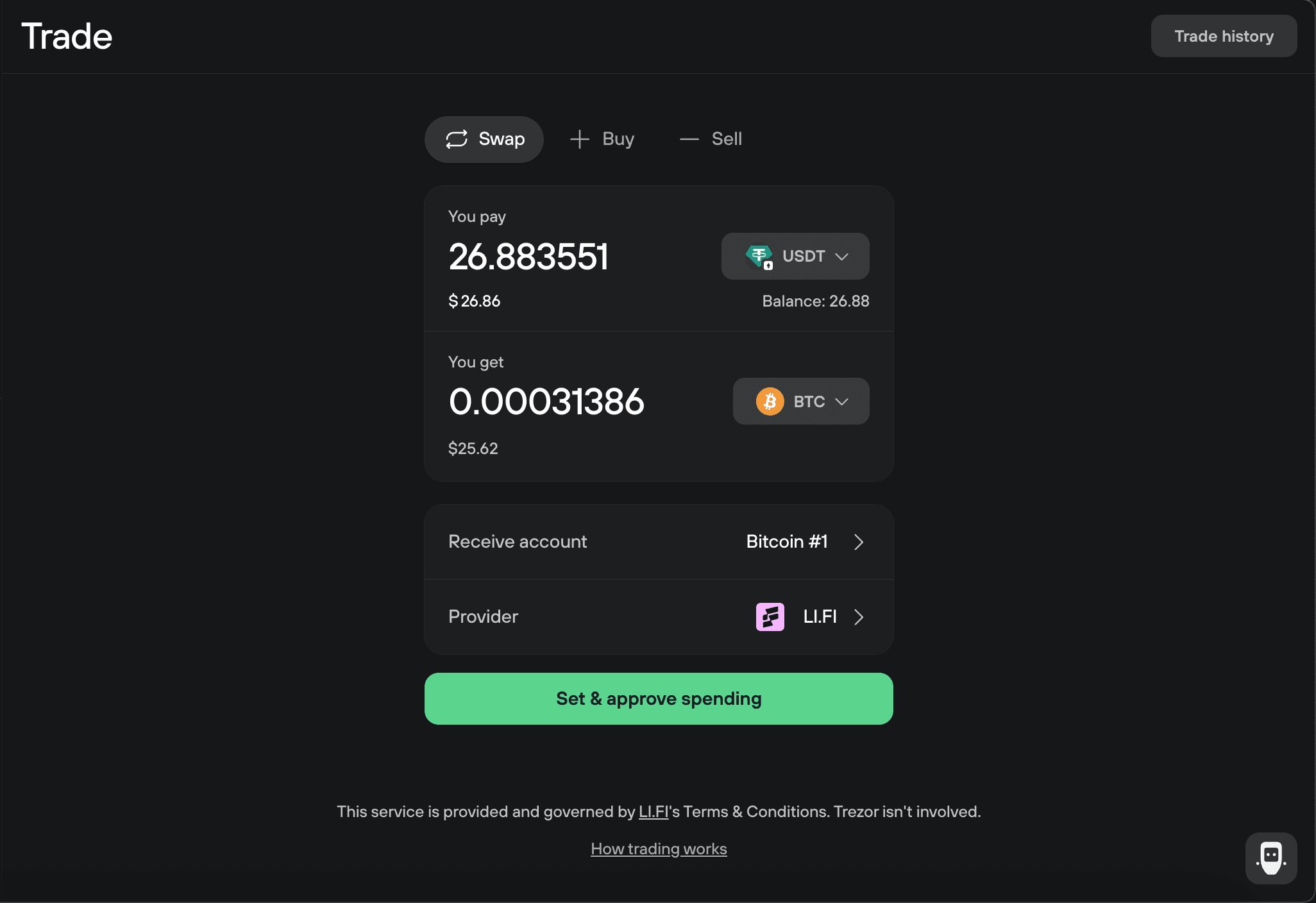
4. Approve token spending (DEX only)
Skip this step if you picked a CEX provider or you're swapping a native asset like ETH.
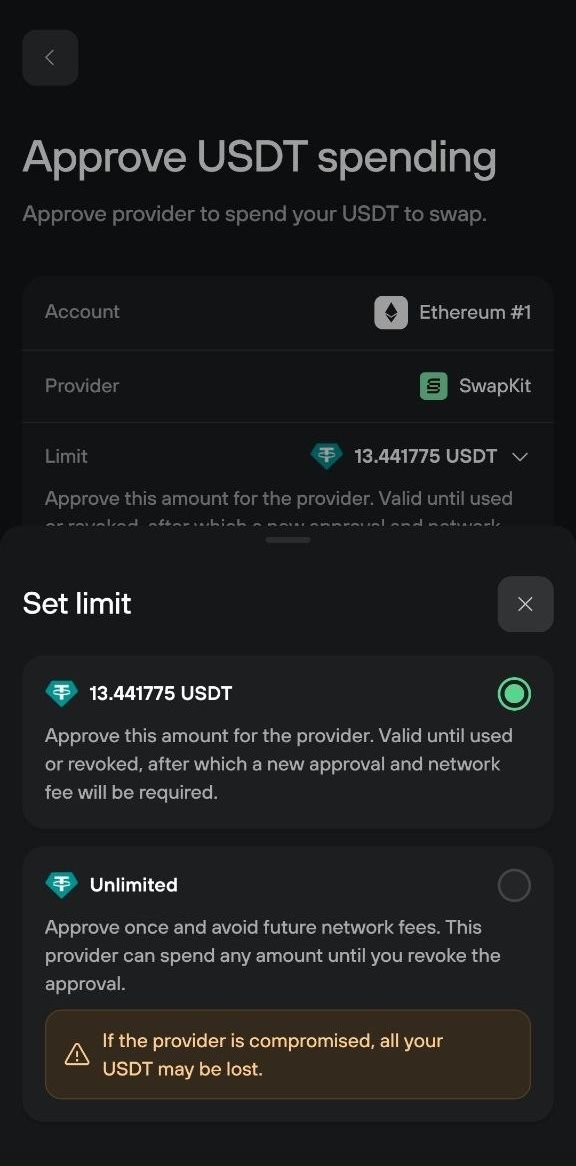
DEX swaps with ERC-20 tokens take two transactions: an approval, then the swap. The approval gives the provider's smart contract permission to move your tokens.
Select Set & approve spending.
The approval window (for example, Approve USDT spending) shows the account, provider, approval limit, and network fee. The limit defaults to the exact amount you're swapping. To change it, open the Limit menu:
- Exact amount: approves only this swap. The approval stays valid until it's used or revoked. Your next swap needs a new approval and network fee.
- Unlimited: approve once and skip future approvals and their fees. The provider can spend any amount of that token until you revoke the approval. If the provider is ever compromised, you could lose all of that token.
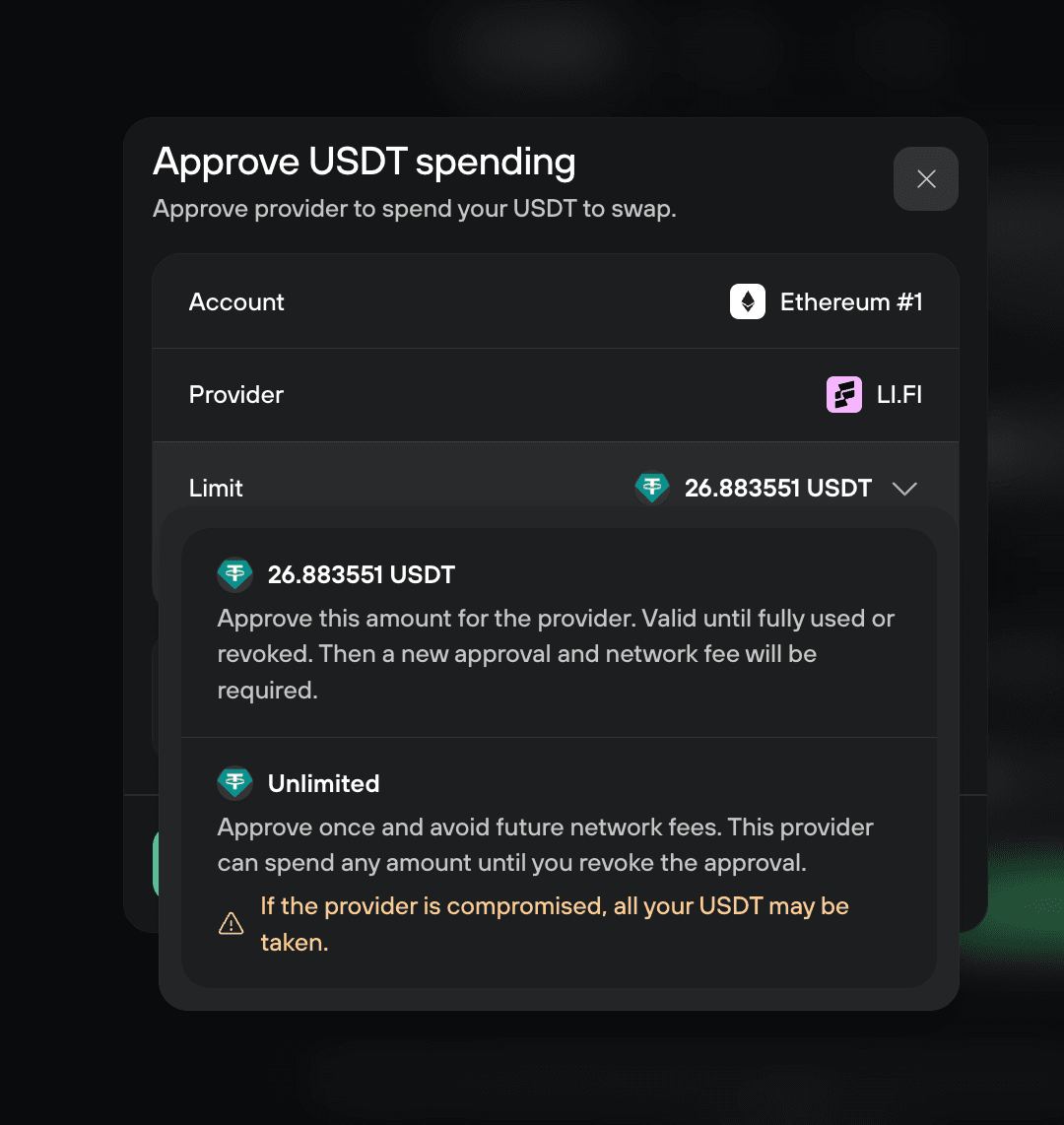
To change the network fee, expand Network fee and choose Low, Normal, or High, or select Customize fee. Normal is selected by default.
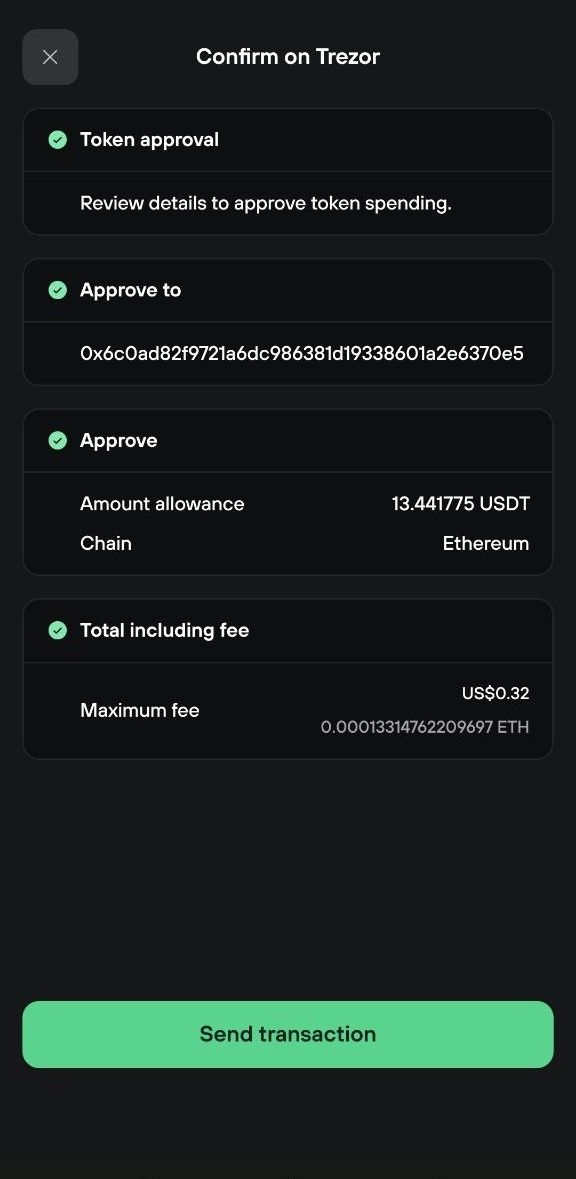
Select Continue, then review and confirm the approval on your Trezor device. Select Approve in Trezor Suite to broadcast it.
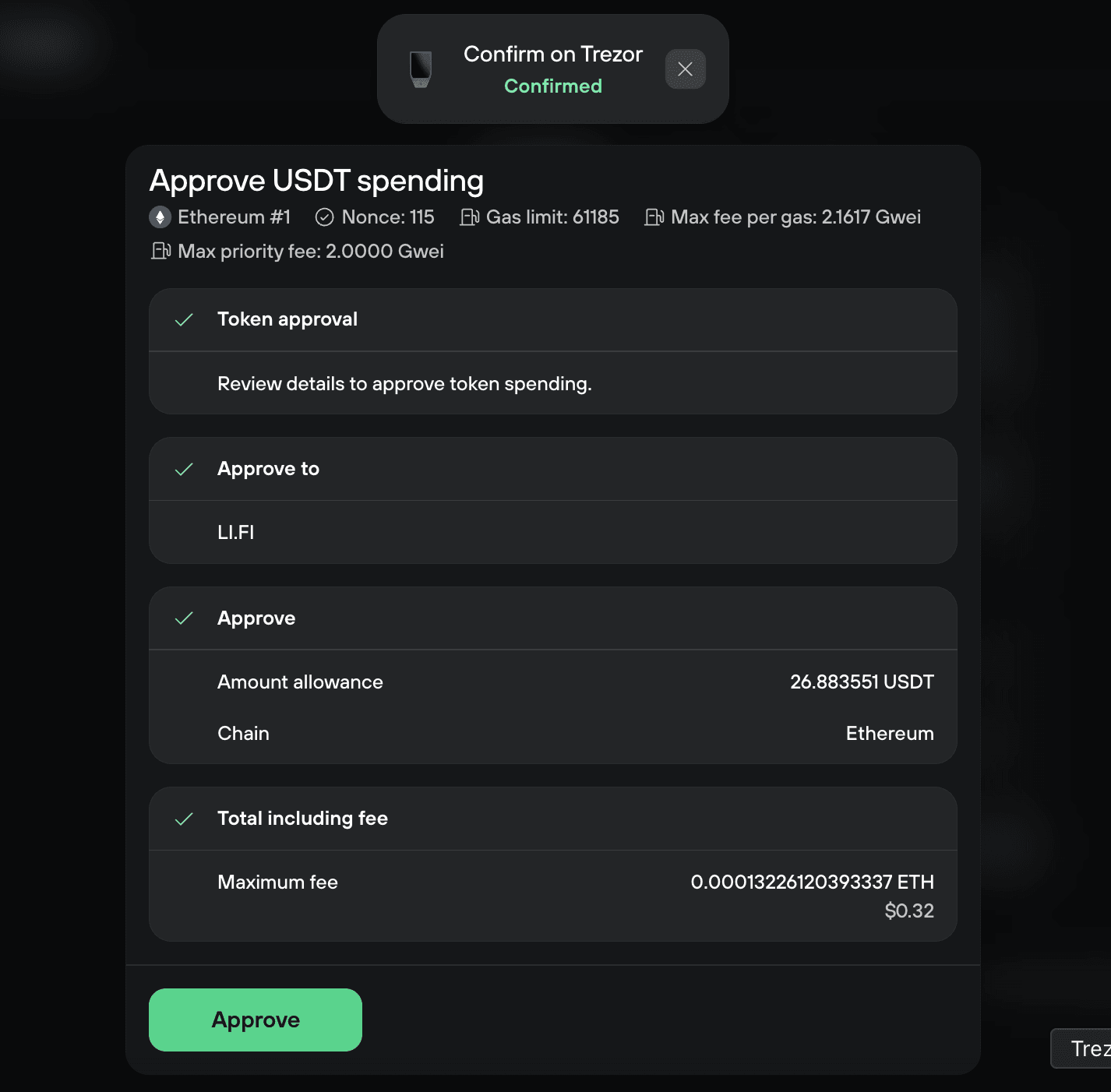
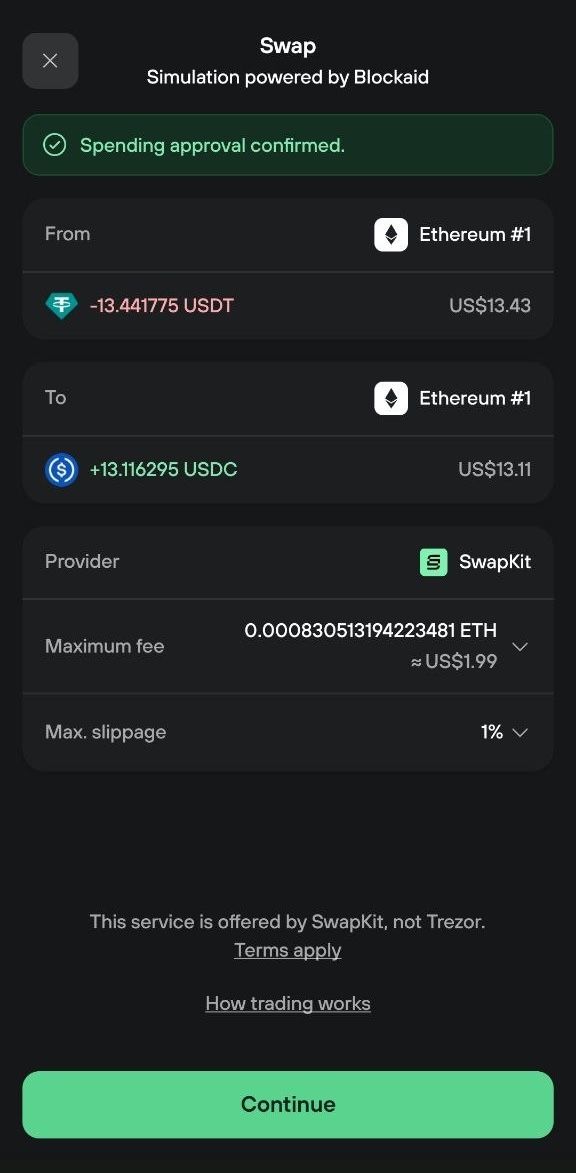
The swap form shows Confirming approval… and the transaction ID until the approval confirms on-chain, which takes a few moments. Then Swap becomes available.
5. Review your swap
Select Swap. The Review your swap screen shows what you pay and from which account, what you get and to which account, the rate type, network fee, provider, and exchange type. To change the network fee, select the pencil icon next to it. If the provider may ask for KYC, a notice appears below.
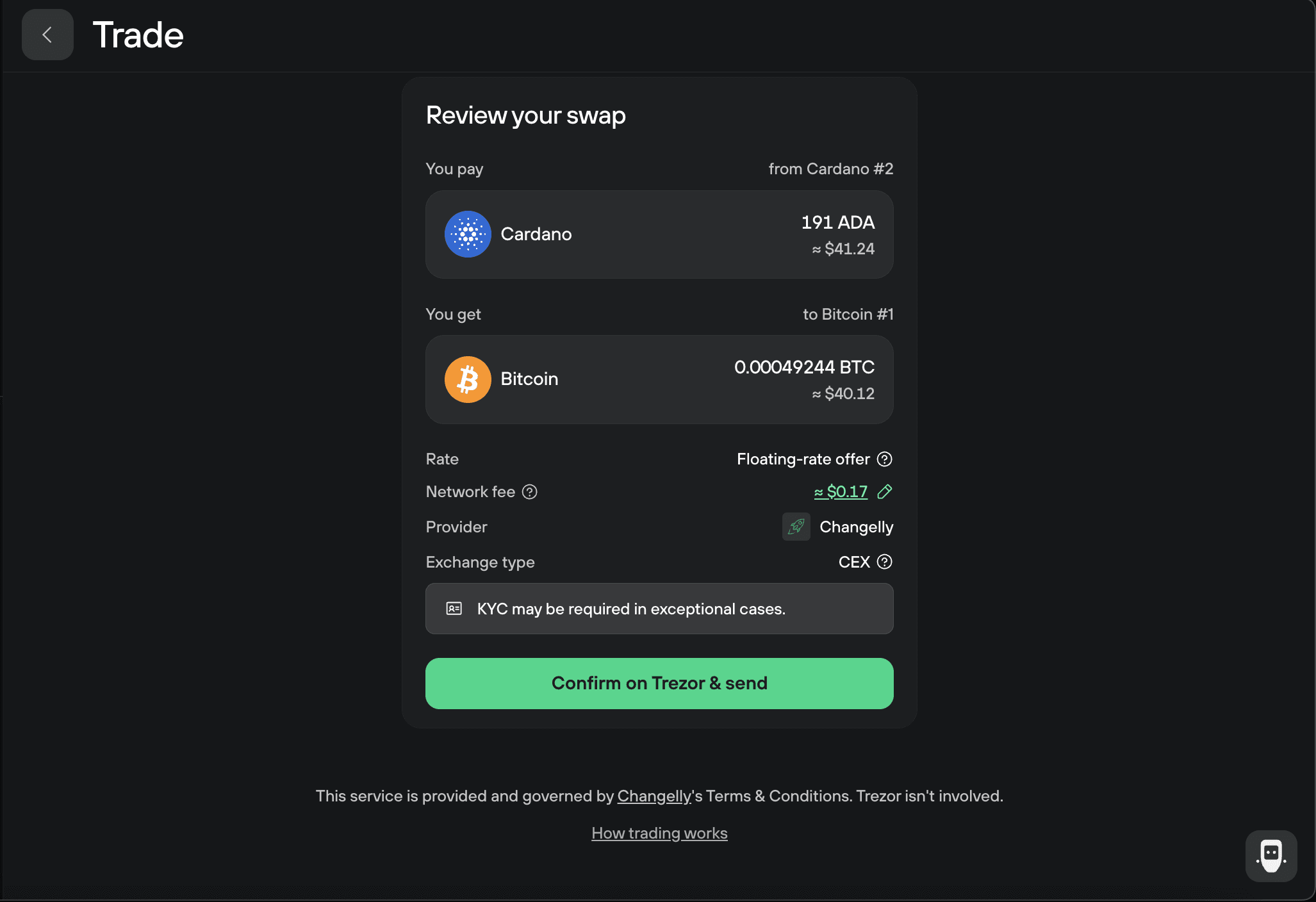
For DEX swaps, the summary also shows slippage. The default 1% suits most swaps. To change it, select the pencil icon next to the slippage value.
Don't adjust slippage unless you have a specific reason. Changing it can significantly affect your final price. For more on slippage, see What is a DEX?
Check the details, then select Confirm on Trezor & send.
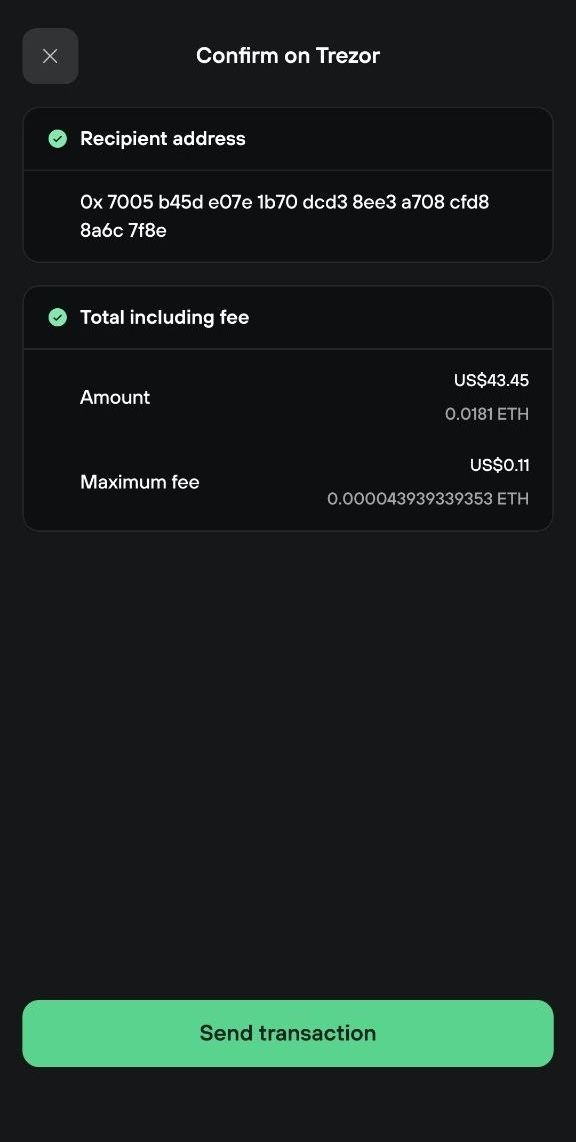
6. Confirm on your Trezor
Confirm the transaction on your Trezor device. Make sure all details match what you see in Trezor Suite. Once you confirm, each detail shows a check mark. Select Swap to broadcast the transaction.
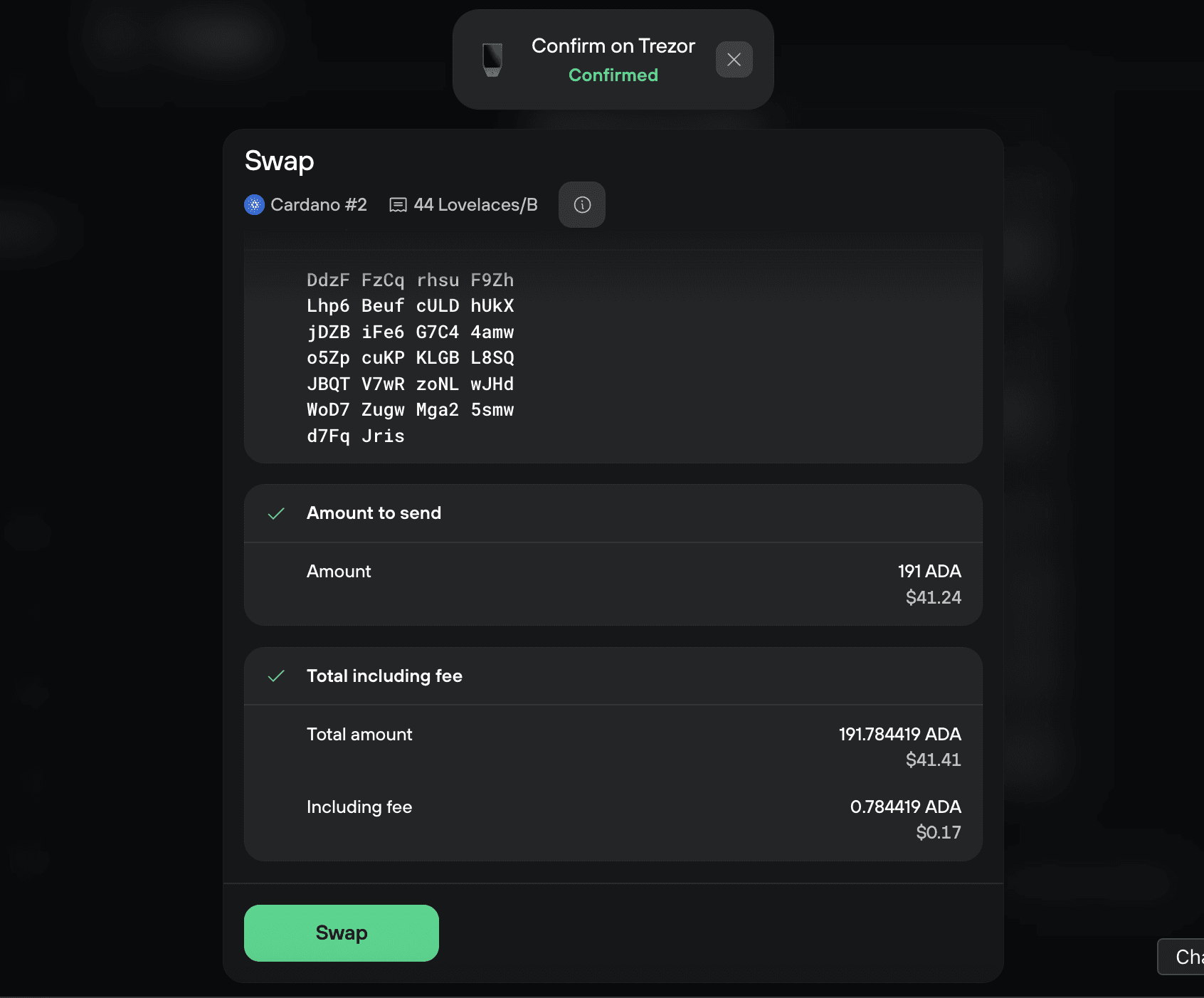
Track your swap on desktop
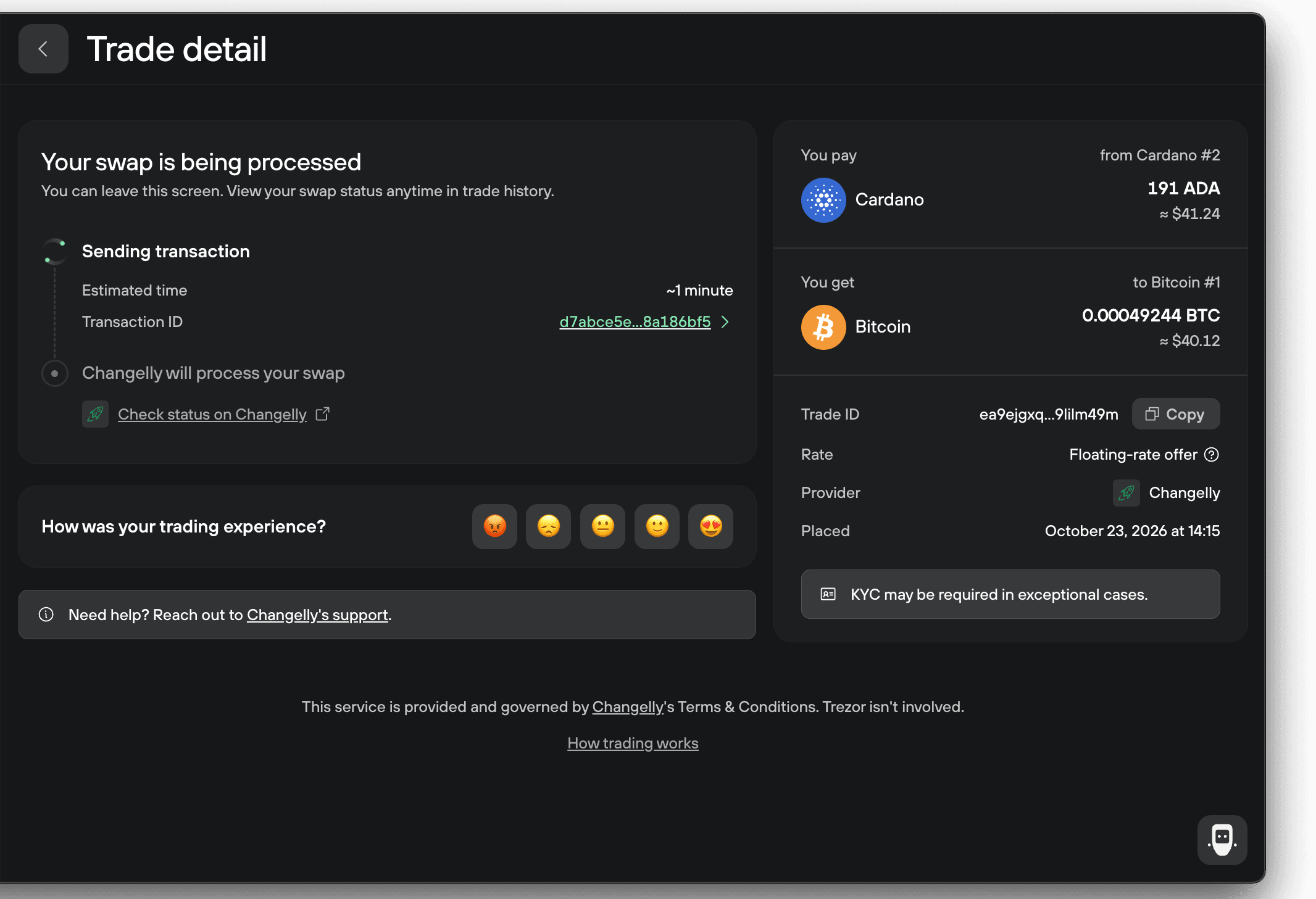
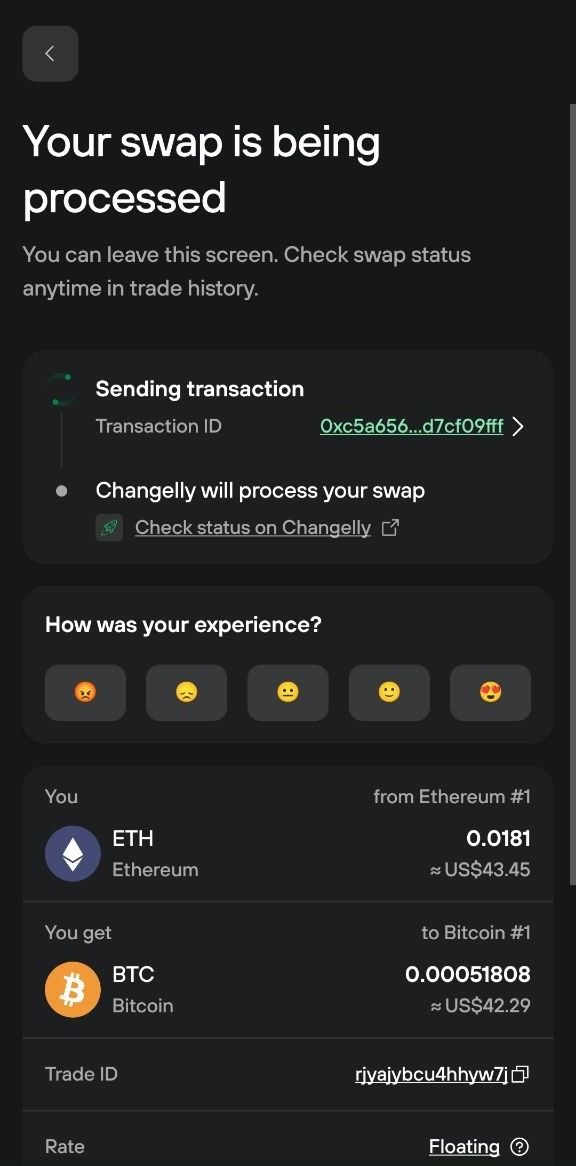
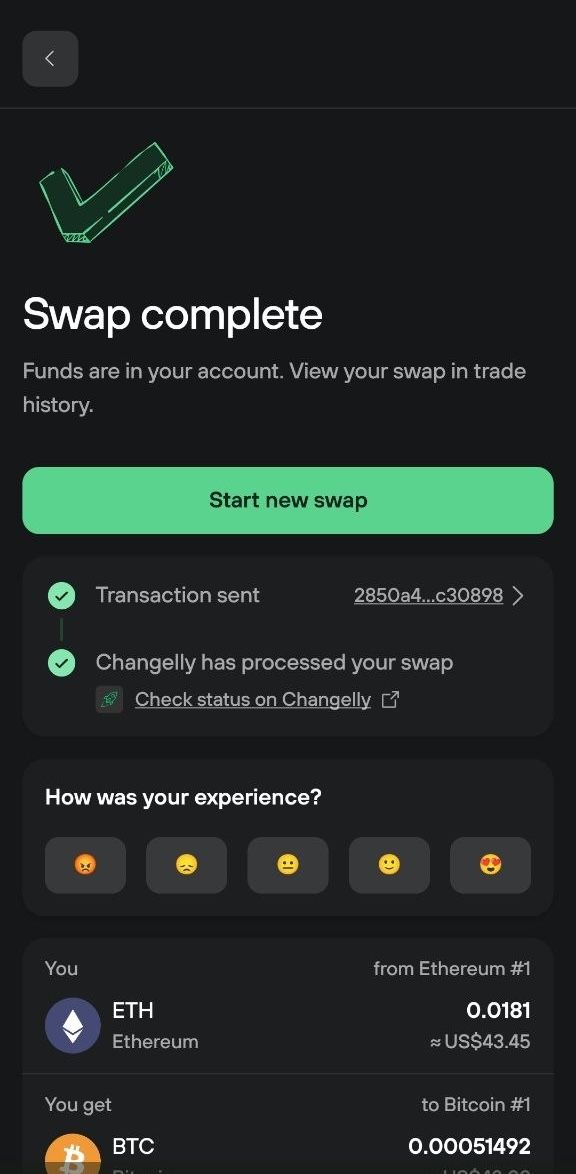
After you broadcast a swap, the Trade detail page shows its progress. You can leave the page and return to it any time: select Swap in the left sidebar, then Trade history in the top right corner. The page shows:
- A progress timeline with the estimated time and the on-chain transaction ID
- A link to check the swap's status on the provider's site
- Your Trade ID, with a Copy button
- The rate type, the provider, and when you placed the swap
- A link to the provider's support if you need help
Once the provider sends your swapped assets, they arrive in your receive account.
Revoke a token approval on desktop
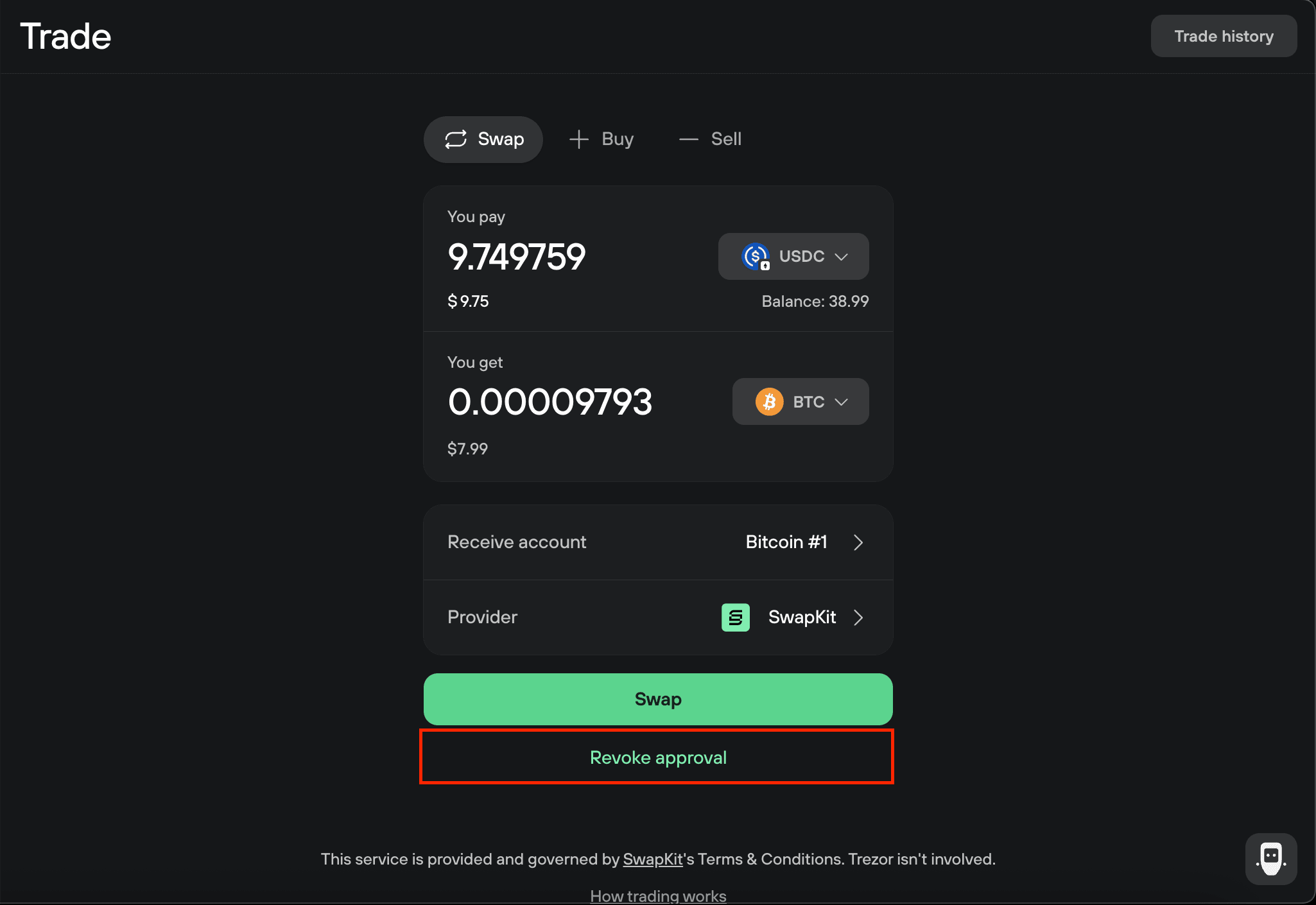
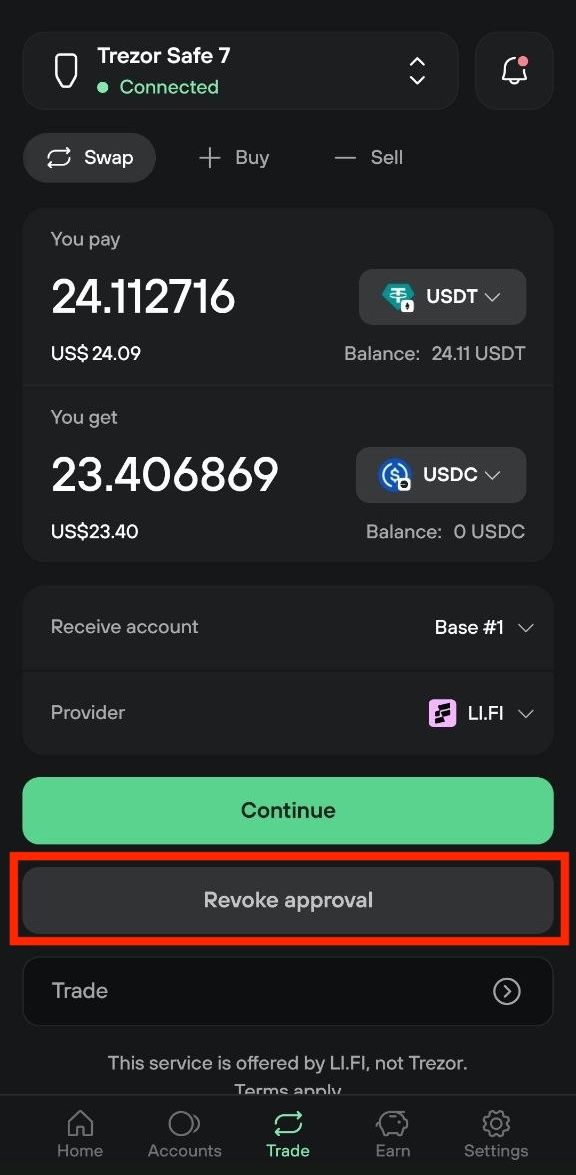
You revoke an approval from the swap form, using the same token and provider you approved:
- Select Swap in the left sidebar.
- In You pay, select the approved token and enter any amount.
- In Provider, select the provider you approved.
- Select Revoke approval below Swap.
- Confirm on your Trezor device, then select Revoke to broadcast the transaction.
Revoking costs a network fee.
For a DEX token swap, your Trezor shows raw transaction data instead of a plain summary of the swap, and the amount reads 0 ETH because you're sending tokens, not ETH. Check that the swap contract address on your device matches the one in Trezor Suite before you confirm.
View your swap history
Here is where you can find information about your past swaps:
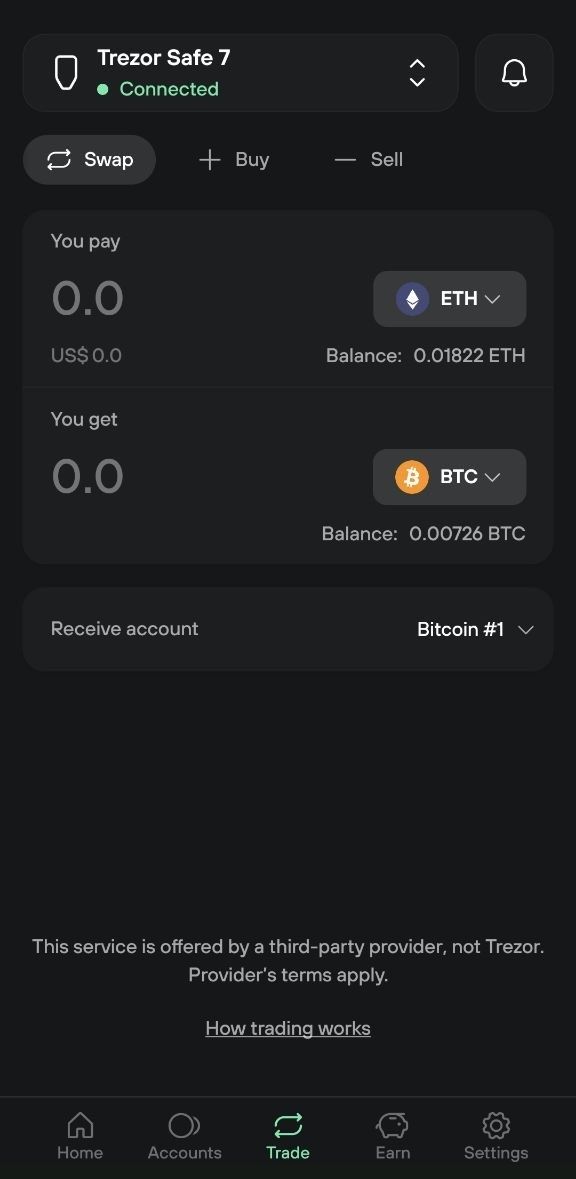
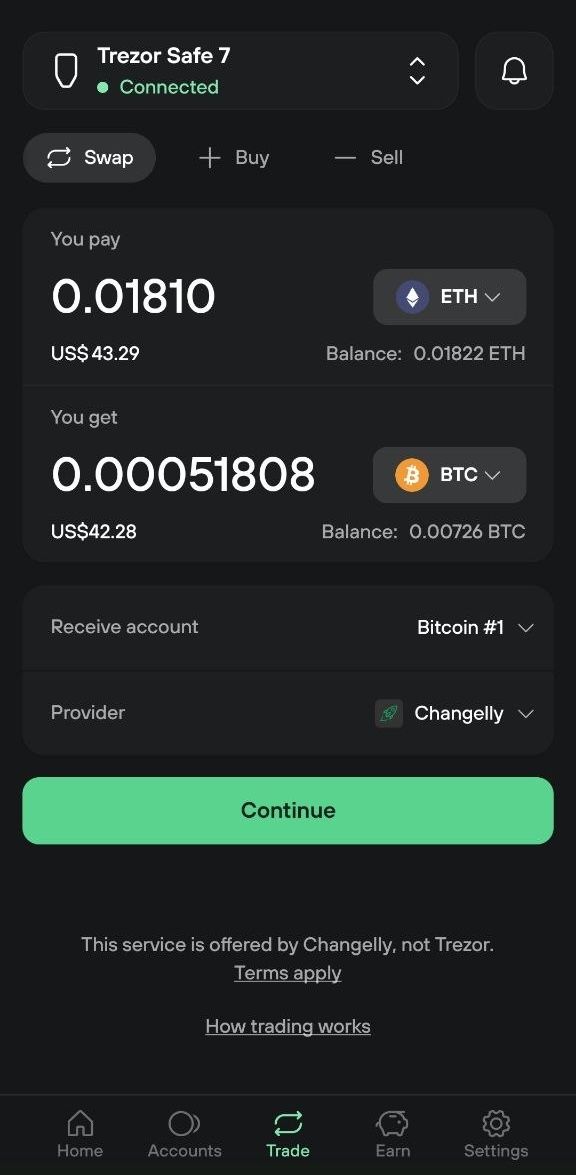
- Desktop: select Swap in the left sidebar, then select Trade history in the top right corner.
- Mobile: select Trade in the bottom menu, then select the Trade row below the swap form.
Frequently asked questions
Which Trezor devices can I use to swap crypto?
You can use any Trezor device to swap crypto, as long as the cryptocurrencies you want to swap are supported. Check supported coins at trezor.io/coins.
Can I swap between any cryptocurrencies?
With centralized exchanges, you can swap between any supported assets across different blockchains. Decentralized exchanges support fewer assets and networks. The provider list shows which providers offer your pair.
Do I need to provide ID to swap?
It depends on which option you choose. Centralized exchanges may require KYC. Decentralized exchanges do not require any personal information or account creation.
What if my swap fails or gets stuck?
If a CEX swap fails, you'll receive a refund of your original coins. In rare cases, the exchange may require identity verification to process the refund.
To check a swap's status, open it from Trade history and select the link to check its status on the provider's site. For help with the swap itself, use the provider's support link on the same page.
If that doesn't resolve it, contact Chatbot Hal. Have your Trade ID ready. You'll find it on the swap's page in Trade history.