Staking Cardano (ADA) in Trezor Suite
Stake the ADA in your Trezor Suite account to earn staking rewards. Your ADA stays in your account while it's staked, and you can send, swap, or spend it at any time.
For how Cardano pays rewards and what a DRep is, see Cardano: what it is and how it works with Trezor.
Before you start
You need:
- ADA in a Cardano account in Trezor Suite
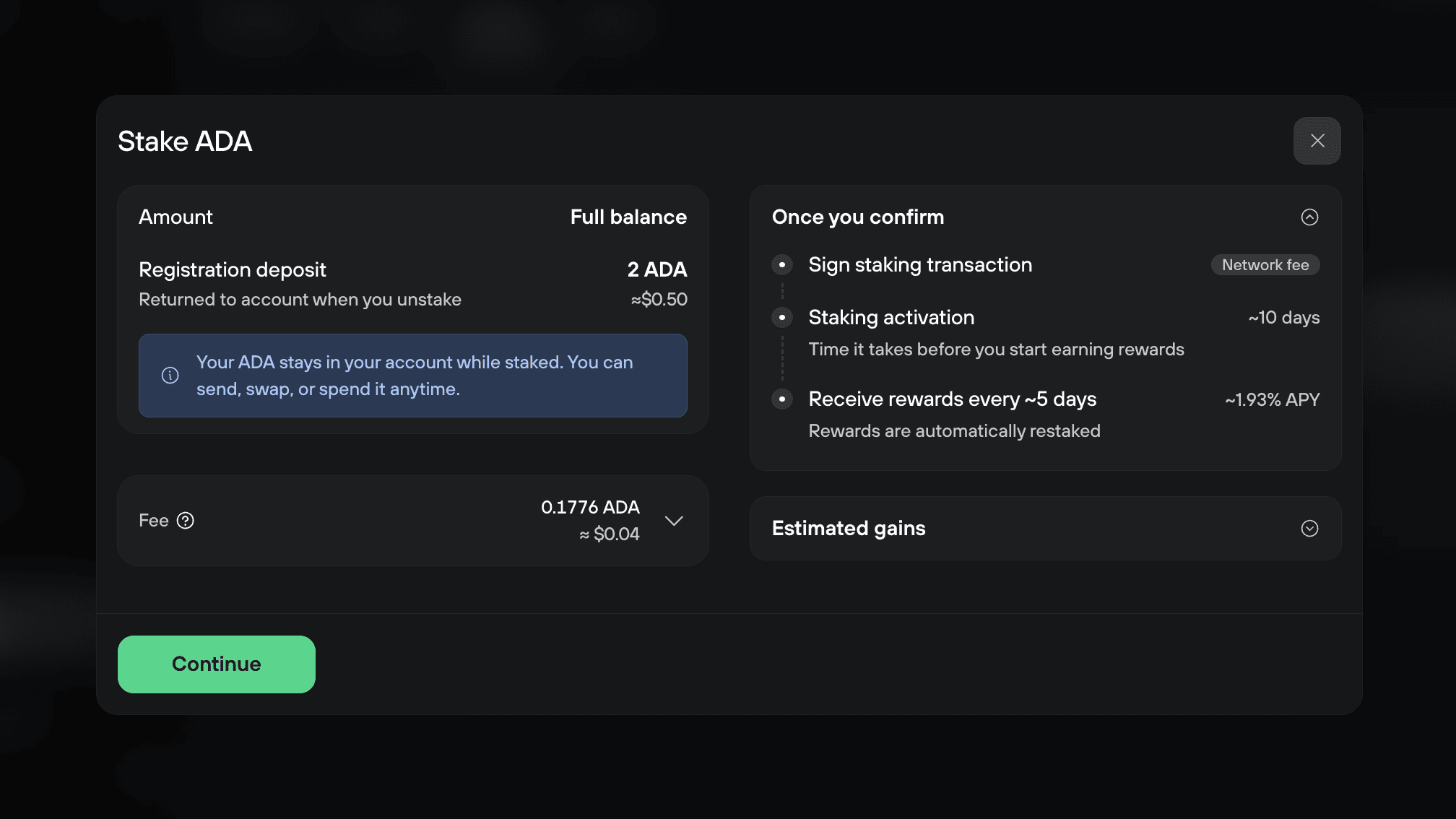
- 2 ADA for a returnable deposit that registers your staking key, plus a network fee of about 0.18 ADA
- Your Trezor unlocked and connected to Trezor Suite
Staking takes one transaction, which you confirm on your Trezor. Trezor Suite stakes your full balance, and you can still send, swap, or spend it while it's staked. Any ADA you receive later is staked automatically after two epochs.
Stake your ADA on desktop
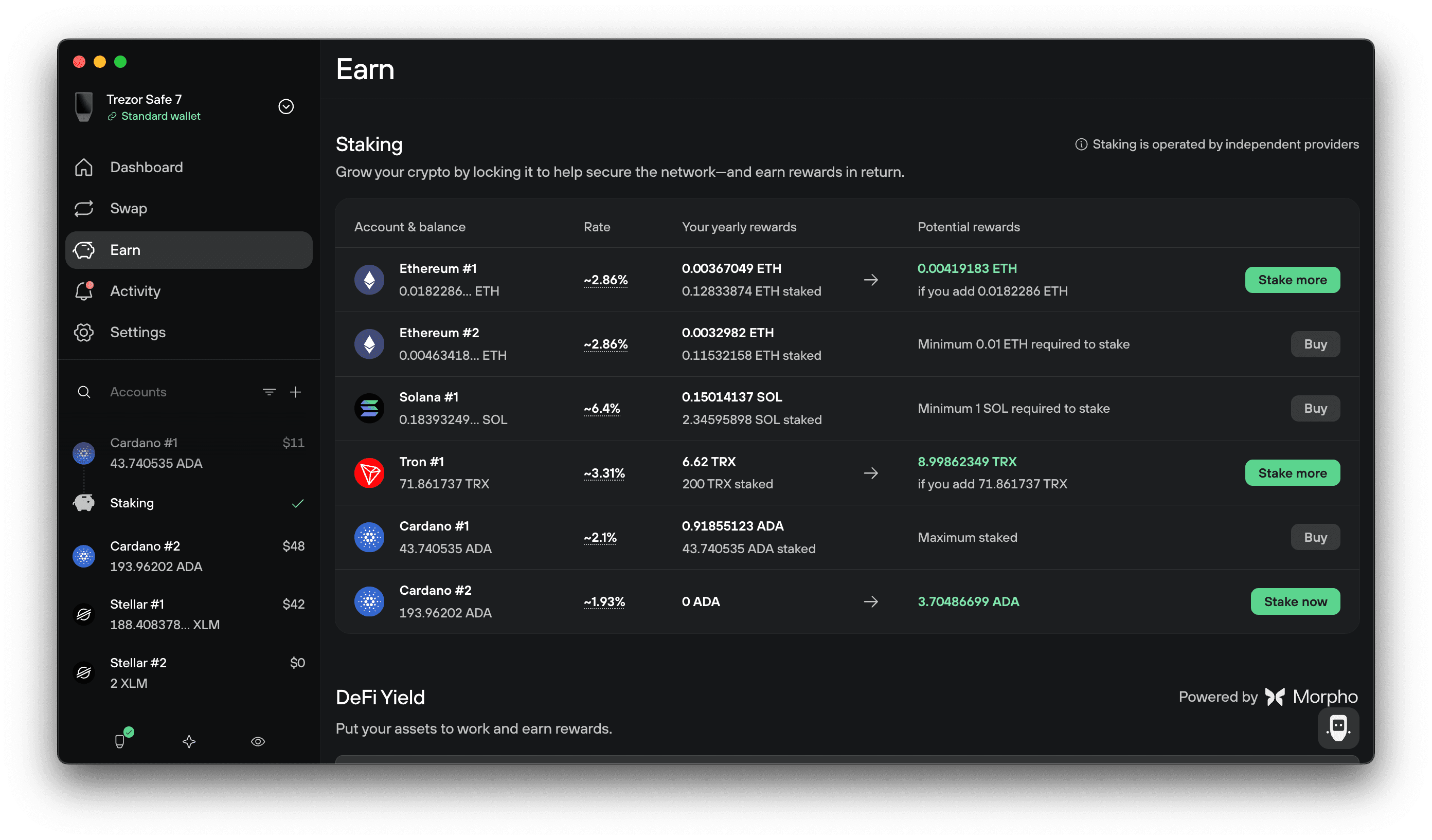
1. Open the Earn tab
Open the Earn tab. Find your Cardano account in the Staking table and select Stake now.
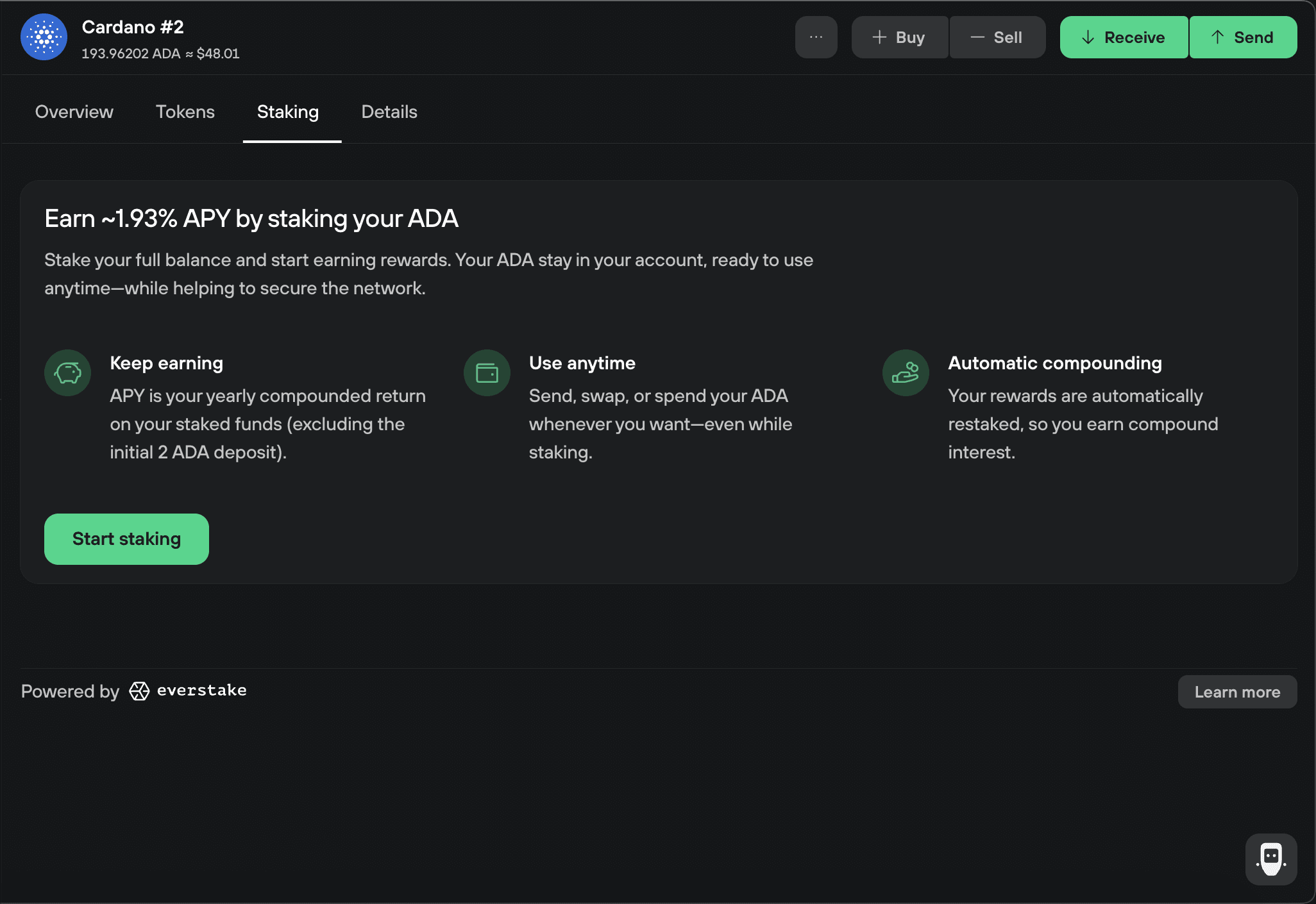
You can also open the account itself, go to the Staking tab, and select Start staking.
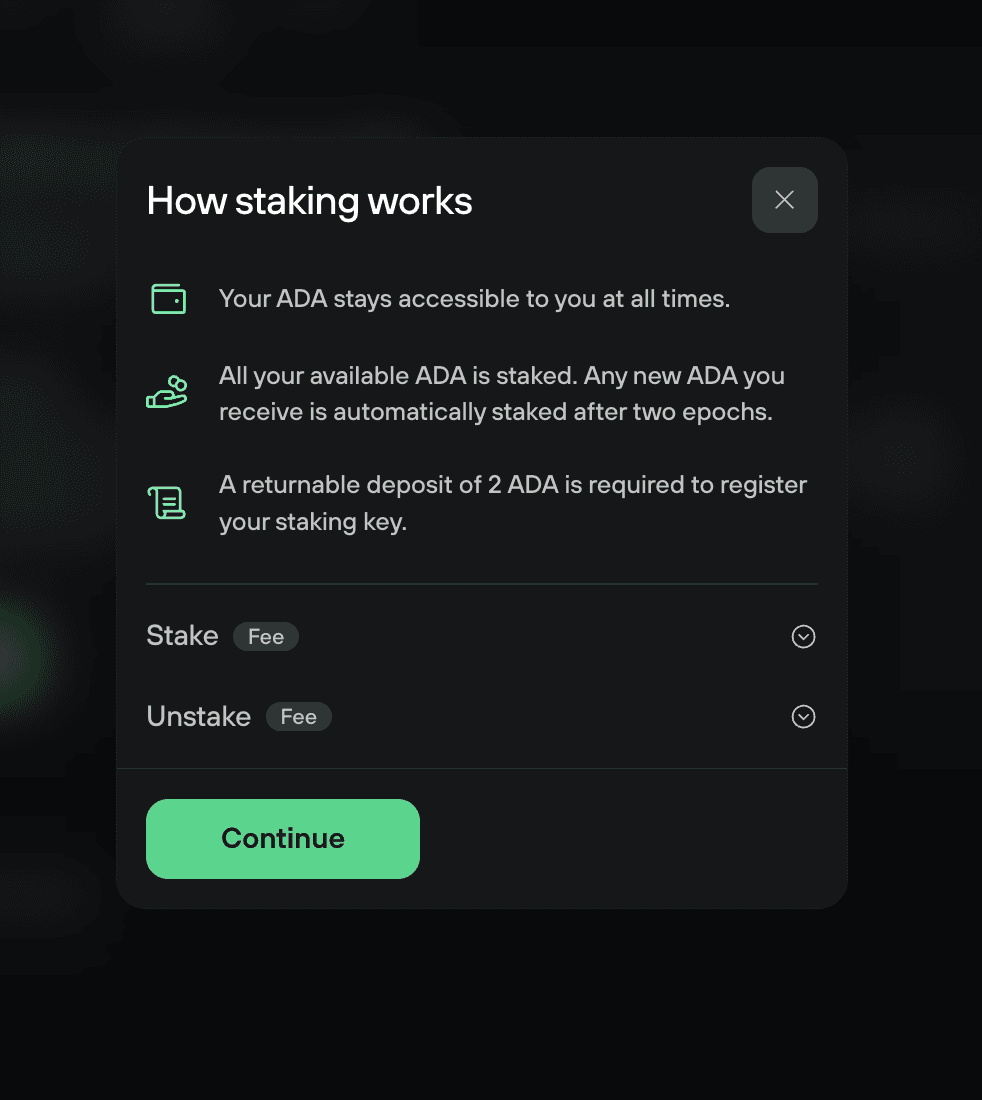
2. Read how staking works
The How staking works window covers what happens when you stake: your ADA stays accessible, your full available balance is staked, and the 2 ADA deposit is returnable. Expand Stake and Unstake to see the fees and timings for each. Select Continue.
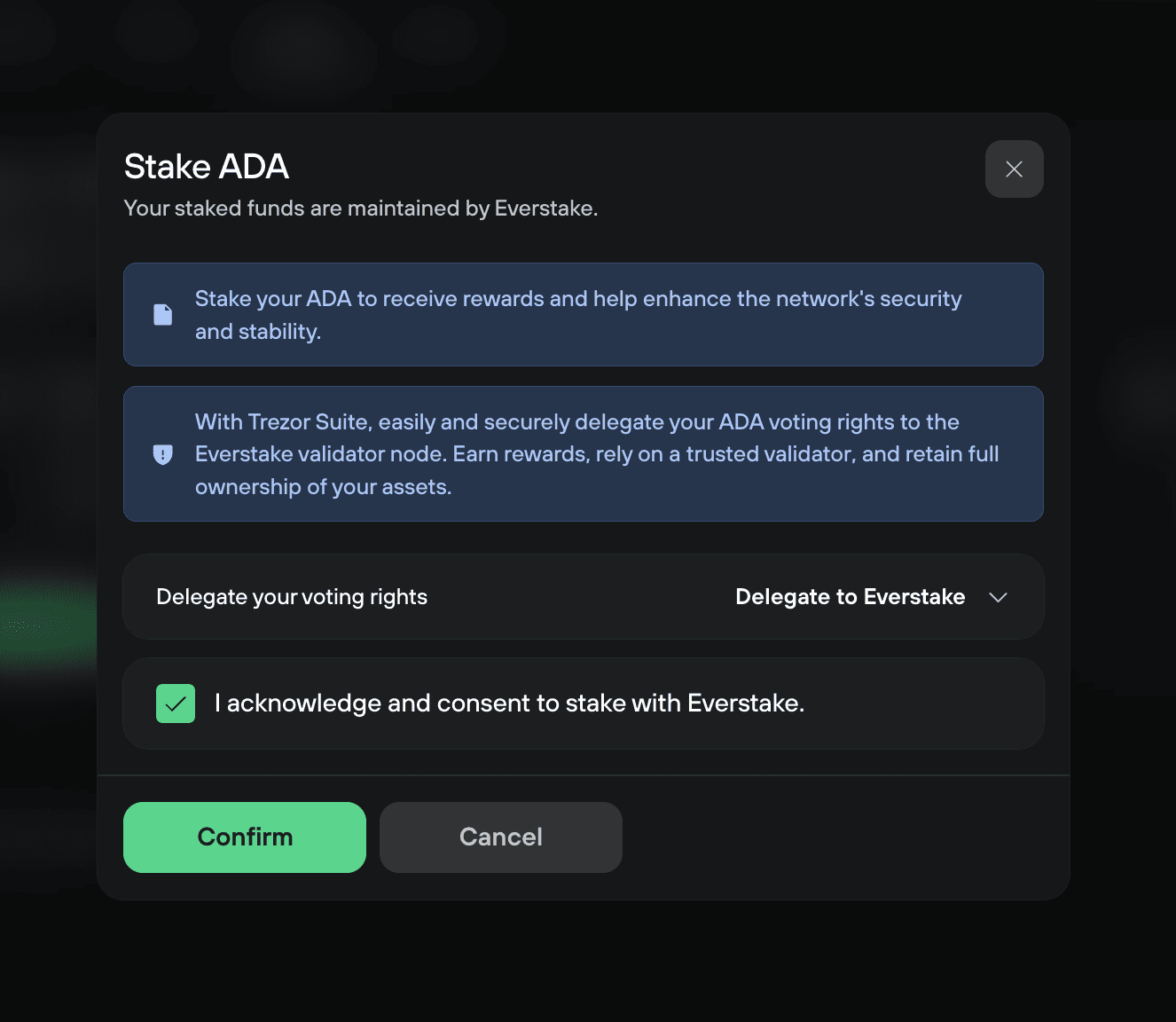
3. Choose your voting preference and accept the terms
Cardano requires a vote delegation before you can claim rewards, so the Stake ADA window asks who votes with your ADA: your Delegated Representative (DRep). Delegate to Everstake is preset. A DRep can only vote on governance proposals. They can't move or spend your ADA, and you can change your choice later.
To use a different DRep, choose it from the Delegate your voting rights dropdown.
Tick the consent checkbox, then select Confirm.
4. Review the deposit and fee
Check the 2 ADA registration deposit and the network fee, then select Continue. Once you confirm shows what happens next, and Estimated gains shows what your balance would earn.
5. Confirm on your Trezor
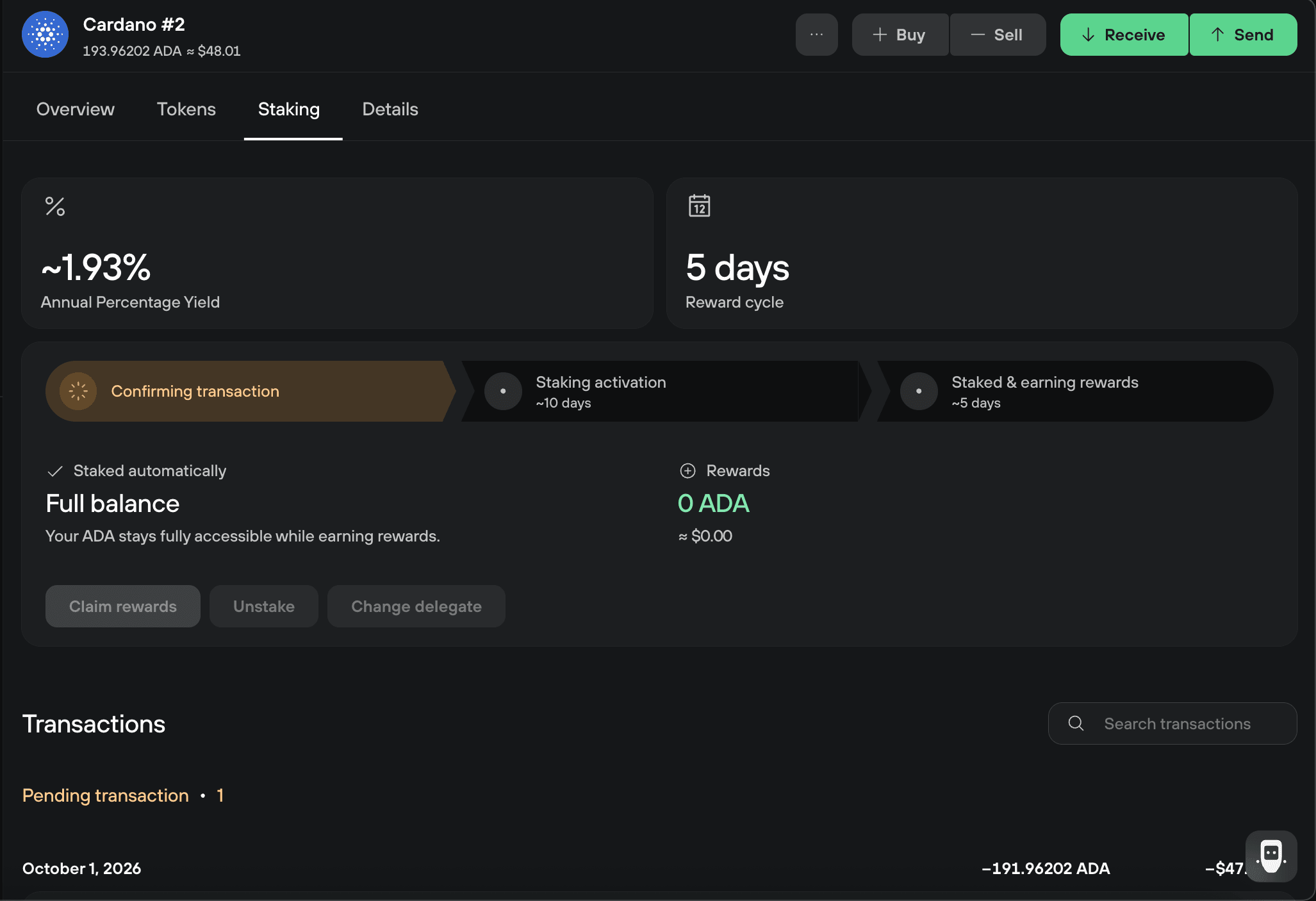
Review the transaction on your Trezor and confirm it on the device. The Staking tab then tracks your progress, moving from Confirming transaction to Staking activation to Staked & earning rewards.
Your Trezor shows the pool your ADA is staked with under To pool. Before you confirm, you can check it against the pools Trezor Suite stakes with: Check the stake pool on your Trezor.
Check your staked ADA and rewards on desktop
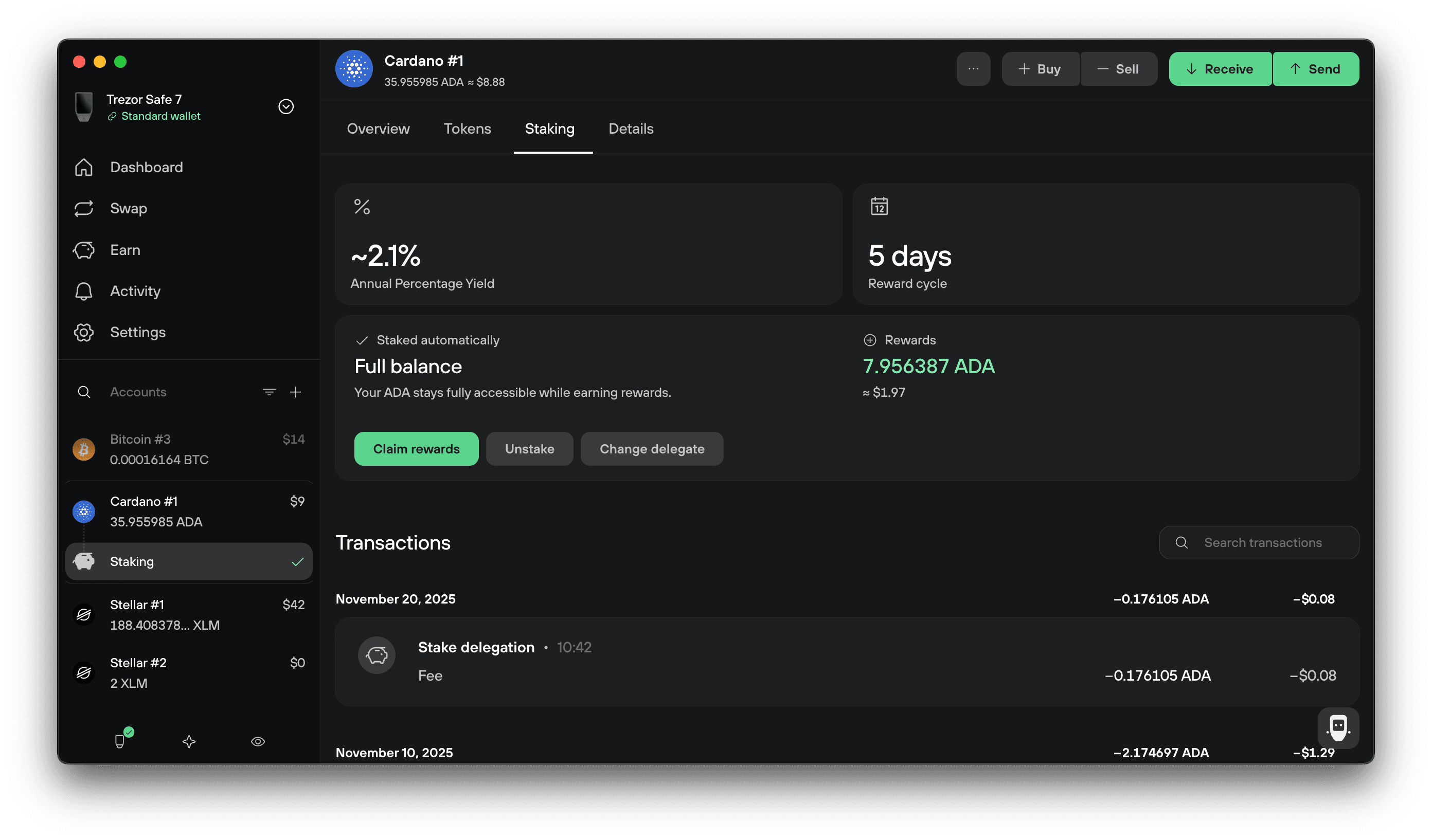
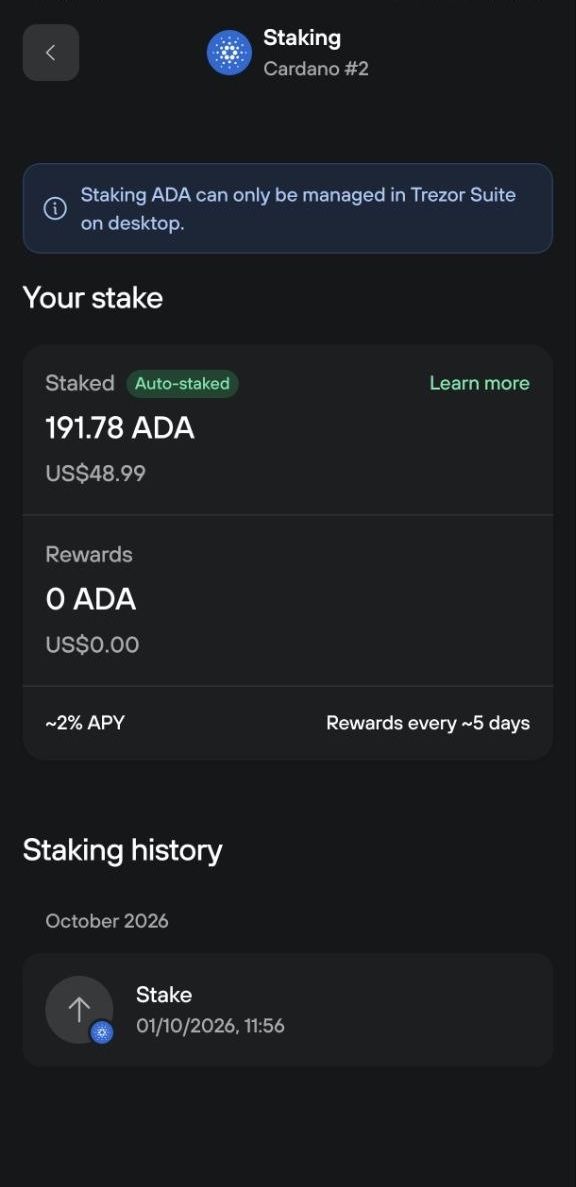
Open your Cardano account and select the Staking tab. It shows the current APY, the 5-day reward cycle, and the rewards you've earned so far. The Earn tab shows the same figures for every account you stake from.
Claim your staking rewards on desktop
Your rewards compound on their own, so claim them only when you want to spend or move them.
Cardano blocks reward claims unless your staking key has a vote delegation. Staking in Trezor Suite sets one for you. If you staked years ago and claiming fails, set a delegation with Change delegate, wait for it to confirm, then claim again.
1. Select Claim rewards
In the Staking tab of your Cardano account, select Claim rewards.
2. Review and confirm
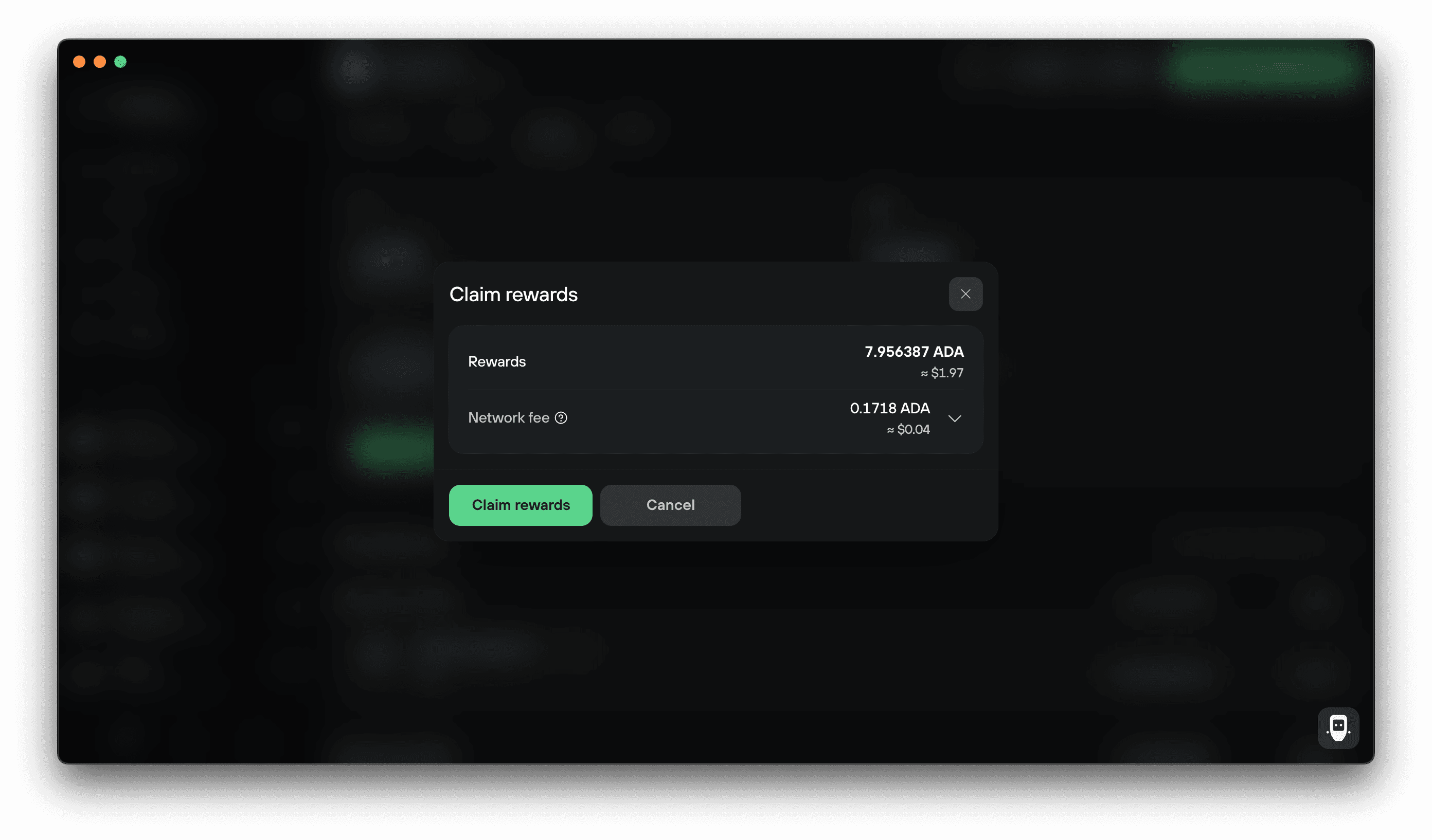
Check the rewards and the network fee, then select Claim rewards and confirm the transaction on your Trezor. Your rewards move to your available balance once it confirms.
Change who votes with your ADA on desktop
You can change who votes with your ADA at any time, without unstaking. In the Staking tab, select Change delegate, then confirm the transaction on your Trezor.
Unstake your ADA on desktop
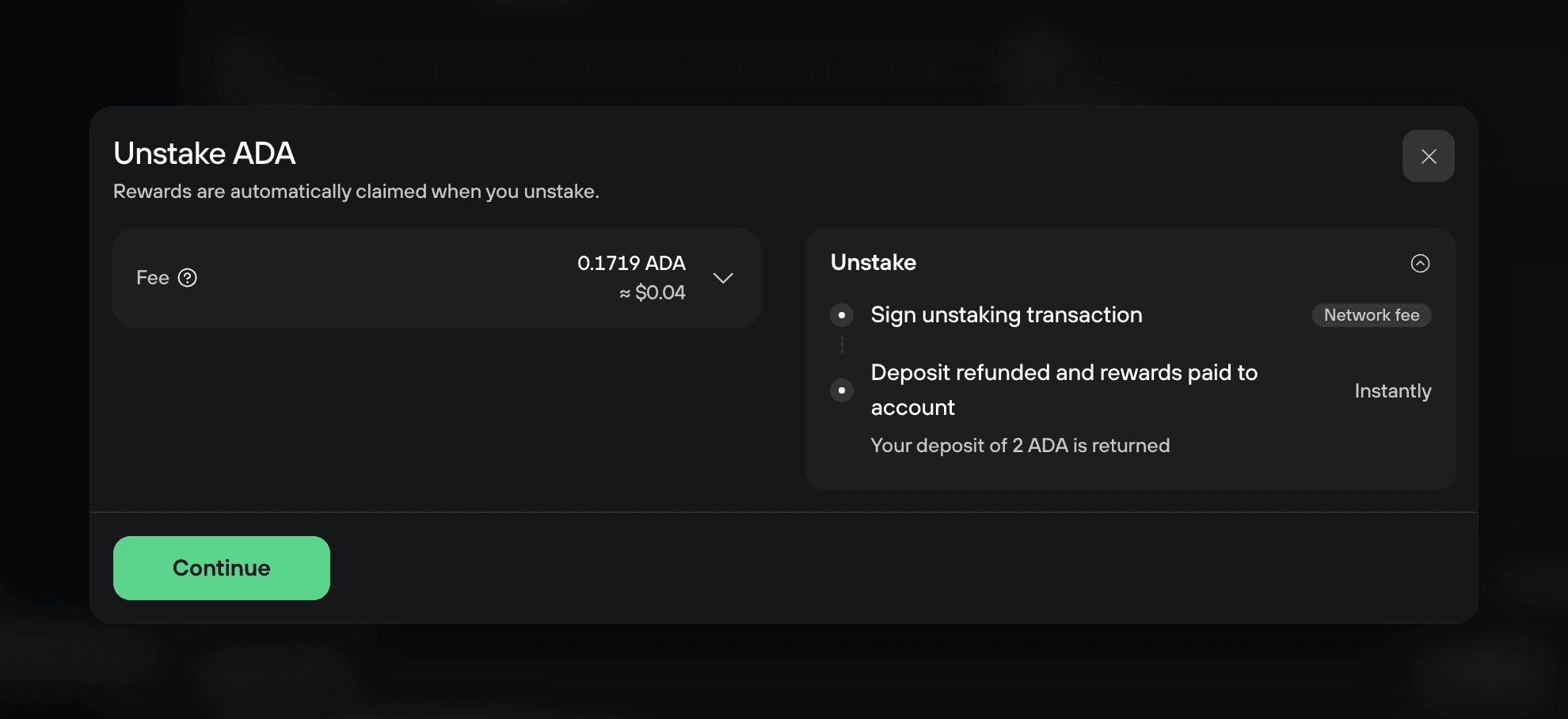
Unstaking deregisters your staking key. Your rewards are claimed automatically and your 2 ADA deposit returns to your account as soon as the transaction confirms.
1. Select Unstake
In the Staking tab of your Cardano account, select Unstake.
2. Review and confirm
Check the network fee, then select Continue and confirm the transaction on your Trezor.
Check the stake pool on your Trezor
When you stake, your Trezor shows the ID of the pool your ADA goes to, under To pool. Trezor Suite stakes with one of these Everstake pools, so the ID on your Trezor should match one of them:
pool1sysgx87cwxnqy0pqn8g97gdhd0dmre9rw3jvpn2k7apuwa7cgkn: EVE6 on cexplorerpool1n0uxgs5qfk5n9xl7qvq9jt8zuu02cntrsjnjayjlqtejyffnemj: EVE7 on cexplorerpool13rt3ngkek4l876980ect869cu978d36dcyh22ts4nwuf7ncq02u: EVE8 on cexplorerpool1xflehvzad4wr6rrvf6eea65jst5af0r4k0rh4xvmnqgvkzt3xjt: EVE9 on cexplorer
If the pool ID on your Trezor isn't on this list, don't confirm the transaction, and contact Chatbot Hal.
When your rewards start
Your staking becomes active about 10 days after the transaction confirms. Rewards then arrive every 5 days and are restaked automatically, so they compound without any action from you.
Can I spend ADA while it's staked?
Yes. Staking never locks your ADA. You can send, swap, or spend it while your account stays staked, and the APY applies to your staked balance rather than the 2 ADA deposit.
Your account keeps staking from one epoch to the next, whatever the balance is. To stop staking and get your 2 ADA deposit back, unstake.
Can I stake to more than one pool?
No. Each account stakes its full balance to a single pool. To stake with more than one pool, move part of your balance to another account: create a new Cardano account with Add account, or use a wallet with a different passphrase or wallet backup.
If something goes wrong
If staking, claiming, or unstaking doesn't work, contact Chatbot Hal for help.