请注意:我们的文章目前仅提供英文版本。
Set up your Trezor Keep Metal
Trezor Keep Metal records your wallet backup in stainless steel. You mark the first four letters of each word with the pre-marking pen, check them against your Trezor, then punch them into the plate and seal the capsule.
For more on backup formats and how recovery works, see Understanding Trezor wallet backups: 12, 20 or 24 words.
Before you start
You need:
- Your Trezor Keep Metal, with its capsule chamber, punching tool, pre-marking pen, and tamper-evident stickers
- Your completed wallet backup card from your Trezor, which is not included in the Keep Metal package
Punching is permanent. One Keep Metal holds one wallet backup or share, and a punched letter cannot be undone or reused for a different backup. Mark and check every word before you punch anything.
Which Keep Metal matches your backup
Three versions are available, each built for one backup format:
- Trezor Keep Metal 20-word for Single-share Backup: the SLIP39 backup current Trezor devices generate by default. See Trezor Keep Metal 20-word.
- Trezor Keep Metal 20-word for Multi-share Backup: for SLIP39 Multi-share backups. Each share is a separate 20-word list and needs its own capsule. See Trezor Keep Metal Multi-share.
- Trezor Keep Metal 24-word: for 24-word BIP39 backups. See Trezor Keep Metal 24-word.
Record your backup
1. Prepare the capsule
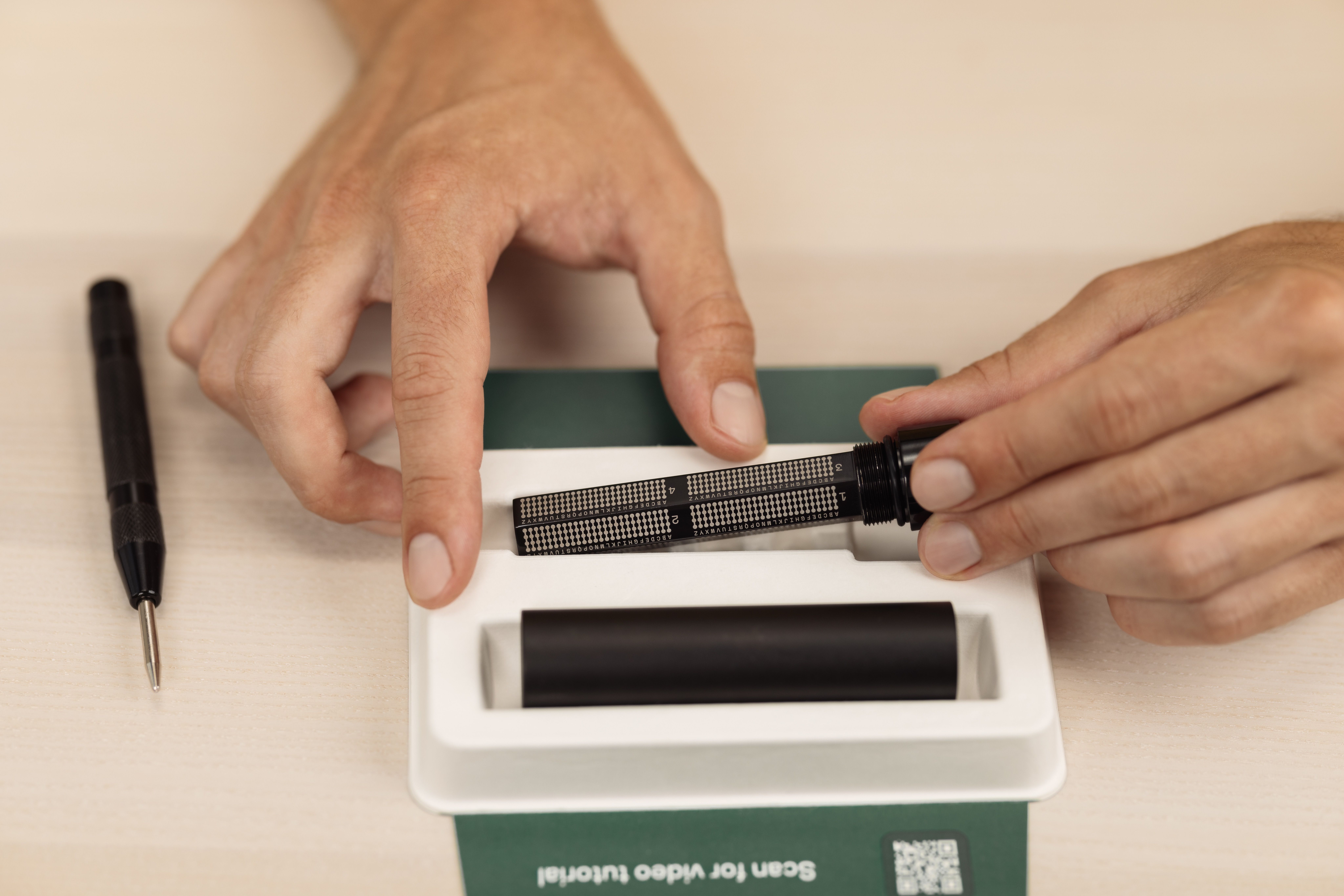
Remove the punching tool and set it aside, then unscrew and remove the capsule chamber.
Place the capsule chamber back into the tray box. The box holds it steady while you punch.
2. Understand the layout
Each row runs A to Z. Punch the letter that matches that position in the word:
- 1st letter of the word → 1st row
- 2nd letter → 2nd row
- 3rd letter → 3rd row
- 4th letter → 4th row
You record only the first four letters of each word. The BIP39 and SLIP39 wordlists were built so that four letters identify a word with no ambiguity, and near-identical pairs such as "build" and "built" were excluded. Four letters restore the full word.
3. Mark the first four letters
Use the pre-marking pen to mark the first four letters of each word from your backup card. Work through the words in order, then read the marked letters back against the card before you go further.
Check your backup before you punch. Marking can be wiped off, punching cannot. Connect and unlock your Trezor, open Settings in Trezor Suite, select Check backup, and follow the instructions. Enter each word from the letters you marked, not from your backup card. This confirms every word is correct and proves you can recover your wallet from the capsule alone.
4. Punch the marked letters
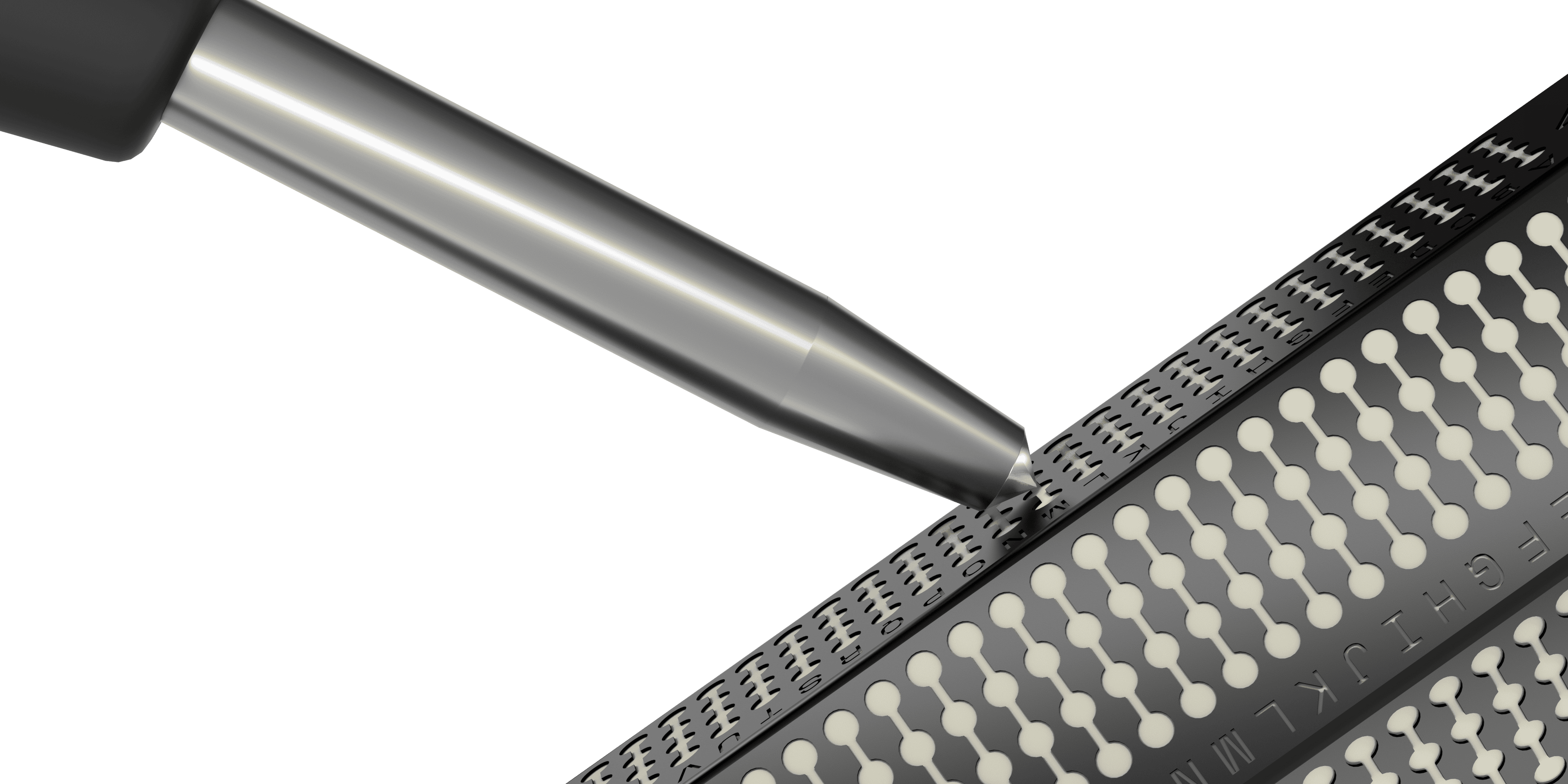
Position the punching tool over a marked letter and press down firmly until you hear a click. Repeat for every marked letter.
5. Store your backup card (optional)
Roll your wallet backup card and place it inside the capsule, then seal it with the T-shaped sticker. Let the sticker overhang so you can pull the card out later.
6. Seal the capsule
Screw the capsule chamber back into its sleeve.
Secure the closed capsule with the short horizontal tamper-evident sticker, placed vertically over the seal.
Each sticker is unique and works once. A torn, missing, or replaced sticker tells you the capsule has been opened.
Where to store your Keep Metal
Store the sealed capsule somewhere only you, or people you trust completely, can reach. Keep it in a different place from your Trezor, so a single theft or fire does not take both.
Never photograph the capsule or type the words into a phone, computer, or password manager.
Check the sticker every time you retrieve the capsule. If the seal is broken and you did not break it, treat the backup as compromised: move your funds to a wallet created from a new backup.
If you punch the wrong letter
A punched letter cannot be removed, and a capsule with a wrong letter will not restore your wallet. Do not rely on it.
Start again with a new Keep Metal: mark the letters, run Check backup in Trezor Suite, then punch. If you are not sure whether an existing capsule is correct, run Check backup using the letters on the capsule before you trust it, and contact Chatbot Hal if the result is unclear.