Atenção: nossos artigos estão disponíveis somente em inglês no momento.
Set a custom homescreen on your Trezor
Put your own image on your Trezor's homescreen; a photo, logo, artwork, whatever you want, or choose one from the built-in gallery.
This article explains how to upload a custom image or select from the gallery. The process depends on which device you have.
Trezor Safe 7, Safe 5 & Model T
Trezor Suite supports flexible image uploads for these color touchscreen devices.
Upload any image and Suite handles the rest. It accepts PNG, JPEG, GIF, WebP, and SVG files and automatically converts, resizes, and centers them to fit your display.
How to change the homescreen
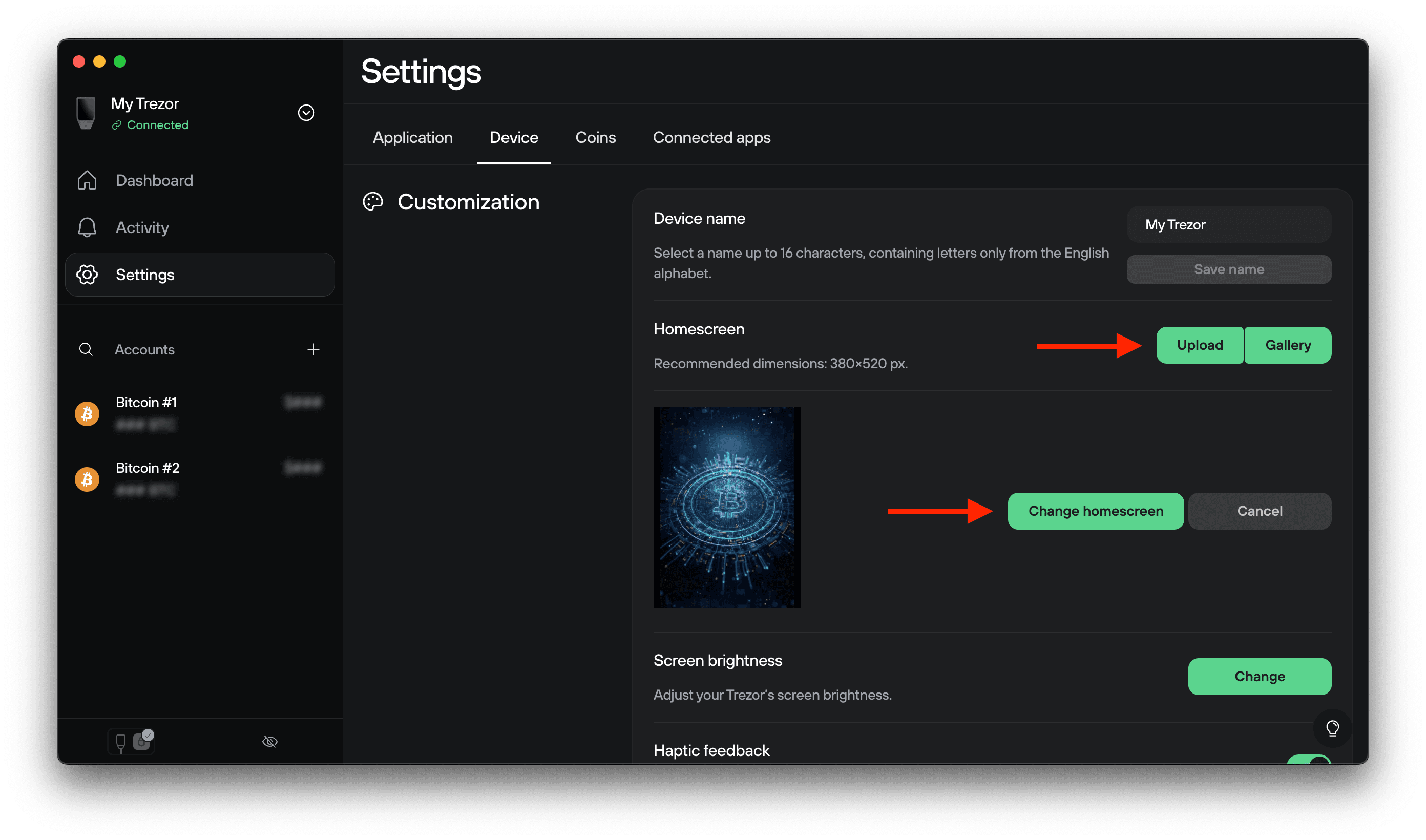
- Open Trezor Suite and connect your Trezor
- Go to Settings > Device
- Scroll down to Customization
- Choose **Upload** or select from the gallery
- Select your image file
- Click Change homescreen and confirm the change on your device
Technical details:
- Safe 7: 380 × 520 pixel display, 64 KB file size
- Safe 5 & Model T: 240 × 240 pixel display, 16 file size
Trezor Suite automatically resizes and compresses images to fit these requirements. Very large files may fail—reduce your file size if this happens.
Trezor Safe 3 & Model One
These monochrome displays require images in a specific black and white format.
How to change the homescreen
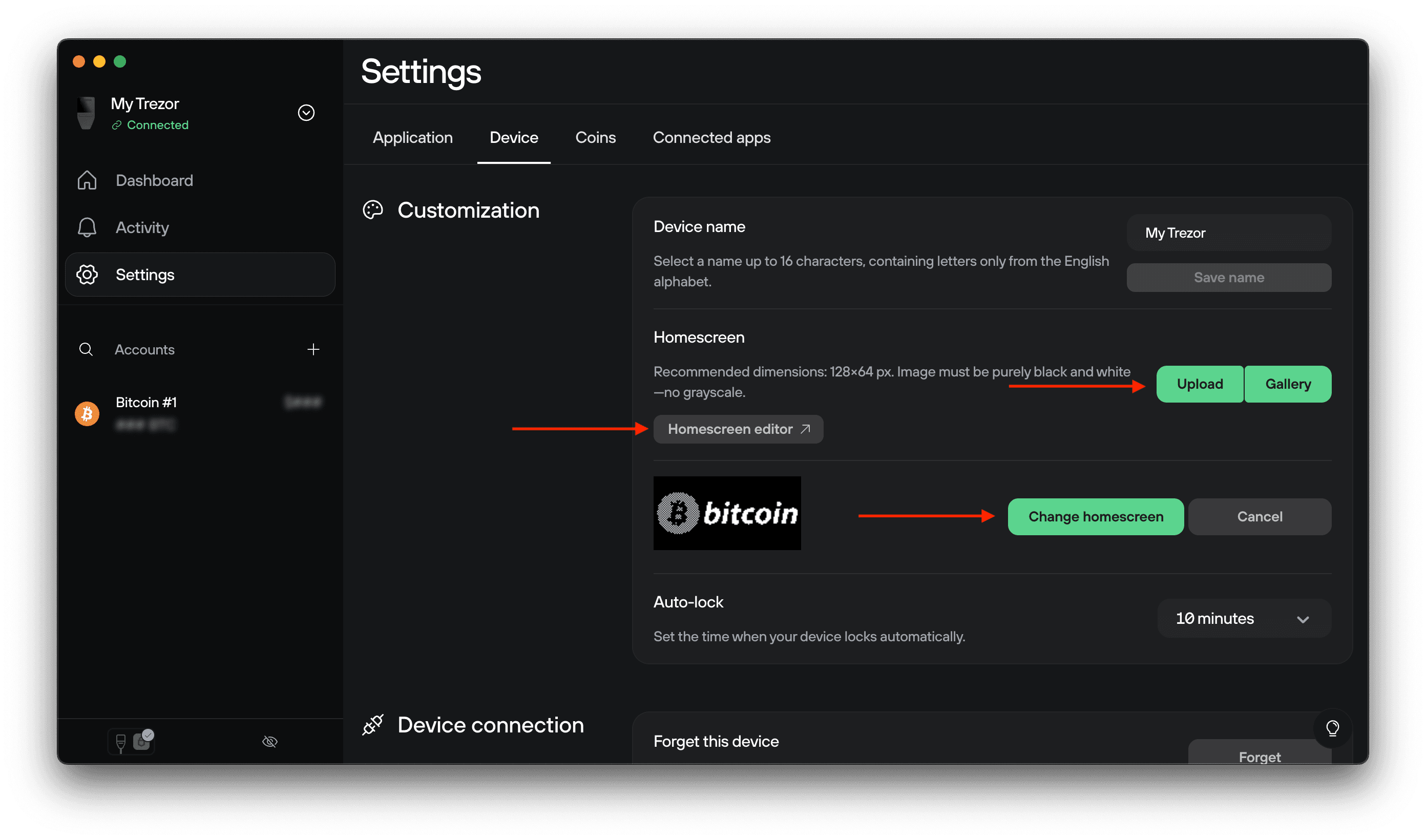
- Open Trezor Suite and connect your Trezor
- Go to Settings > Device
- Scroll down to Customization
- Create your image using the Trezor Homescreen Editor or select from the gallery
- Select your image file
- Click Change homescreen and confirm the change on your device
You can only upload 128 × 64 pixel PNG files that are strictly black and white with no grayscale. The Homescreen Editor creates these automatically.
Using the Homescreen Editor
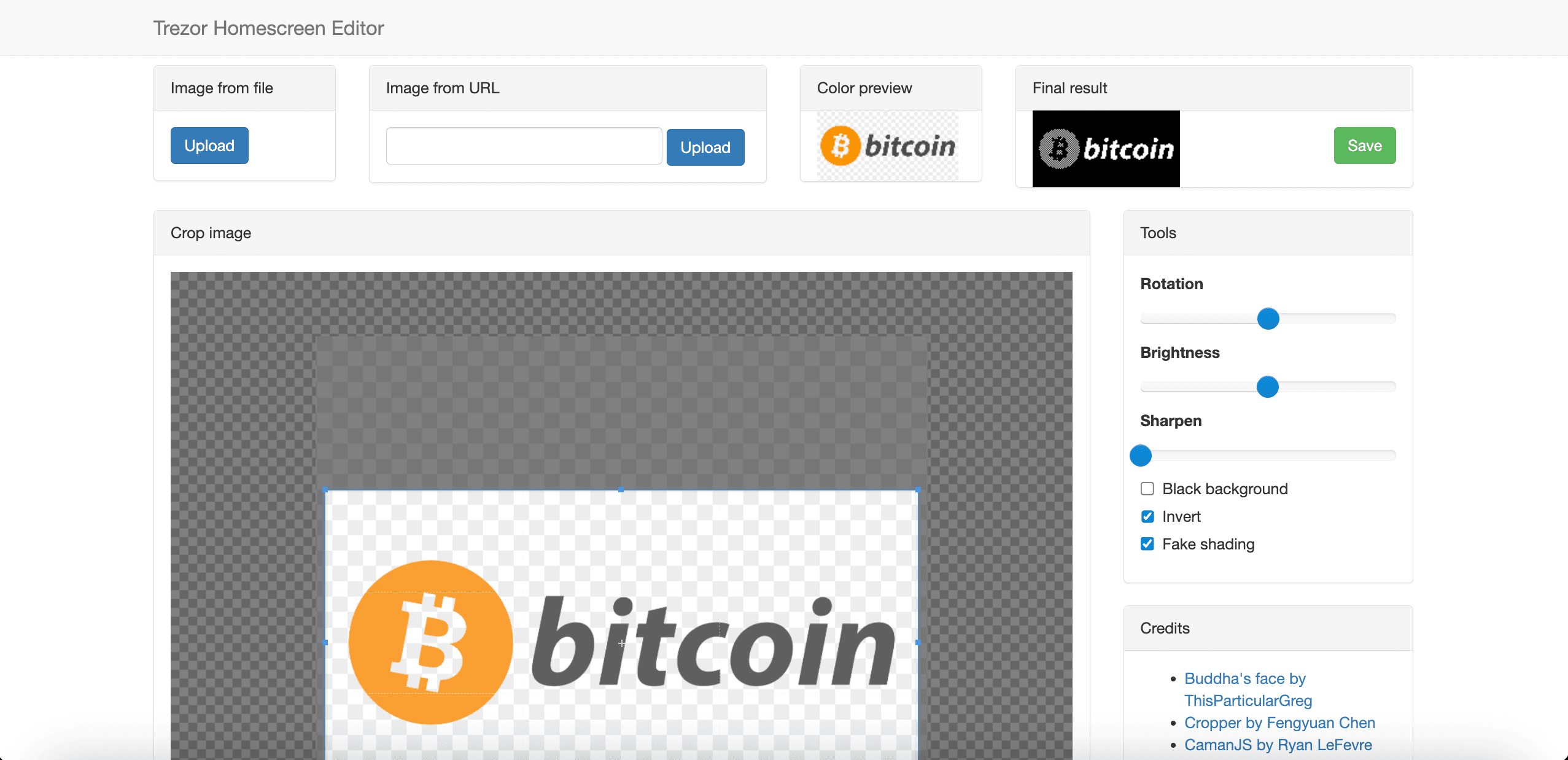
- Visit trezor.github.io/homescreen-editor
- Upload an image (file or URL) using the Upload buttons
- In the Crop image area, adjust zoom and cropping. Use the Tools sidebar for brightness, sharpening, and other adjustments
- Check the Final result preview, then click Save to download your homescreen
- Upload to your device via Trezor Suite