NuFi wallet and Trezor
Use NuFi with your Trezor to manage crypto across several networks while your private keys stay on the device. This guide shows you how to connect the two.
For many networks you may not need a separate wallet app at all. Trezor Suite has WalletConnect built in, which lets you connect to a wide range of dApps and DeFi protocols directly, as long as the network is supported in Trezor Suite. See WalletConnect in Trezor Suite.
What is NuFi?
NuFi is a non-custodial wallet for Bitcoin, Solana, Cardano, Ethereum and other networks. When you pair it with your Trezor, you can hold and use assets on these networks, including ones that are not available in Trezor Suite. Every transaction is still approved on your device.
How to connect NuFi to your Trezor
Do not enter your Trezor wallet backup into NuFi or any app, website, or extension. Once those words are typed into connected software, they are no longer offline, and your wallet's security is weakened.
1. Connect and unlock your Trezor
Open Trezor Suite on your computer. Plug in your Trezor with a cable, or connect over Bluetooth if it supports it. Unlock it with your PIN.
If you use a passphrase, enter it when you unlock your Trezor. Your passphrase wallet is separate, so pair with the passphrase active to see its accounts. For more information, read our article Using a passphrase wallet in Trezor Suite.
2. Open NuFi and pair with Trezor
Download the latest version of the NuFi browser extension for Google Chrome. Install it only from NuFi's official site or the Chrome Web Store listing linked there, since fake wallet extensions are used to steal funds.
NuFi asks you to create a password during setup. This password only unlocks the NuFi app on your computer; it does not control your funds. If you forget it, your funds are safe, because they are tied to your Trezor, not to NuFi. Set up NuFi again, reconnect your Trezor, and you reach the same accounts.
NuFi may also offer to create its own recovery phrase. If you only use your Trezor accounts, choose "Continue without recovery phrase." Your Trezor wallet backup is what controls these funds. To learn more, see Understanding Trezor wallet backups.
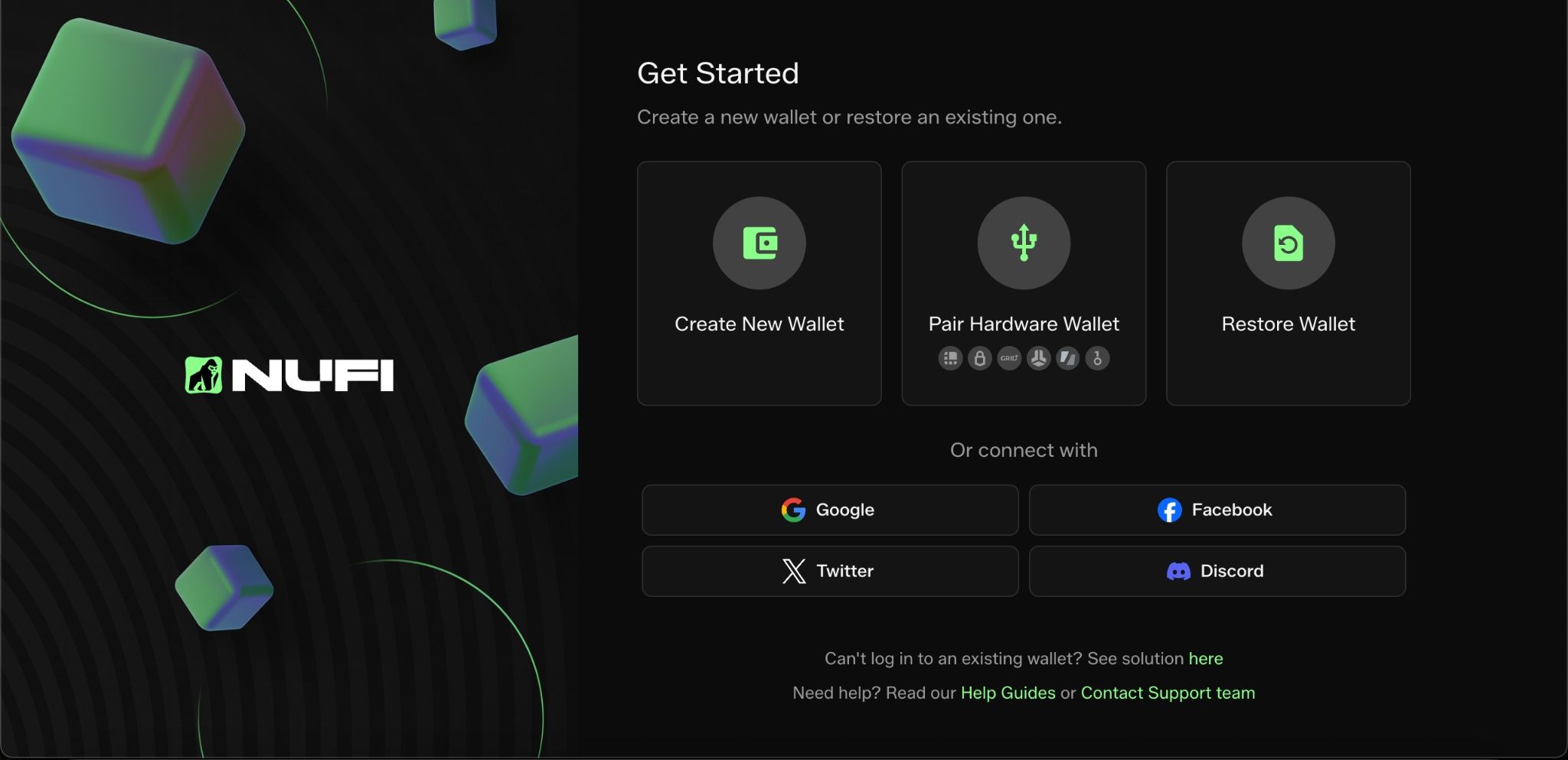
In NuFi, choose to pair a hardware wallet and select Trezor. Then pick the blockchain you want to use, for example Bitcoin or Solana.
3. Approve the connection in Trezor Suite
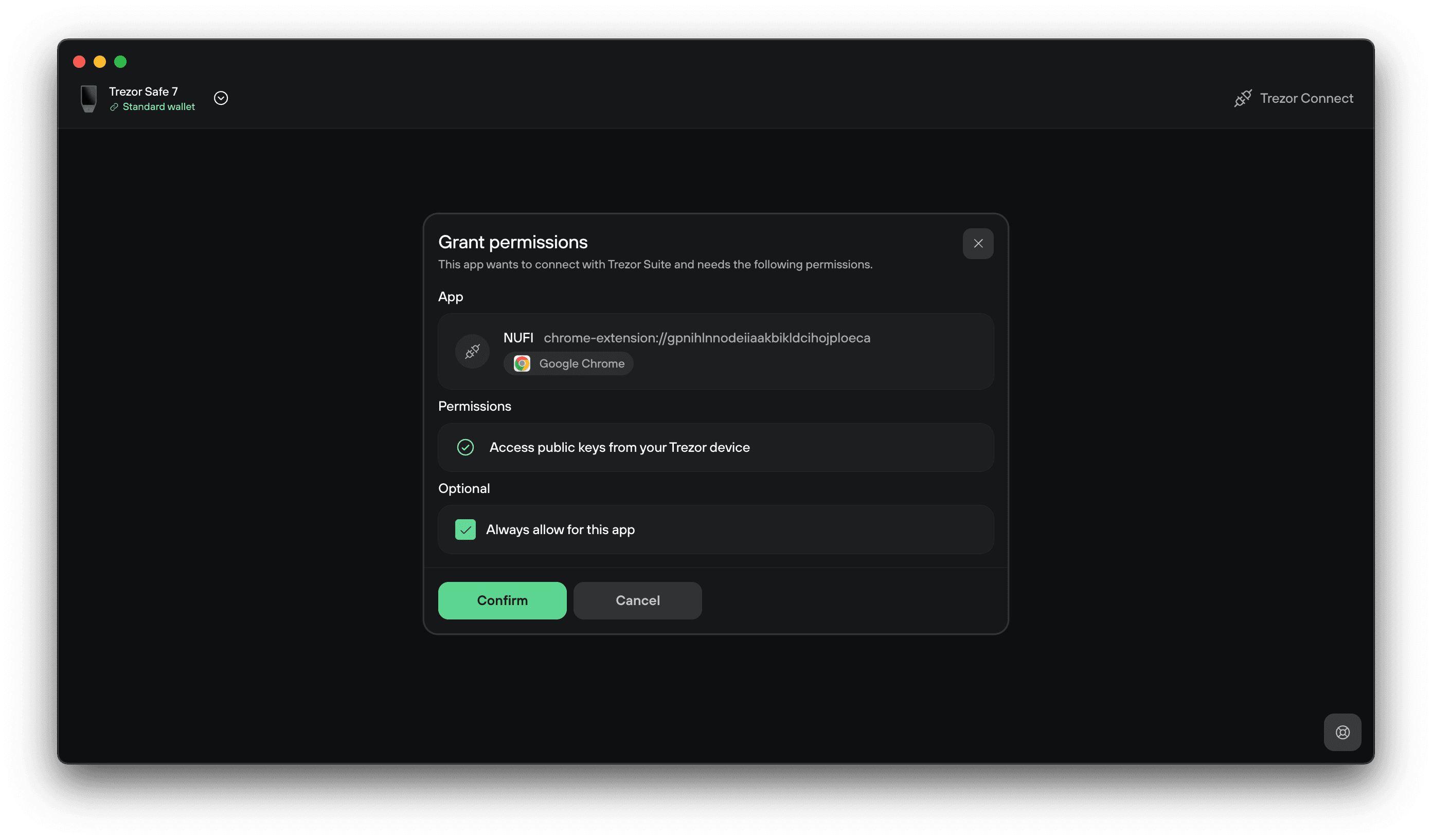
NuFi opens Trezor Connect in Trezor Suite. Review the permission request and click Confirm to let NuFi access the public keys for the network you chose. You can tick "Always allow for this app" to skip this step next time.
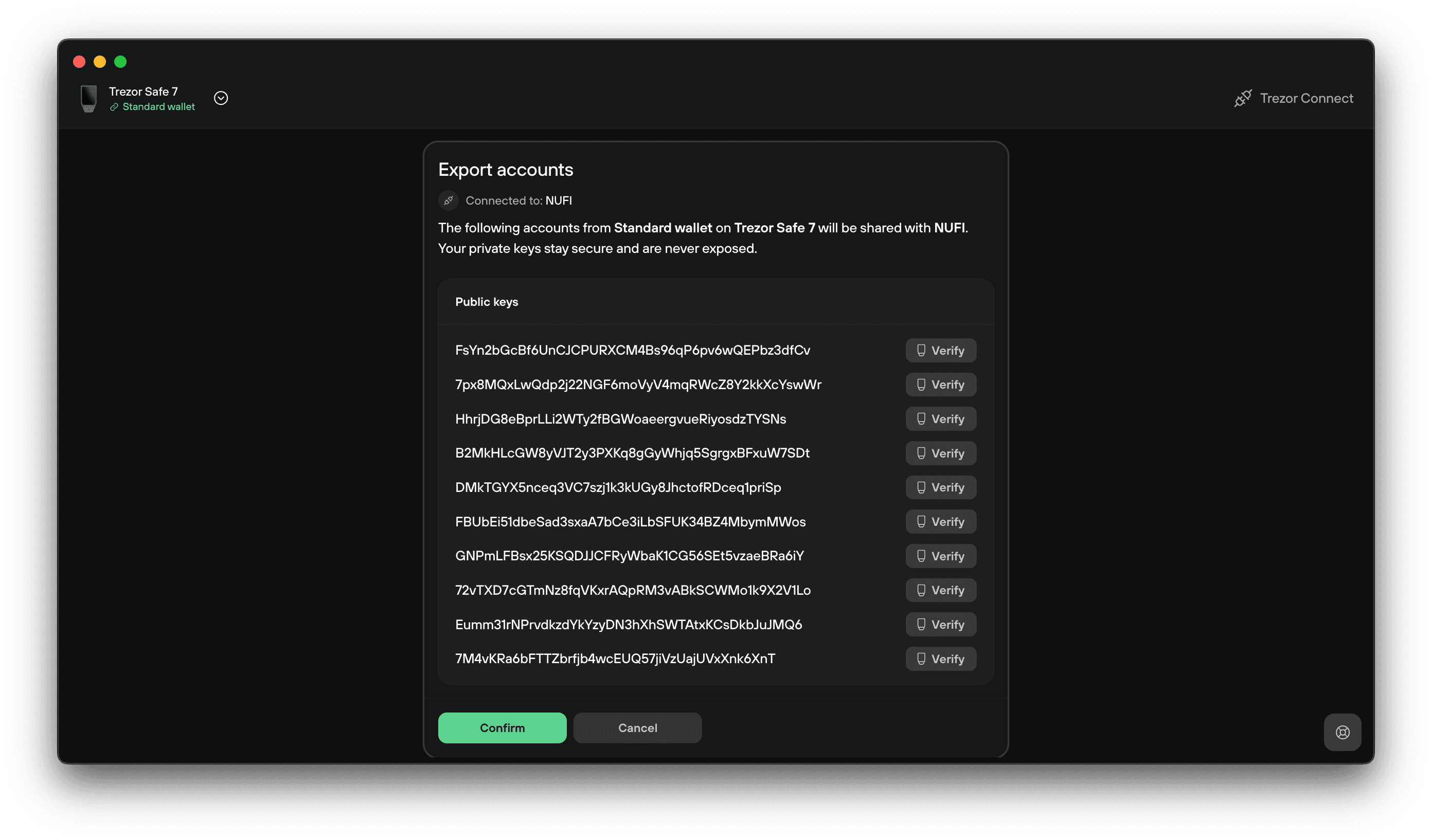
Trezor Suite then shows the accounts that will be shared. Only your public keys are shared. Your private keys never leave the Trezor, which is why you confirm every outgoing transaction on the device. Click Confirm.
4. Finish in NuFi
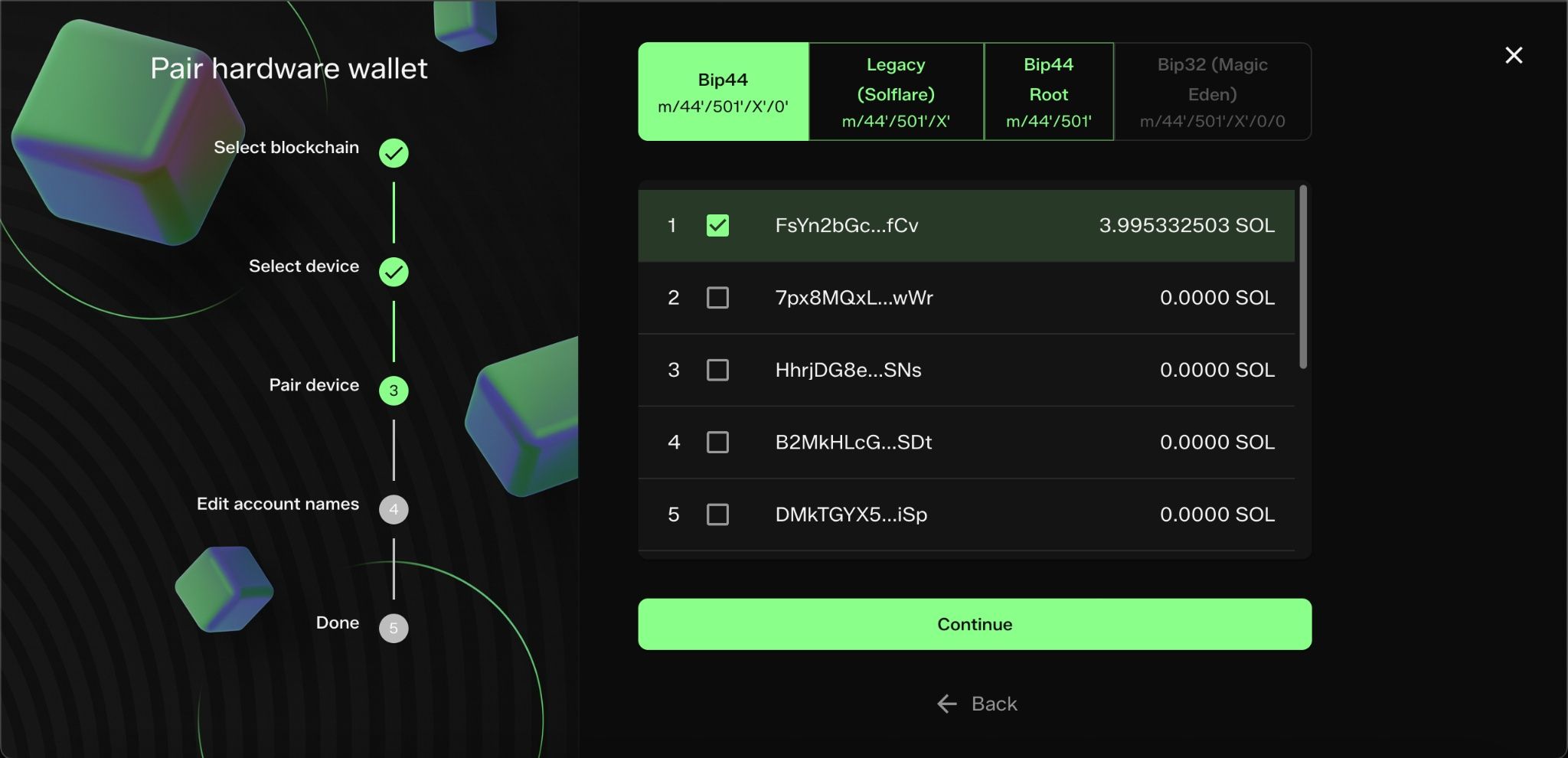
Back in NuFi, select the accounts you want and finish pairing. Your accounts are now ready to use.
Accounts, addresses, and what shows in Trezor Suite
When you pair, you choose which account or address to use with NuFi.
If an asset is supported by Trezor Suite, it will also show there. Assets that are not supported by Trezor Suite will be visible only in NuFi.
Select the addresses you want to use. They are shared in order, so if you pick the third address, it will not appear in Trezor Suite until you have used the second one.
The derivation path or address type decides which addresses NuFi shows. If an address does not appear where you expect, you are most likely on a different path or type than the one that created it. Keep the default unless you need to match addresses from another app.
If your accounts or balances do not look right, the most common cause is a different passphrase or wallet than the one used to create them. For more help, contact our Chatbot Hal.
Which Trezor devices work with NuFi
All Trezor devices work with NuFi. What differs is which coins each device supports. Some networks are not available on Trezor Model One.
Check that your device supports the coins you want to use at trezor.io/coins.