Importante: los artículos de nuestro blog solo están disponibles en inglés de momento.
Set up a wipe code to erase your Trezor
Set up a wipe code in Trezor Suite for desktop under Settings → Device. The Trezor Suite mobile app doesn't have wipe code settings. A wipe code is a second PIN: enter it at any PIN prompt and your Trezor erases all private data, including your wallet, and resets to factory defaults.
When you enter the wipe code after setting it up, your Trezor erases your wallet straight away, without asking you to confirm. Only your wallet backup can restore it.
Set up a wipe code in Trezor Suite
Wipe code settings are in Trezor Suite under Settings → Device, in the Danger Area section. You need a PIN set on your Trezor first.
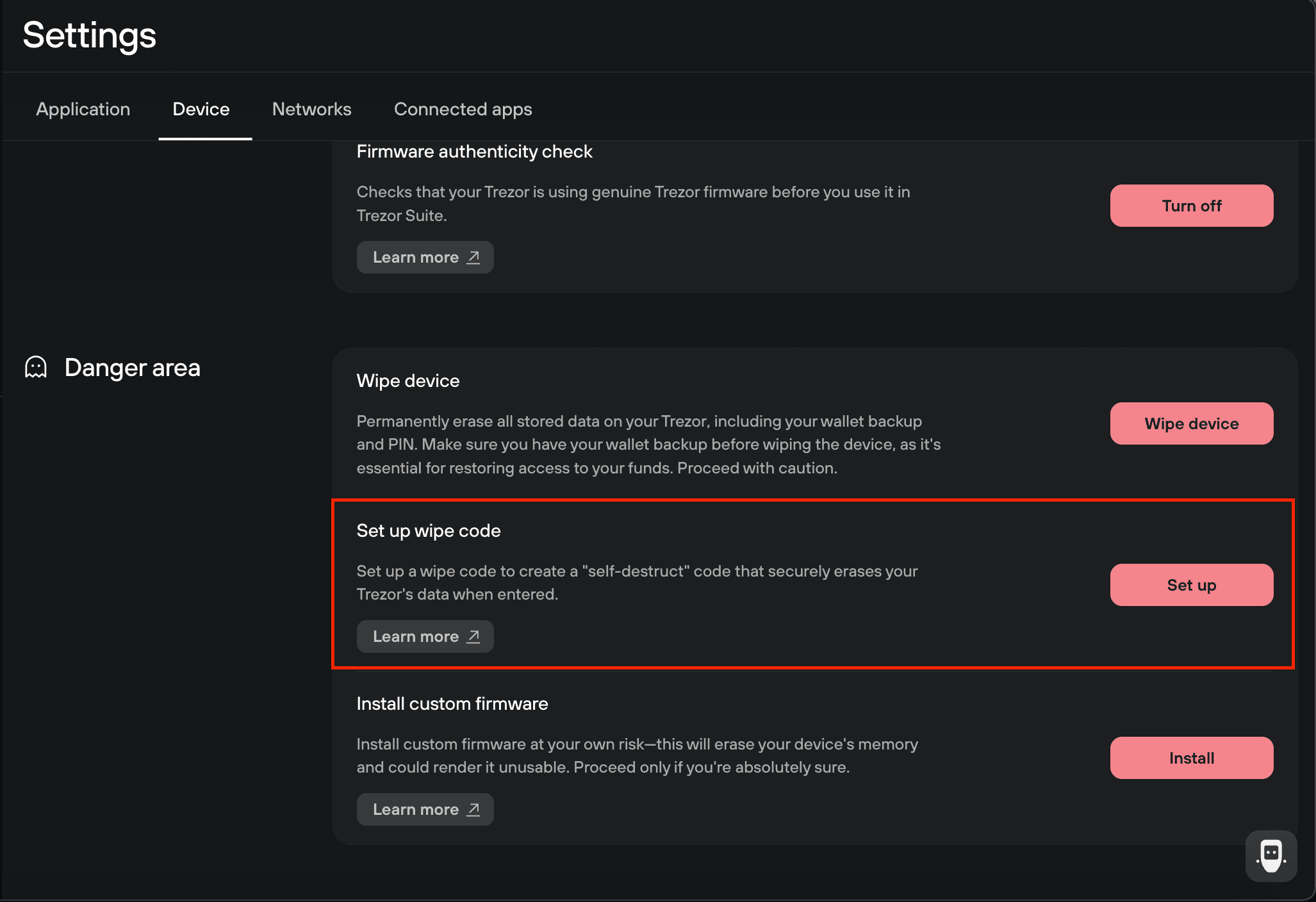
- Select Set up wipe code.
- On your Trezor, select Turn on.
- Enter your PIN.
- Enter your new wipe code. You enter it the same way you enter your PIN.
- Enter the wipe code again to confirm it.
- Select Continue on your Trezor.
Trezor Suite shows a notification: "Wipe code changed successfully." The Danger Area section now shows Change wipe code and Remove wipe code.

Change your wipe code
Change your wipe code in Trezor Suite under Settings → Device, in the Danger Area section. You need your PIN, not your current wipe code.
- Select Change wipe code.
- On your Trezor, select Change.
- Enter your PIN.
- Enter your new wipe code, then enter it again to confirm it.
- Select Continue on your Trezor.
Trezor Suite shows a notification: "Wipe code changed successfully."
Remove your wipe code
Remove your wipe code in Trezor Suite under Settings → Device, in the Danger Area section. Your Trezor then works with your PIN only.
- Select Remove wipe code.
- On your Trezor, select Turn off.
- Enter your PIN.
- Select Continue on your Trezor.
Trezor Suite shows a notification: "Wipe code removed successfully."
Erase your Trezor with the wipe code
Enter the wipe code at the PIN prompt. Your Trezor immediately erases all private data, including your wallet, and resets to factory defaults. There is no confirmation step and no way to cancel.
When the erase is done, your Trezor shows a screen saying the wipe code was entered and the device was erased.
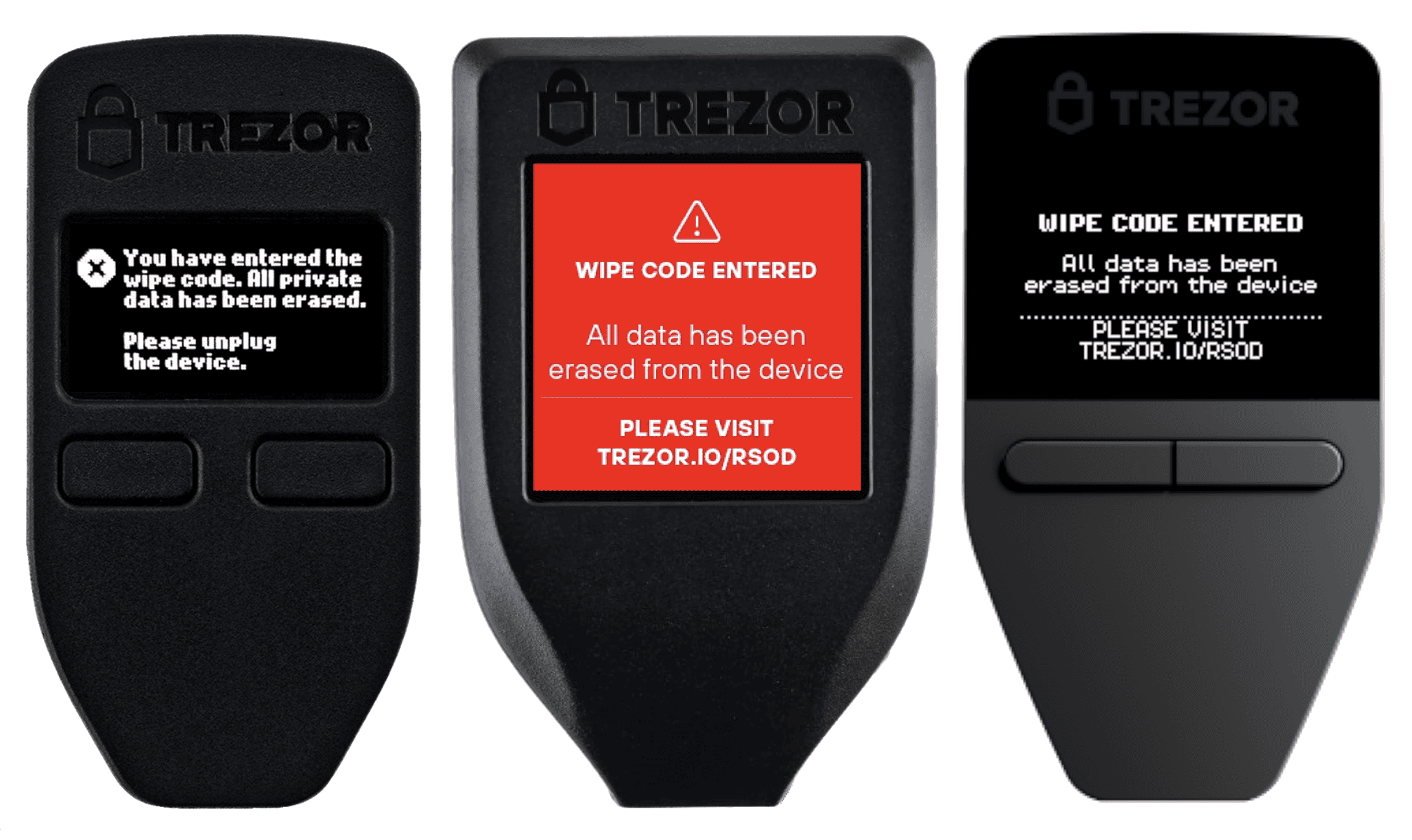
Your Trezor doesn't need to be connected to a computer or phone. Power it on from any source, such as a wall charger or power bank, and enter the wipe code on the device.
On Trezor Model One, you enter your PIN in Trezor Suite, so the device must be connected to a computer to use the wipe code.
Get your wallet back after using the wipe code
Recover your wallet with your wallet backup. After the wipe code is entered, your Trezor is empty, like a new device. Set it up again and choose to recover a wallet.
For recovery steps for your device, see Backups & recovery guides. For more on how backups work, see Understanding Trezor wallet backups: 12, 20 or 24 words.
If you need help, contact Chatbot Hal.