Staking Tron (TRX) in Trezor Suite
Trezor Suite lets you stake Tron (TRX) to earn rewards and pick up network resources that make your transactions cheaper, all signed on your Trezor. Staking TRX takes two steps: you freeze your TRX, then vote for a Super Representative. This guide covers staking, unstaking, withdrawing, and claiming rewards on desktop.
New to how Tron staking works? Tron: what it is and how it works with Trezor explains freezing, voting, and the difference between bandwidth and energy. To learn how to move TRX and tokens on and off your wallet, see Send and receive Tron and TRC-20 tokens in Trezor Suite.
Stake your TRX on desktop
Staking takes two transactions: freezing your TRX, then voting for a representative. You confirm each one on your Trezor.
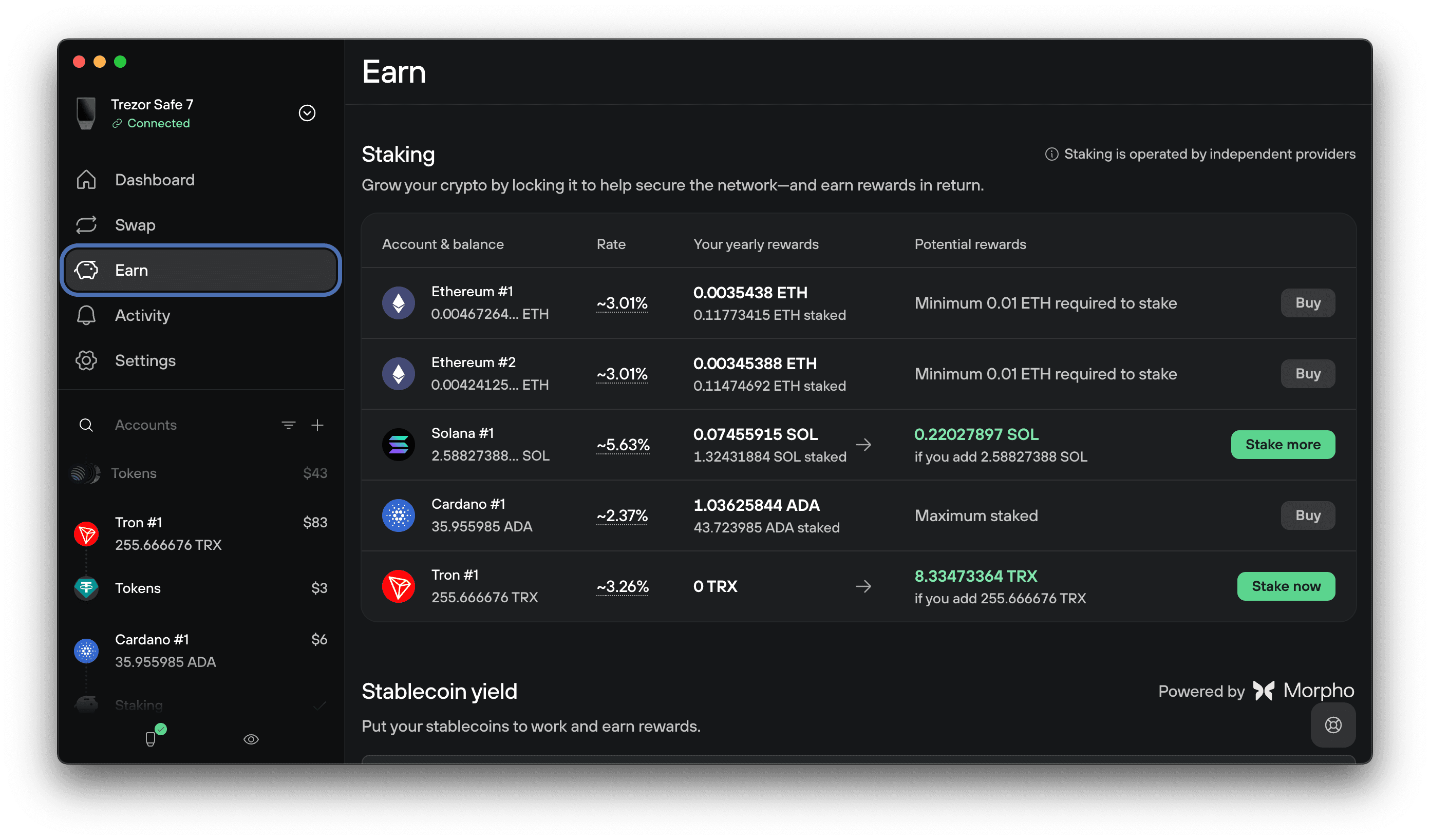
1. Open the Earn tab
In Trezor Suite, open the Earn tab. Find your Tron account in the staking list and click Stake now.
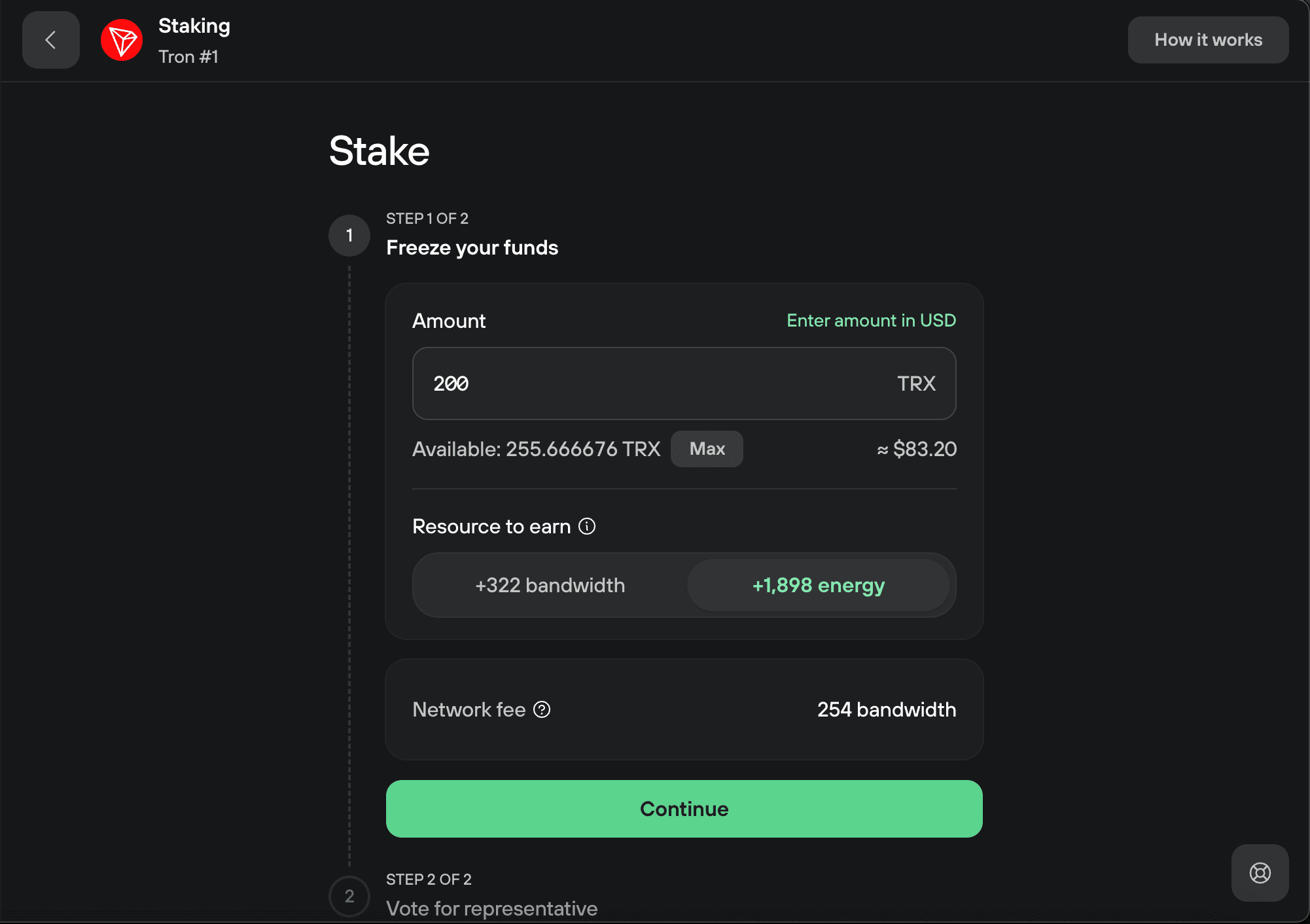
2. Freeze your funds
Enter the amount of TRX you want to stake. Choose the resource you want to earn, bandwidth or energy, then click Continue.
Bandwidth comes with a small free daily allowance; energy doesn't. If you regularly send tokens like USDT, stake for energy to keep those transfers cheap.
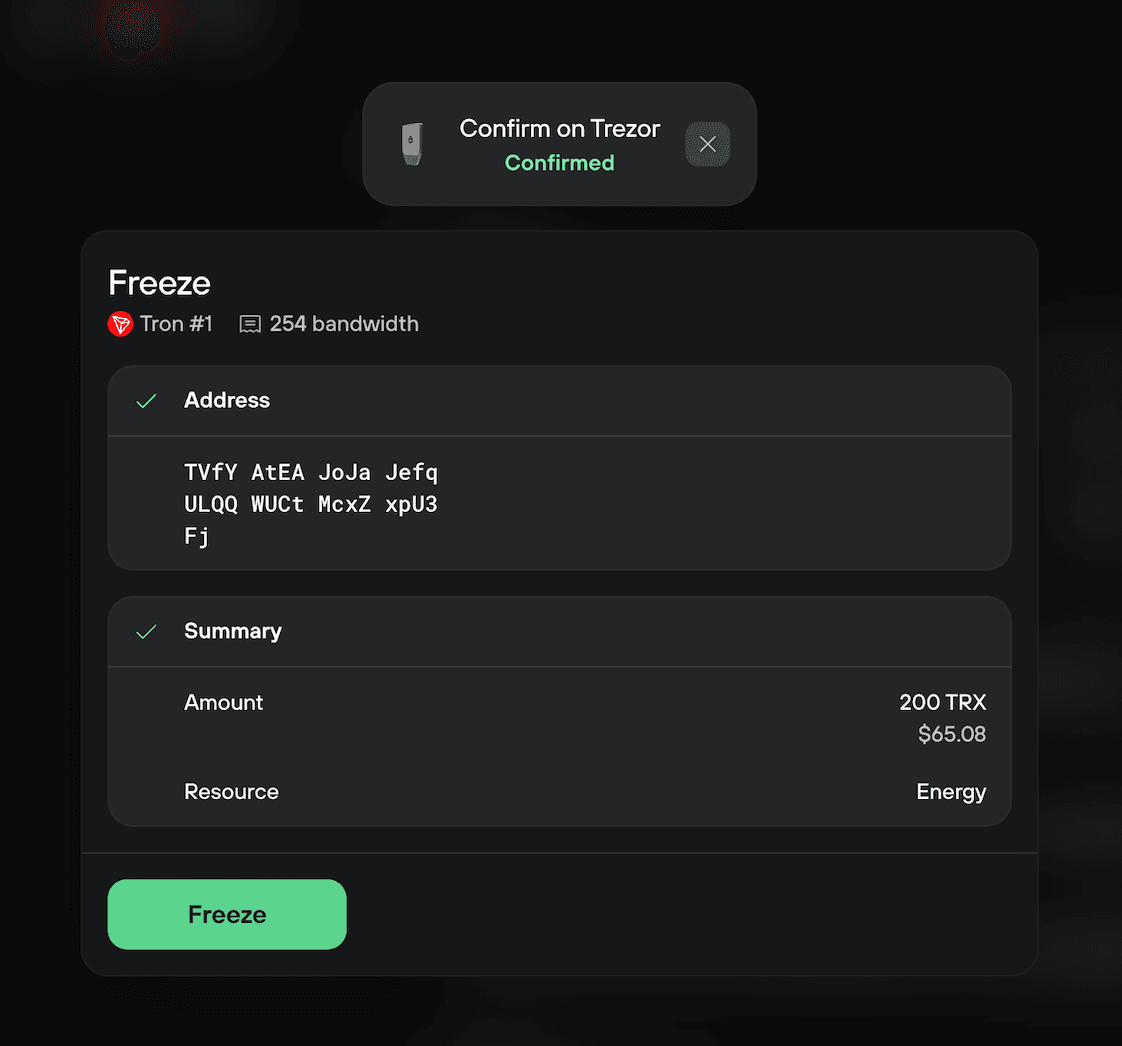
3. Confirm the freeze on your Trezor
Check the amount and resource on your Trezor and confirm. Then click Freeze in Trezor Suite to broadcast the transaction.
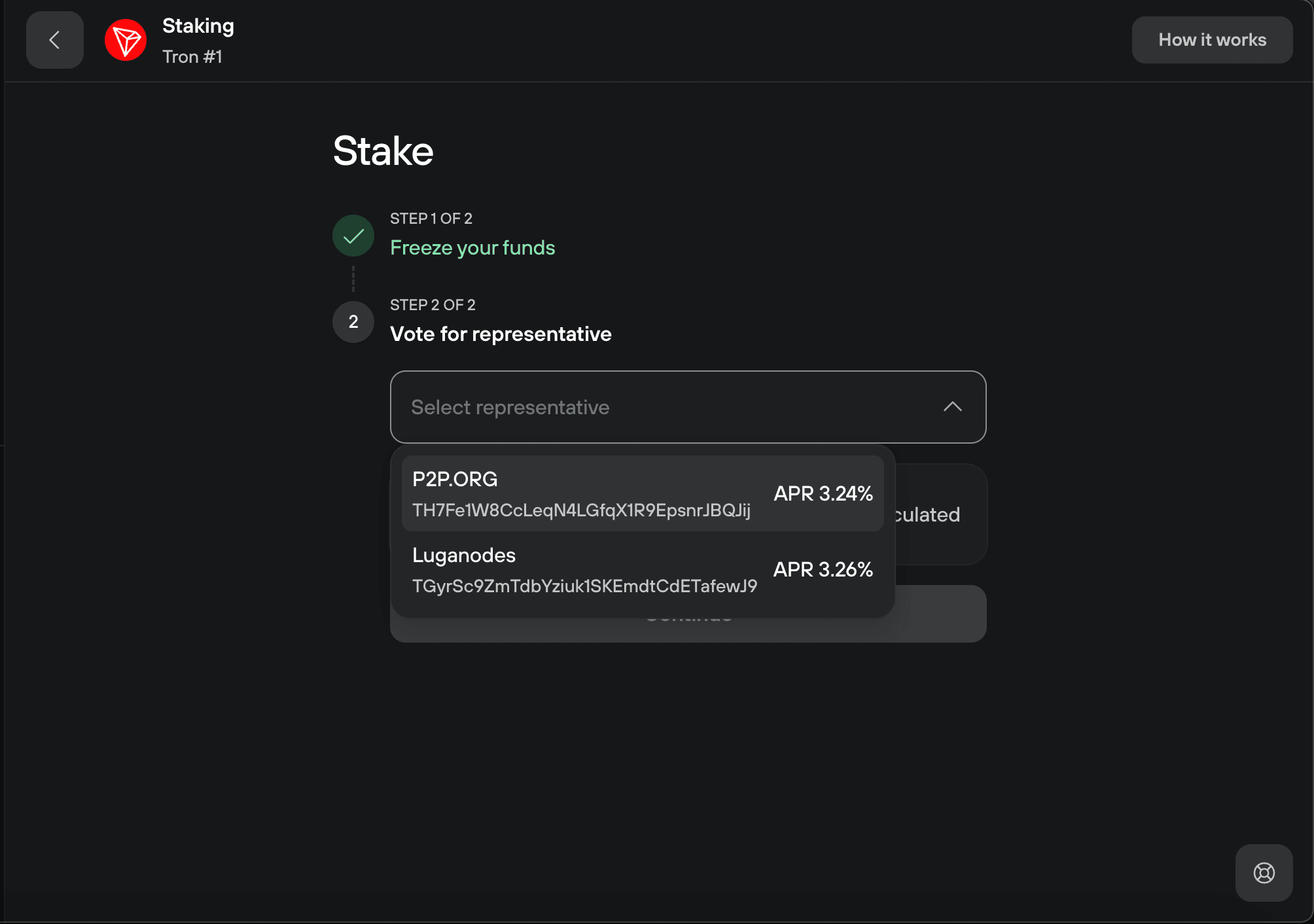
4. Choose a representative
Open the Select representative drop-down and pick a Super Representative. Each one shows its APR. Then click Continue.
The APR is dynamic. It varies by representative and changes with network conditions.
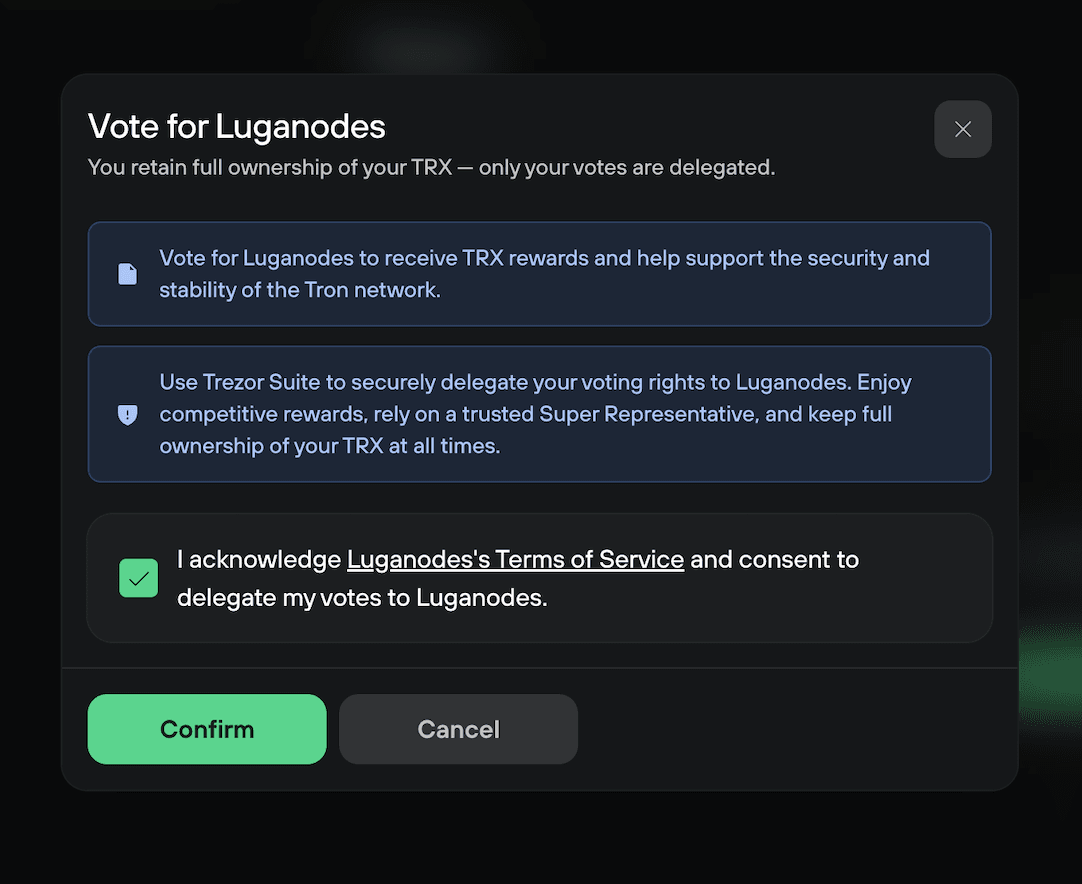
5. Acknowledge the representative's terms
Read the representative's Terms of Service, tick the box to acknowledge them, then click Confirm.
Your staked TRX never leaves your account or goes to the representative. Only your future rewards depend on the representative staying reliable.
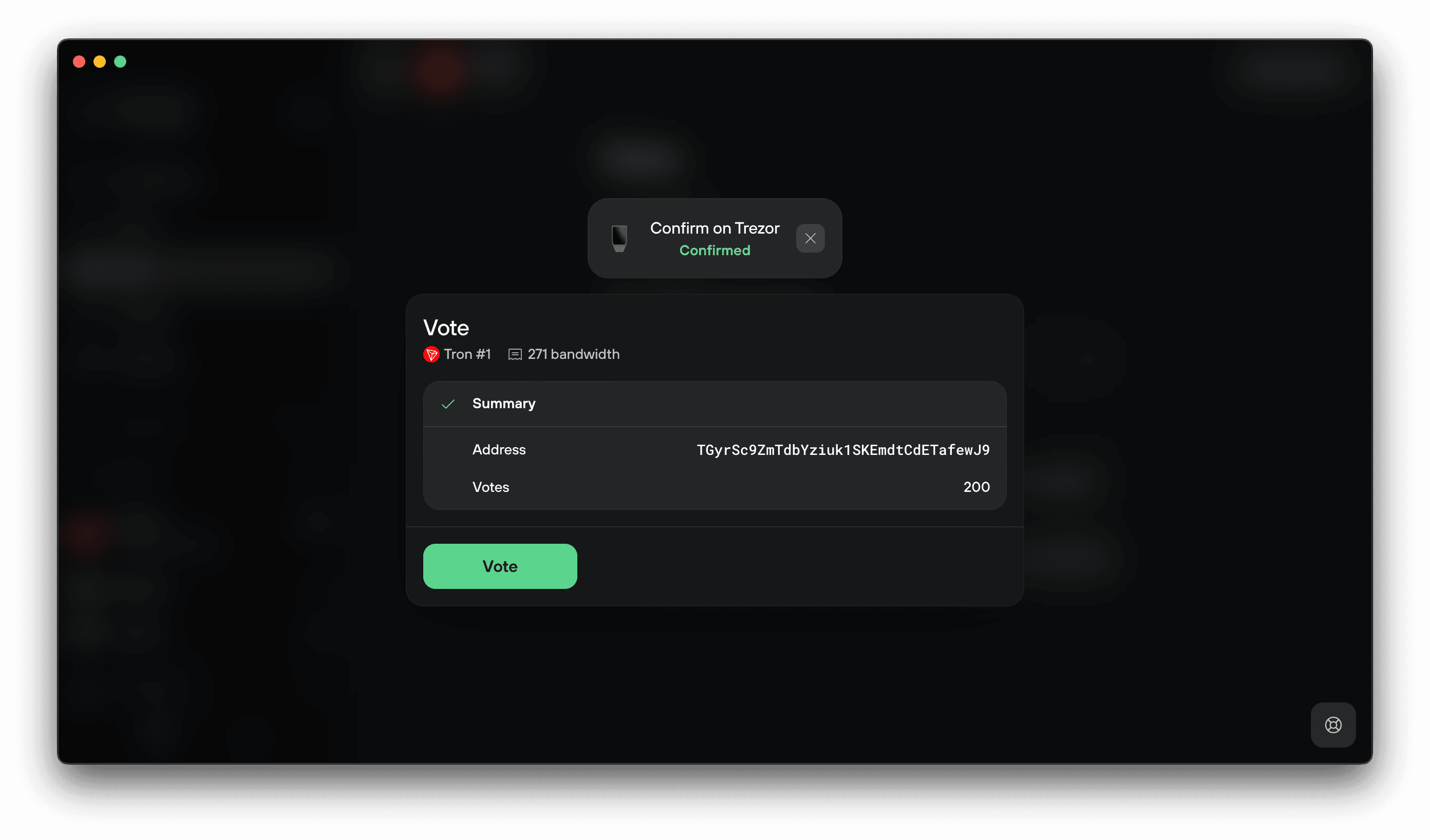
6. Confirm the vote on your Trezor
Check the representative address and the number of votes on your Trezor and confirm. Then click Vote in Trezor Suite.
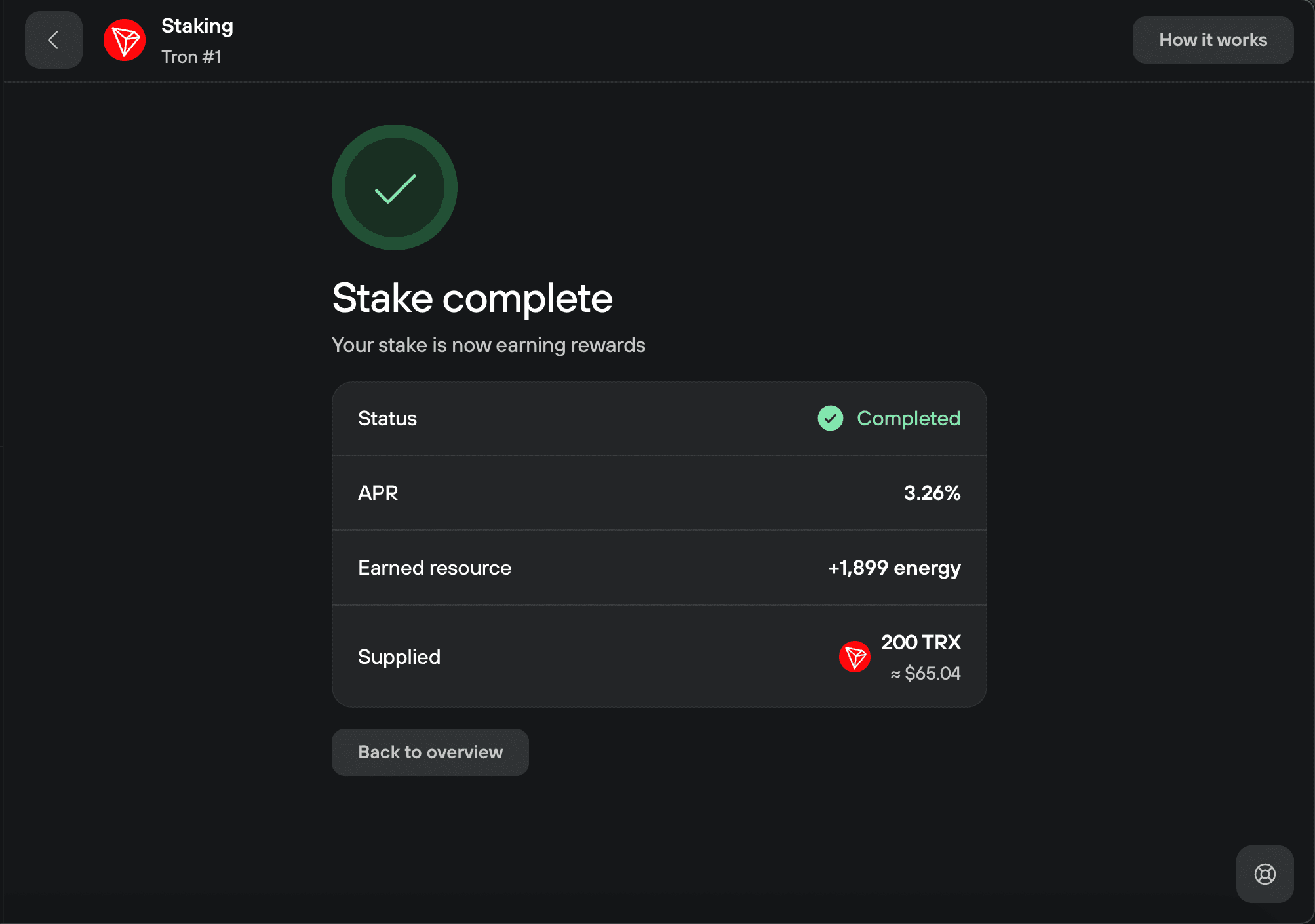
7. Staking complete
You'll see the stake complete screen with your APR, the resource you earned, and the amount staked. Click Back to overview to return to the Staking tab, where you can stake more, vote again, or unstake.
Claim your staking rewards
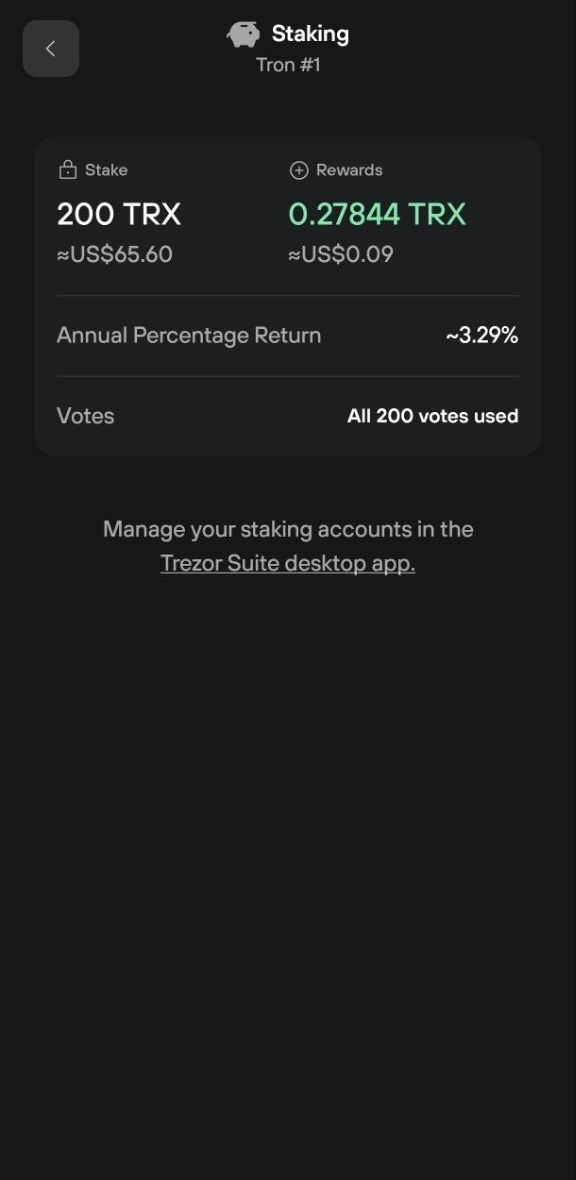
Your staking rewards build up separately from your staked TRX and are not added to your stake automatically. To compound them, claim them and then stake them again.
Rewards build up over time as your stake earns, and you can claim them once every 24 hours.
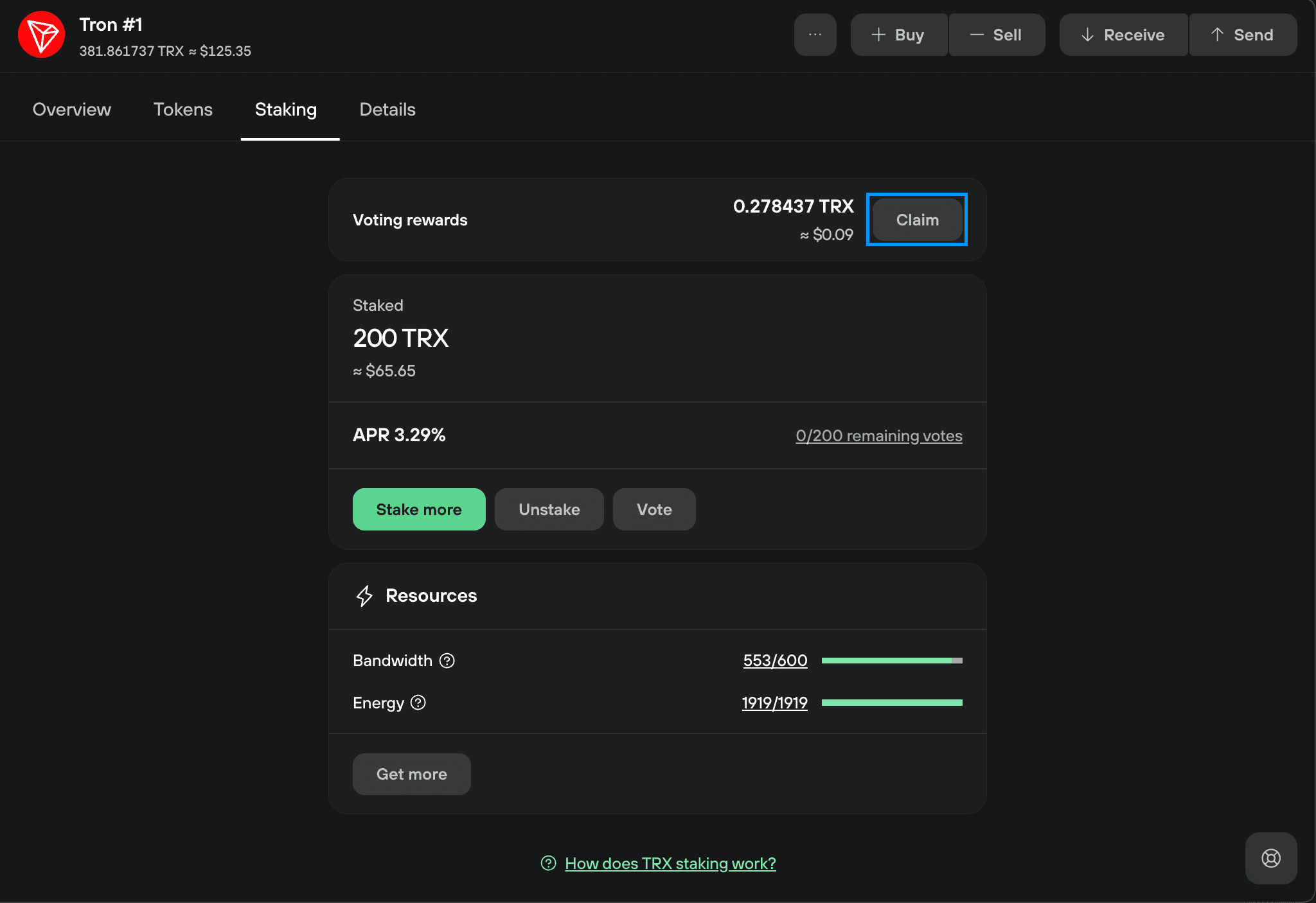
1. Find your rewards
On the Tron Staking tab, once you've earned rewards, you'll see the amount you can claim. Click Claim.
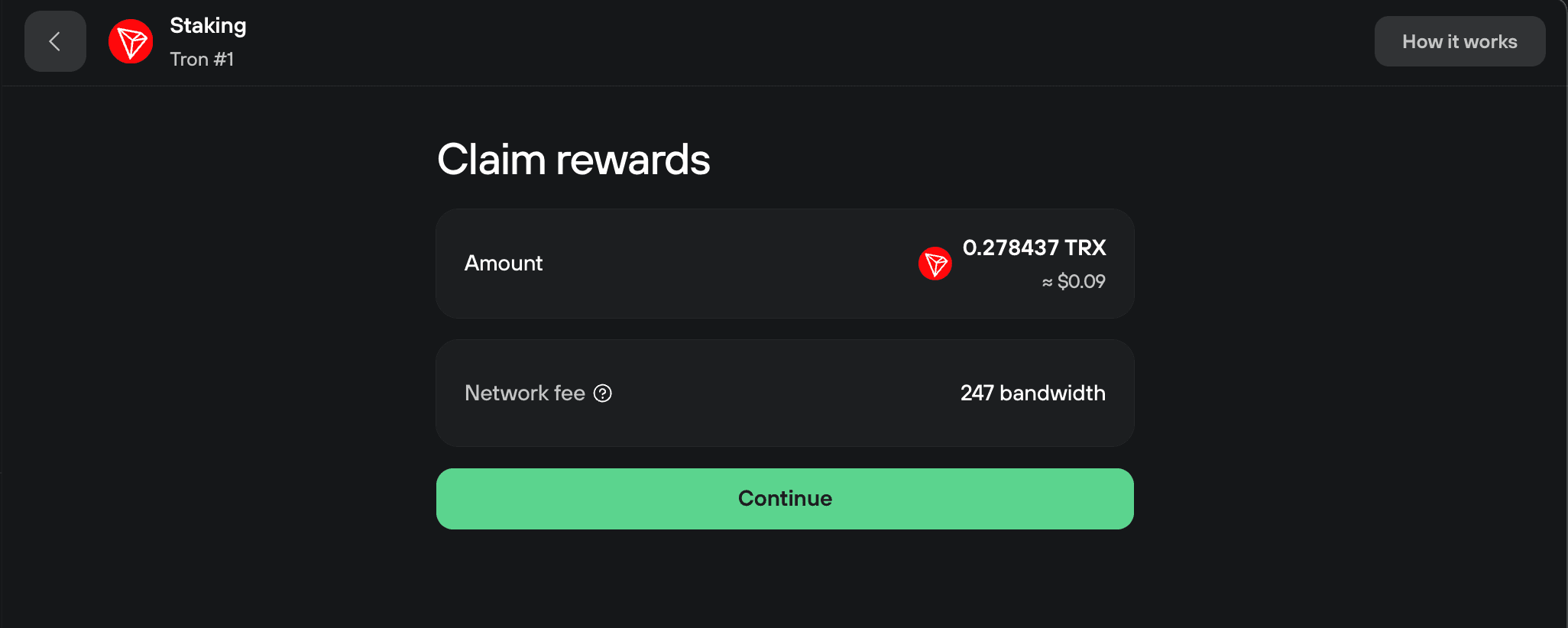
2. Review and continue
Check the amount you're claiming and the network fee, then click Continue.
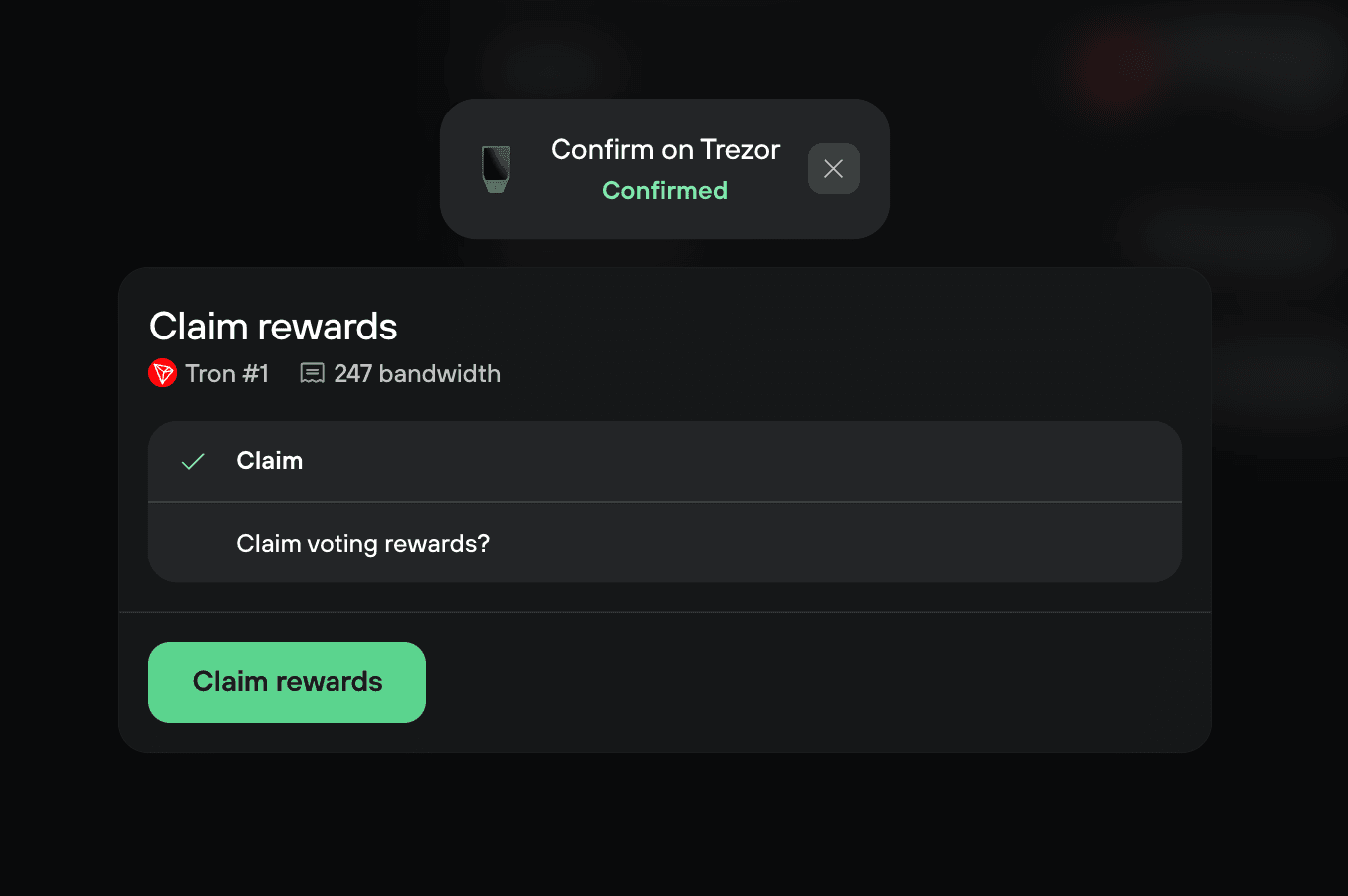
3. Confirm the withdrawal on your Trezor
Check the address on your Trezor and confirm. Then click Withdraw in Trezor Suite.
Unstake your TRX on desktop
Unstaking releases your staked TRX, but you can't withdraw it for 14 days. After the wait, you sign a second transaction to move it back to your available balance.
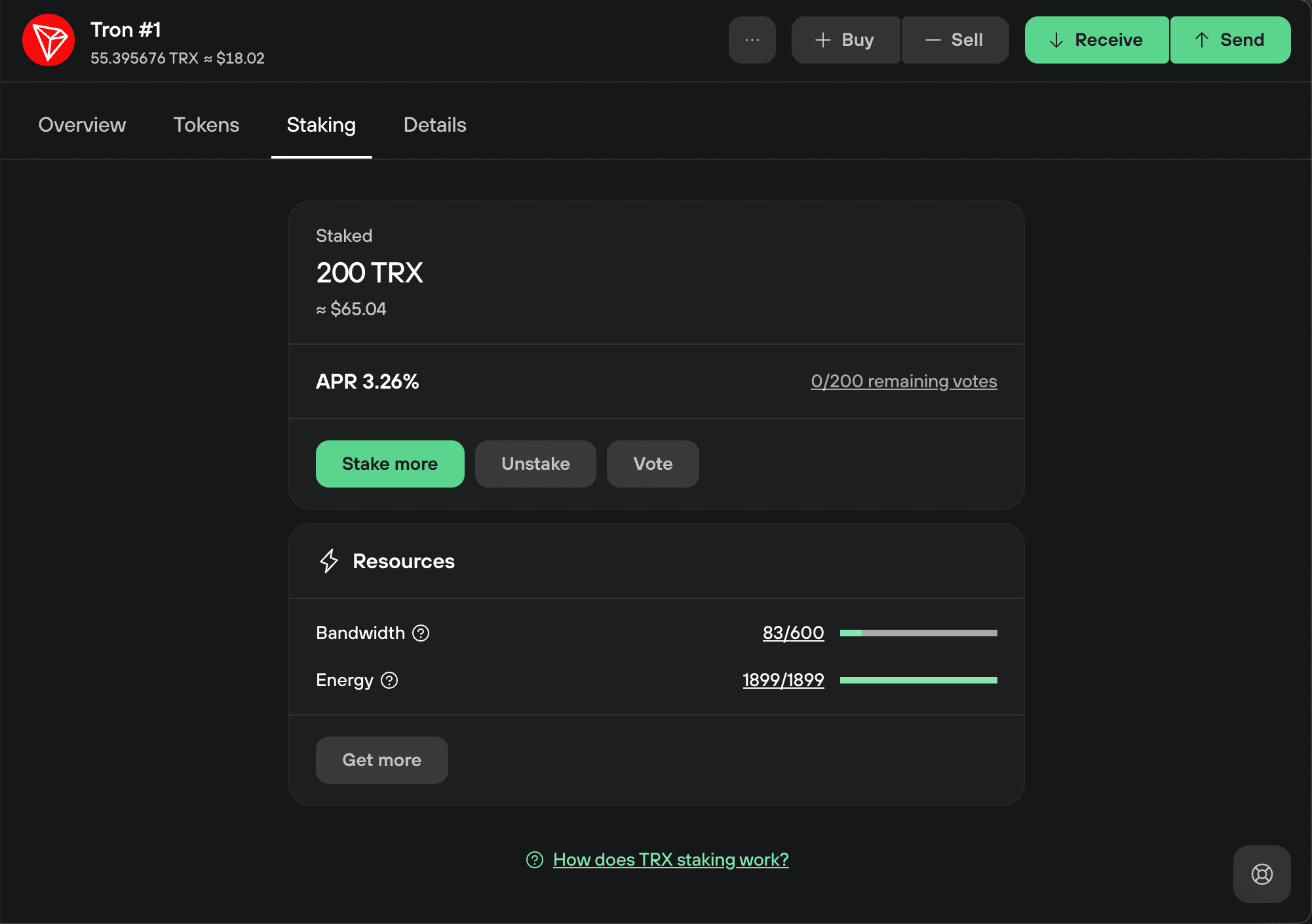
1. Start unstaking
On the Tron Staking tab, click Unstake.
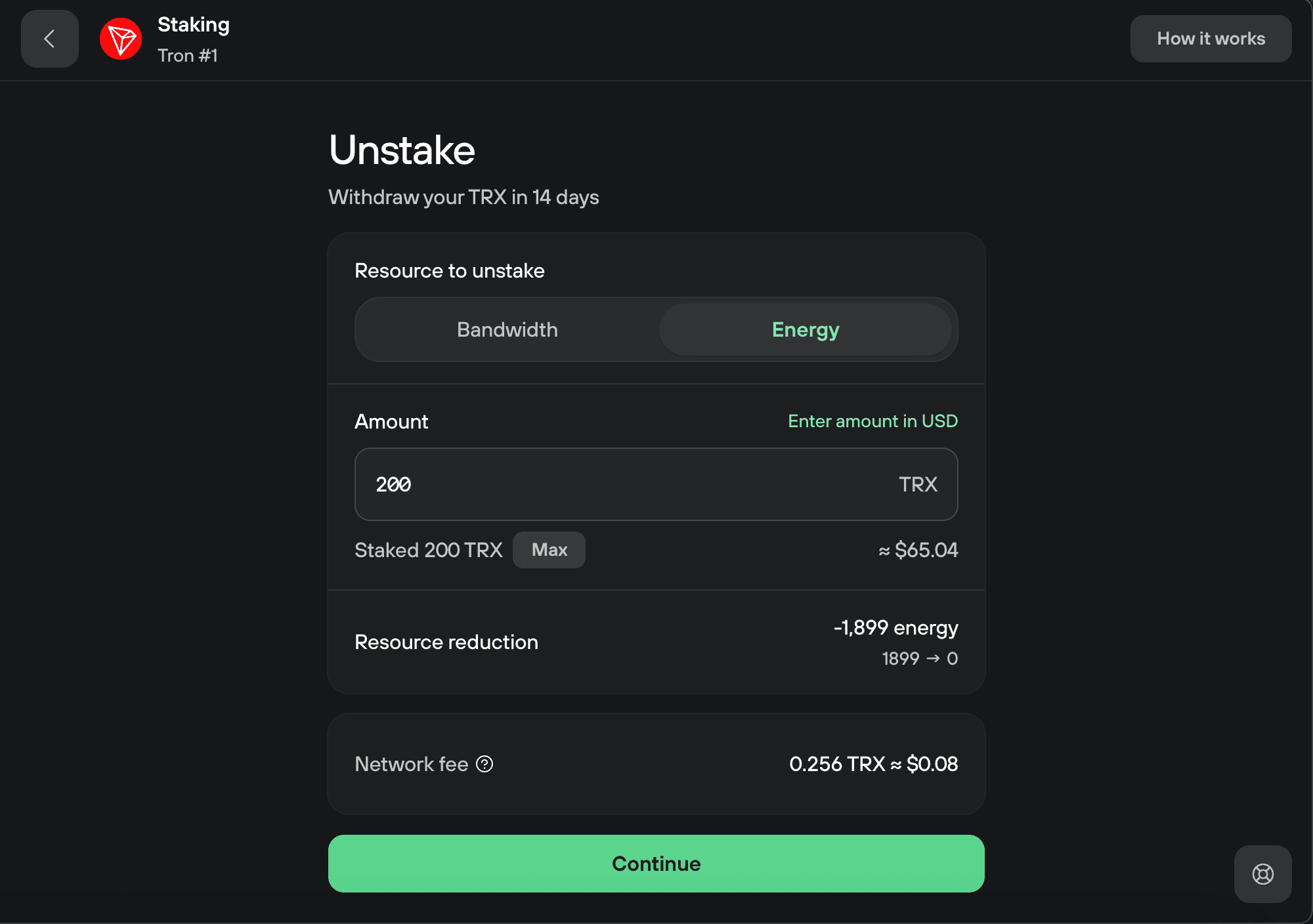
2. Choose what to unstake
Select the resource to unstake, bandwidth or energy, and enter the amount of TRX. Then click Continue.
3. Confirm the unstake on your Trezor
Check the details on your Trezor and confirm. Then click Unstake in Trezor Suite.
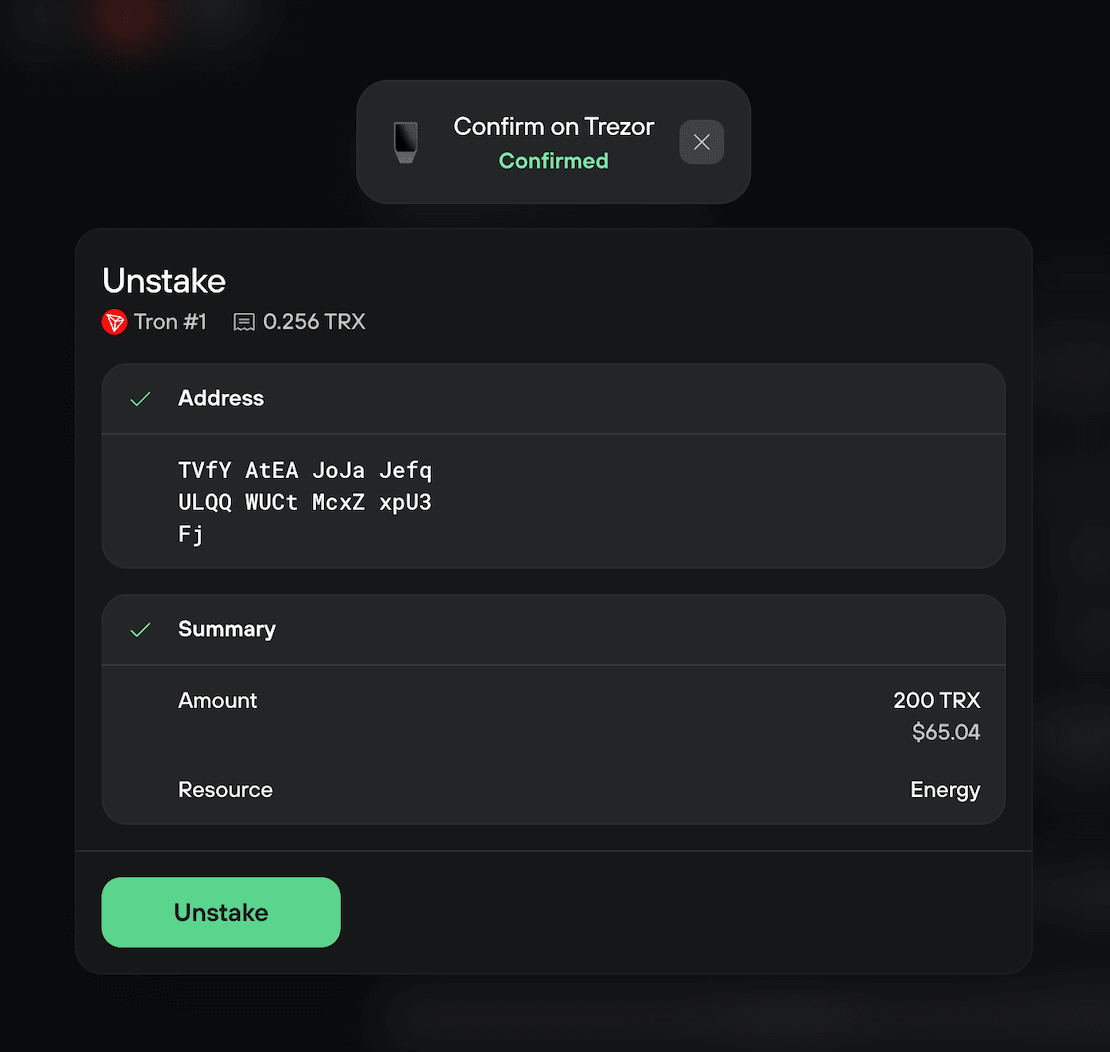
4. Unstaking started
You'll see the unstake complete screen. Your TRX is now unstaking and will be ready to withdraw after 14 days.
Withdraw your unstaked TRX on desktop
Once the 14-day wait is over, your unstaked TRX is ready to withdraw.
1. Start the withdrawal
On the Tron Staking tab, you'll see a notice that your TRX is unstaked and ready to withdraw. Click Withdraw.
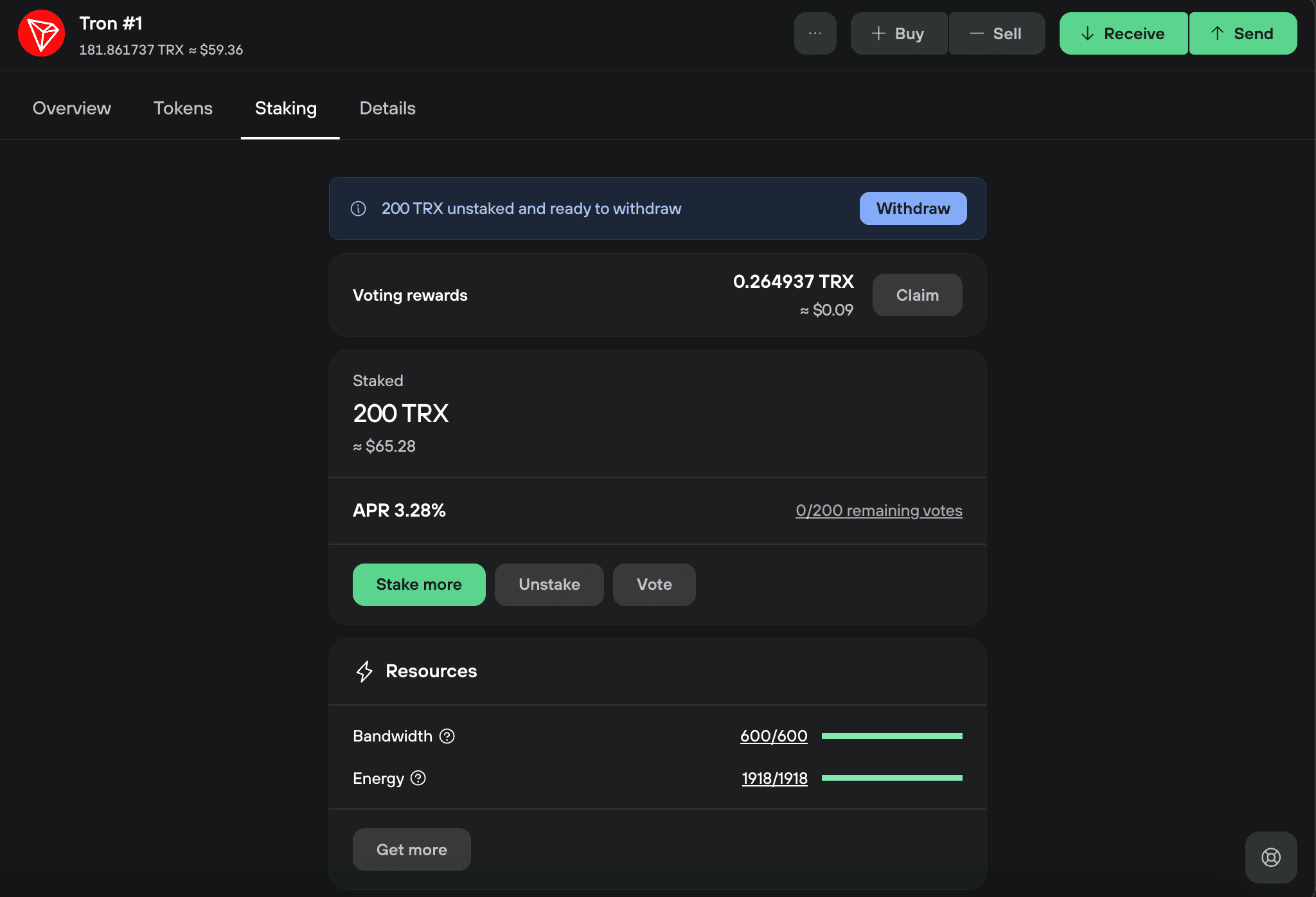
2. Review and continue
The full unstaked amount and the network fee are shown. Click Continue.
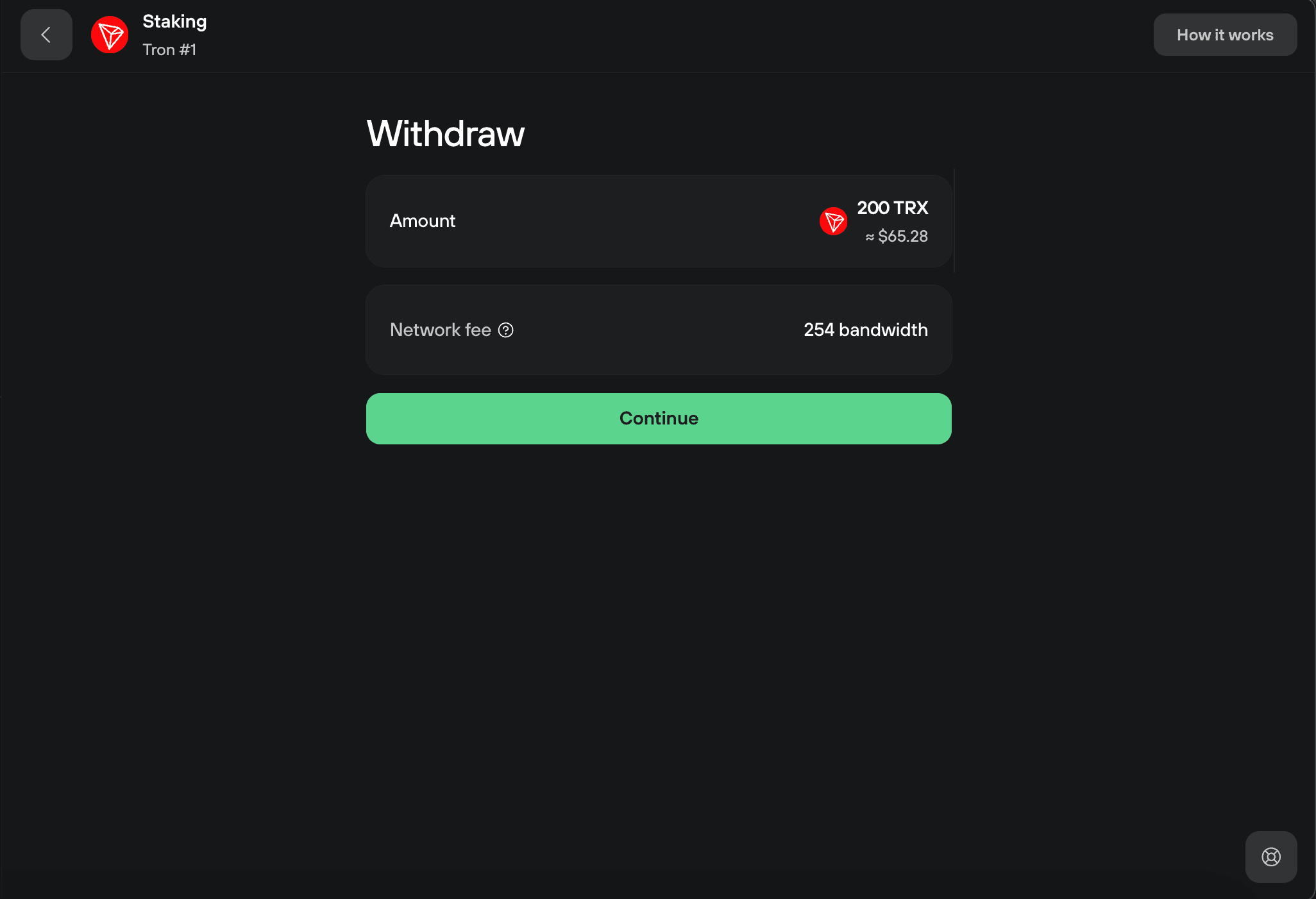
3. Confirm the withdrawal on your Trezor
Check the address on your Trezor and confirm. Then click Withdraw in Trezor Suite.
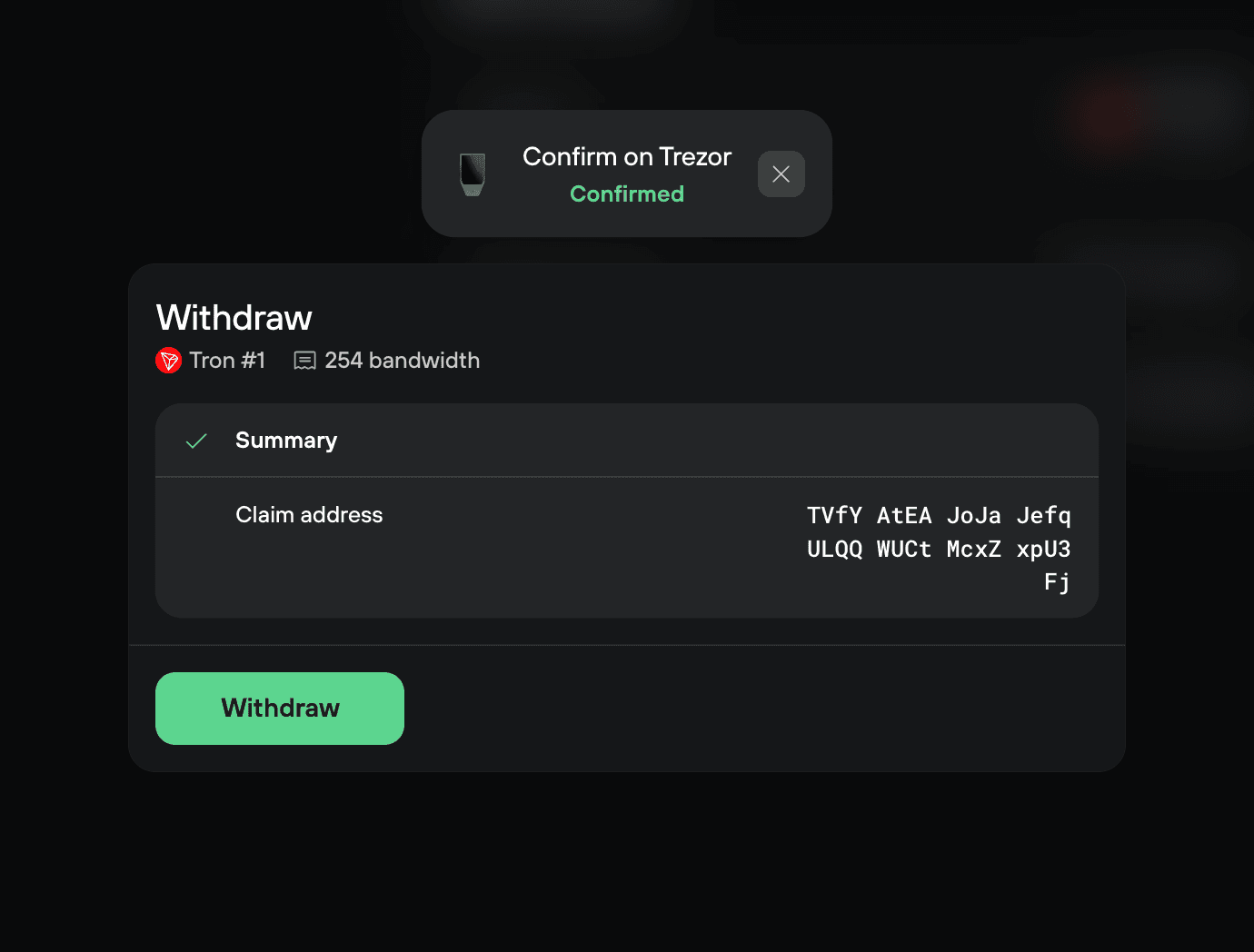
Your TRX returns to your available balance.
Frequently asked questions
Which Trezor devices can I use to stake TRX?
Trezor Model T, Safe 3, Safe 5, and Safe 7.
Why do I sign two transactions when I stake?
Freezing your TRX and voting for a representative are separate on-chain actions, so you confirm and pay a network fee for each. Unstaking works the same way: one transaction to unstake, and another to withdraw after the 14-day wait.
When can I withdraw my TRX after unstaking?
After a 14-day wait. Once it's over, you sign a withdrawal transaction to return the TRX to your available balance.
Are my rewards staked again automatically?
No. Tron staking rewards are not compounded for you. You claim them yourself and can stake them again if you want.