Bitte beachten: Unsere Artikel sind derzeit nur auf Englisch verfügbar.
Staking Ethereum (ETH) in Trezor Suite
Learn how to stake Ethereum (ETH) with your Trezor hardware wallet, using Trezor Suite on desktop or mobile. This guide explains what staking is, how it works through Everstake, and walks you through staking and unstaking step by step.
What is staking?
Staking is how transactions are validated on blockchains that use the Proof of Stake (PoS) consensus mechanism. Ethereum moved from Proof of Work (PoW) to PoS to improve the network's efficiency, security, and scalability.
A stake is a financial share in something. When you stake ETH, you lock up funds that help secure the Ethereum network, and you earn rewards in return.
There are four ways to stake ETH:
- Staking as a validator: requires a deposit of 32 ETH. As a validator you store data, process transactions, and add new blocks to the Ethereum blockchain. This needs proper hardware and technical knowledge.
- Staking as a service: aimed at users who want to stake 32 ETH but have a service validate on their behalf. This requires a trustworthy provider and careful control of your keys.
- Pooled staking (the method used in Trezor Suite): ideal for users who don't have or don't want to stake a full 32 ETH. Staking pools let many users combine smaller amounts to make up the 32 ETH needed to activate a set of validator keys.
- Centralized exchanges: these run large numbers of validators by consolidating many staking pools. This approach relies on the most trust because you don't control your keys.
Staking helps maintain the integrity of the Ethereum blockchain. Validators who misbehave, for example by failing to identify the head of the chain on time or by double-signing transactions, risk losing ETH through a process called slashing.
You can learn more about the underlying mechanism in our article What is Proof of Stake?
Staking ETH with Trezor
Ethereum staking is available on all Trezor devices (Trezor Model One, Model T, Safe 3, Safe 5, and Safe 7) and to users worldwide. You can stake using Trezor Suite on desktop or on mobile.
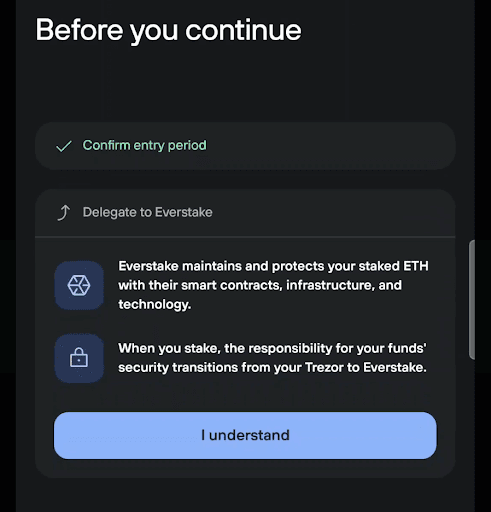
The service is provided by Everstake, a widely used staking provider. Everstake lets you stake ETH without setting up your own validator node, so you don't need to meet the 32 ETH requirement that full validators face.
To stake, you need at least 0.01 ETH. You can't stake your entire balance, because some ETH has to stay in your account to cover gas fees. While your ETH is staked, you can't trade it.
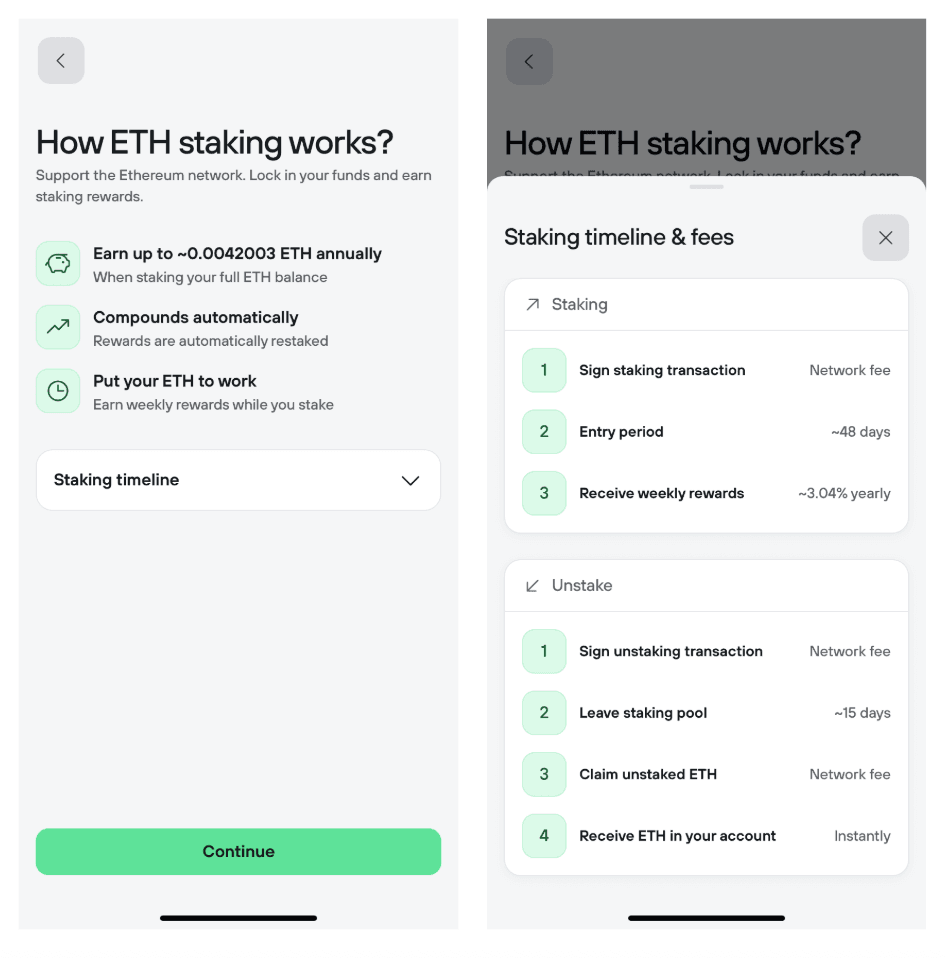
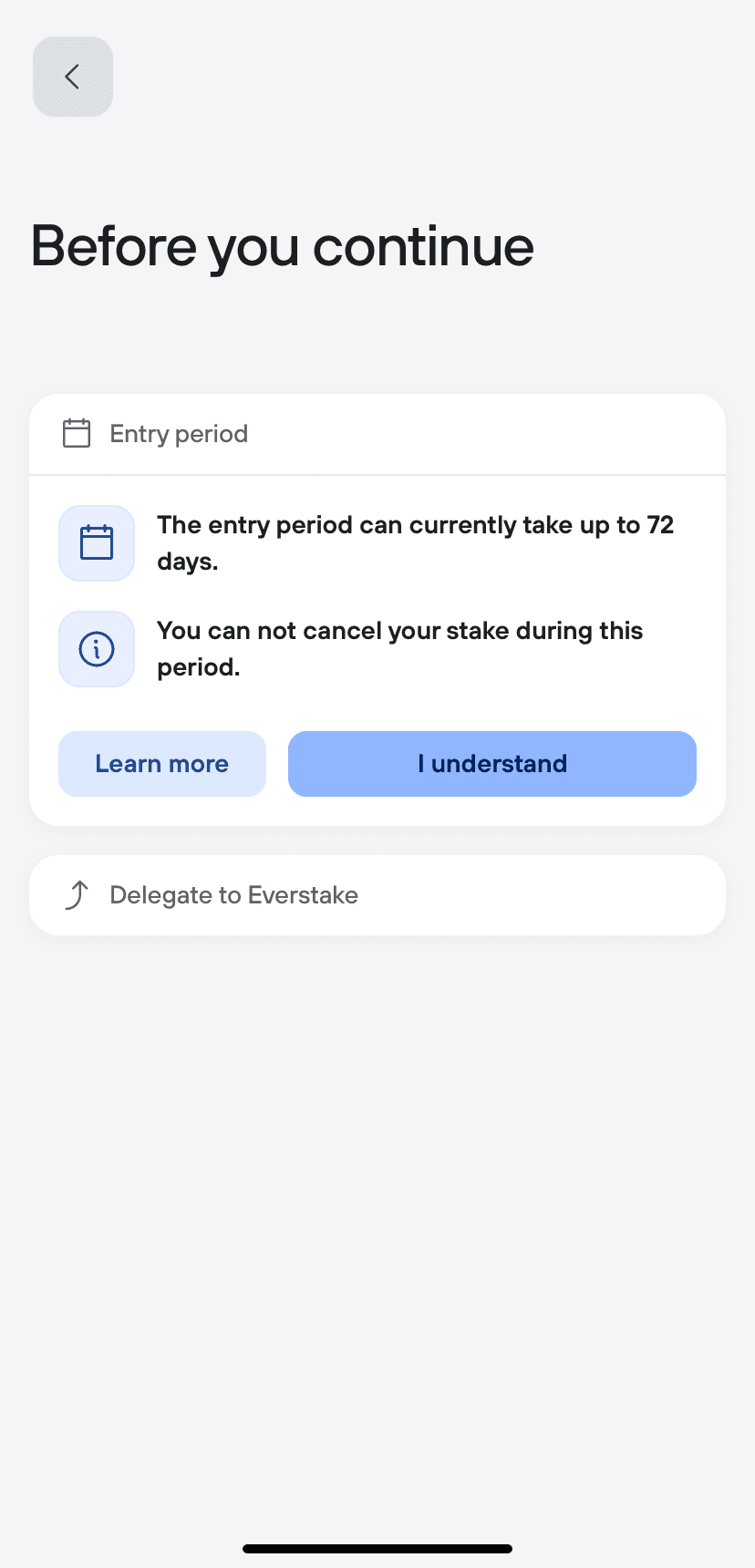
When you stake, your ETH enters the Everstake staking pool. If others are entering and leaving the pool at the same time, your funds may be staked quickly. If not, entering the pool can take longer. This waiting time is called the entry period, and it changes with network conditions. Trezor Suite shows you the current entry-period information before you confirm.
Retrieving your ETH and rewards from the pool takes two steps: unstaking and claiming. Unstaking has no fixed timeframe and depends on network conditions. Once unstaking finishes, you can claim your ETH and rewards instantly.
Unstaking from a pool can be done at any time. Where possible, ETH is unstaked instantly when funds are entering and leaving the pool at the same time. For example, if you unstake 5 ETH and 1 ETH is available, you receive that 1 ETH right away and wait for the remaining 4 ETH.
Why stake Ethereum?
Staking benefits both the network and you. By staking, you help secure Ethereum: the PoS mechanism relies on validators to process transactions and propose new blocks, and the network gets harder to attack as more ETH is staked. In return, you earn rewards on your holdings.
Your rewards are auto-compounded, which means they're automatically restaked. This lets your ETH rewards grow over time without any action from you.
Is staking ETH safe?
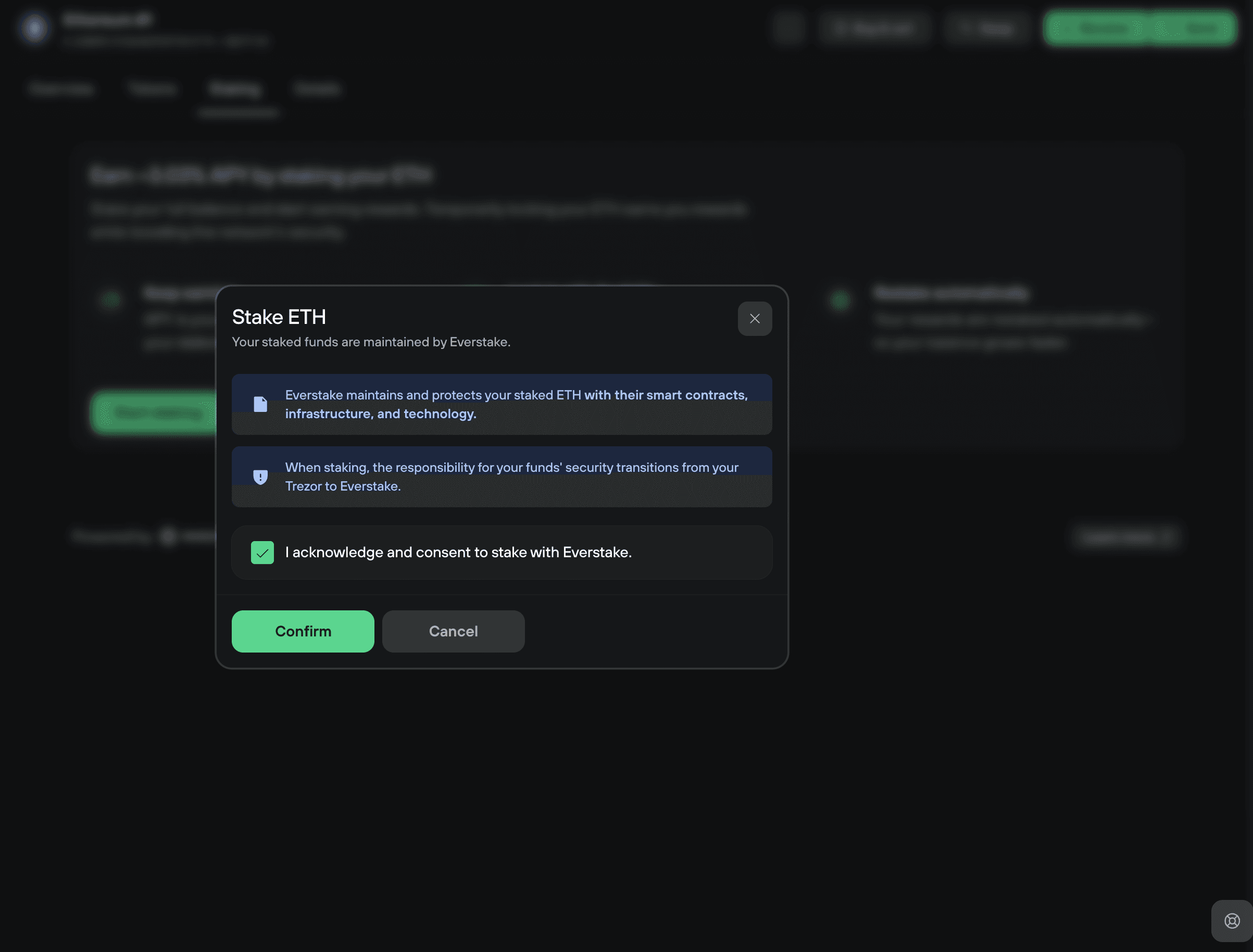
Normally your Trezor protects your keys, so you keep full control of your ETH. Staked ETH works differently. Once staked, your ETH and its rewards sit in the Everstake pool and are no longer secured directly by your Trezor.
Because staking is fully maintained by Everstake, Trezor assumes no responsibility if anything happens to Everstake or to the funds delegated to its stake pool.
Everstake has completed independent security audits. The reports are available here:
- ChainSecurity: Everstake – ETH B2C Staking Security Audit
- Ackee Blockchain Security: Everstake: 0.1+ ETH staking solution audit summary
As with any third-party provider, review Everstake's terms, conditions, and any fees before you stake.
How to stake and unstake ETH in Trezor Suite
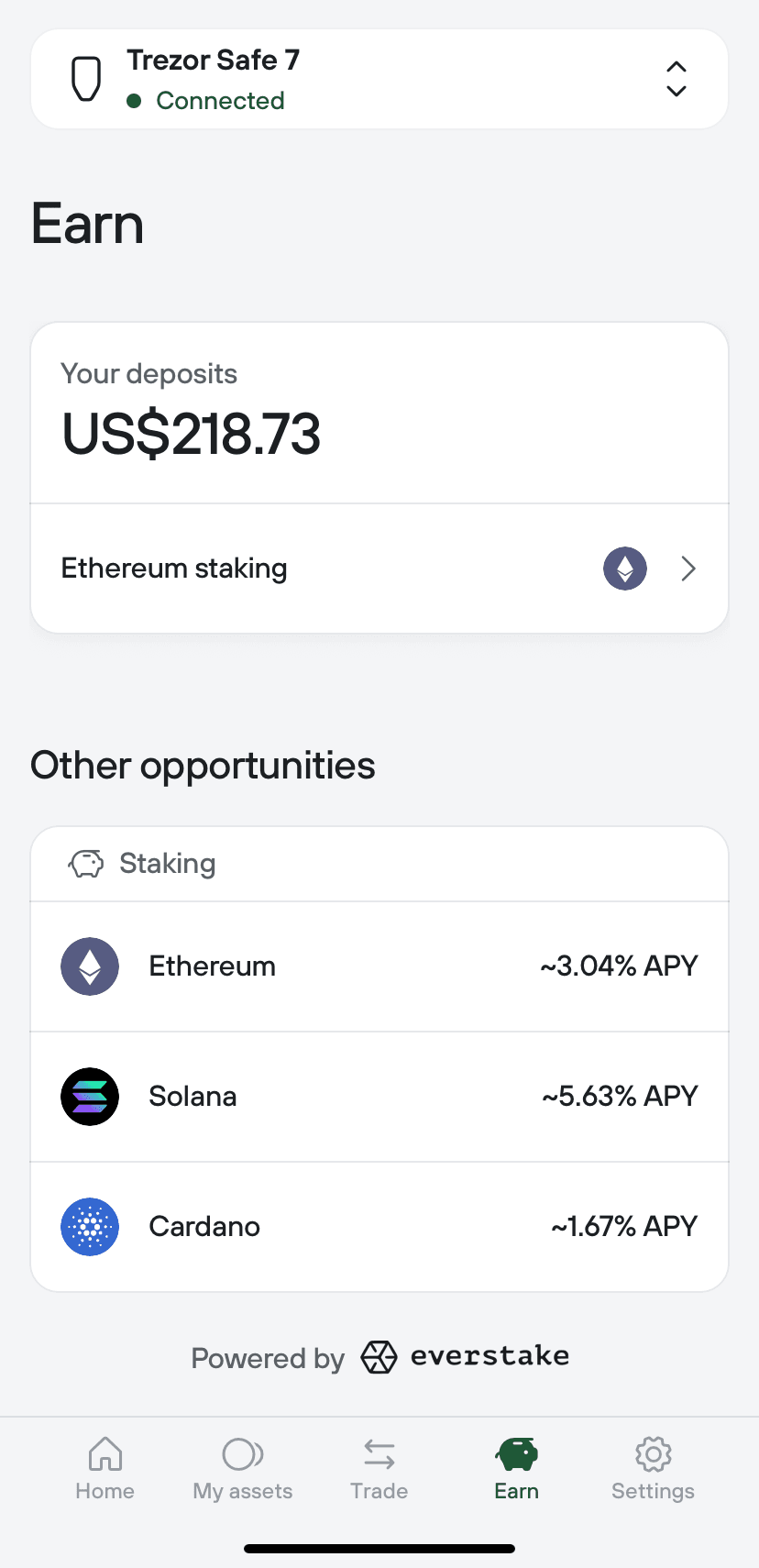
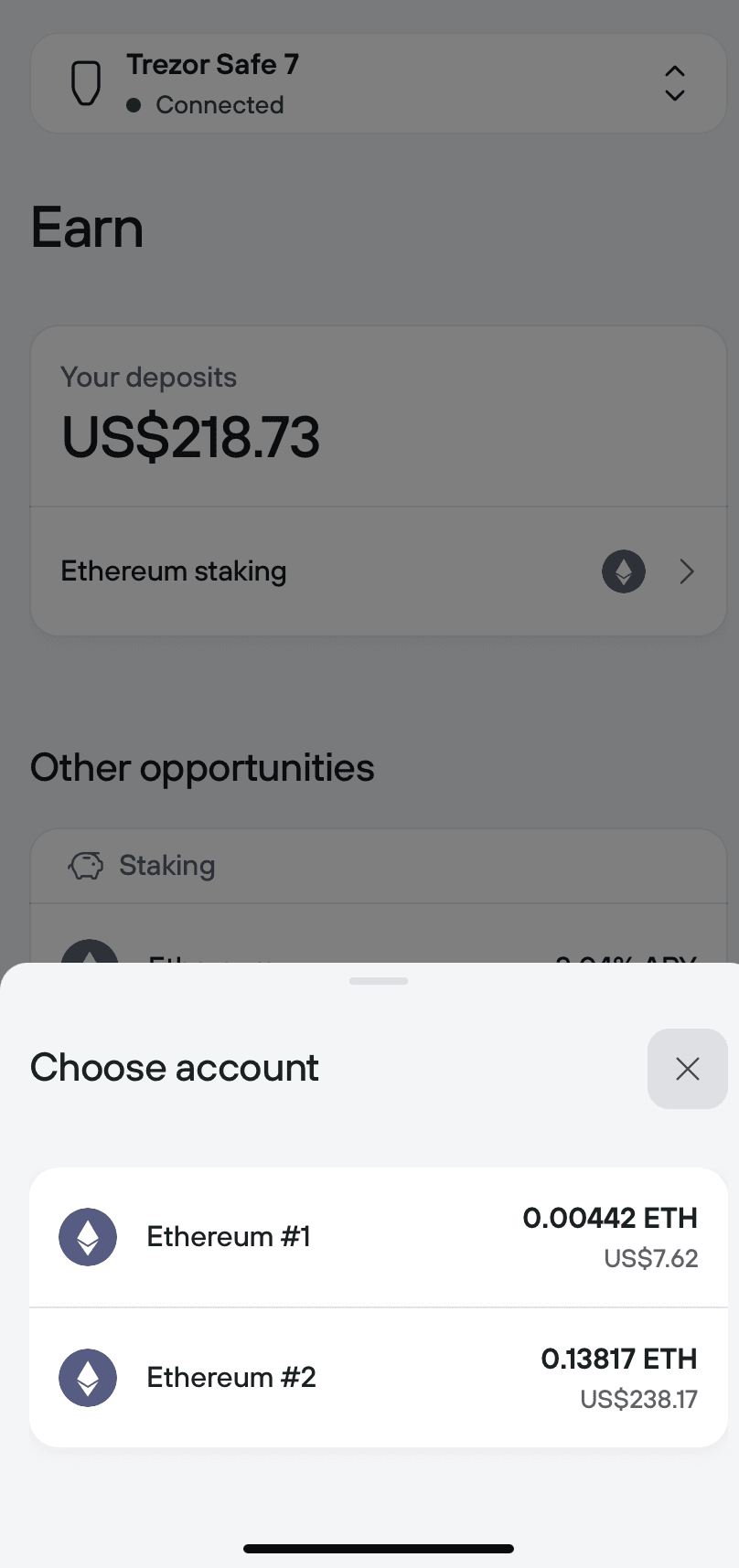
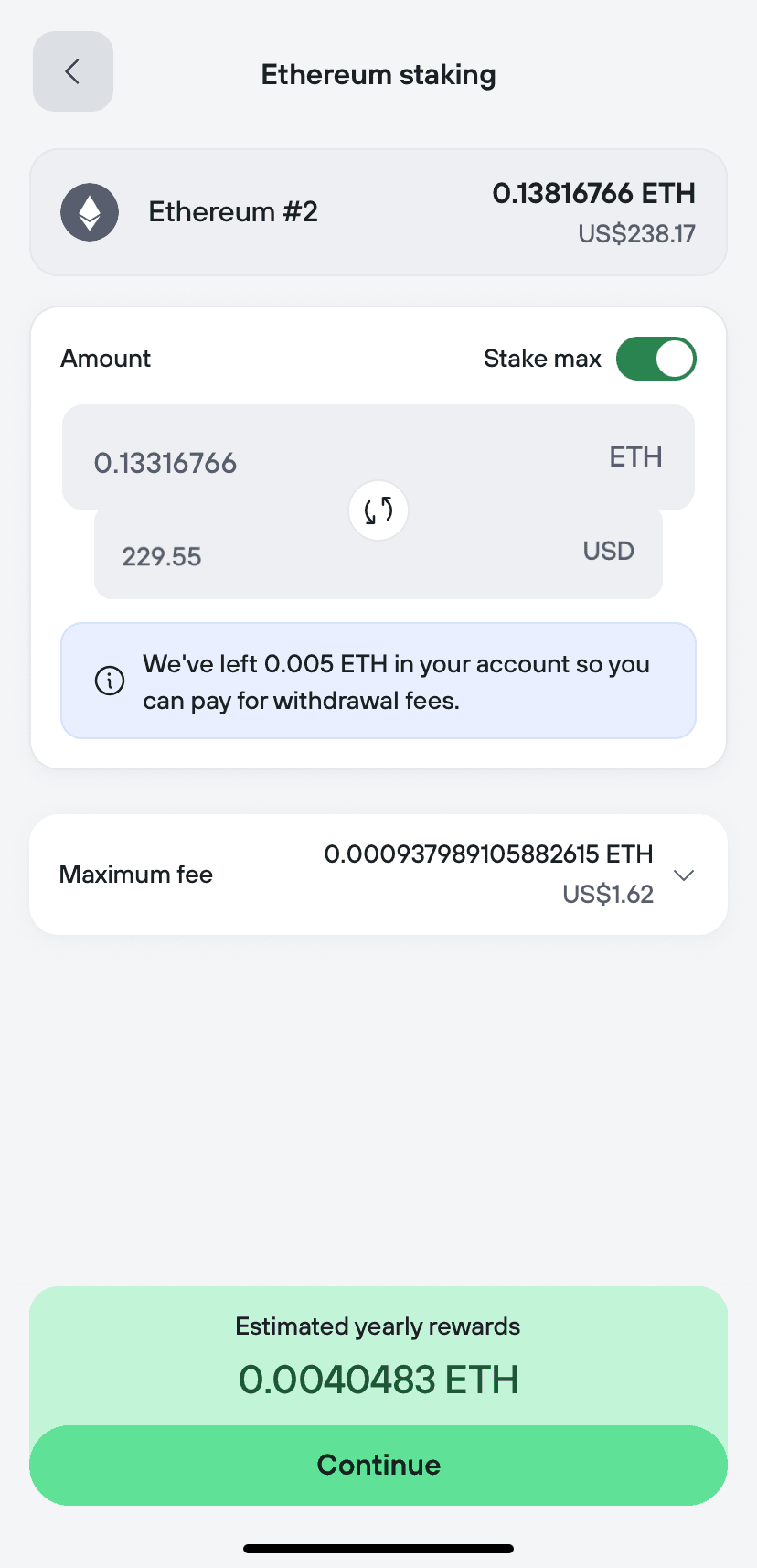
You can stake ETH on desktop or on mobile. The steps are similar on both: choose an account, set an amount, review the entry-period and Everstake notices, then confirm on your Trezor device. Unstaking and claiming your rewards work the same way, in reverse.
Select Desktop or Mobile app below.
Desktop
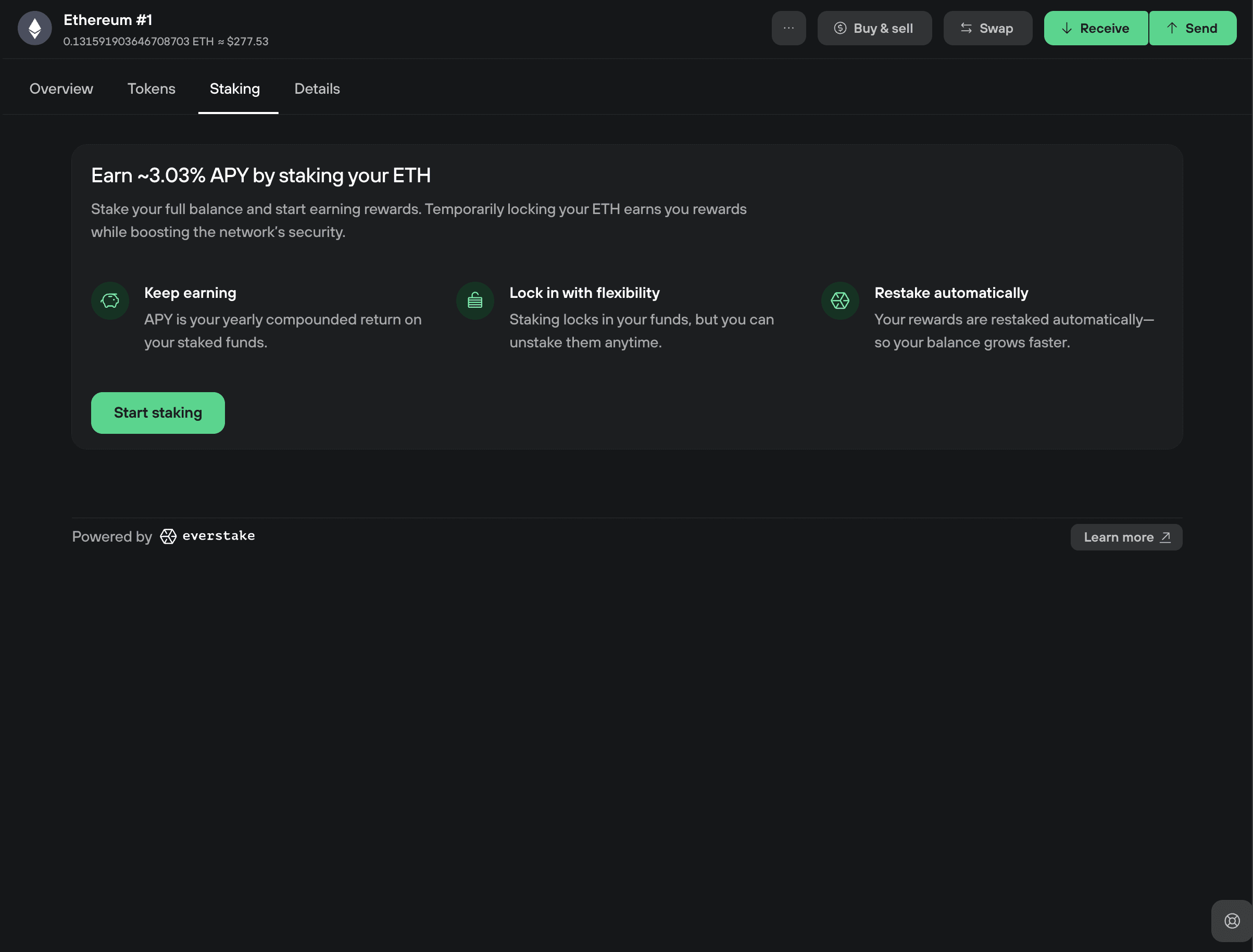
1. Open the Staking tab
In the Ethereum Overview tab, you'll see the balance of the ETH accounts protected by your Trezor. If you have more than 0.01 ETH, you're ready to stake.
Open the Staking tab to see the Stake Ethereum information page. Once you've read it, click Start staking.
2. Review the staking summary
The Staking in a nutshell window gives you a quick reminder of the key facts about staking ETH.
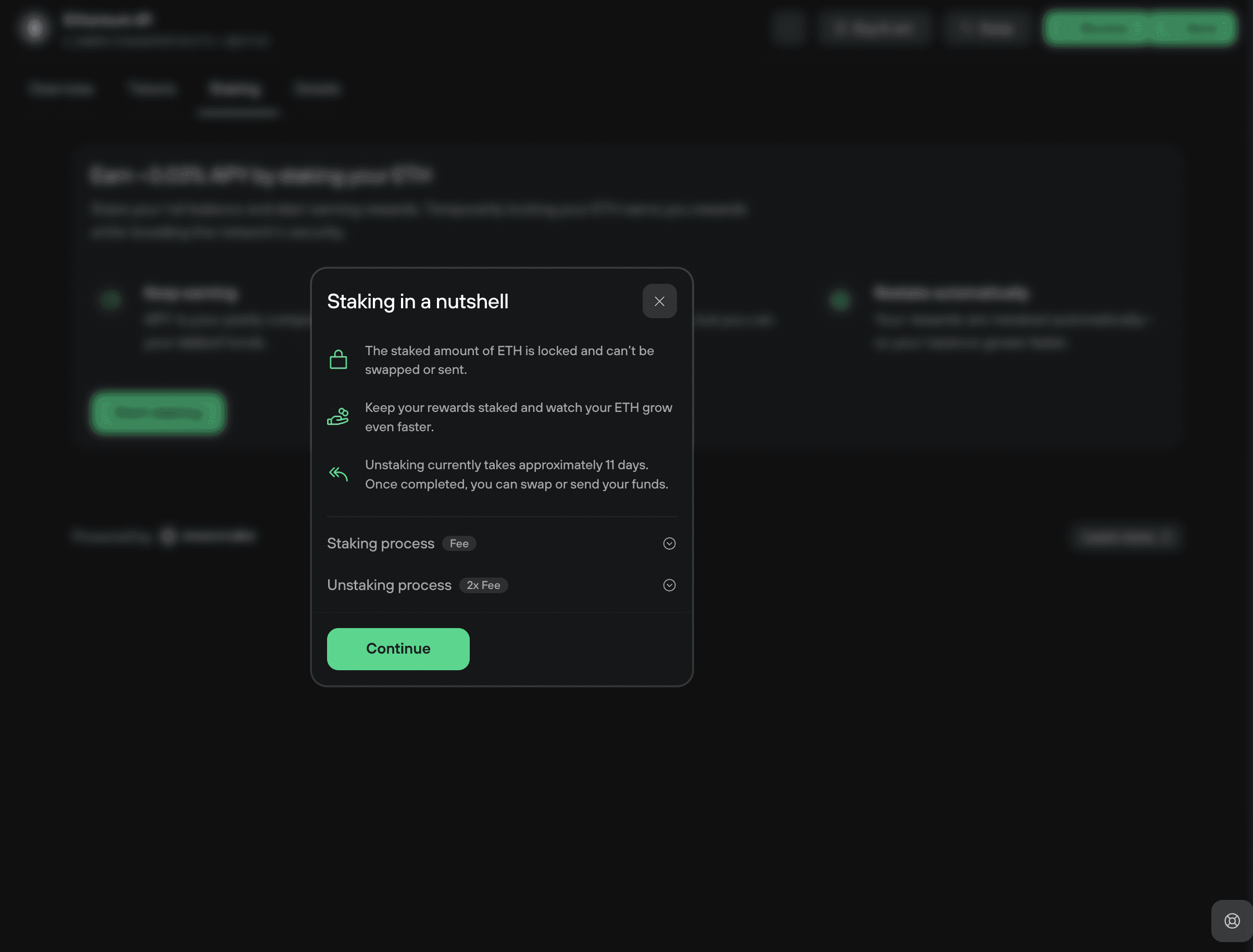
Click Got it!, then give consent for your staked funds to be maintained by Everstake.
3. Enter the amount
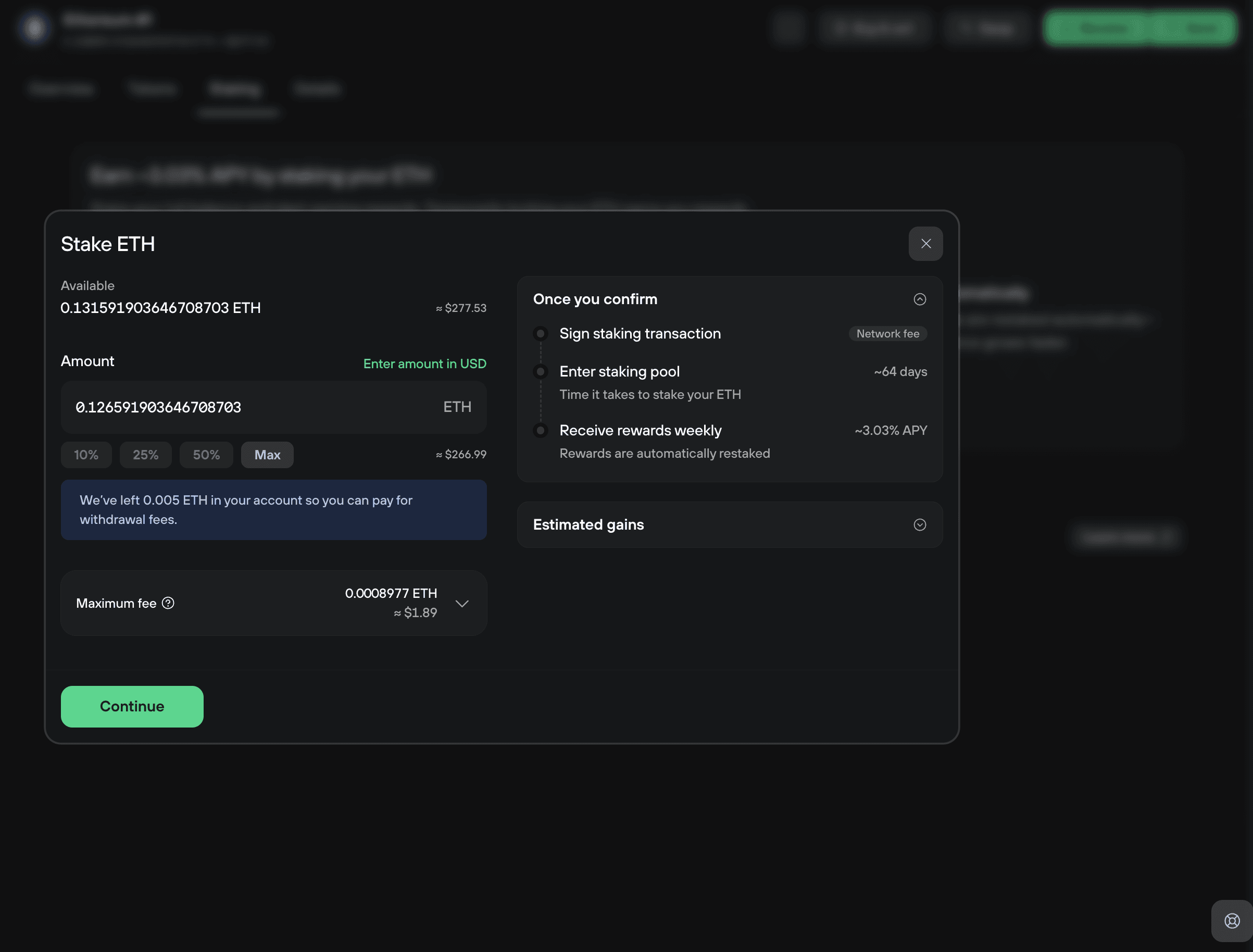
In the Stake Ethereum window, set the amount you want to stake by entering a value in ETH or in your local currency. Remember, you need at least 0.01 ETH.
Once you've entered the amount, click Continue.
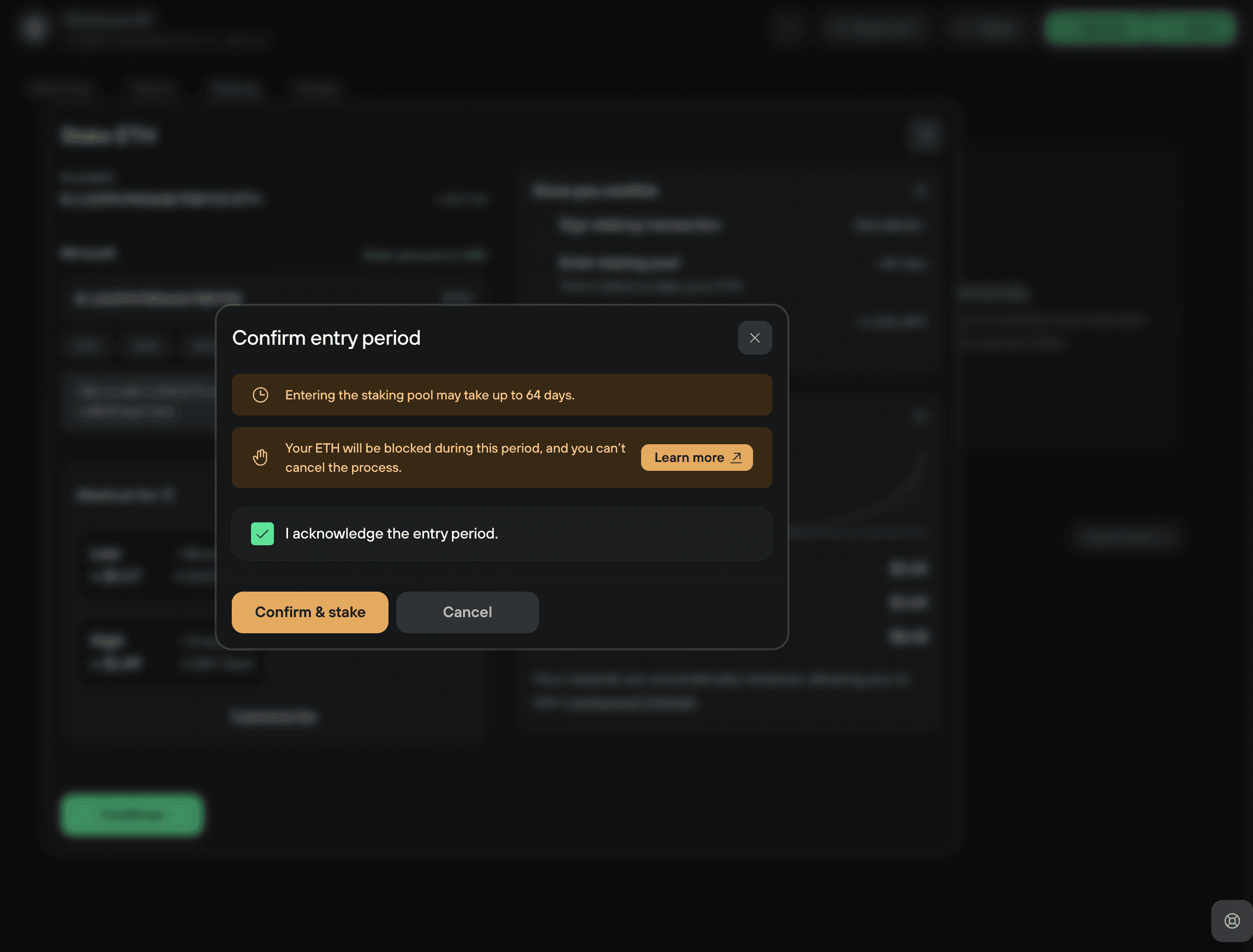
4. Confirm the entry period
In the Confirm entry period window, check the box to acknowledge the conditions, then click Confirm & stake.
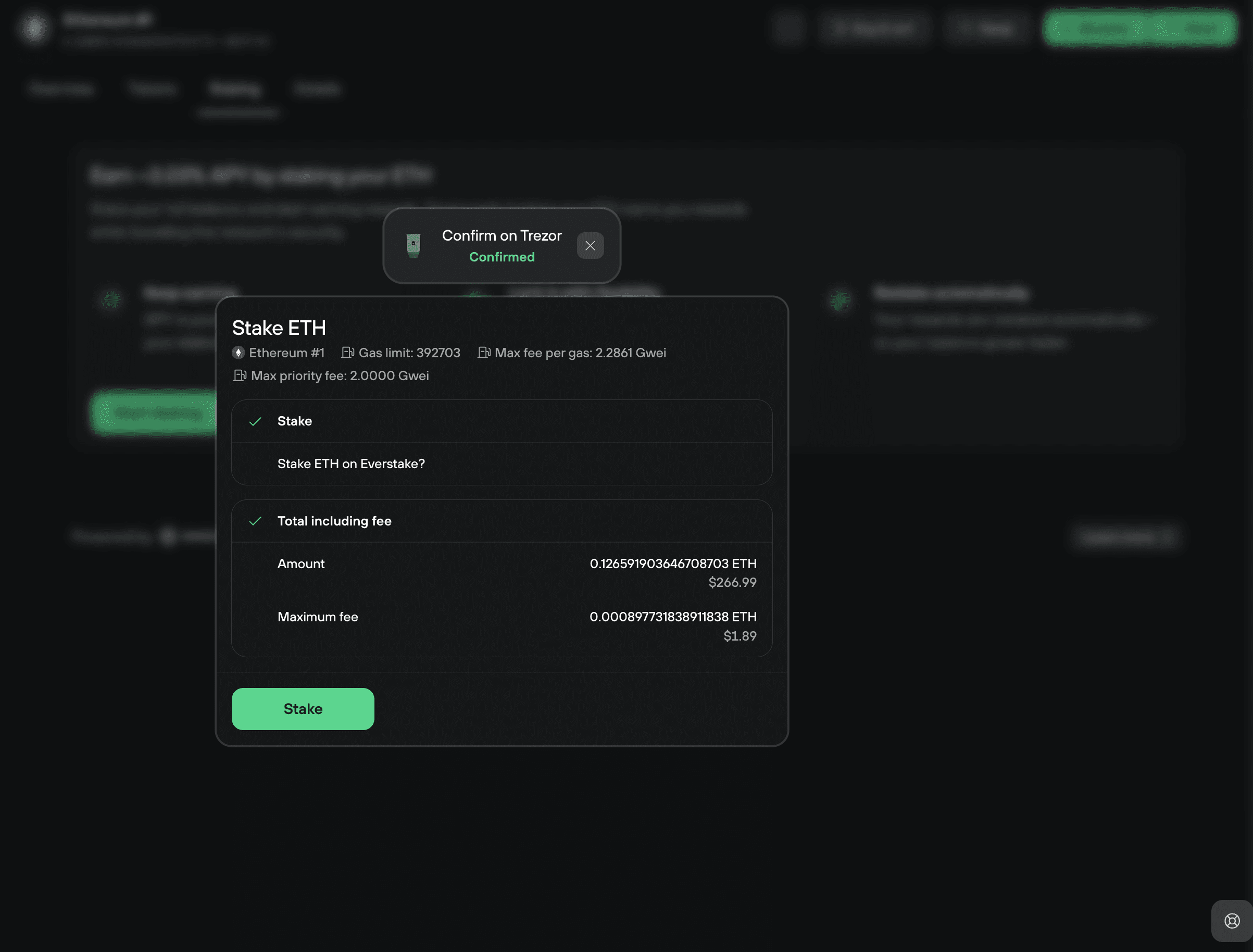
5. Confirm on your Trezor
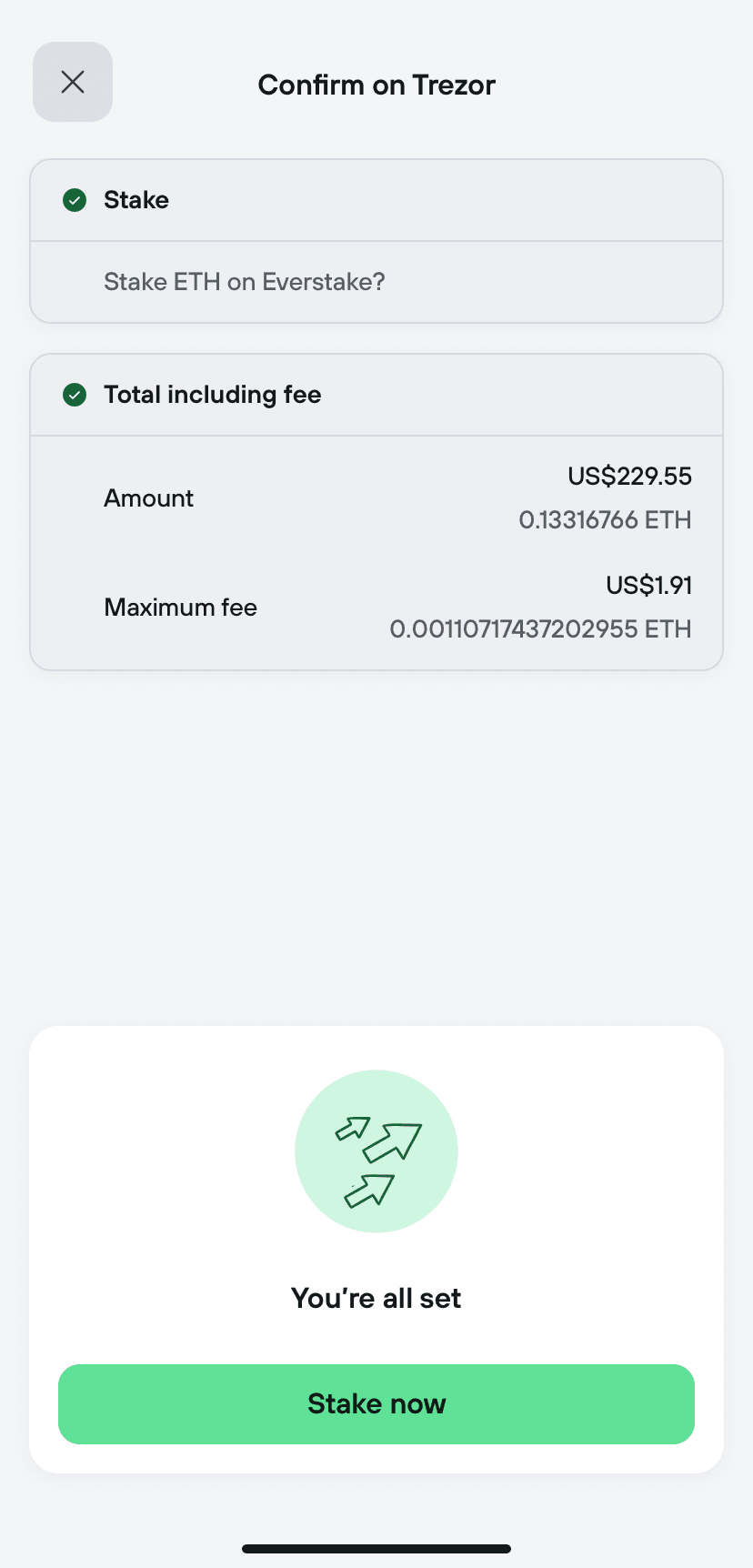
Confirm the prompt on your Trezor device to stake your ETH on Everstake, then confirm the total amount and gas fee. Back in Trezor Suite, click Stake.
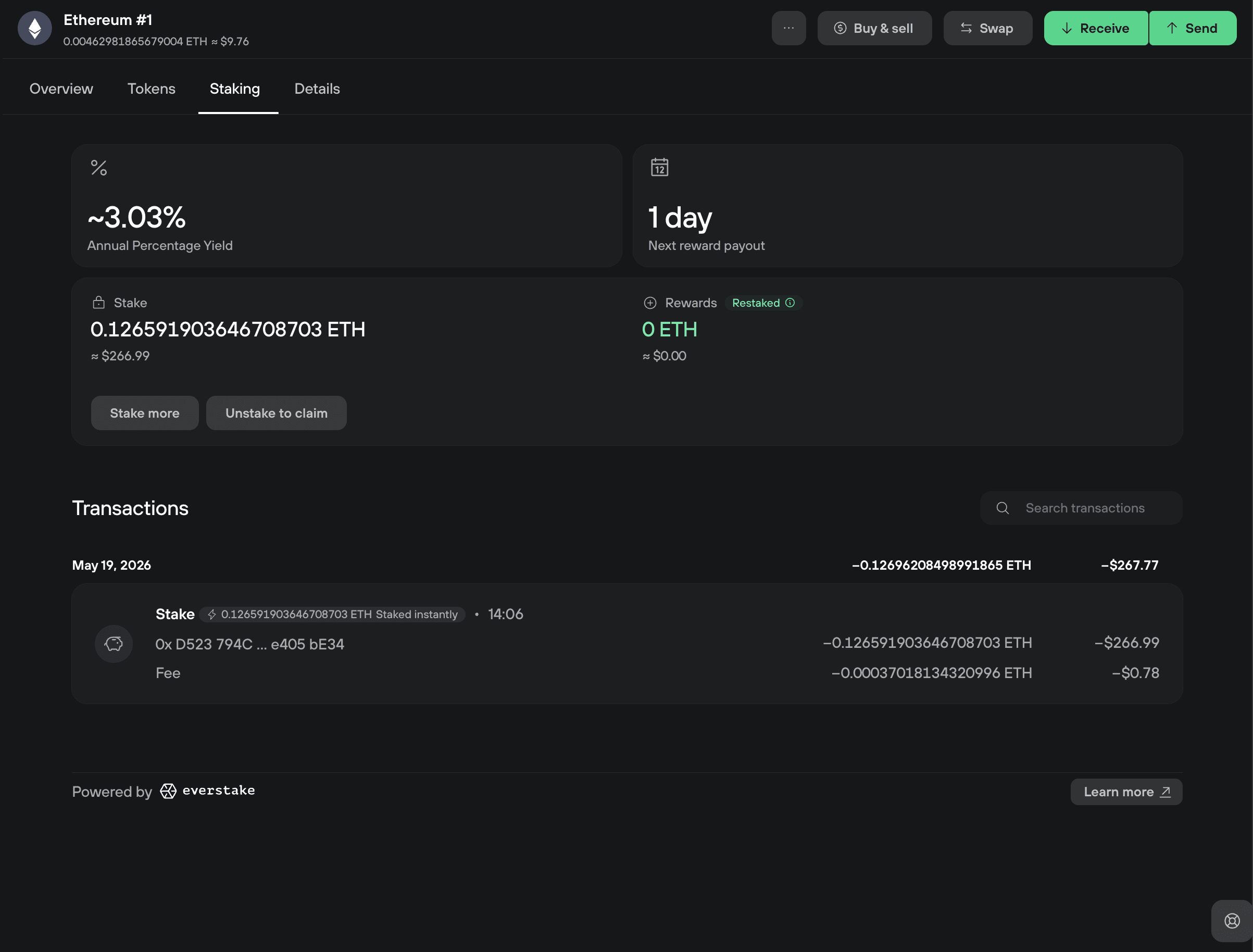
6. Staking complete
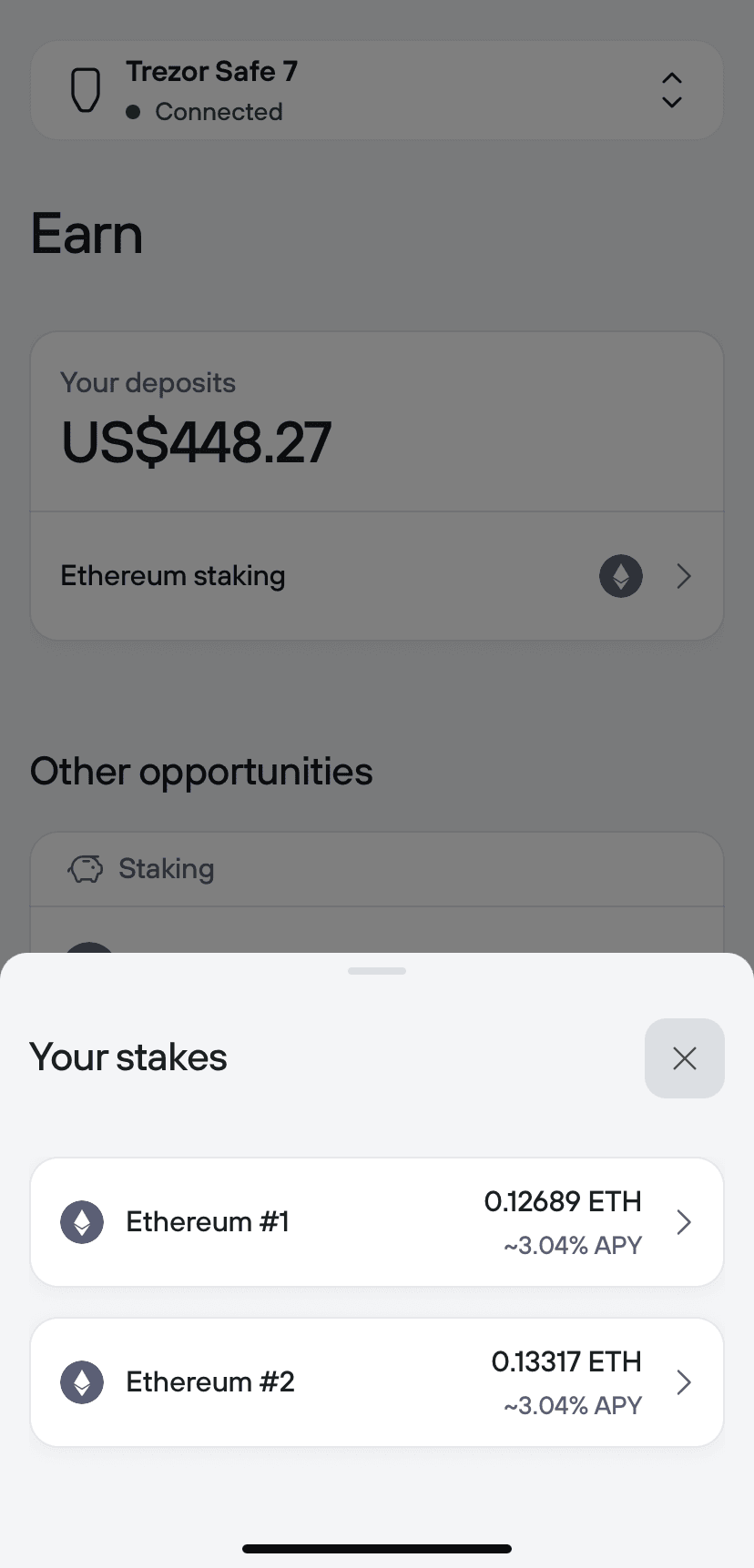
That's it. Once the transaction confirms on the network, your funds enter the staking pool. Check the status of your stake anytime in the Staking tab, where you can also Stake more or begin Unstake to claim.
Unstaking and claiming on Desktop
To move your ETH and rewards back to your Trezor:
- Go to the Ethereum Staking tab and click Unstake to claim
- Set the amount of ETH you want to unstake, set a fee, then click Unstake
- Confirm the action on your Trezor, then confirm the gas fee.
- Back in Trezor Suite, click Unstake.
- Once unstaking finishes, click Claim to receive your ETH and rewards instantly.
If you have issues with Ethereum staking or unstaking in Trezor Suite, contact Trezor Support through our Chatbot Hal.