Importante: los artículos de nuestro blog solo están disponibles en inglés de momento.
Earn ETH yield in Trezor Suite
Deposit ETH into a Morpho vault from the Earn tab in Trezor Suite, and it earns interest from lending. You sign every transaction on your Trezor device without leaving the app.
Deposit from the Earn tab in three transactions: wrap, approve, then deposit. Trezor Suite unlocks each transaction once the previous one confirms on-chain, and carries your amount over. You can withdraw at any time; this takes two on-chain transactions: redeem, then unwrap.
The vault holds your ETH as WETH (Wrapped Ether), an ERC-20 version of ETH that DeFi protocols can work with. Wrapping is one to one and reversible, so you deposit ETH and you get ETH back. For how the vaults work and where the yield comes from, see How DeFi Yield works with Morpho vaults.
What you need before you start
You'll need:
- ETH on Ethereum in your Trezor wallet, with some extra to cover the network fees
- Trezor Suite, updated to the latest version, with your device on the latest firmware
If you don't hold ETH yet, you can move it from an exchange or another wallet, or buy it in Trezor Suite. See Receive crypto in Trezor Suite or Buy crypto in Trezor Suite.
Deposit ETH on desktop
1. Open the Earn tab
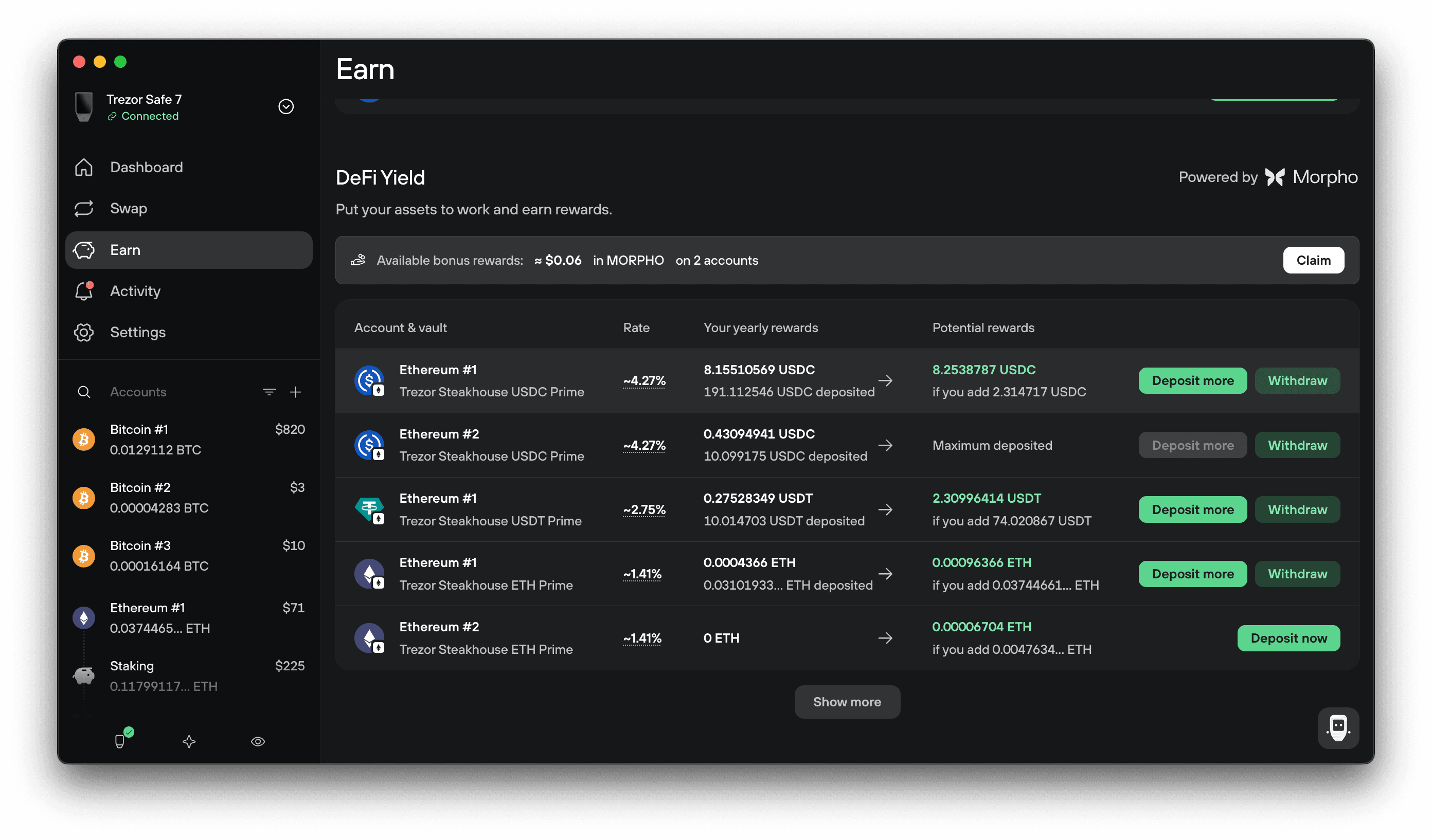
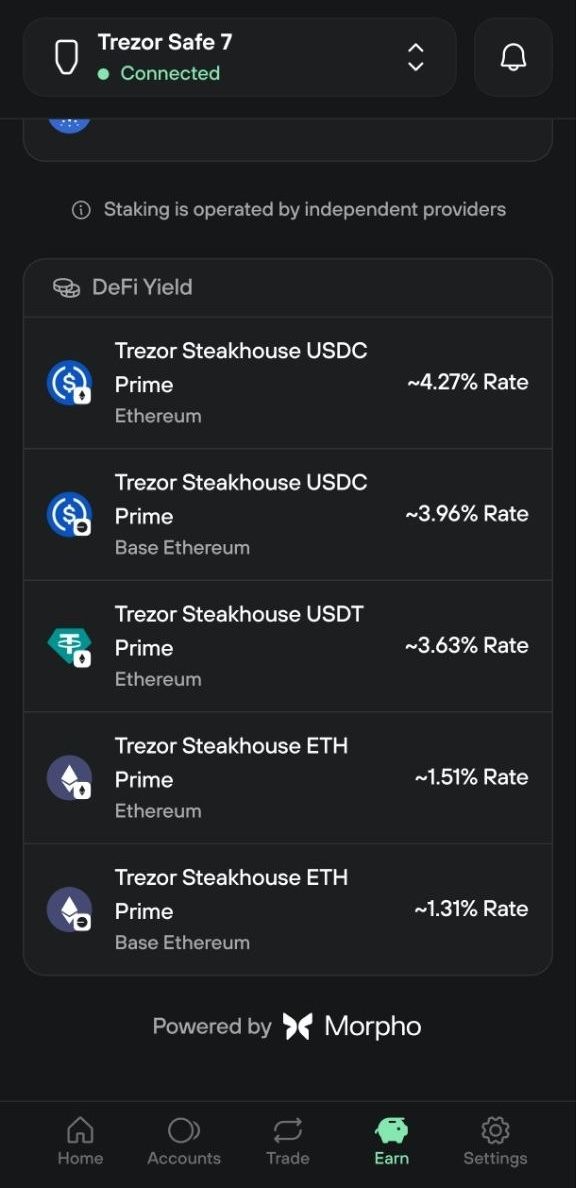
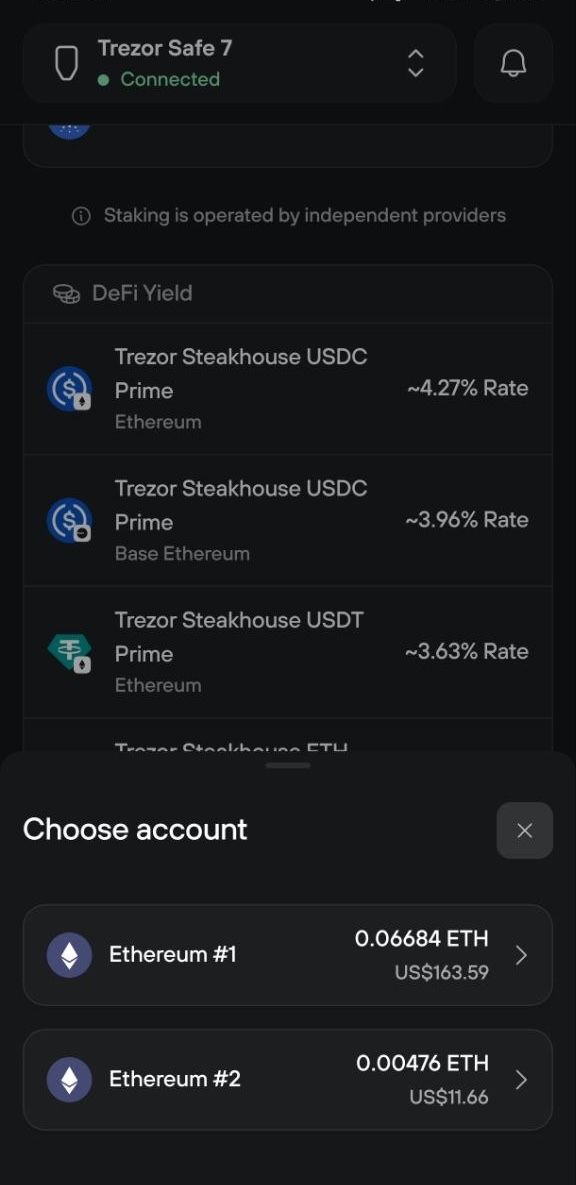
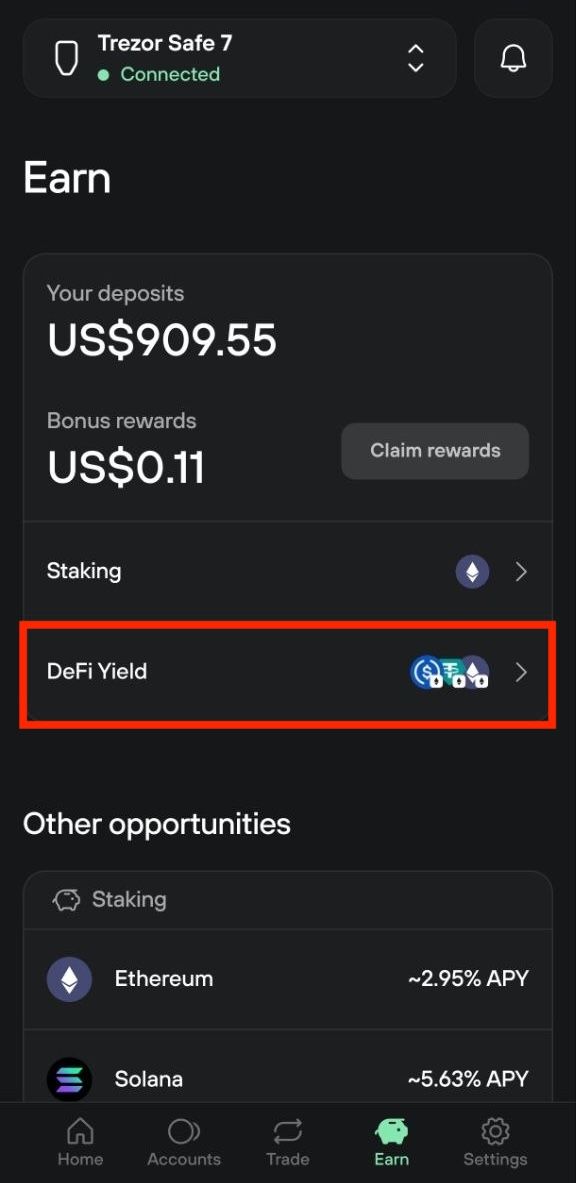
Select Earn in the Trezor Suite sidebar, then scroll to the DeFi Yield section. Each vault shows its current rate, what you're earning, and what you could earn by depositing more.
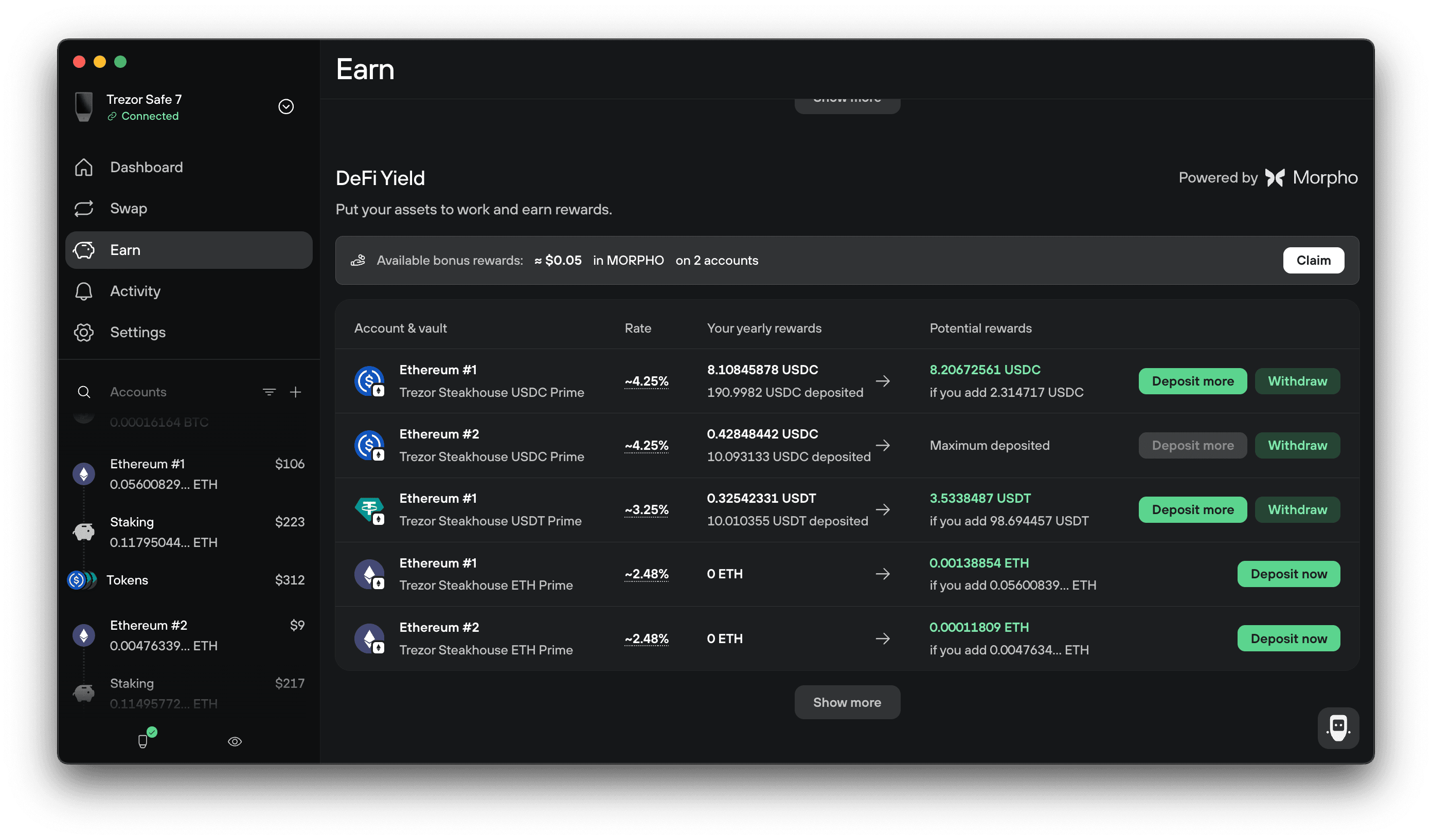
Find Trezor Steakhouse ETH Prime for the account you want to use, then select Deposit now.
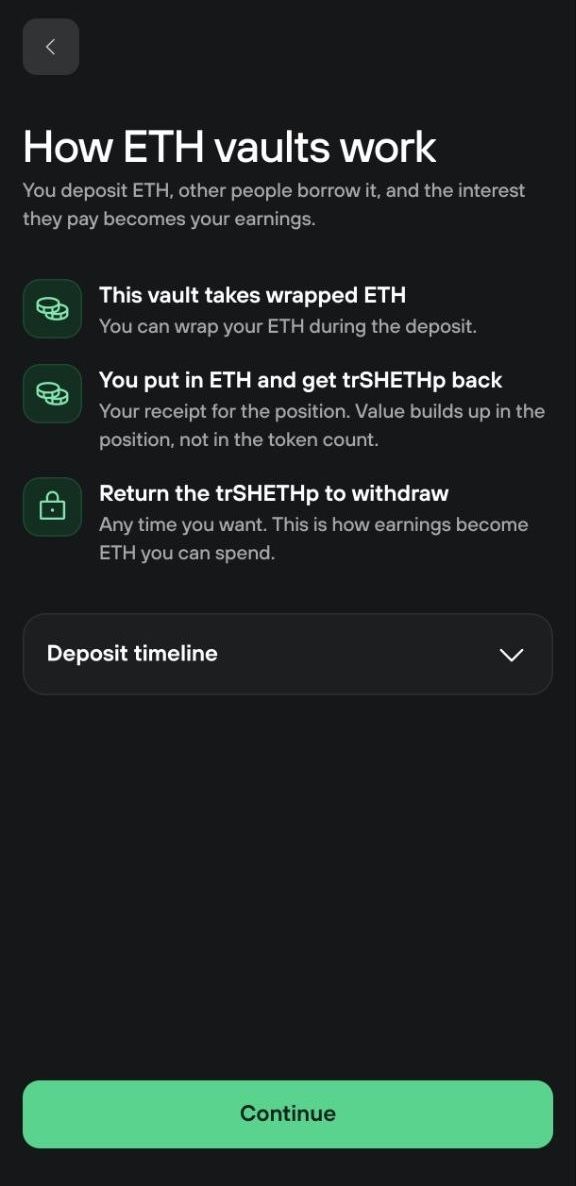
2. Read how DeFi Yield works
The How DeFi Yield works window covers four points:
- The vault accepts your ETH as WETH.
- Your deposit stays available to withdraw.
- The yield compounds.
- You receive trSHETHp, which represents your position.
Expand Deposit and Withdraw to see each transaction in the flow and which ones carry a network fee.
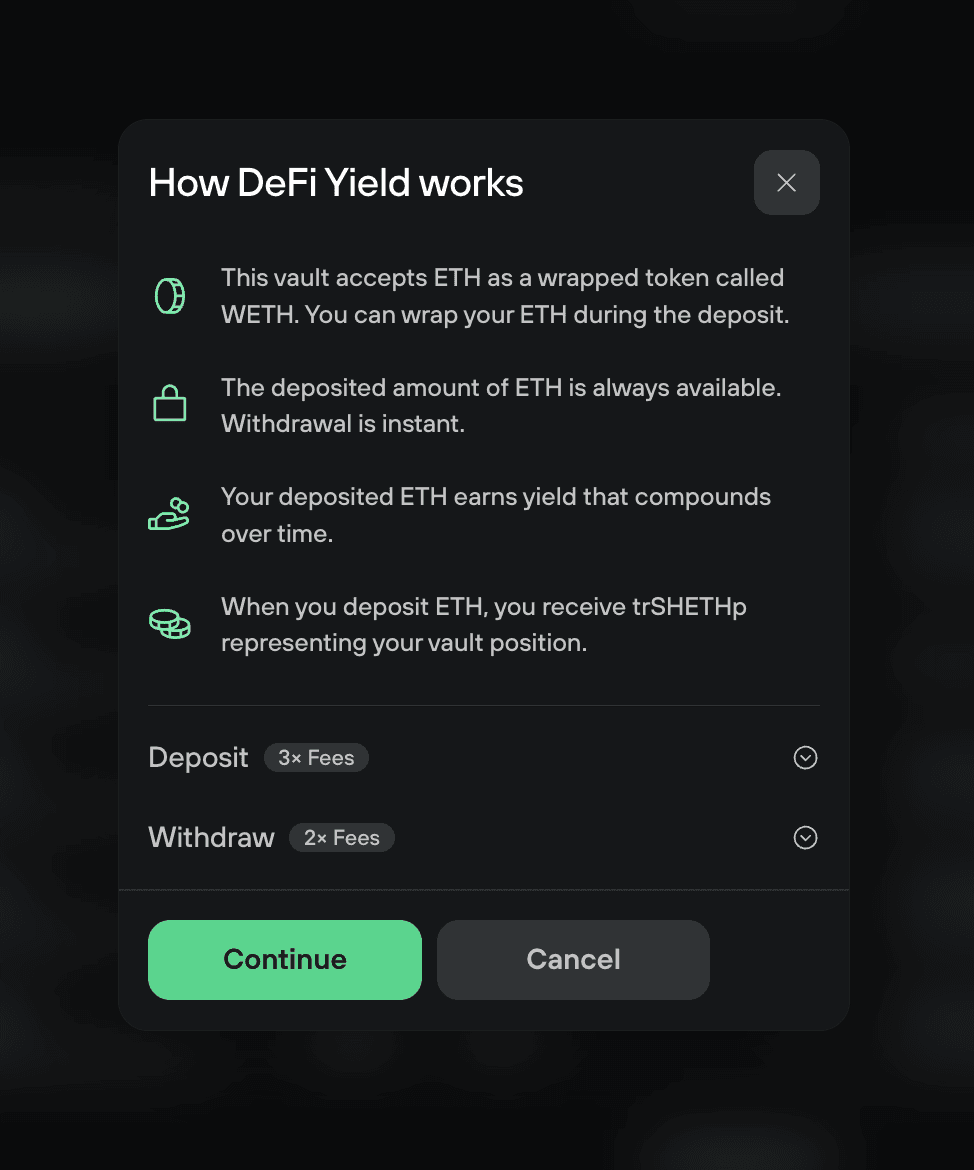
Select Continue.
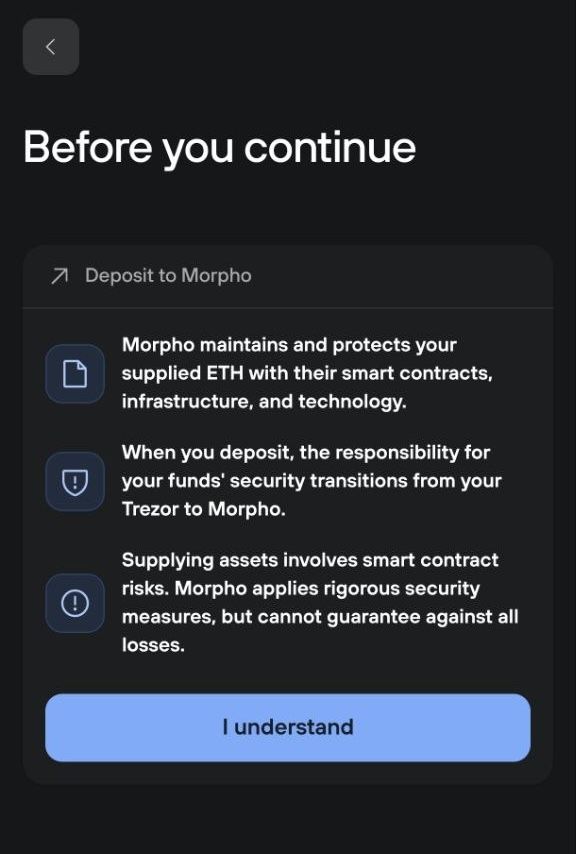
3. Accept the terms
Read the notice about depositing through Morpho. It sets out where your tokens go and which risks apply. Your Trezor stays the signer.
Check the box to accept Trezor's Terms of Use and acknowledge Morpho's Disclaimer.
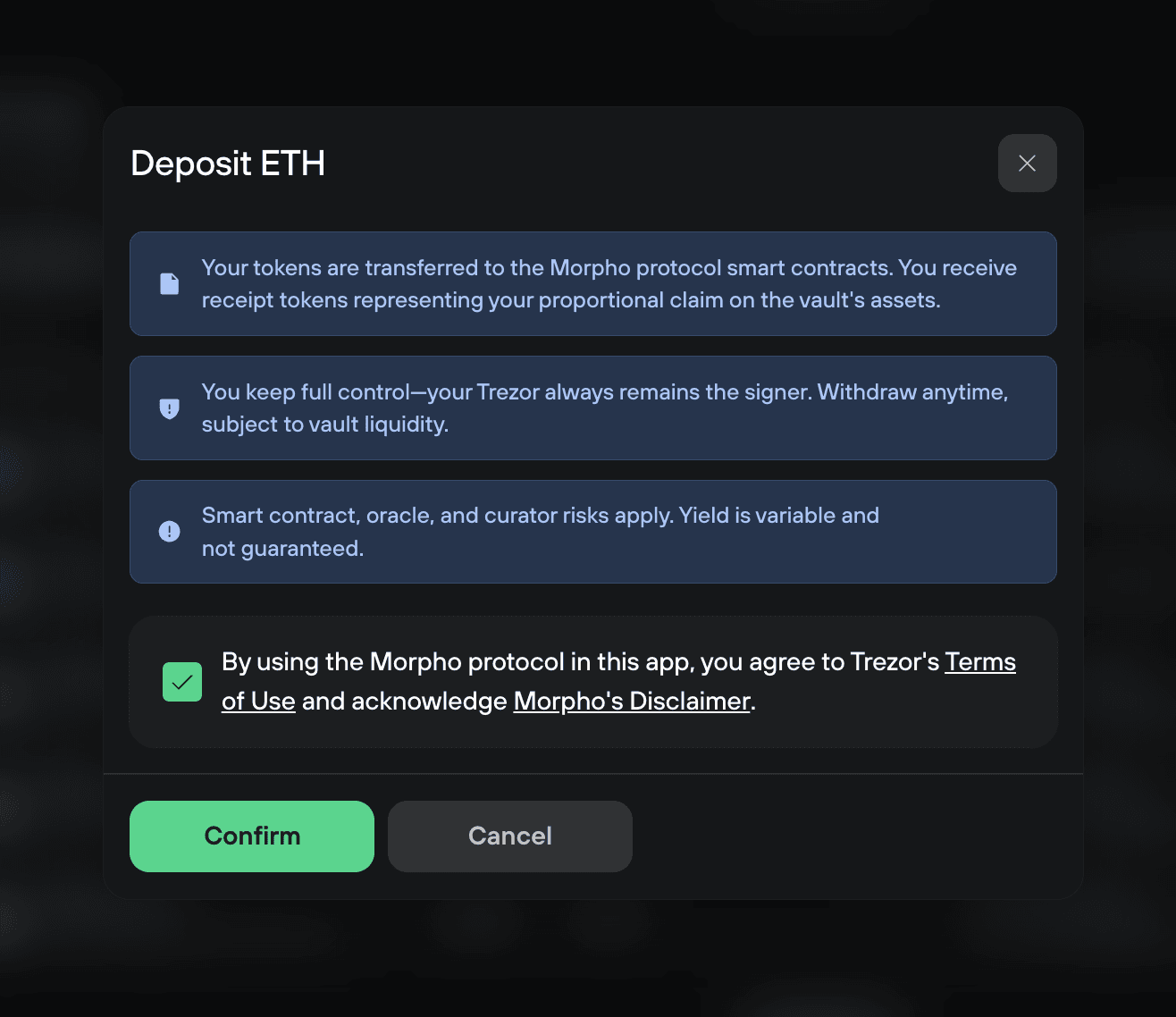
Select Confirm.
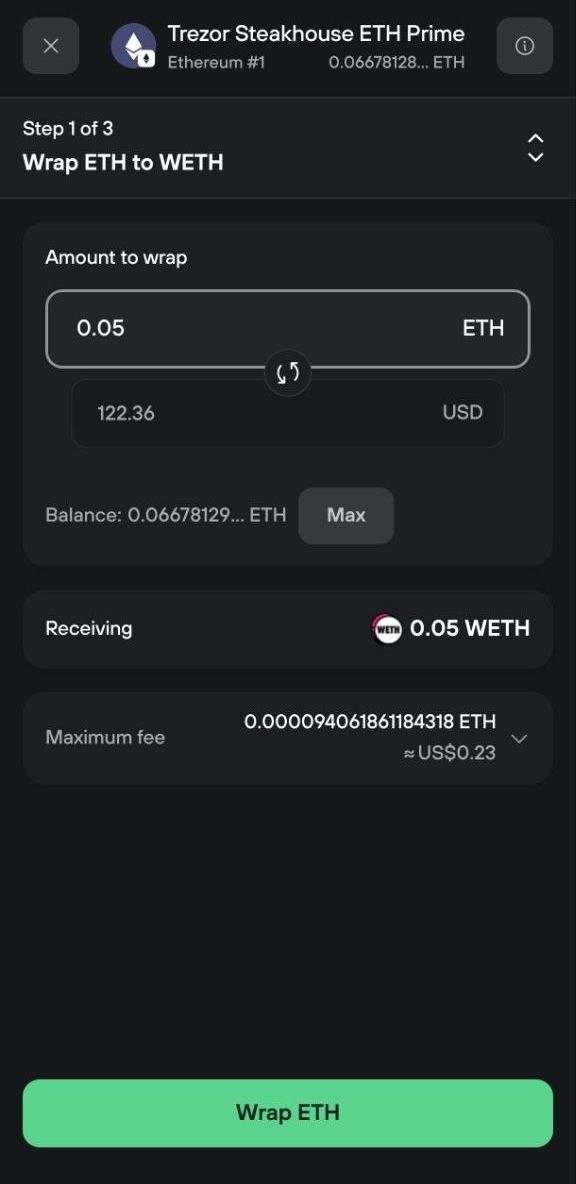
4. Wrap your ETH
Enter how much ETH you want to deposit, or select Max. The Receiving row shows the WETH you'll get, which always matches the ETH amount.
Leave enough ETH in the account to cover your withdrawal fees later.
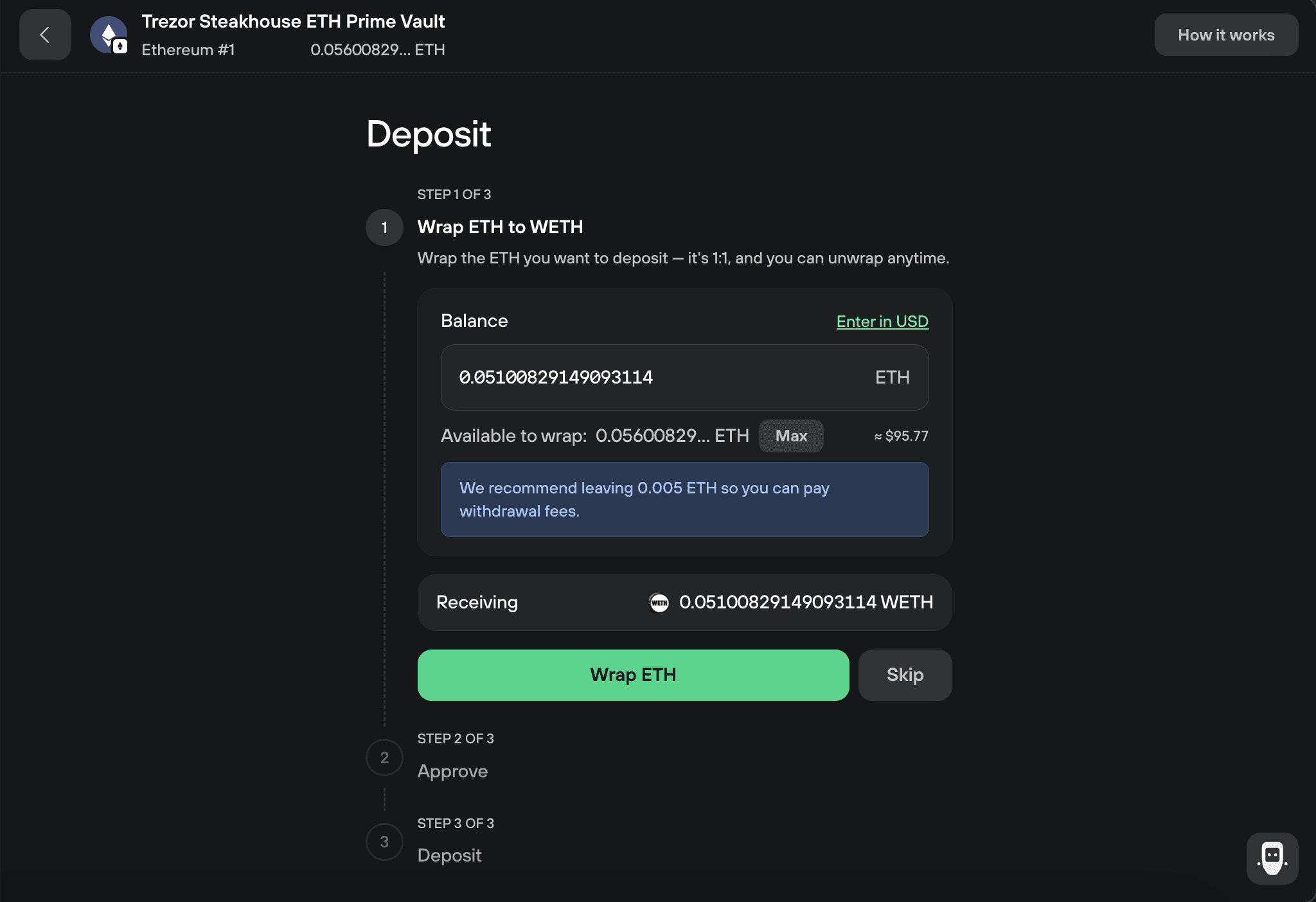
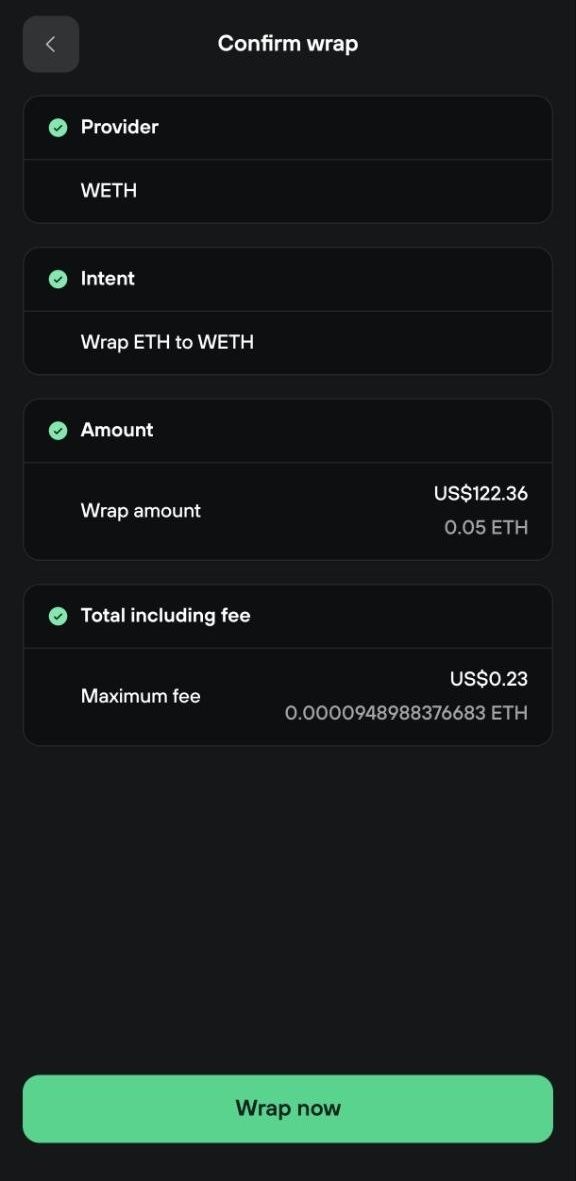
Select Wrap ETH.
Trezor Suite simulates the transaction so you can see the ETH leaving and the WETH arriving. Confirm the wrap on your Trezor device, then select Wrap to broadcast it.
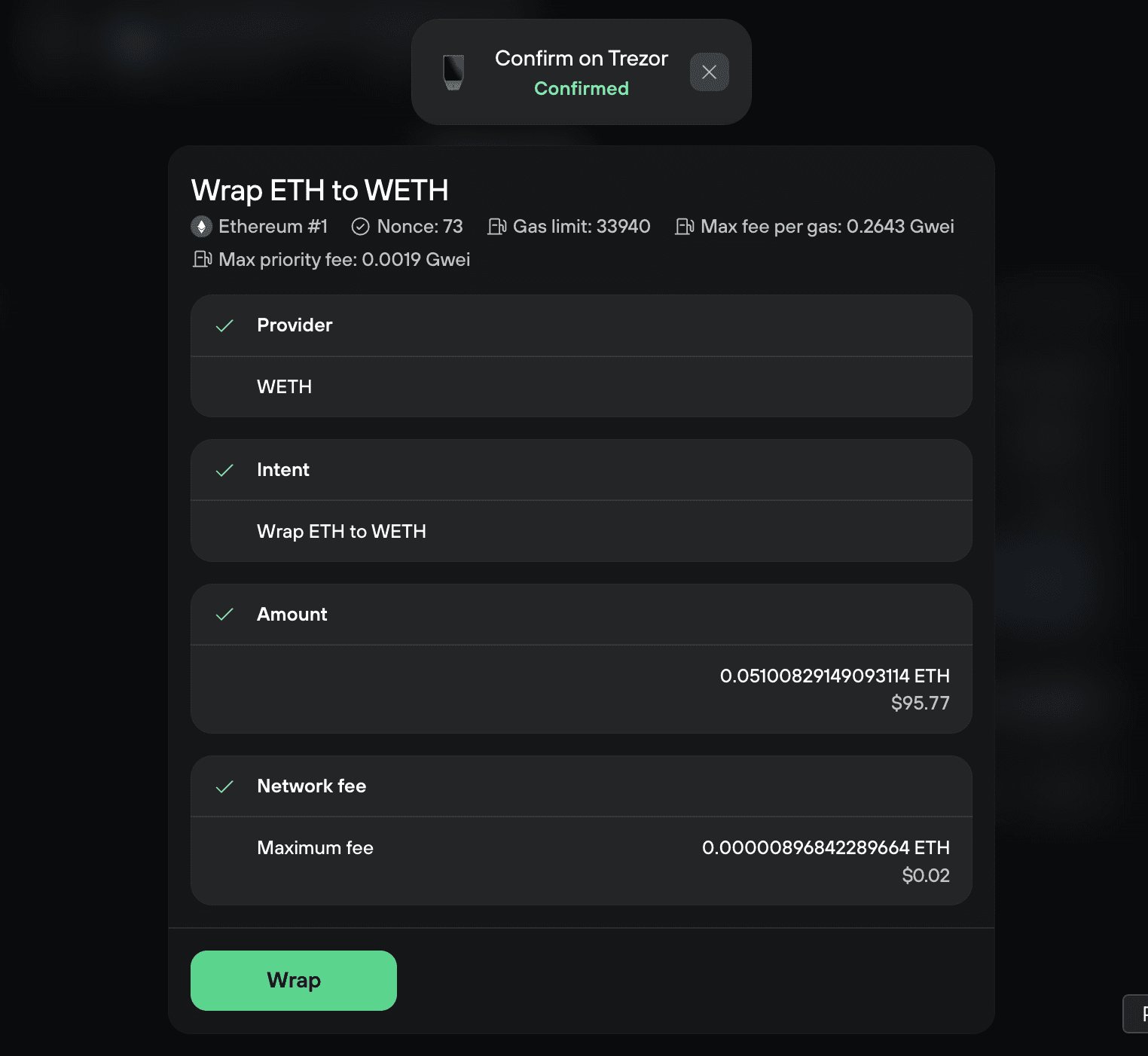
The wrap shows as pending until it confirms on-chain.
5. Approve the vault to spend your WETH
Select Approve WETH once the wrap confirms.
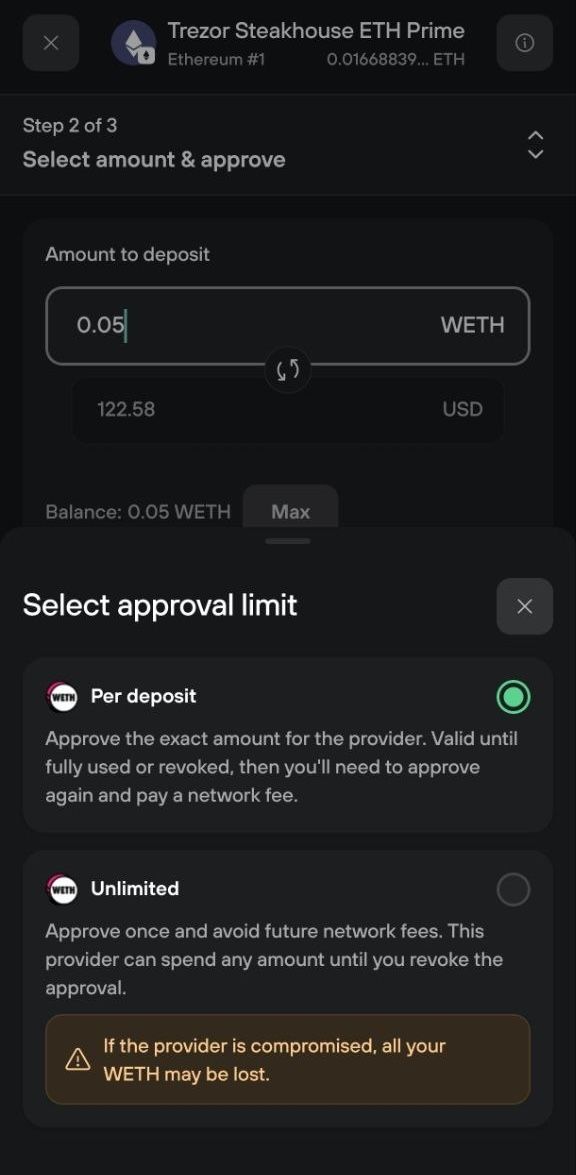
The Approve WETH spending window shows which vault you're approving and its contract address. Select the Limit row to choose how much the vault can spend:
- The exact amount: valid until it's fully used or you revoke it. You approve again next time and pay another network fee.
- Unlimited: approve once, and later deposits skip the approval step.
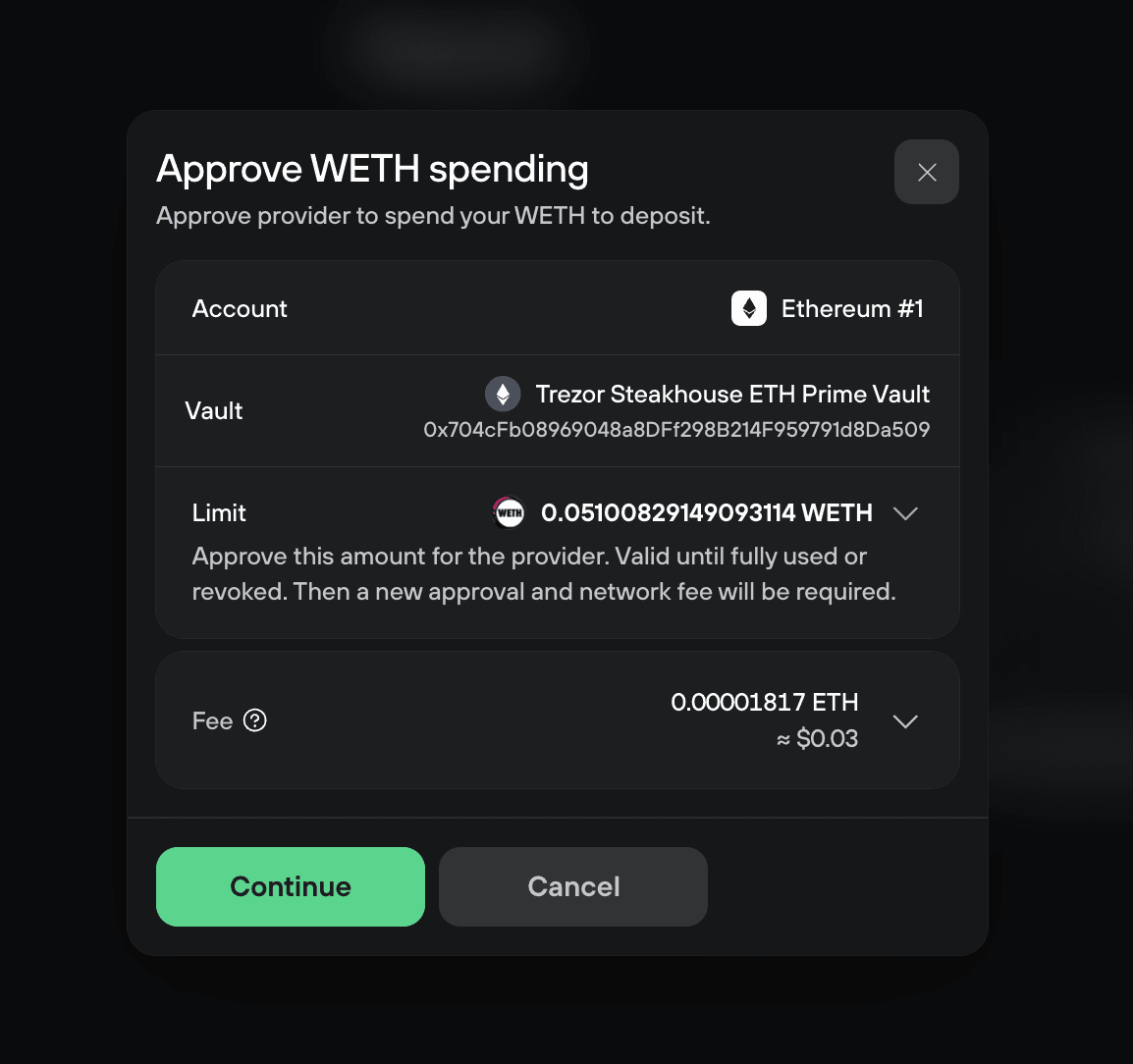
Unlimited approval lets the vault spend any amount of your WETH until you revoke it. If the contract were ever compromised, your whole WETH balance would be at risk.
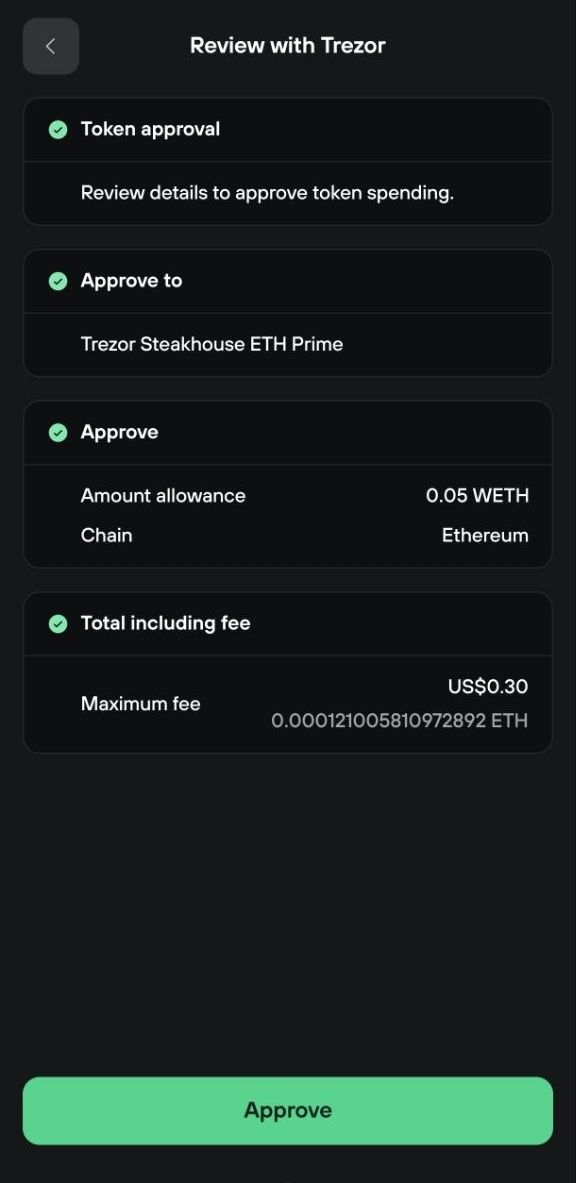
Select Continue, then confirm the approval on your Trezor. Check that the vault, the allowance, and the chain match what Trezor Suite shows.
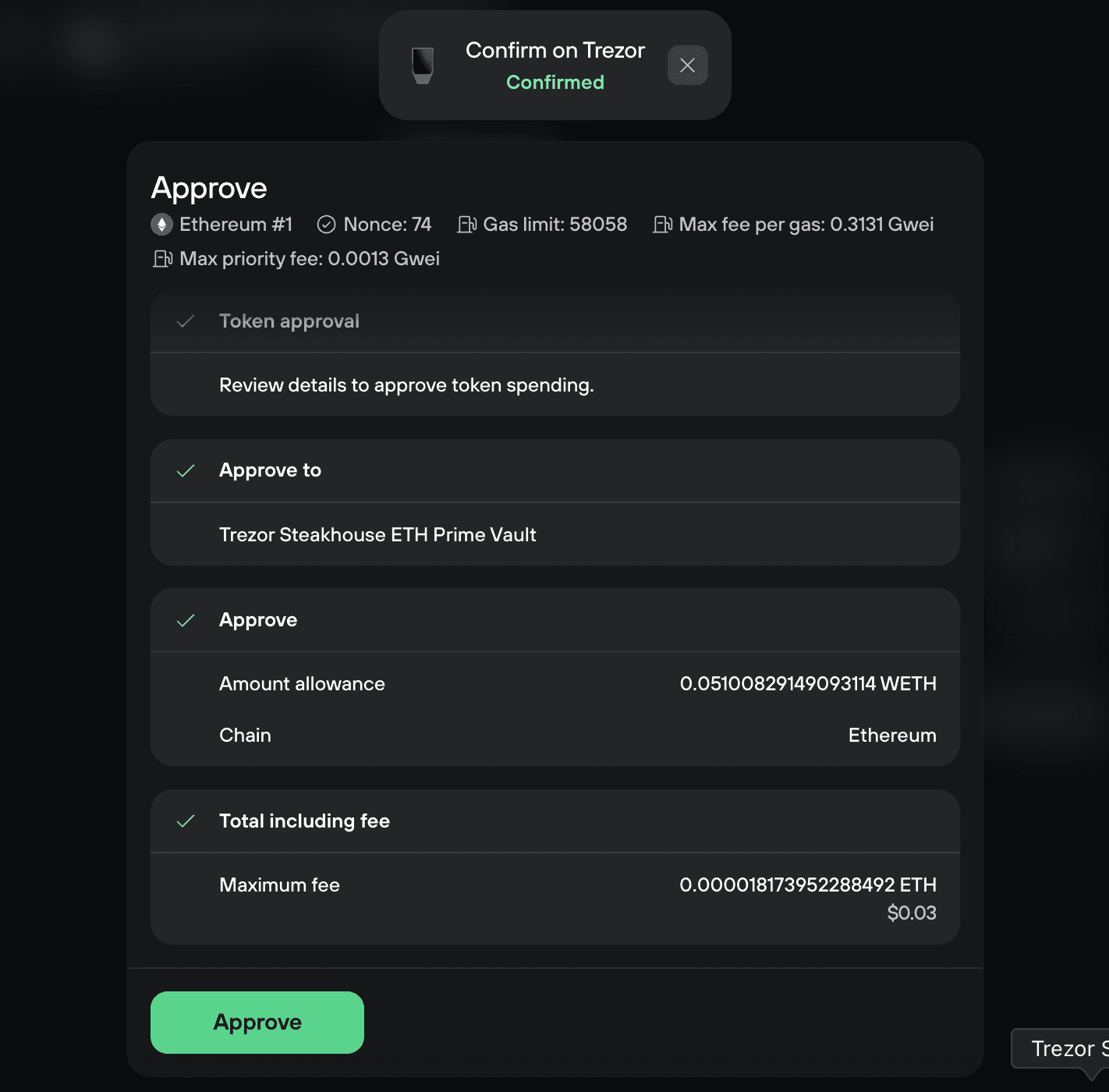
Select Approve to broadcast it.
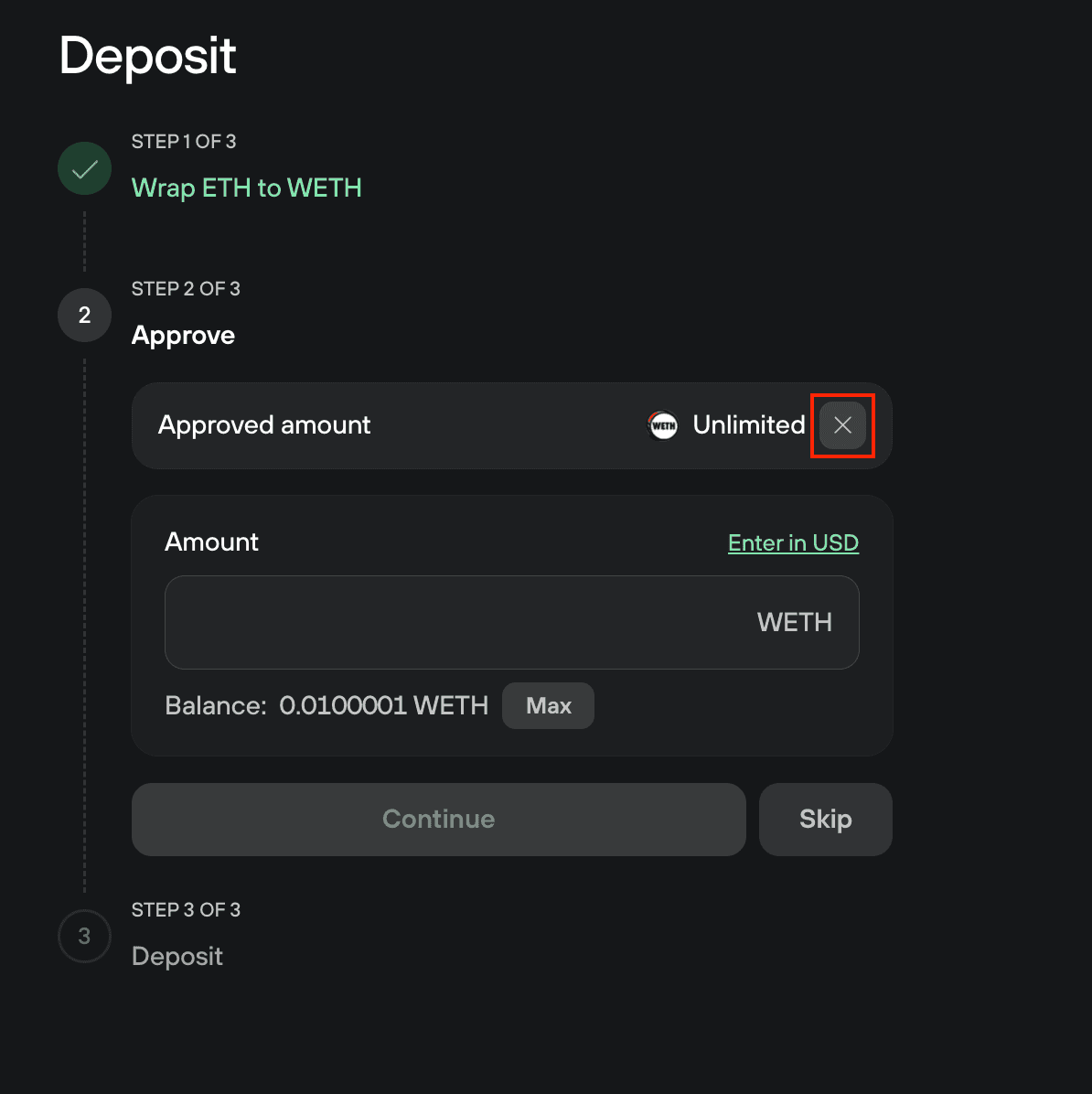
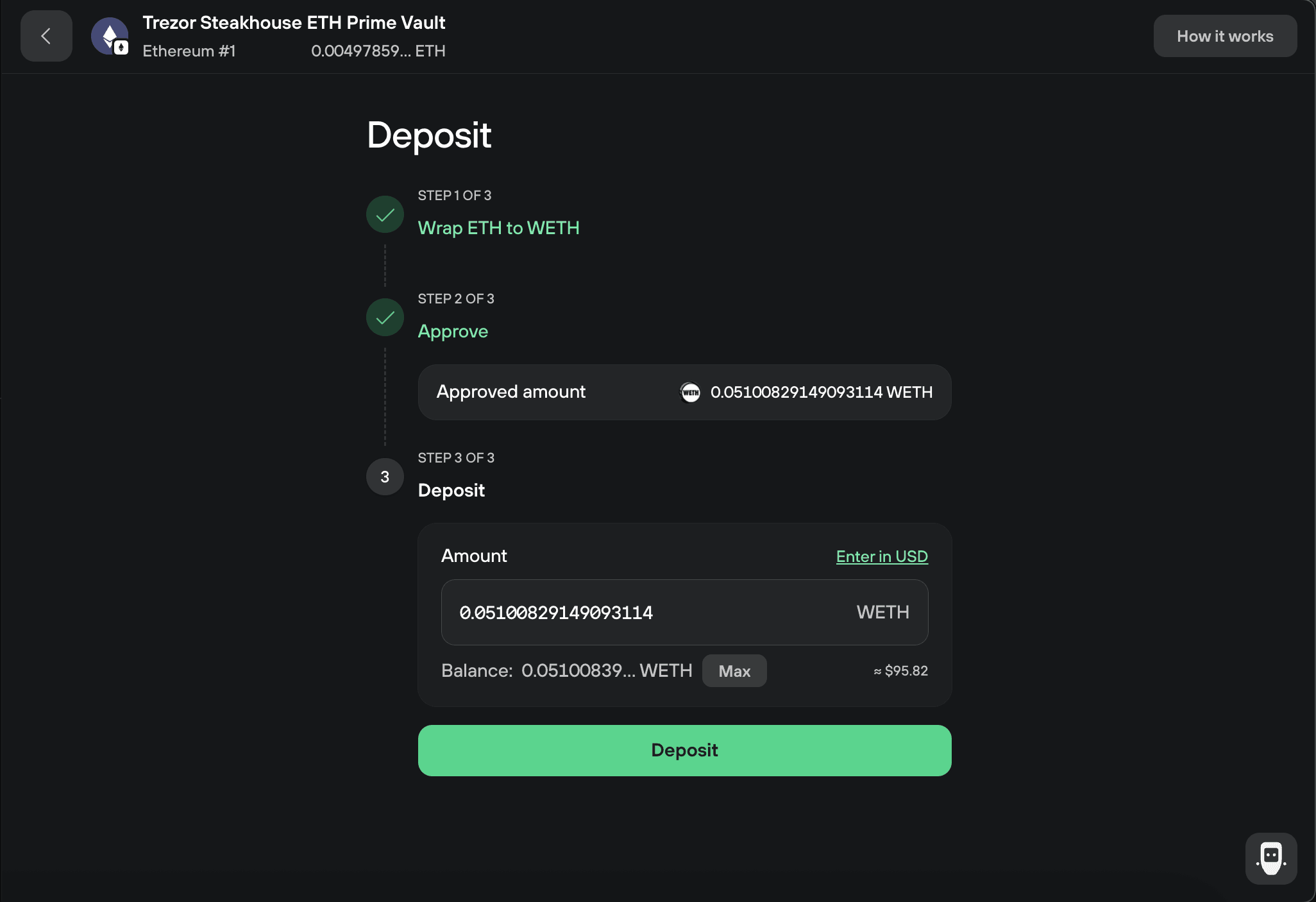
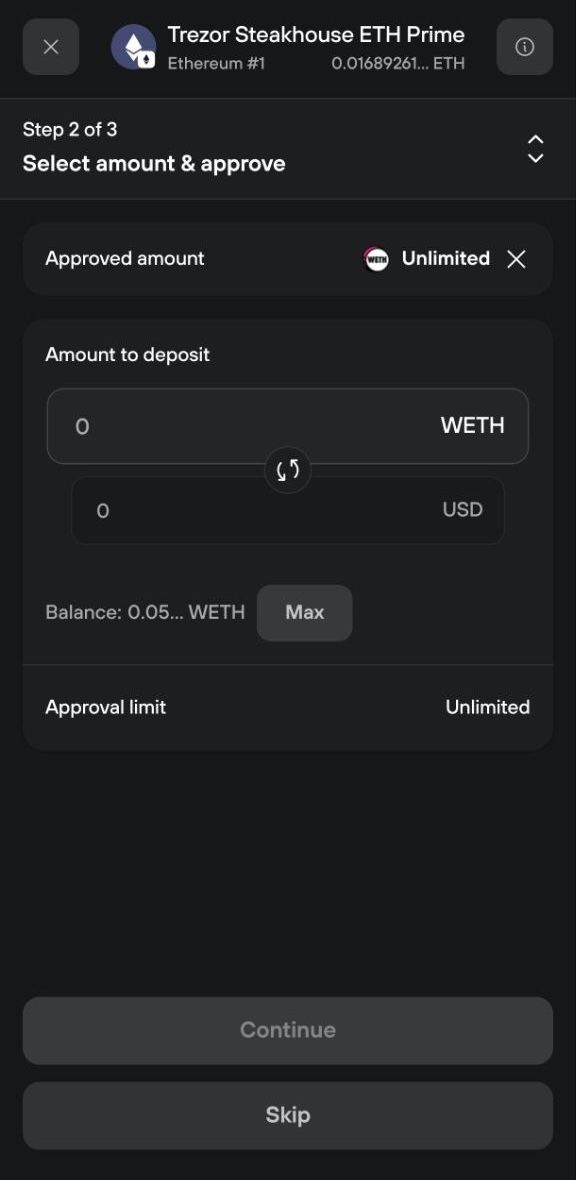
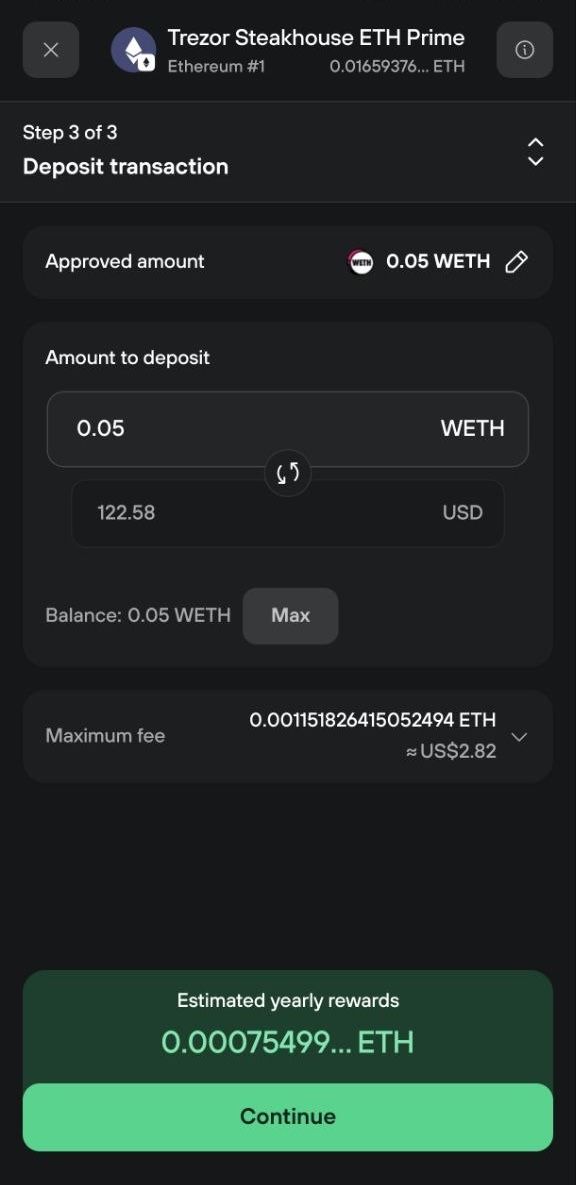
To revoke an unlimited approval, start a new deposit and continue to the approval step (Step 2 of 3). Next to Approved amount, select the X to revoke, then confirm the revocation on your Trezor.
6. Deposit your WETH
Select Deposit once the approval confirms.
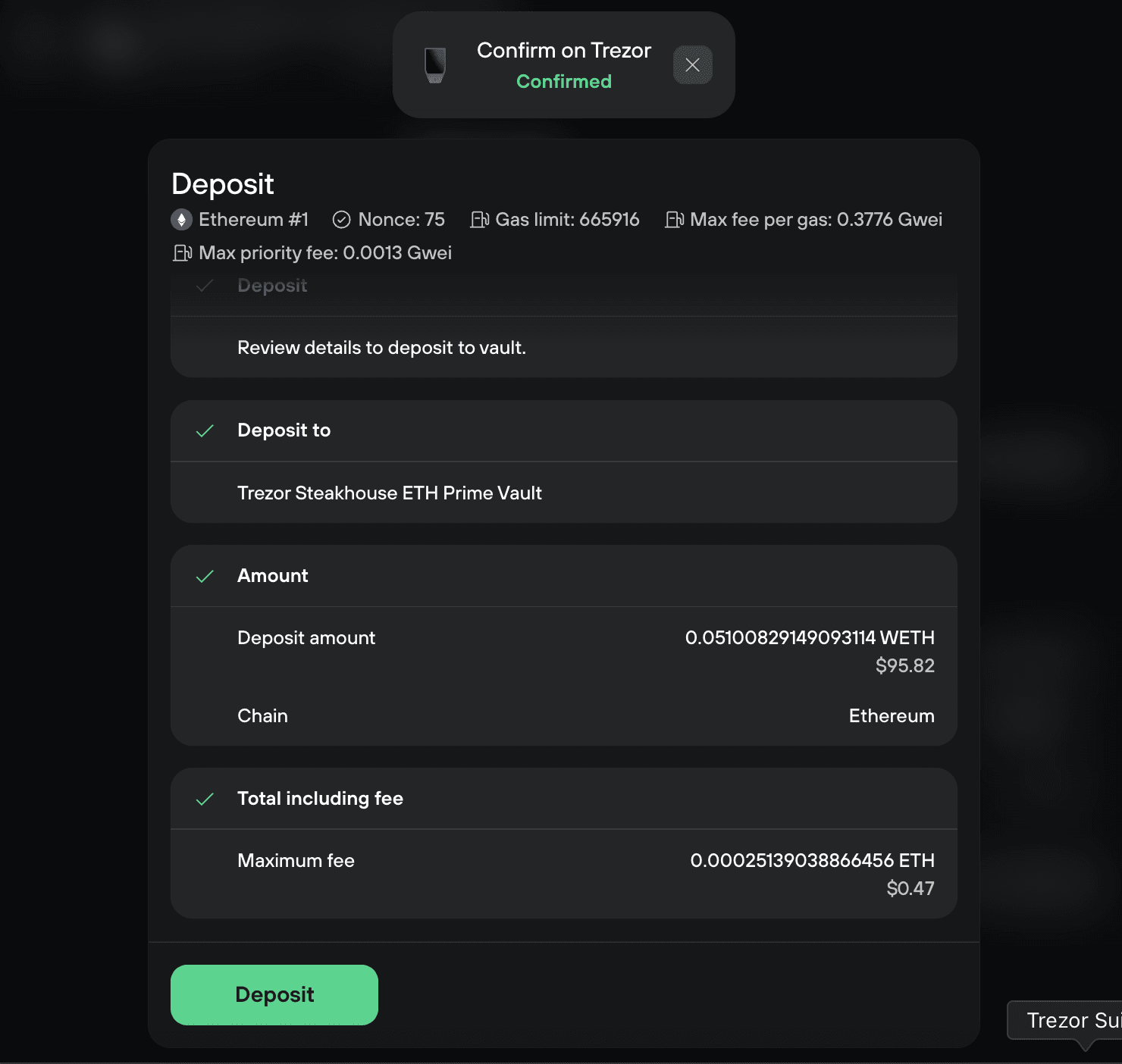
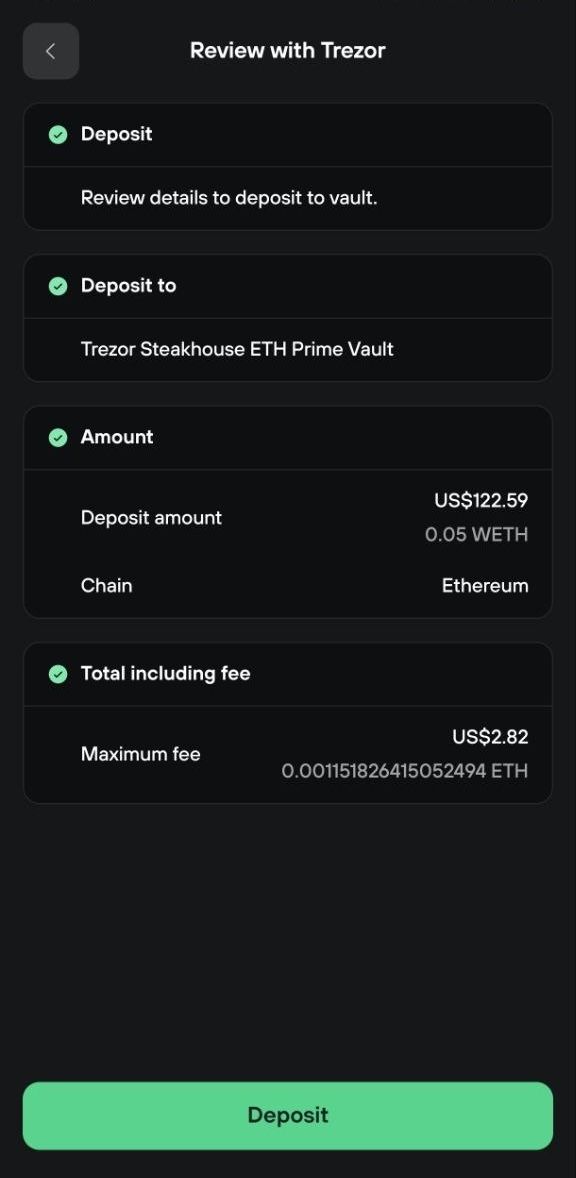
Review transaction simulates what will happen: the WETH leaving your account, and the trSHETHp arriving in return. Expand Contract info to check the vault address. You can also adjust the network fee here.
Select Confirm.
Confirm the deposit on your Trezor, checking that the vault, the amount, and the maximum fee match what Trezor Suite shows. Then click Deposit to broadcast it.
7. Check that the deposit completed
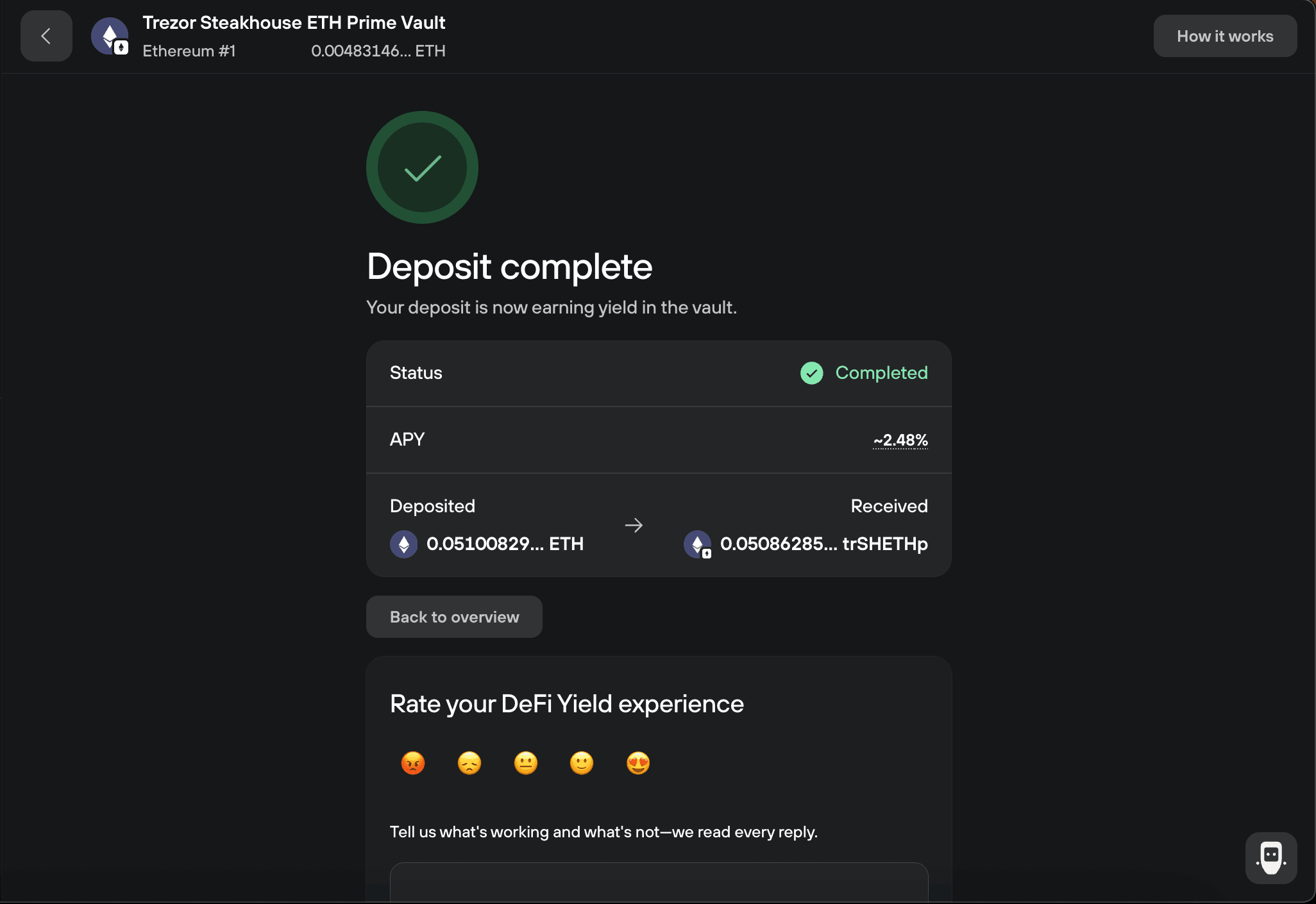
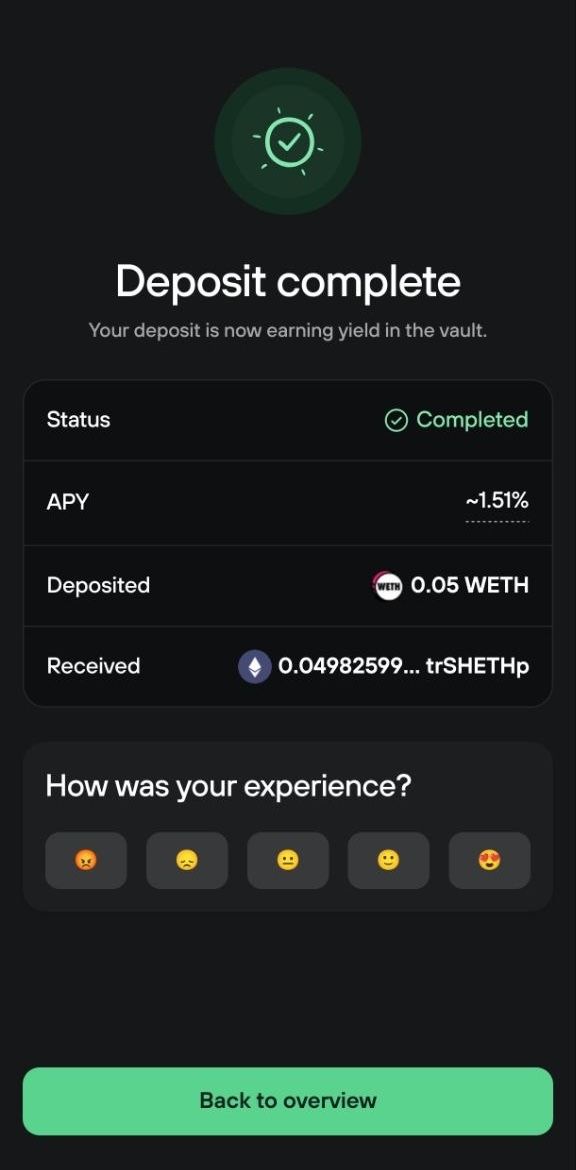
Deposit complete shows the amount you deposited, the vault tokens you received, and the current APY. Your ETH is now earning yield.
Select Back to overview.
How to check your position on desktop
You can see what you've deposited in two places in Trezor Suite:
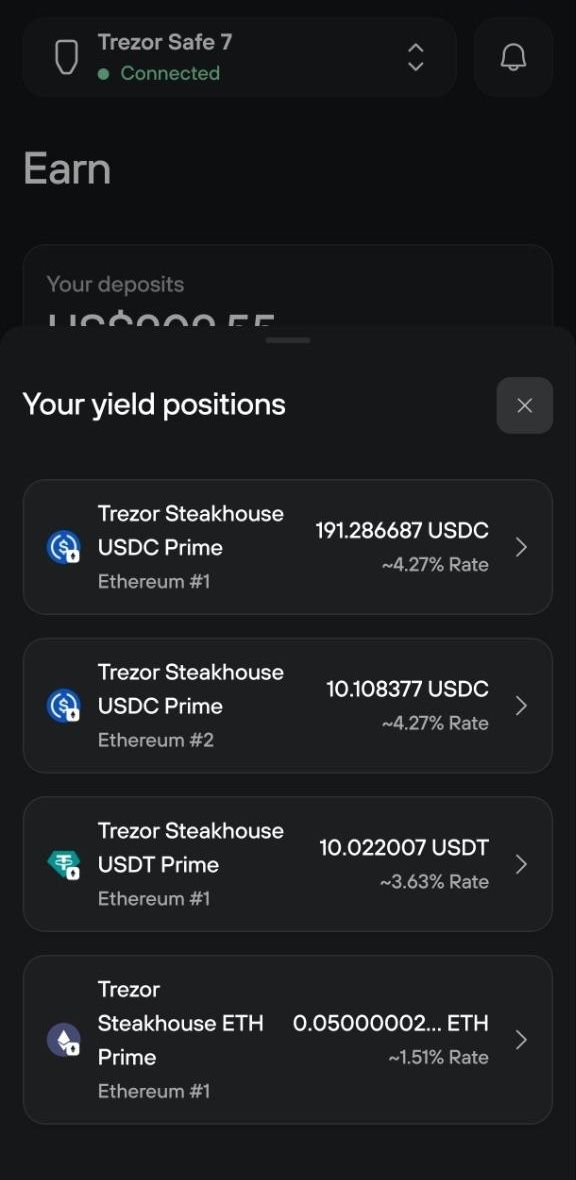
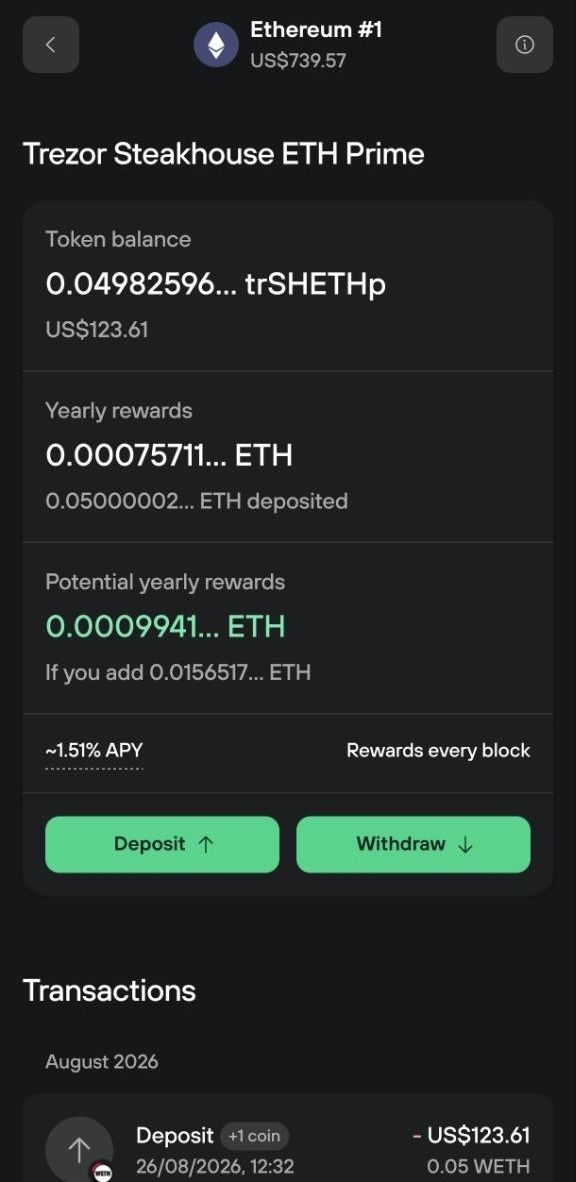
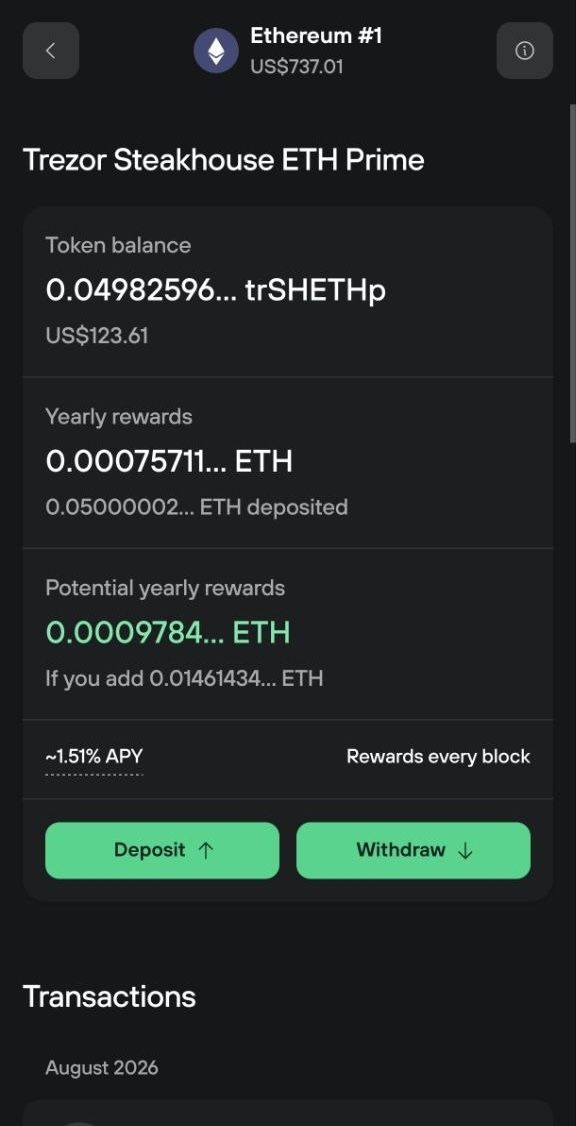
- In the Earn tab, on the row for that vault and account. It shows the current rate, your yearly rewards at that rate, and how much you have deposited.
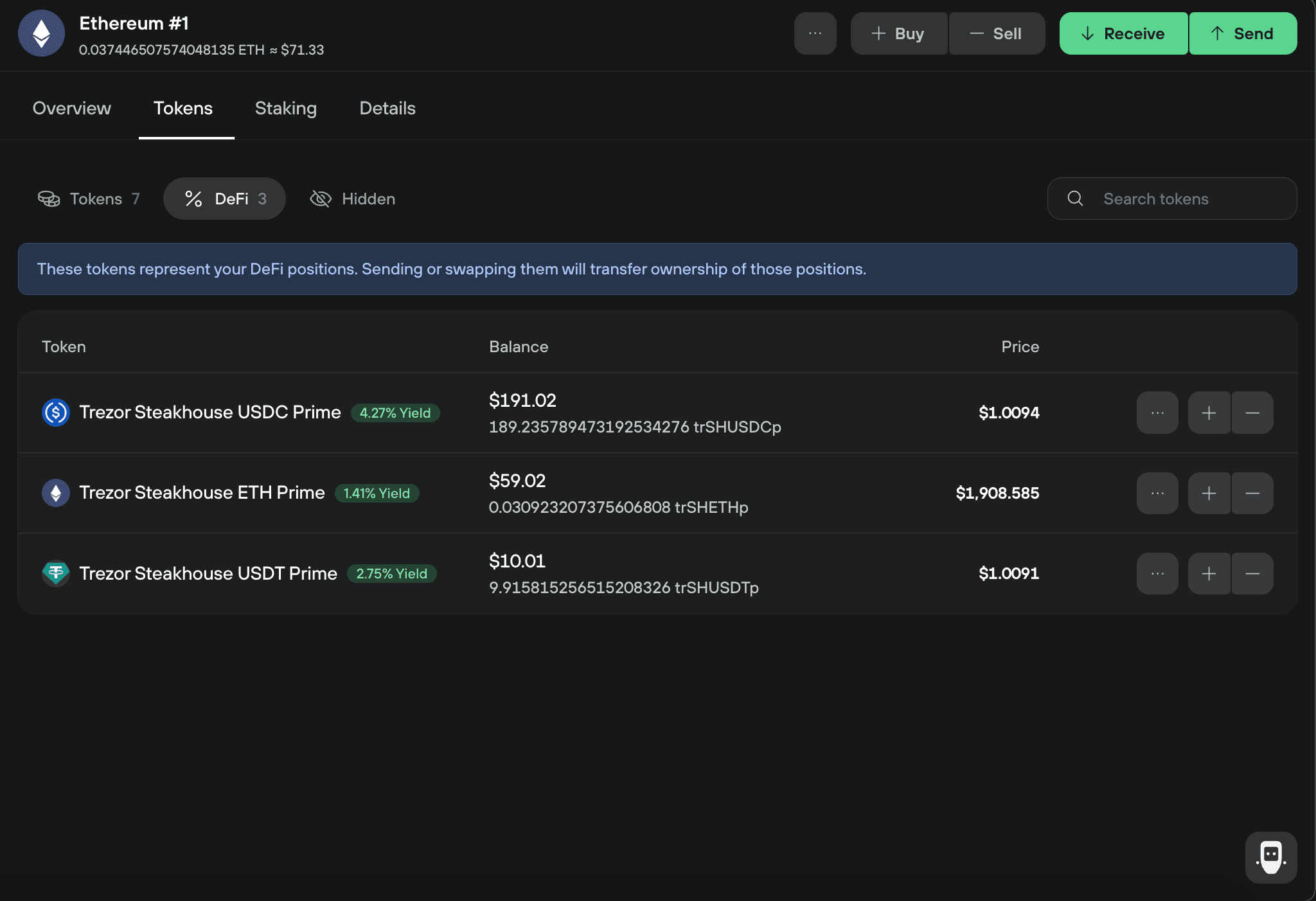
- In your Ethereum account under Tokens, in the DeFi section, where your trSHETHp balance is listed.
Withdraw ETH on desktop
Withdraw at any time from the Earn tab in two transactions: redeem, then unwrap. The unwrap unlocks once the redemption confirms on-chain. There's no lockup period or withdrawal fee, only the two Ethereum network fees.
1. Start the withdrawal
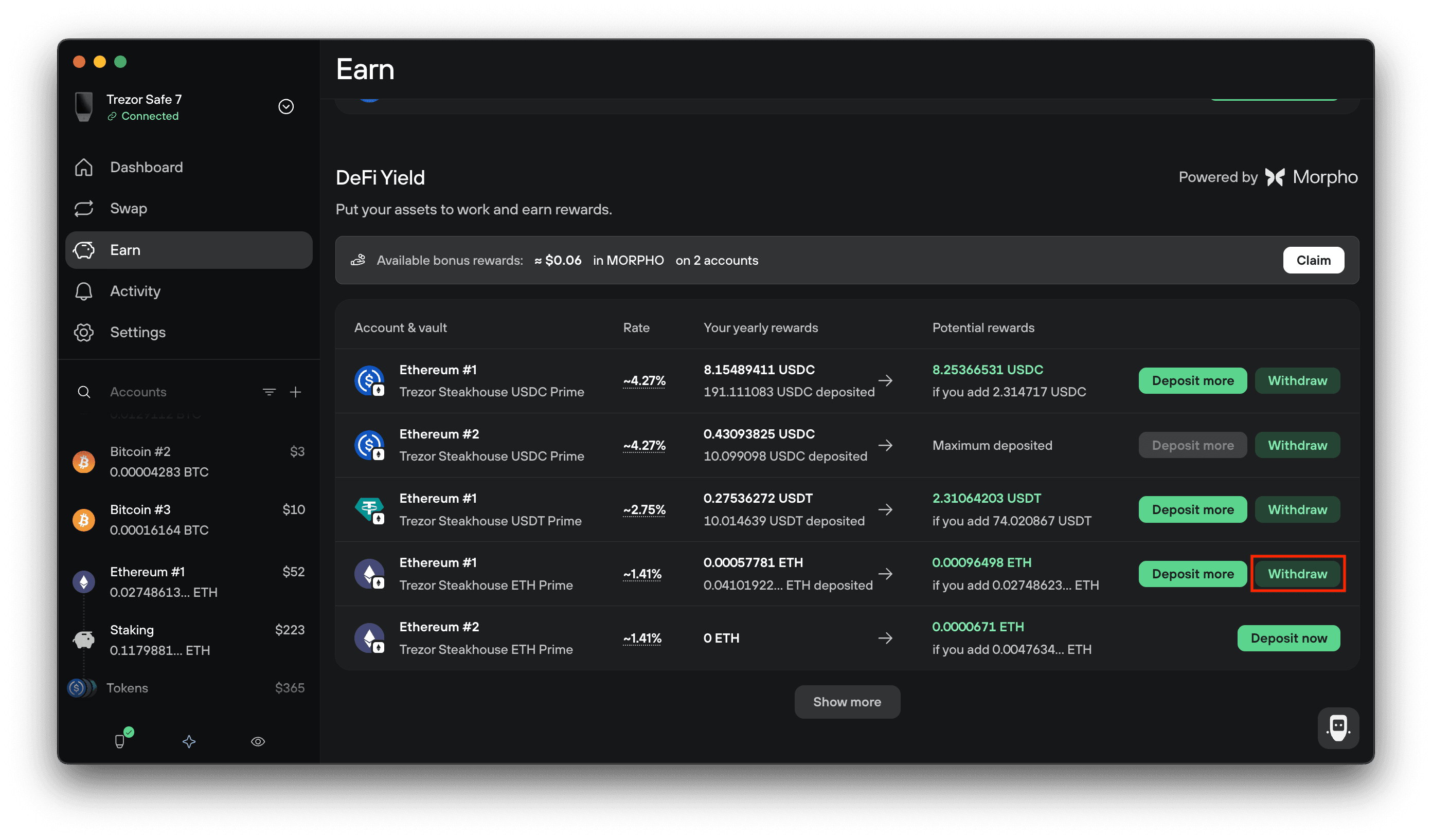
In the Earn tab, find the vault and account you want to withdraw from, then select Withdraw.
2. Enter the amount
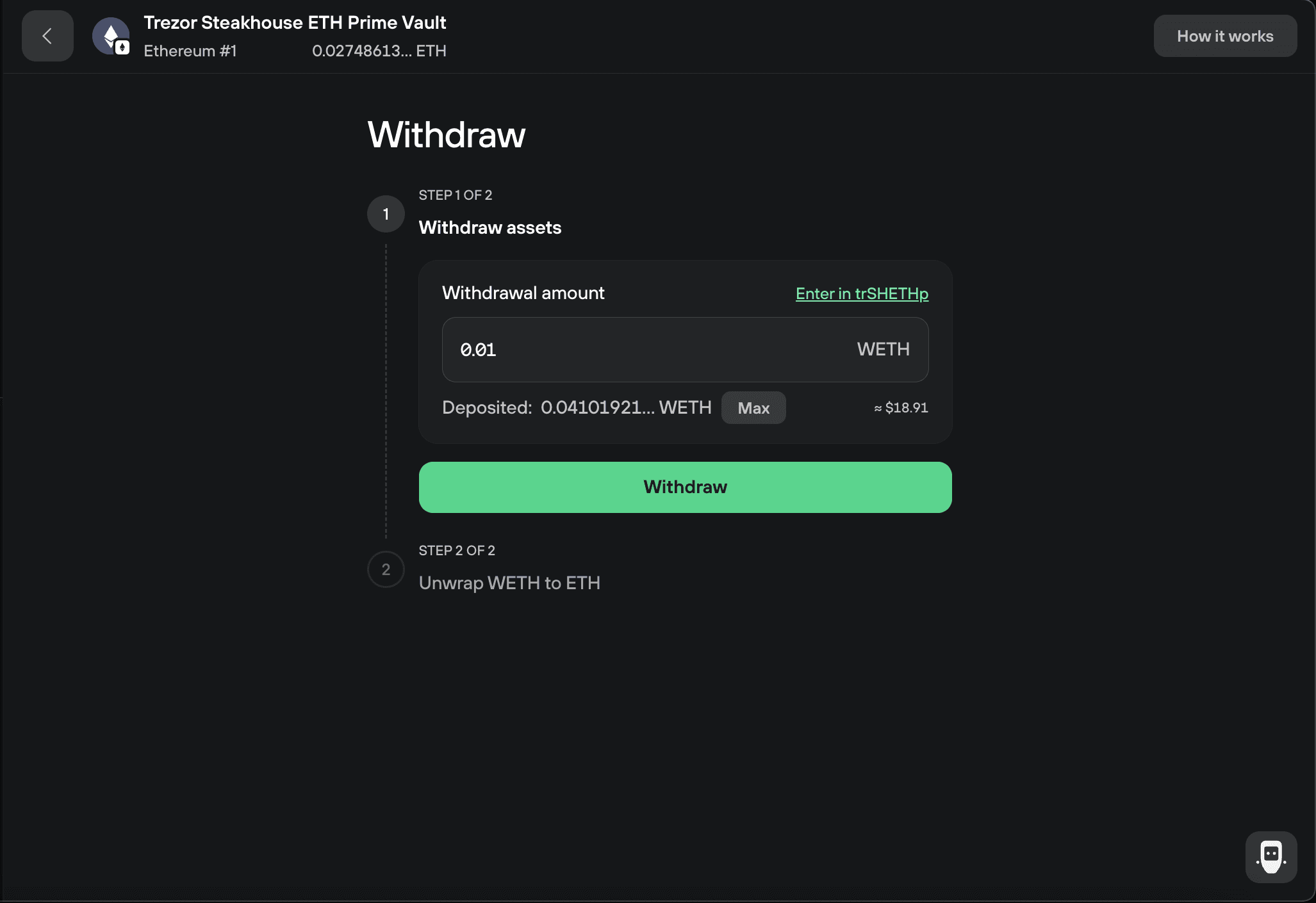
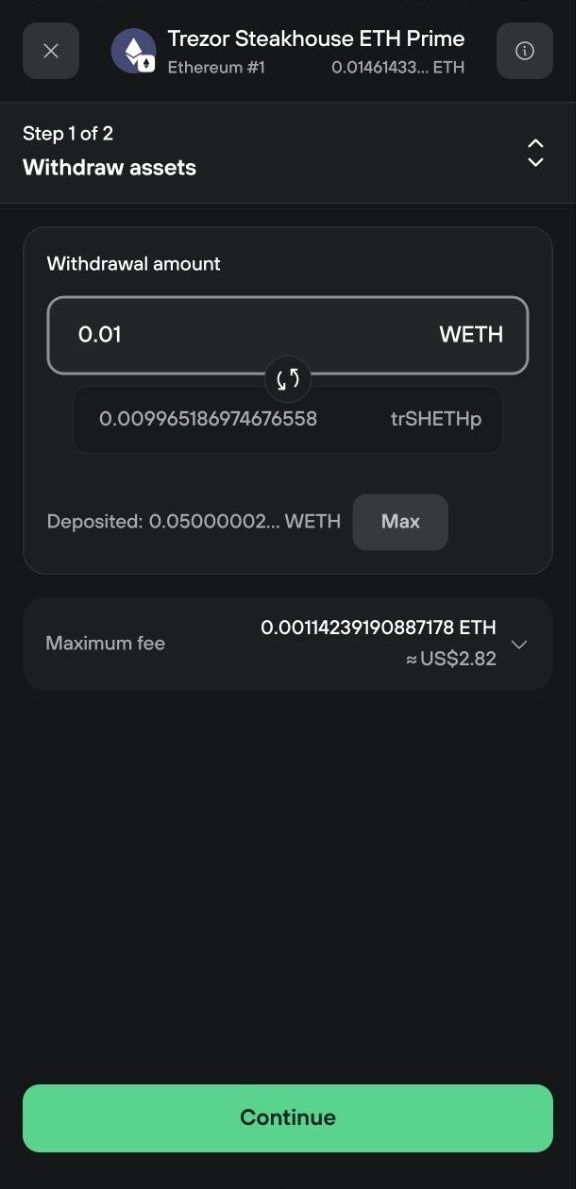
Deposited shows what your position is currently worth in WETH, including the yield it has earned so far. Enter how much you want to take out, or select Max.
Enter the amount in one of two units. Select the link above the field to switch between them:
- WETH is the value of your position. Use it to take out a specific amount.
- trSHETHp is the number of vault shares you hold. Use it to redeem a specific number of shares.
Switching units converts the amount at the current rate. The two numbers differ slightly, because one trSHETHp is worth a little more than one WETH. See Why the amount changes when you switch units for why.
Select Withdraw.
3. Redeem your position
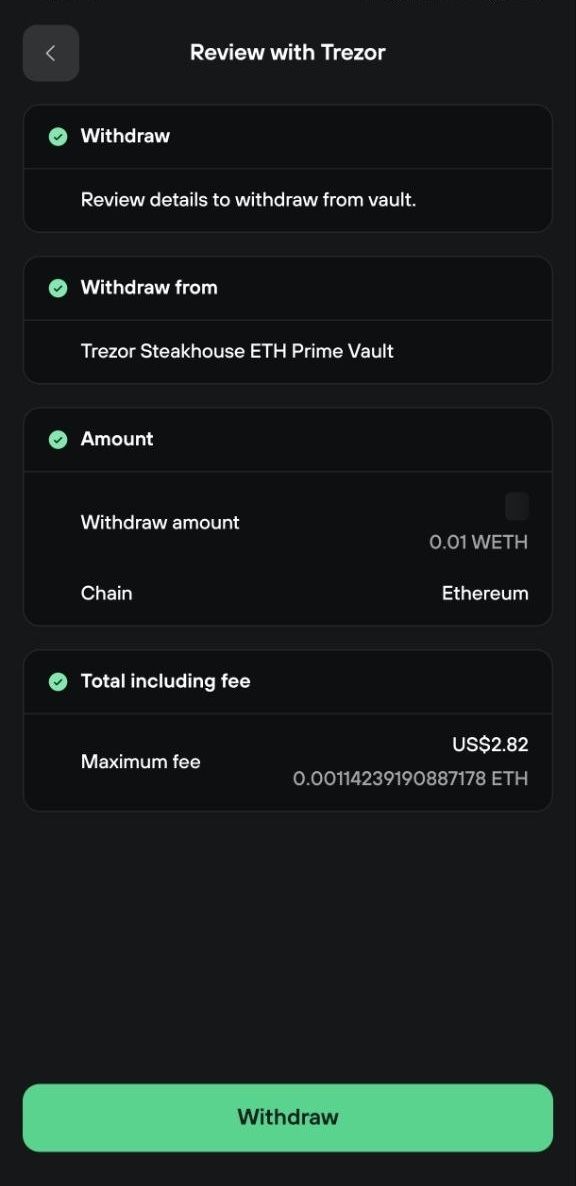
Trezor Suite simulates the transaction: the trSHETHp leaving your account and the WETH arriving in return.
Confirm on your Trezor device. It shows the vault you're redeeming from, the amount, and the maximum fee.
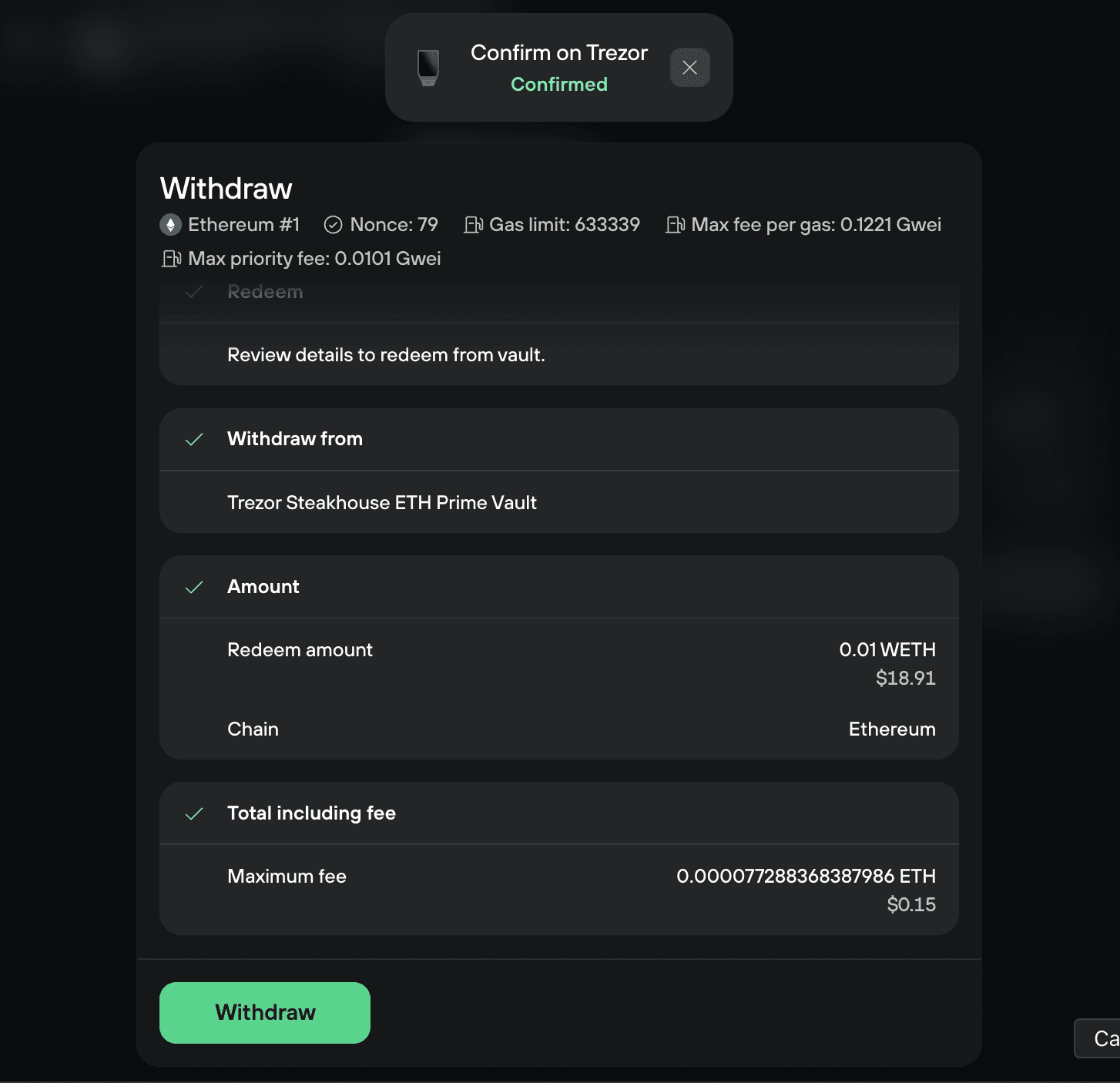
Select Withdraw to broadcast it. The redemption shows as pending until it confirms on-chain.
4. Unwrap the WETH back to ETH
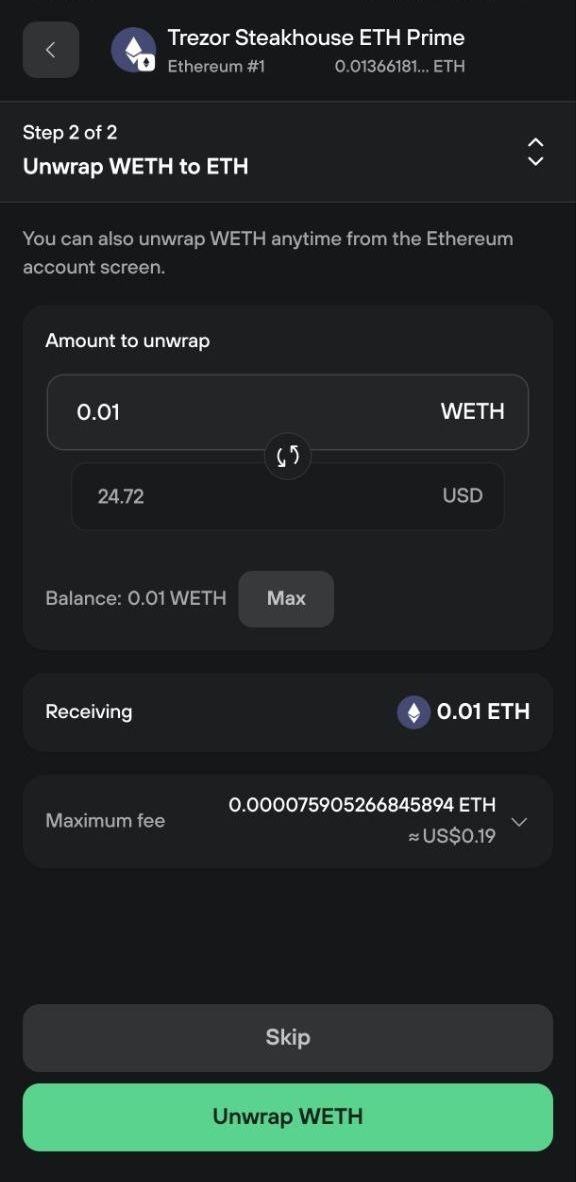
Once the redemption confirms, enter the amount to unwrap, or select Max to unwrap your full WETH balance.
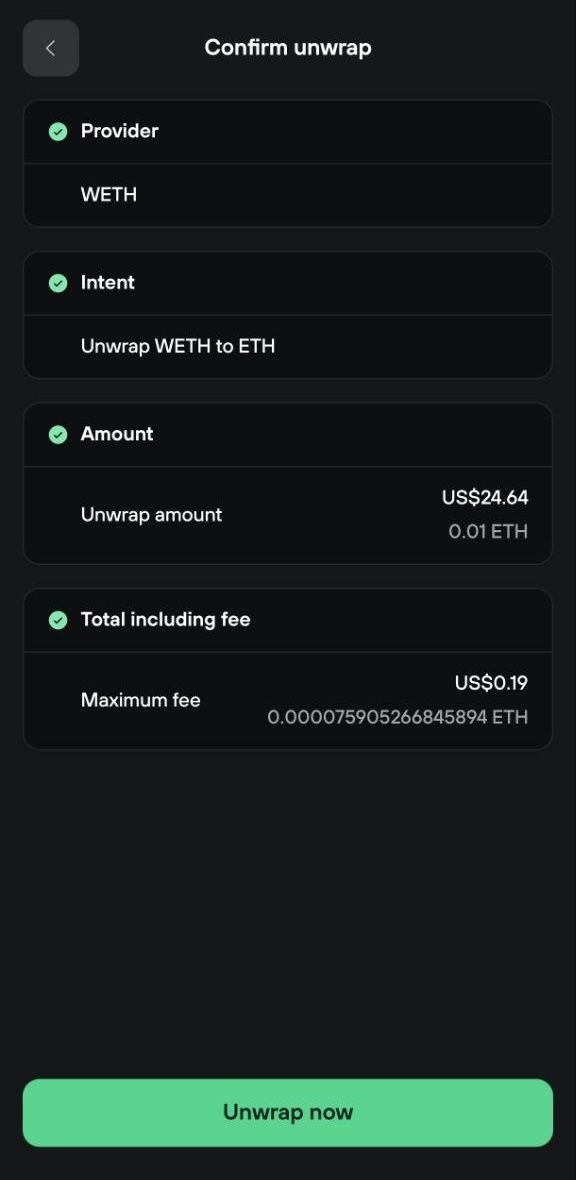
Select Unwrap WETH, then confirm on your Trezor device.
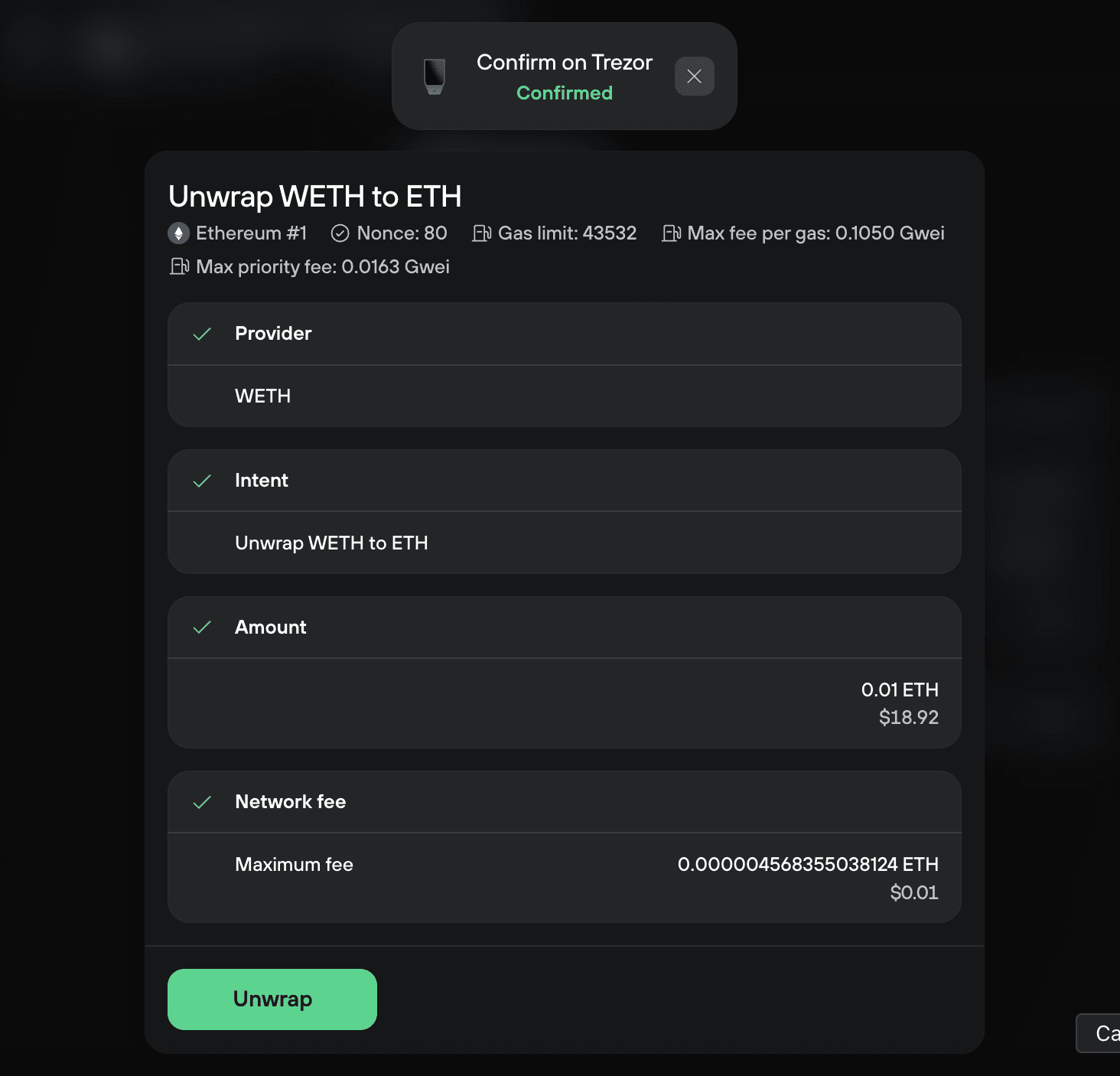
Select Unwrap WETH to broadcast the transaction.
You can select Skip here and keep the WETH instead. It stays in your Ethereum account, and you can unwrap it later from the account screen.
5. Check that your ETH arrived
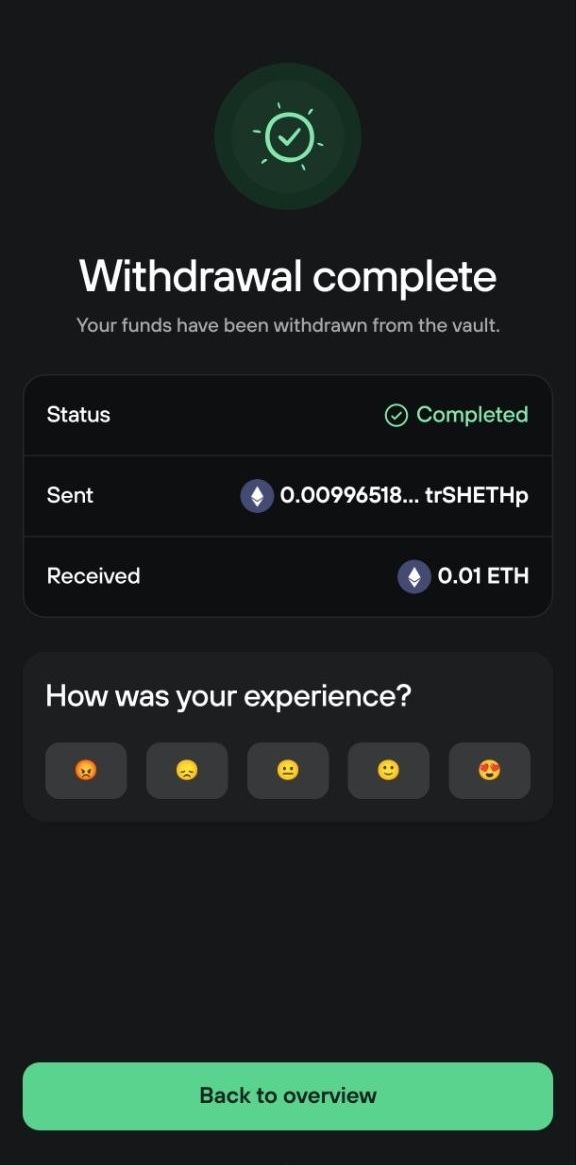
Withdrawal complete shows the shares you redeemed and the ETH you received. Your ETH is available in your account.
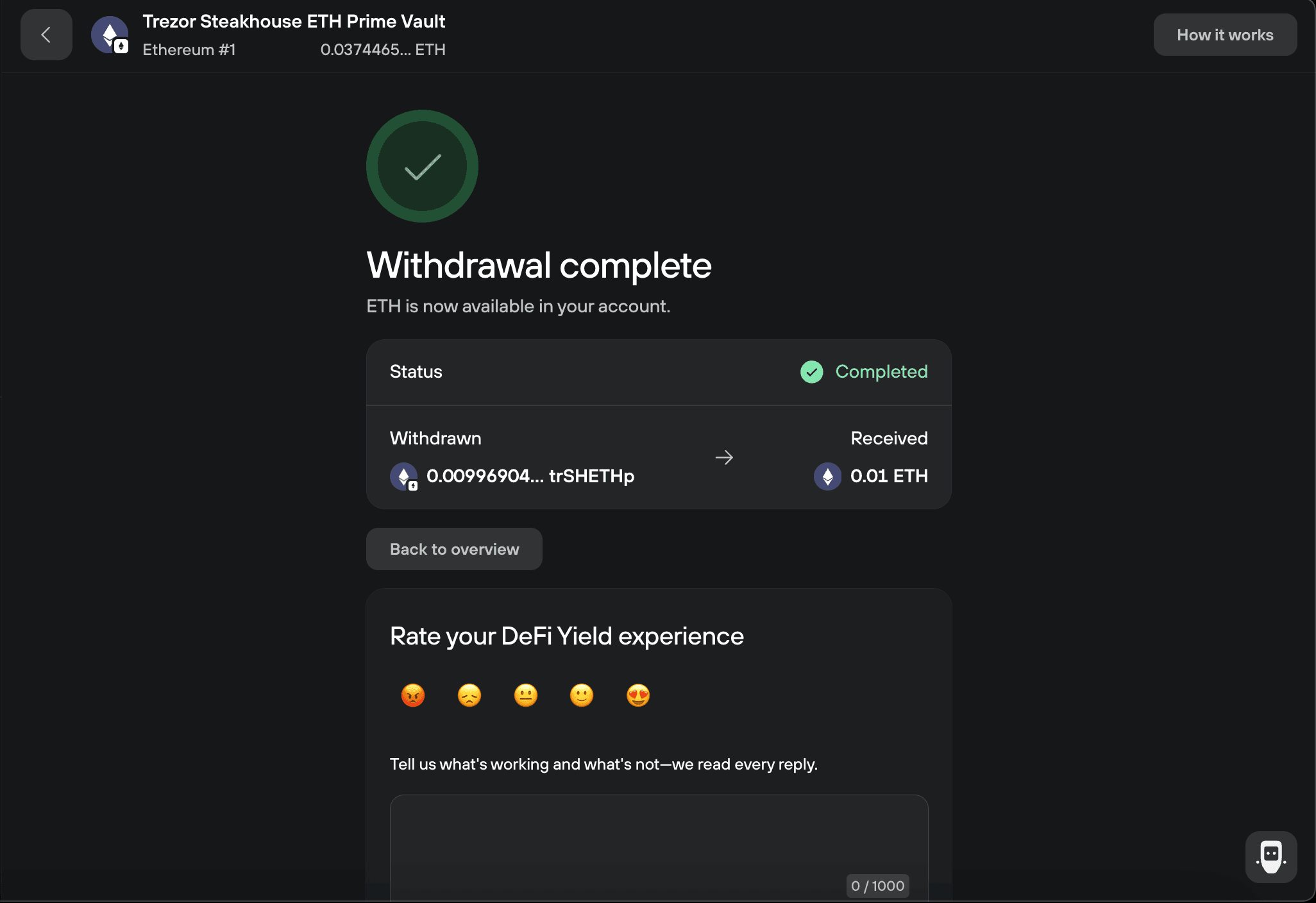
Select Back to overview.
How to claim bonus rewards
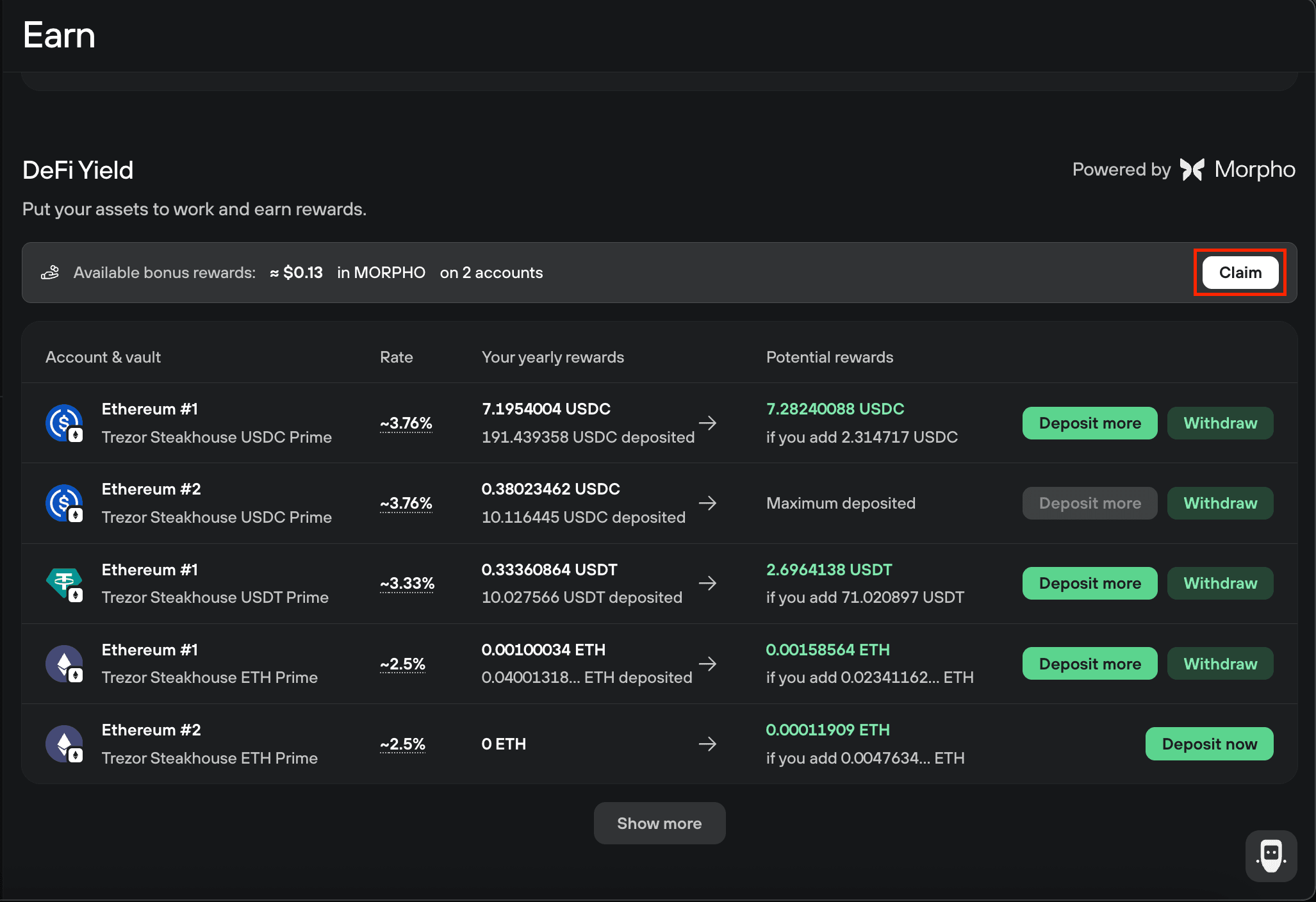
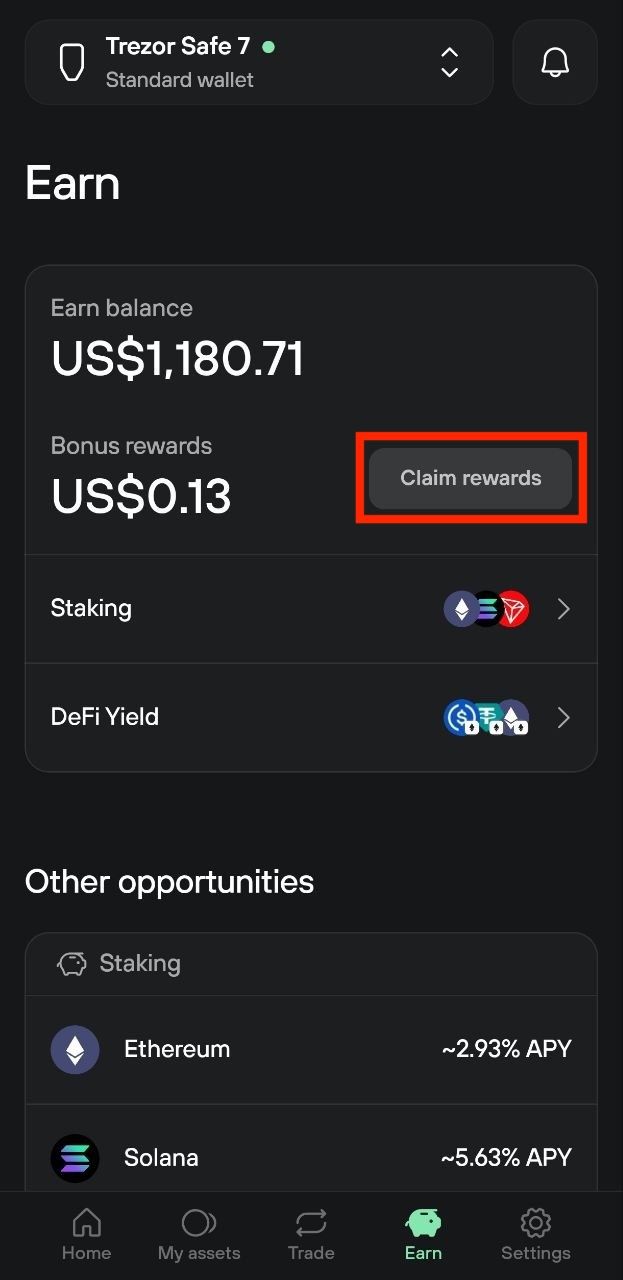
When you have MORPHO to claim, a Claim button appears in the Earn tab. Claiming is a transaction you sign on your Trezor. Anything you've earned stays claimable even after a campaign ends.
See the article How DeFi yield works with Morpho vaults to learn more about bonus rewards.
Why the amount changes when you switch units
Your position is worth more in ETH over time, but the number of tokens that represent it doesn't change.
What changes is the value of each token. Yield accrues to the vault block by block, so every trSHETHp becomes worth slightly more WETH as time passes.
That's why the same balance can be shown two ways: as a number of shares, or as what those shares are worth right now. One trSHETHp is worth slightly more than one WETH, and the gap grows the longer you hold.
It's also why withdrawing 0.01 WETH redeems slightly fewer than 0.01 trSHETHp. Your shares are worth a bit more than they used to be, so fewer of them add up to that amount.
Which Trezor devices are compatible?
Any Trezor device on the latest universal firmware can use the ETH vault. If you don’t see the Earn section in Trezor Suite on desktop, check that you’re running universal firmware in Settings > Device.
Trezor Safe 3, Safe 5, Safe 7, and Model T show vault transactions in plain language on the device screen (clear signing). Model One does not support clear signing for these transactions, so you'll see raw transaction data instead.
For how your Trezor decodes transactions, see our article Clear Signing.
What if Trezor Suite is unavailable?
Access to your funds doesn't depend on Trezor Suite. Your wallet holds your position as trSHETHp. If Trezor Suite were ever unavailable, you could move those tokens or redeem them through any compatible DeFi wallet. You'd receive WETH, which you can unwrap back to ETH.
Get help
Contact Chatbot Hal if a transaction fails or a balance looks wrong.