Bitte beachten: Unsere Artikel sind derzeit nur auf Englisch verfügbar.
Set up Monero GUI with your Trezor
Connect your Trezor Safe 5, Safe 3, or Model T to Monero GUI to send and receive Monero (XMR) from your desktop. Monero GUI is the desktop wallet from the Monero project, and your Trezor signs every transaction. Monero GUI doesn't support Trezor Safe 7 or Model One.
On Trezor Safe 7, use Cake Wallet instead. To see which apps work with each Trezor, read What is Monero and how does it work with Trezor?.
Connect your Trezor to Monero GUI
1. Install Monero GUI
Download Monero GUI Wallet for your operating system from getmonero.org. Check the download against the hashes listed on the same page, then install and open Monero GUI.
2. Create a wallet from your Trezor
Connect and unlock your Trezor. On the welcome screen, select Create a new wallet from hardware.
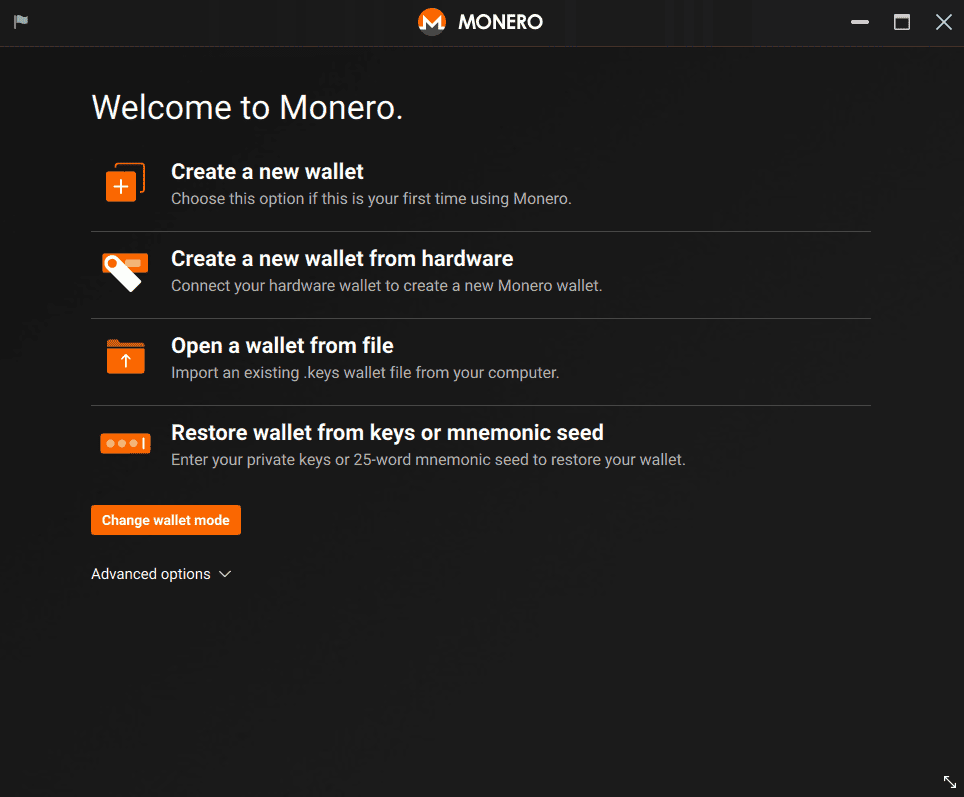
Enter a wallet name and select Trezor in the device menu. Then choose one option:
- Create a new wallet from device: this is your first time using this Trezor with Monero.
- Restore a wallet from device: you've used this Trezor with Monero before. Set the restore height to 1692975. Monero GUI starts scanning for your transactions from that block, so the restore finishes faster.
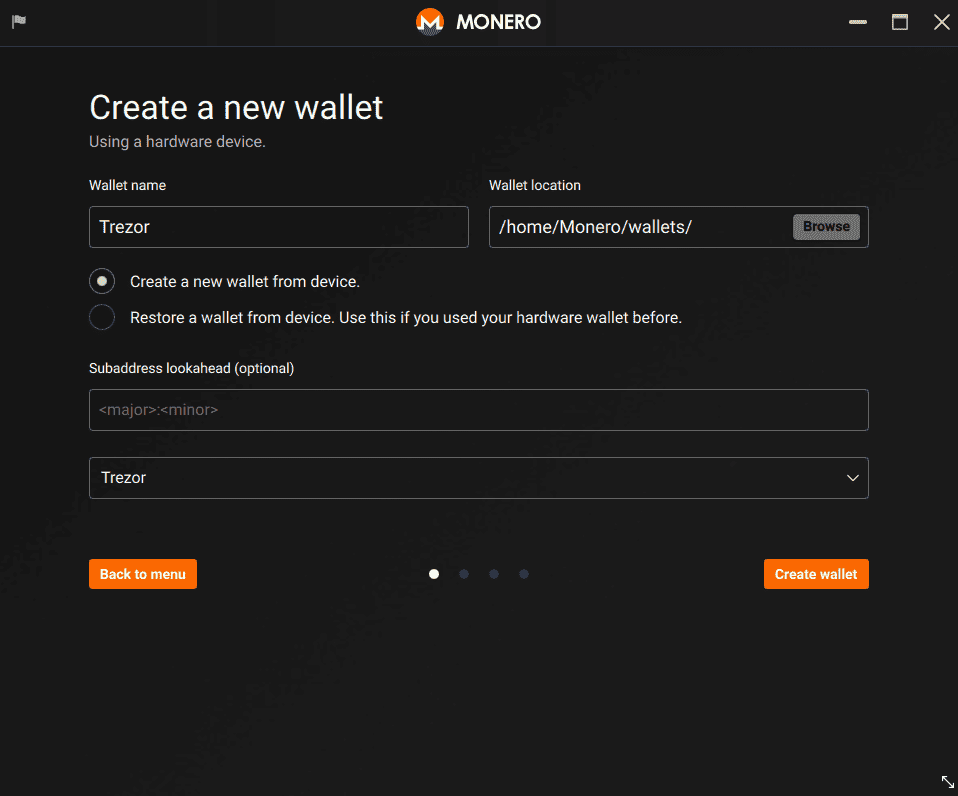
Select Create wallet.
3. Confirm on your Trezor
If you use a passphrase, enter it. Then confirm exporting watch-only credentials on your Trezor.
4. Set a wallet password
Create a password for this wallet. Monero GUI asks for it every time you open the wallet or send a transaction.
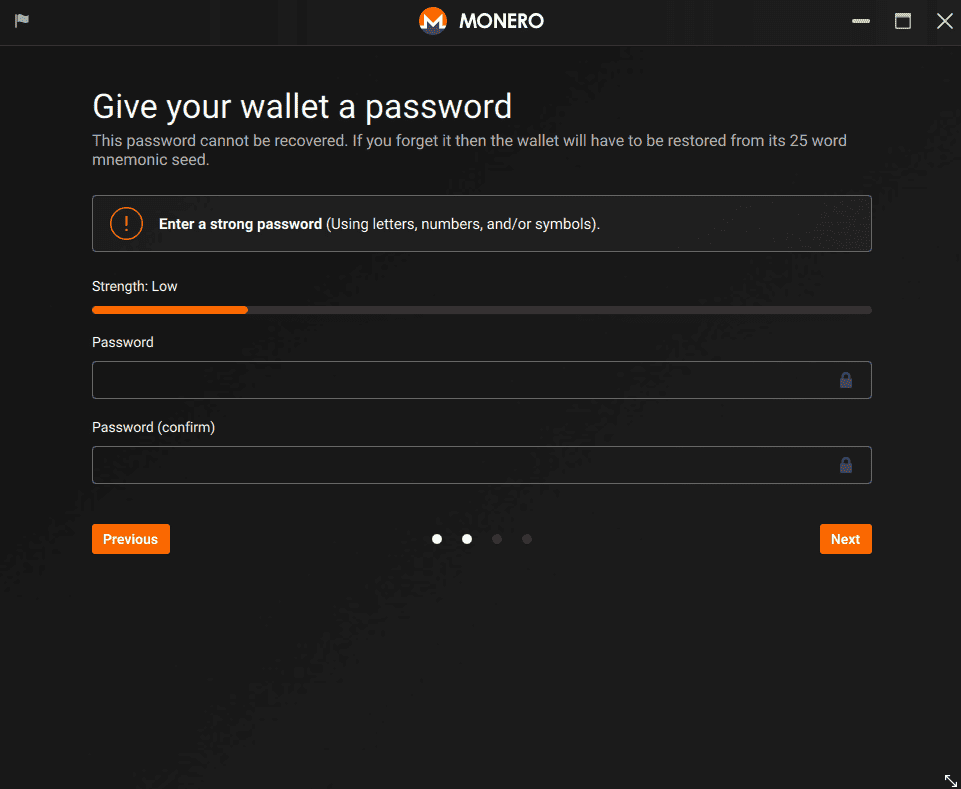
This password can't be recovered, but if you forget it, you can create the wallet again from your Trezor. Your funds stay safe.
A passphrase works differently. It's part of your Trezor wallet, so if you forget it, you lose access to that wallet.
5. Choose a node
Select Start a node automatically in background (recommended) to run your own node. It syncs the full Monero blockchain and gives you the best privacy. To start faster, select Connect to a remote node and enter the node's address and port.
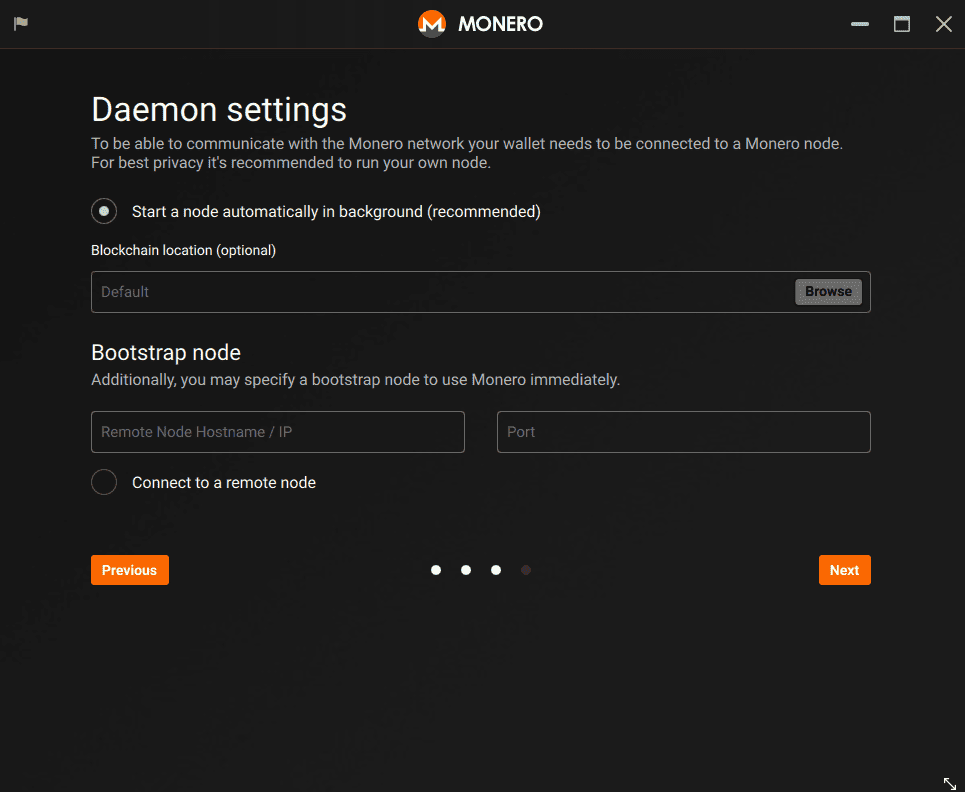
Select Next and finish setup.
6. Keep your Trezor connected while the wallet syncs
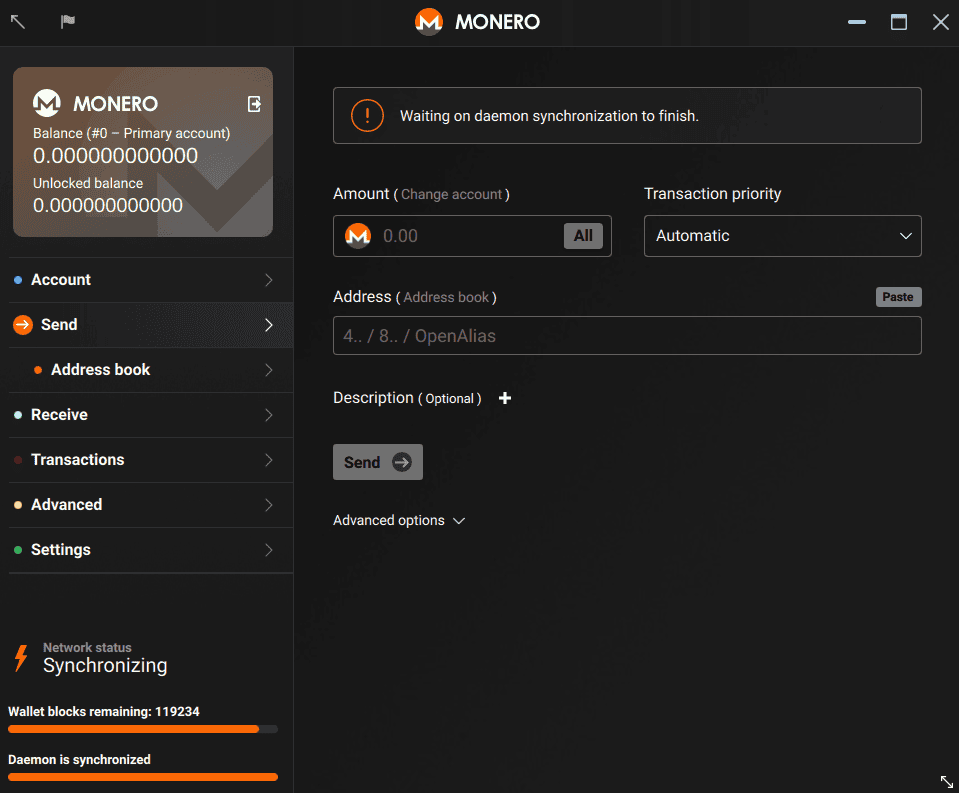
Monero GUI opens your wallet and syncs with the Monero network. Keep your Trezor connected, because it may ask you to confirm a refresh during sync. Once sync finishes, you can send and receive Monero.
If Monero GUI doesn't recognize your Trezor, contact Chatbot Hal for further help.