Upozorňujeme, že naše články jsou momentálně dostupné pouze v angličtině.
Suite Sync
Suite Sync keeps your labels private, synced across devices, and recoverable without relying on services like Google Drive or Dropbox. It stores your data locally on your device with encrypted backups, so only you can read it.
Compatible with all Trezor Safe family devices, Suite Sync is used for privately handling your labeling data, ensuring your wallet stays organized and your notes stay safe.
Labels help you stay organized in Trezor Suite. You can rename wallets, accounts, and addresses to keep track of your portfolio, categorize transactions, or add notes to specific payments. Learn more in our article Labels in Trezor Suite.
Suite Sync is built around a “local first” philosophy, i.e., your data exists on your personal device first, and syncing is an optional next step.
Previously, labeling on (mobile) devices and syncing between devices easily was not possible. Suite Sync improves this by keeping your labels:
- Private – they are encrypted so only you can read them.
- Synced – labels appear on all your devices automatically once enabled.
- Recoverable – if you switch phones or computers, your labels come back once you log in again.
Enabling Suite Sync
Desktop
- Go to ⚙️ Settings > Application and scroll down to the Labeling section
- Select the Suite Sync option from the drop-down menu:

-
To start using Suite Sync, you confirm it once on your Trezor Safe hardware wallet. After that, labeling works smoothly in Trezor Suite without the need for third-party cloud services.
-
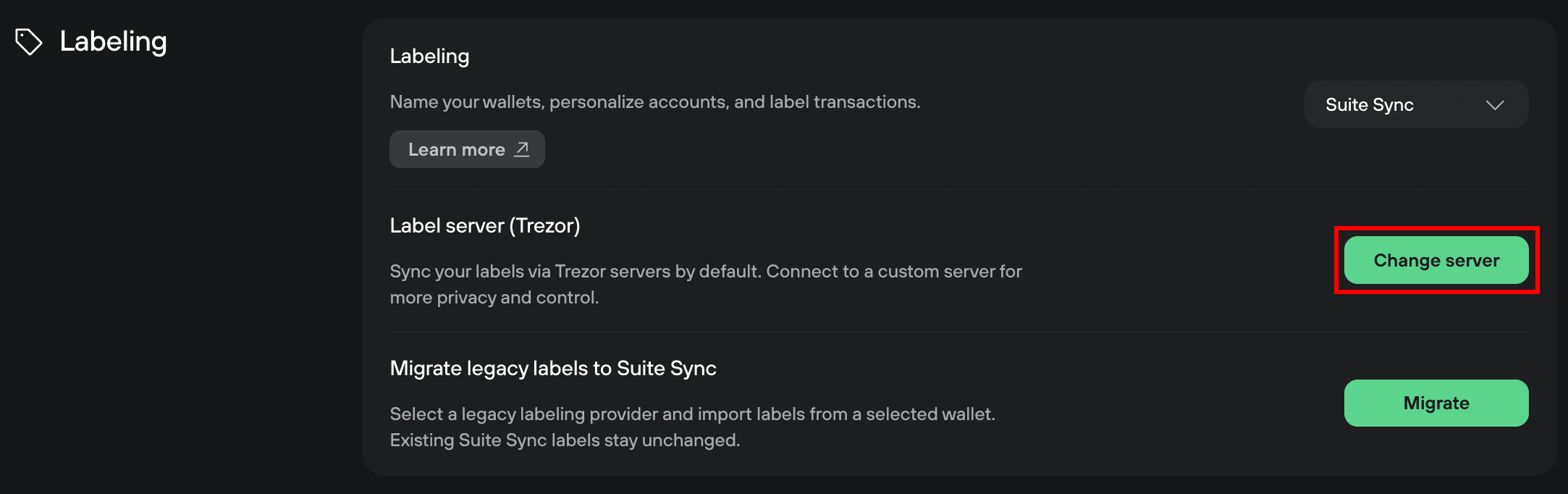
Your labels are synced via the Trezor servers by default. If you want to connect to a custom server, select Change server:
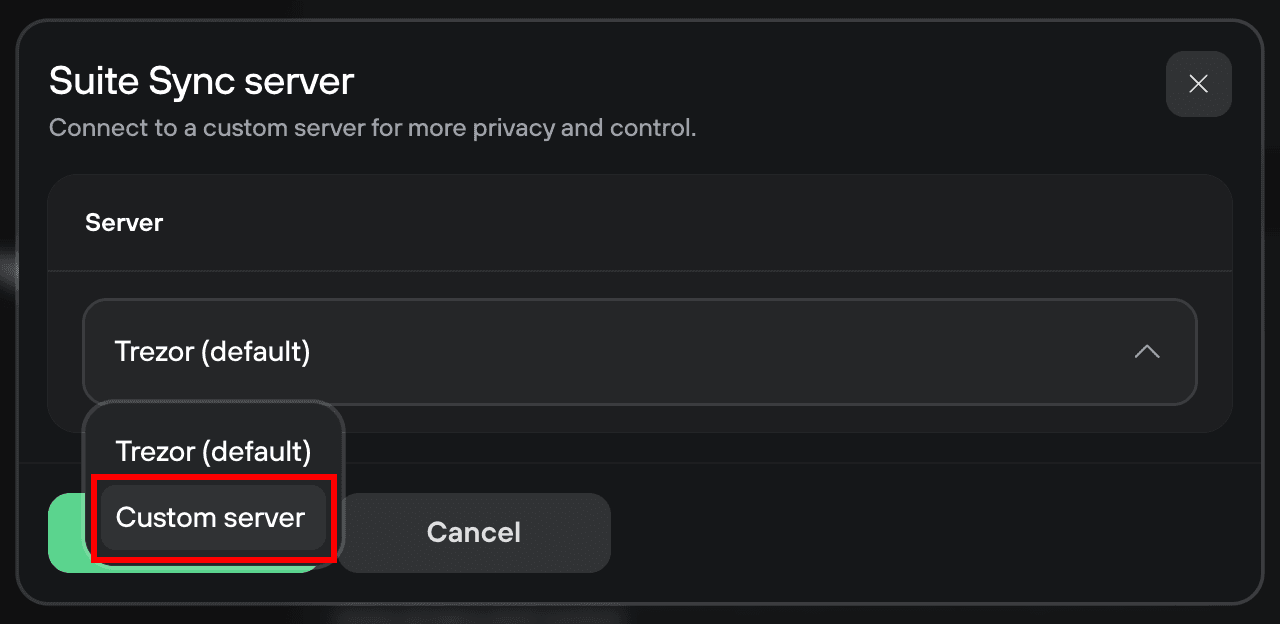
- In the Suite Sync server window, select Custom server from the drop-down menu:
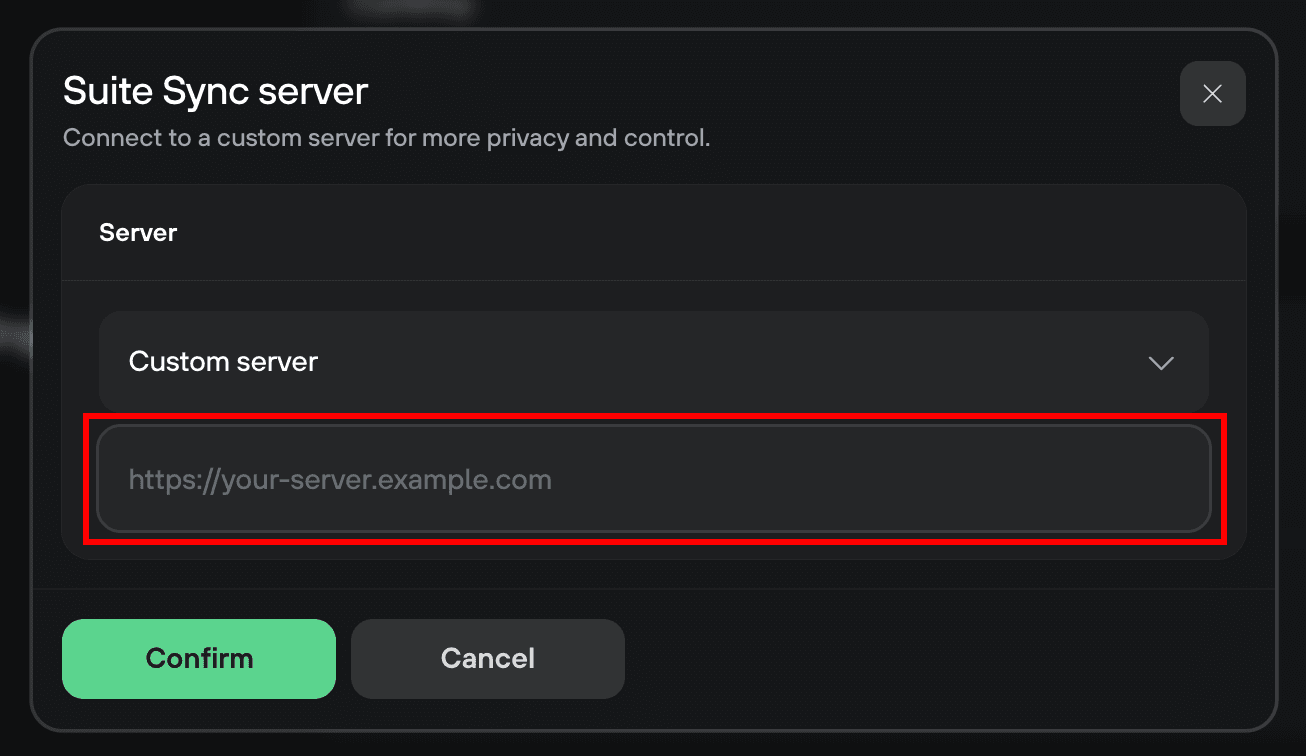
- Enter your server address in the input field and click Confirm to finish the setup:
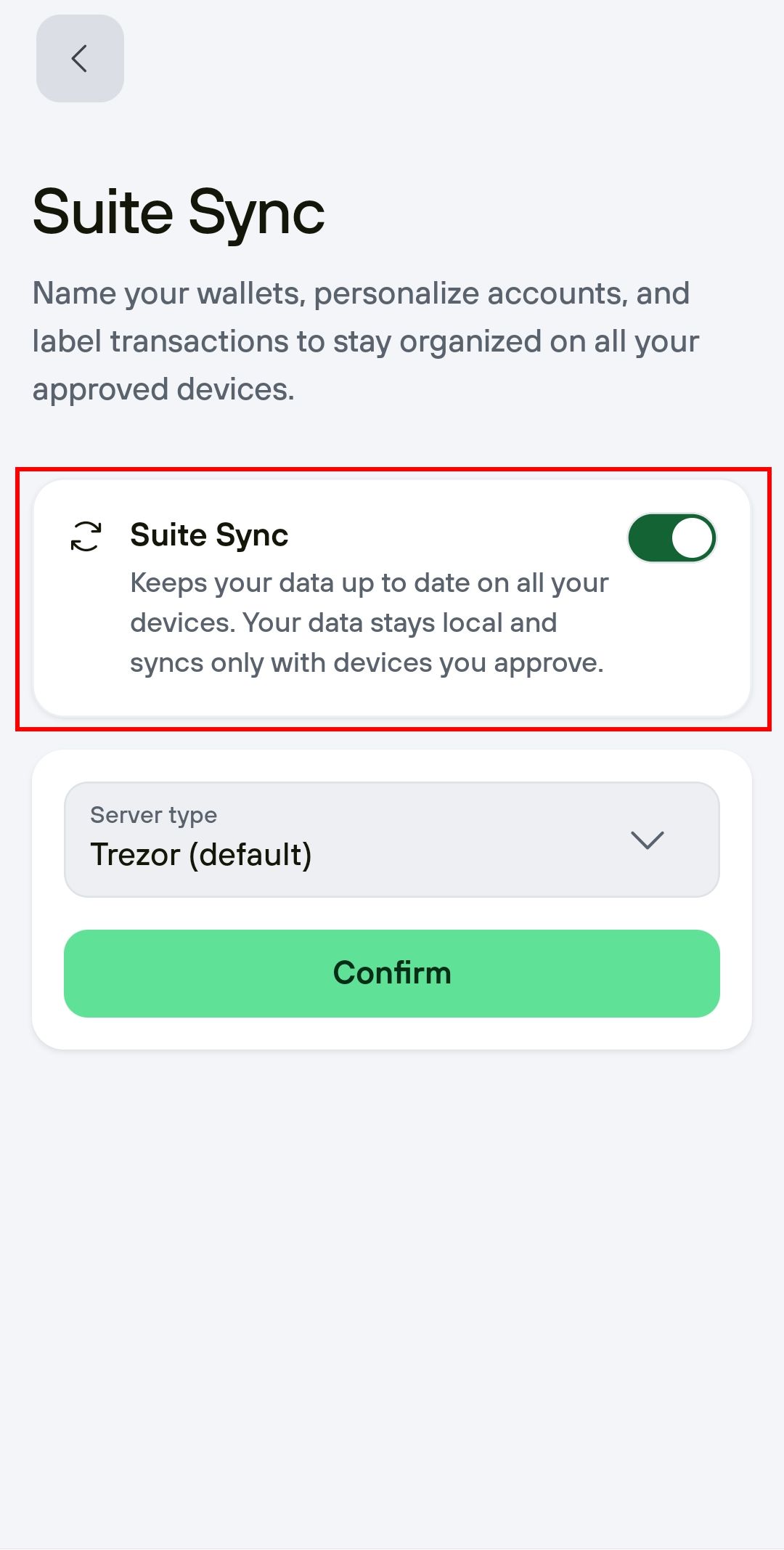
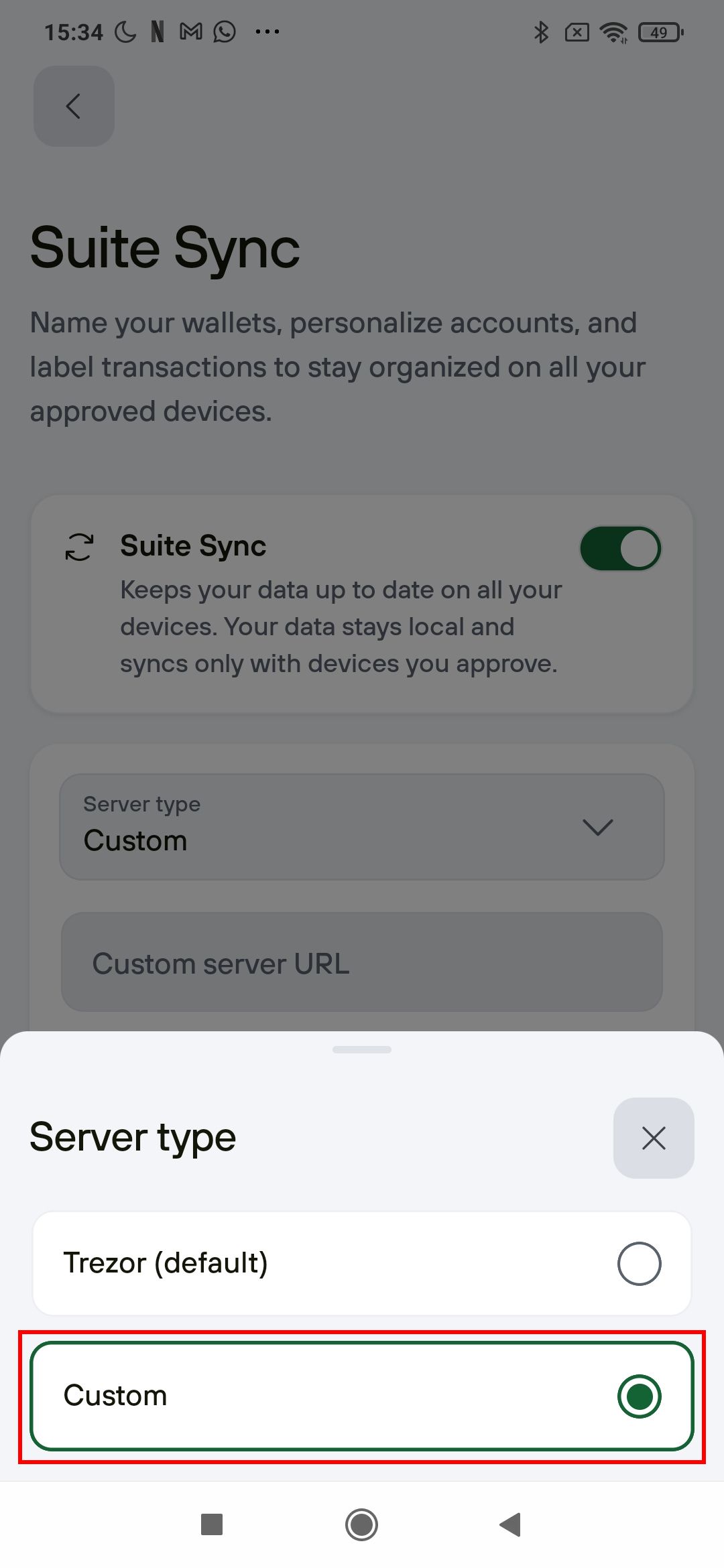
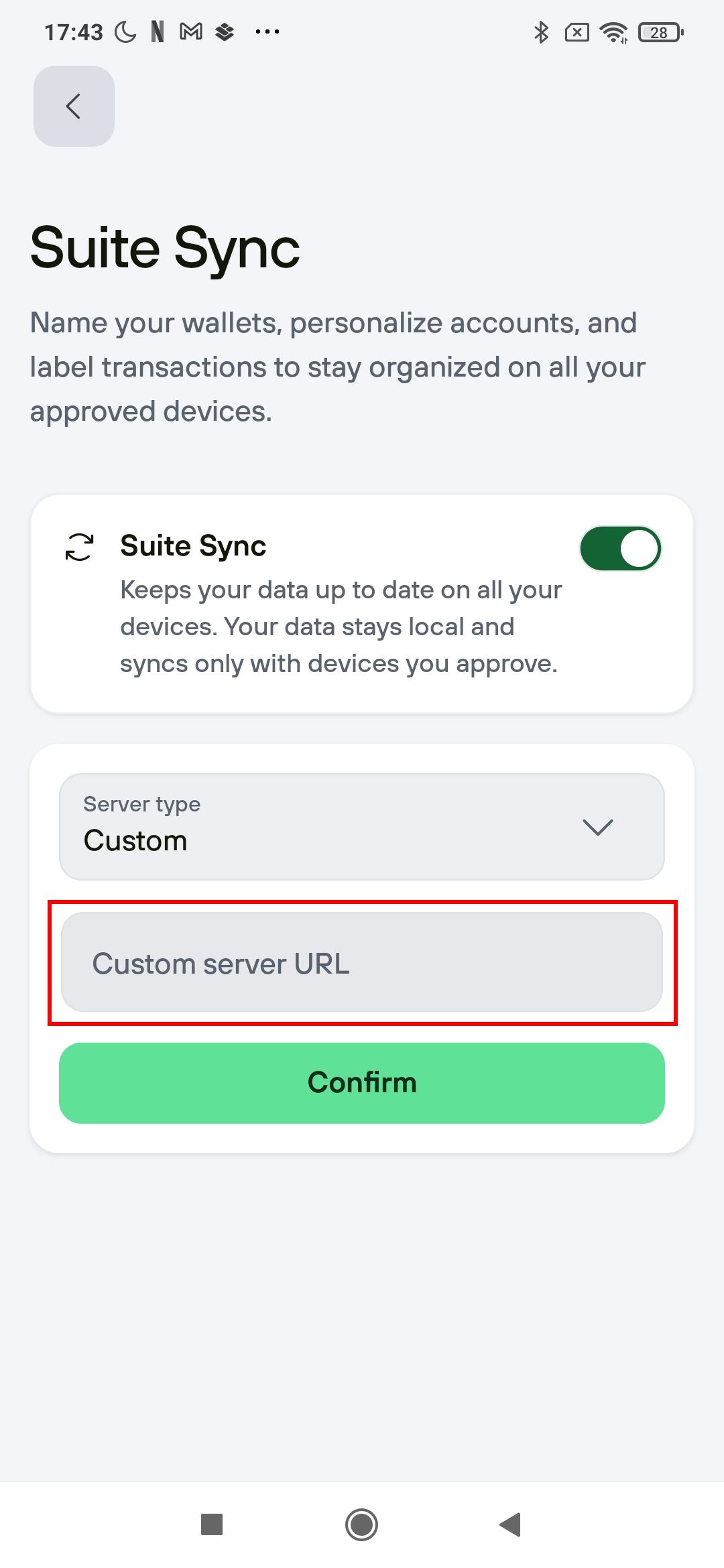
Editing labels
To add or edit a label, click the pencil icon next to it and enter a suitable value:
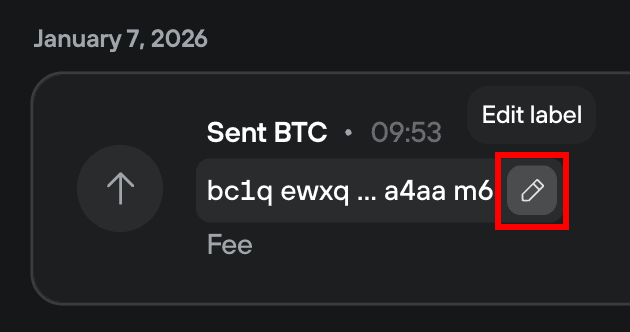
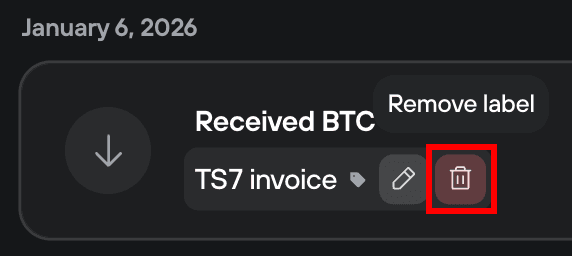
- To remove a label, click the red trash can icon next to it:
Migrating Legacy labels to Suite Sync
If you're already using the Legacy labeling feature and want to switch to Suite Sync, follow these steps:
- In Trezor Suite go to ⚙️ Settings > Application
- Scroll down to the Labeling section and select Suite Sync from the drop-down menu
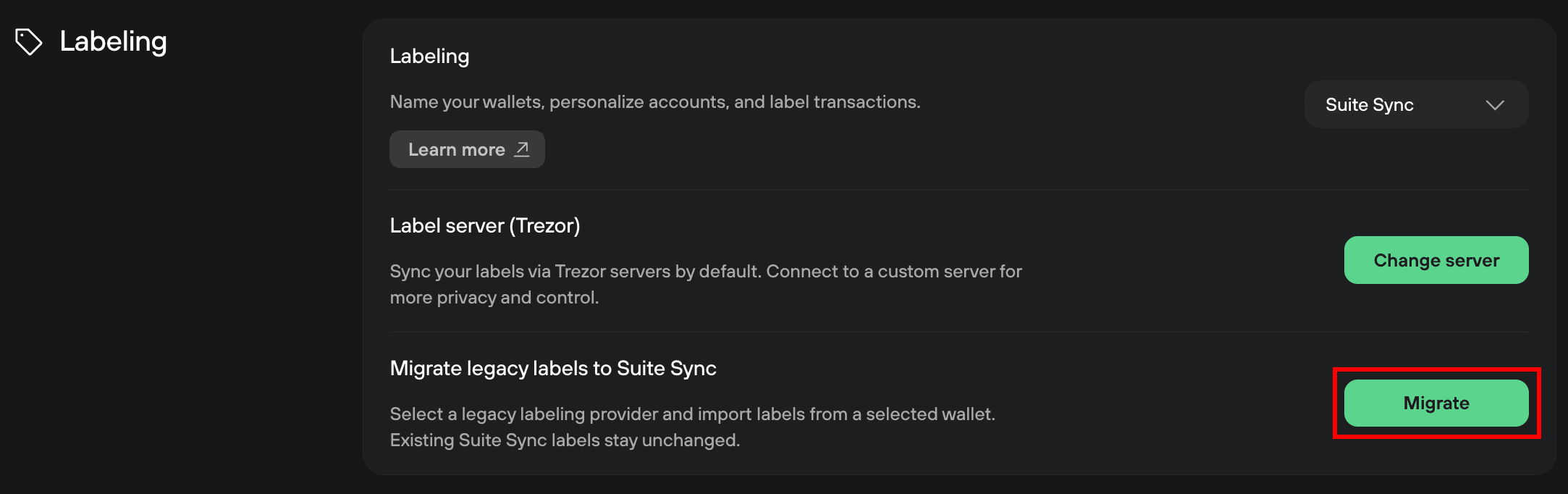
- Click on Migrate:
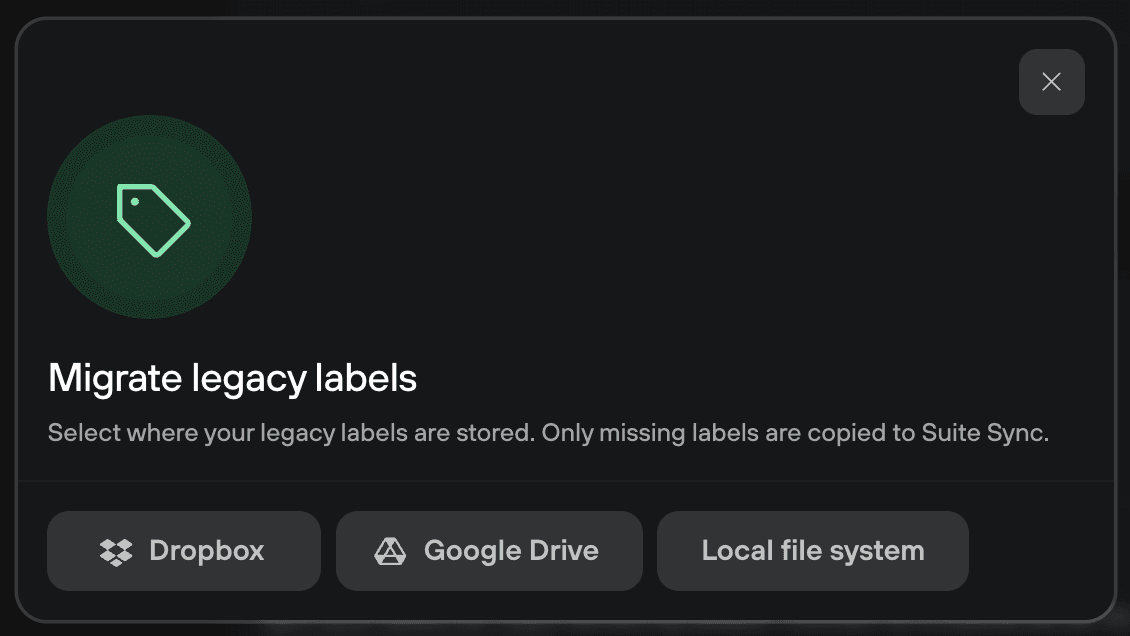
- Select your current Legacy labeling backup option:
- After migration, Suite will inform you that the operation was successful:

To maintain your privacy, sync is limited to 1MB (approx. 2,500 edits per Trezor Safe device). Data above this limit remains local-only.