Perhatian: artikel kami saat ini hanya tersedia dalam bahasa Inggris.
Using a passphrase wallet in Trezor Suite
Adding a passphrase to your wallet backup gives you a separate wallet with its own addresses and balance.
If you are not sure whether you need a passphrase, read What is a passphrase? first.
Without your passphrase, you lose access to that wallet. A passphrase cannot be removed or reset, and Trezor Support cannot recover it.
Before you start
Check your wallet backup
Your wallet backup recovers your Standard wallet. Add a passphrase, and it opens a passphrase wallet.
Check the backup of your Standard wallet first, before you add a passphrase on top of it. You will need it if your Trezor is lost, damaged, or wiped.
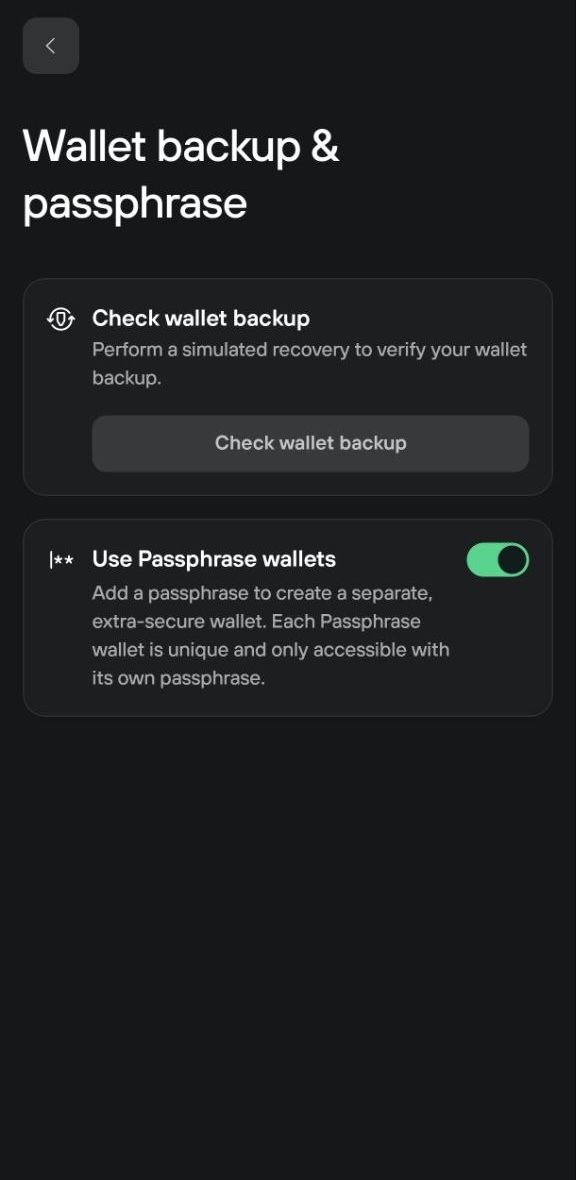
Go to Wallet backup in Settings on desktop, or Wallet backup & passphrase in Device settings on mobile, then select Check wallet backup to run a simulated recovery.
Choose your passphrase
Choose your passphrase with real randomness. Anyone who has your wallet backup can try to guess a weak passphrase. For how to choose one, see Is my passphrase strong enough?
Your Trezor does not keep a copy of your passphrase, and neither does Trezor Suite. Write it down on paper before you use your passphrase wallet.
Allowed characters
Passphrases in Trezor Suite support the standard ASCII set and can be up to 128 characters long on Trezor Model T, Safe 3, Safe 5, and Safe 7, or up to 50 characters long on Trezor Model One.
- Passphrases are case-sensitive.
- A blank space counts as a character.
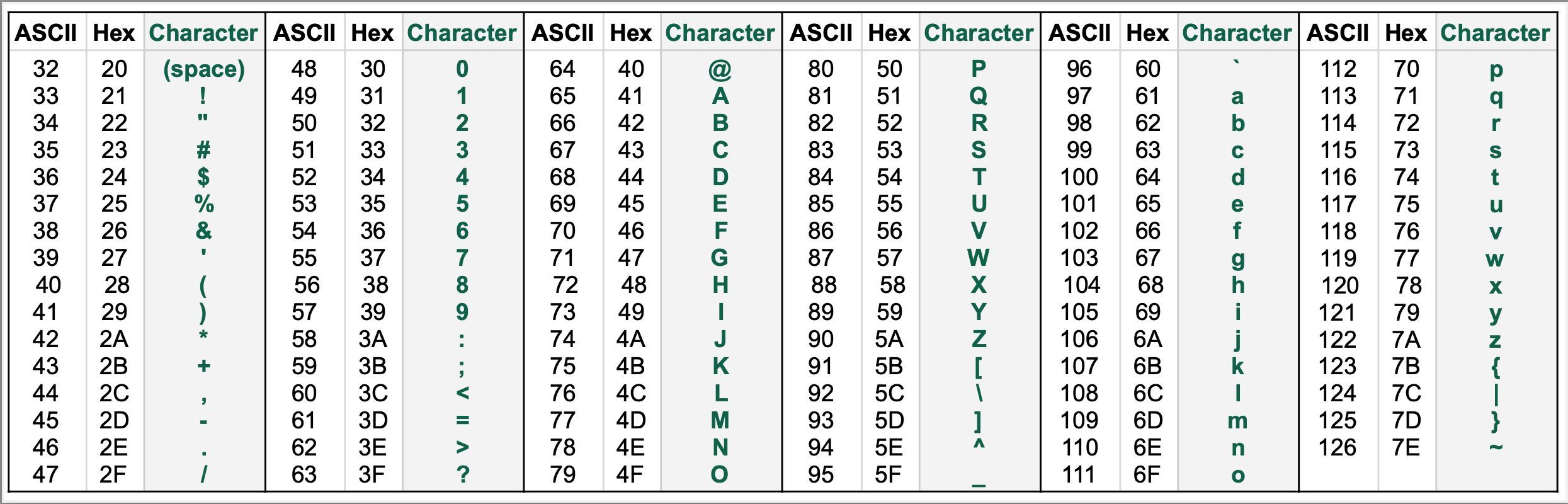
Mistyping a passphrase opens a different wallet. Trezor Suite cannot tell a wrong passphrase from a right one that happens to be empty. That is why you verify a passphrase wallet before you fund it. See Test recovering your passphrase wallet.
Open a passphrase wallet
Connect and unlock your Trezor, then follow the steps for your platform.
Desktop
1. Turn on the passphrase feature
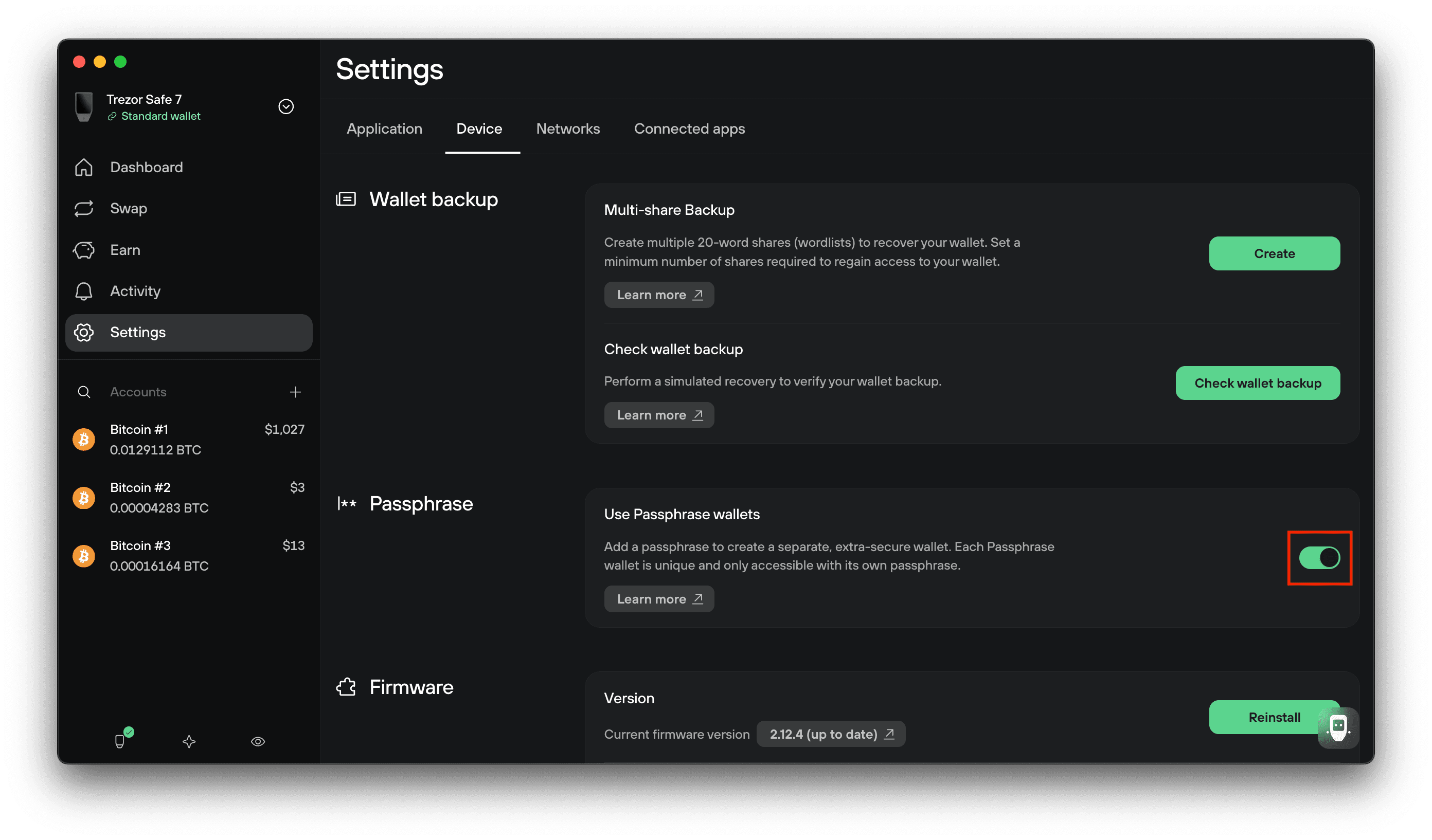
Go to Settings → Device. Under Passphrase, turn on Use Passphrase wallets.
2. Open the passphrase wallet menu
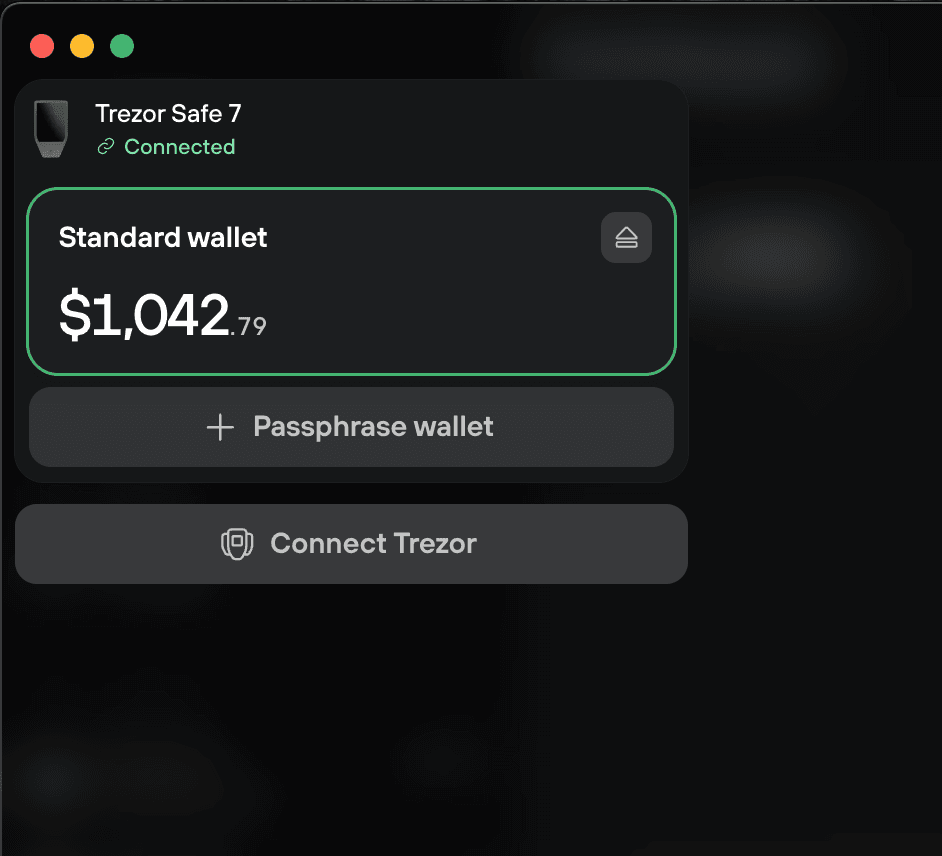
Open the wallet switcher at the top left of the app, then select + Passphrase wallet.
3. Choose New passphrase
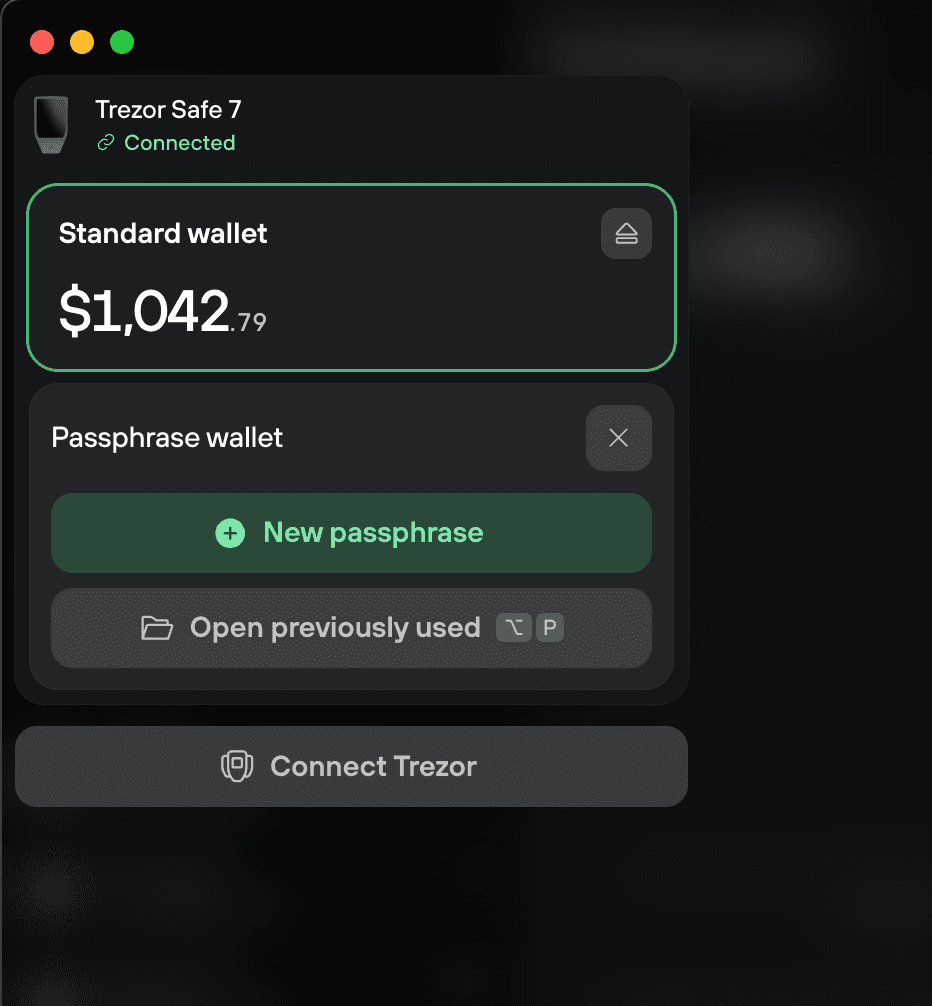
Select New passphrase. To open a passphrase wallet you have used before, see Opening a wallet you have used before on desktop
Read the passphrase best practices, then select Got it.
4. Enter your passphrase
Type your passphrase and select Confirm. To keep the passphrase off your computer, select Enter passphrase on Trezor and type it on your Trezor device instead.
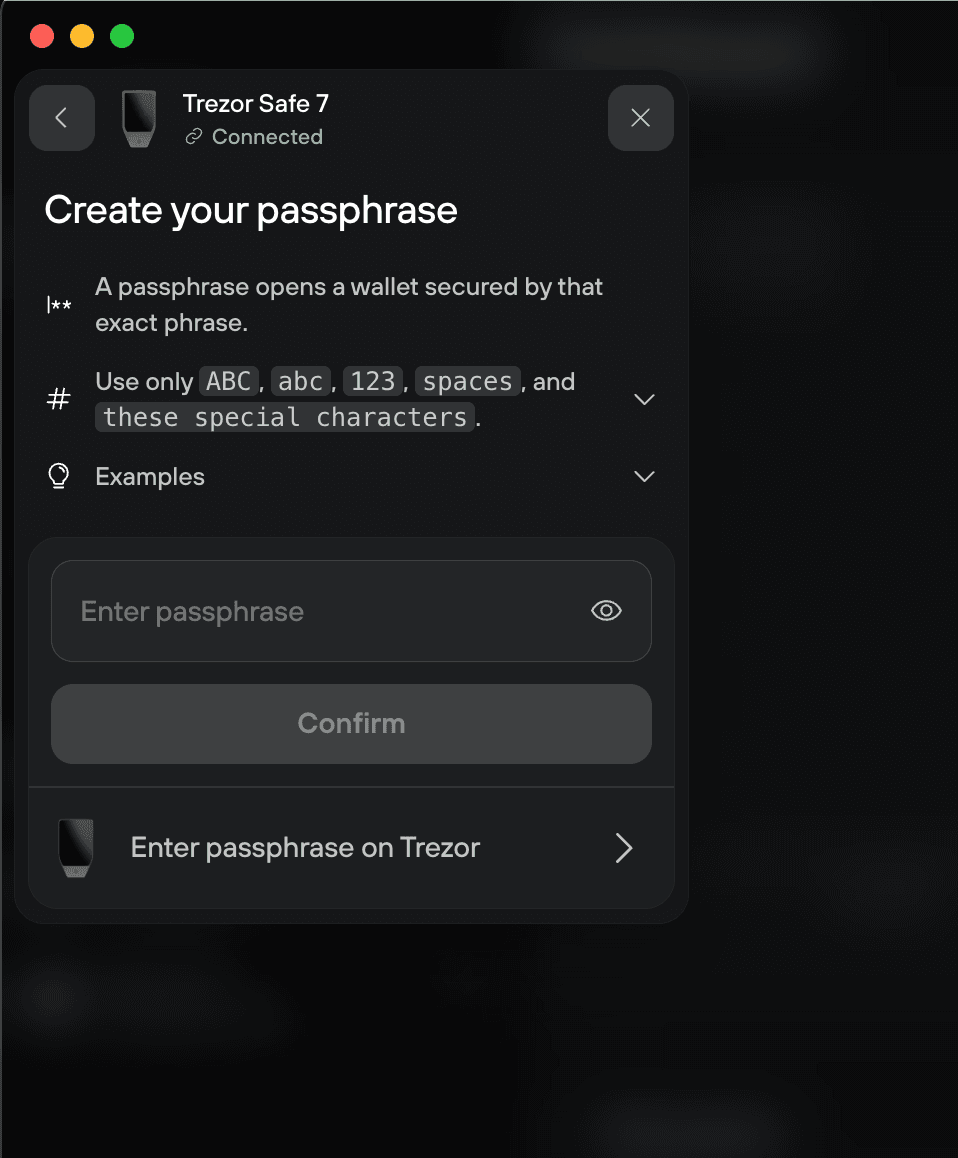
Type your passphrase on your Trezor whenever you can. Anything you type on a computer or phone can be captured if that device is compromised, and a stolen passphrase combined with your wallet backup gives an attacker full access.
5. Confirm your passphrase
Your Trezor displays the passphrase you entered. Check it character by character, then confirm it on the device.
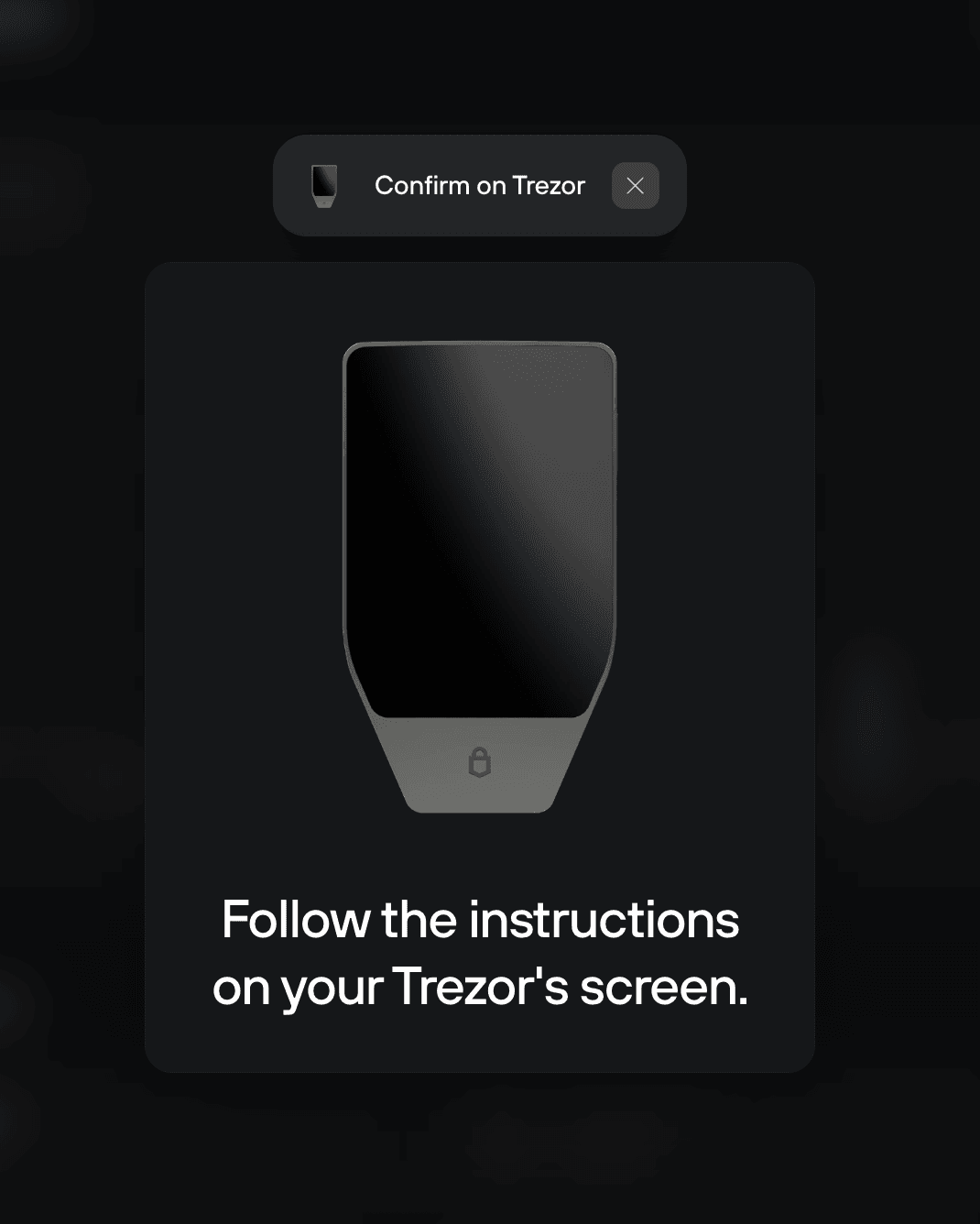
Trezor Suite then checks the wallet for balances and transactions.
6. Enter your passphrase again
Type the same passphrase a second time and select Confirm, or enter it on your Trezor.
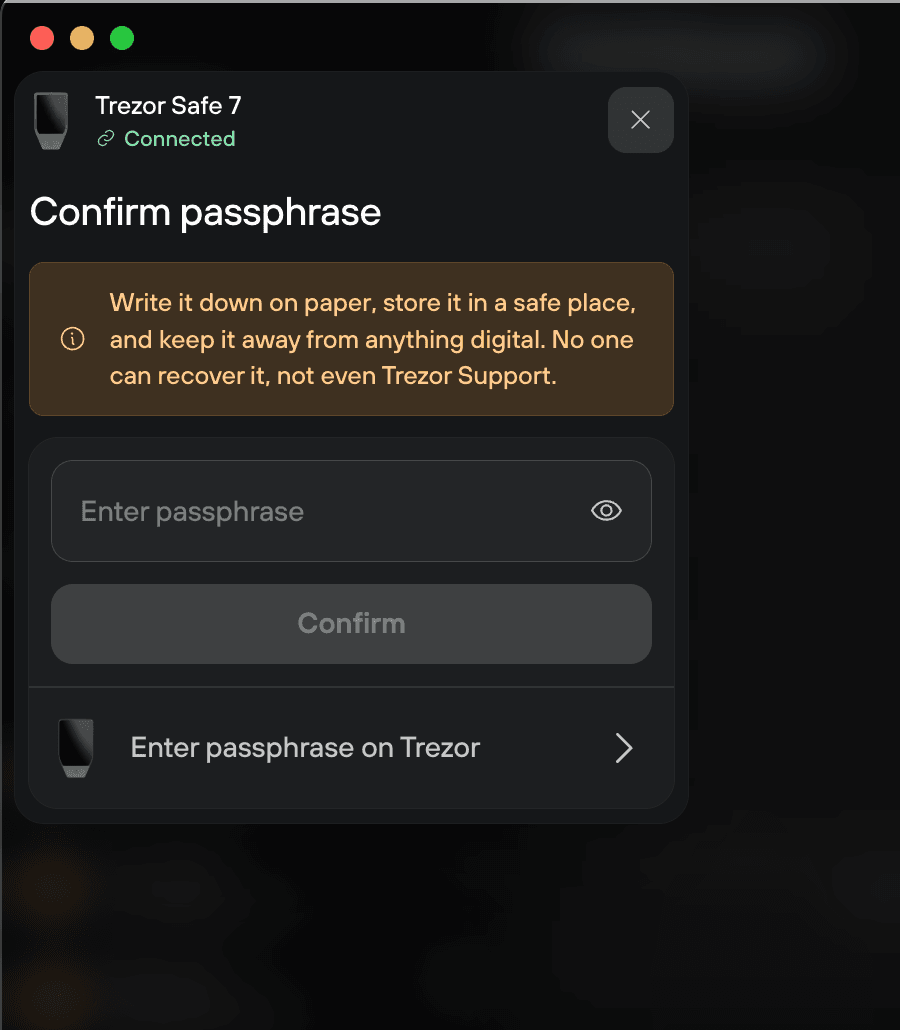
If the two entries do not match, Trezor Suite shows Passphrase mismatch. Select Start over and enter your passphrase again.
7. Confirm your passphrase again
Your Trezor displays the passphrase a second time. Check it again, then confirm on the device.
8. Your wallet opens
Trezor Suite now shows your passphrase wallet.
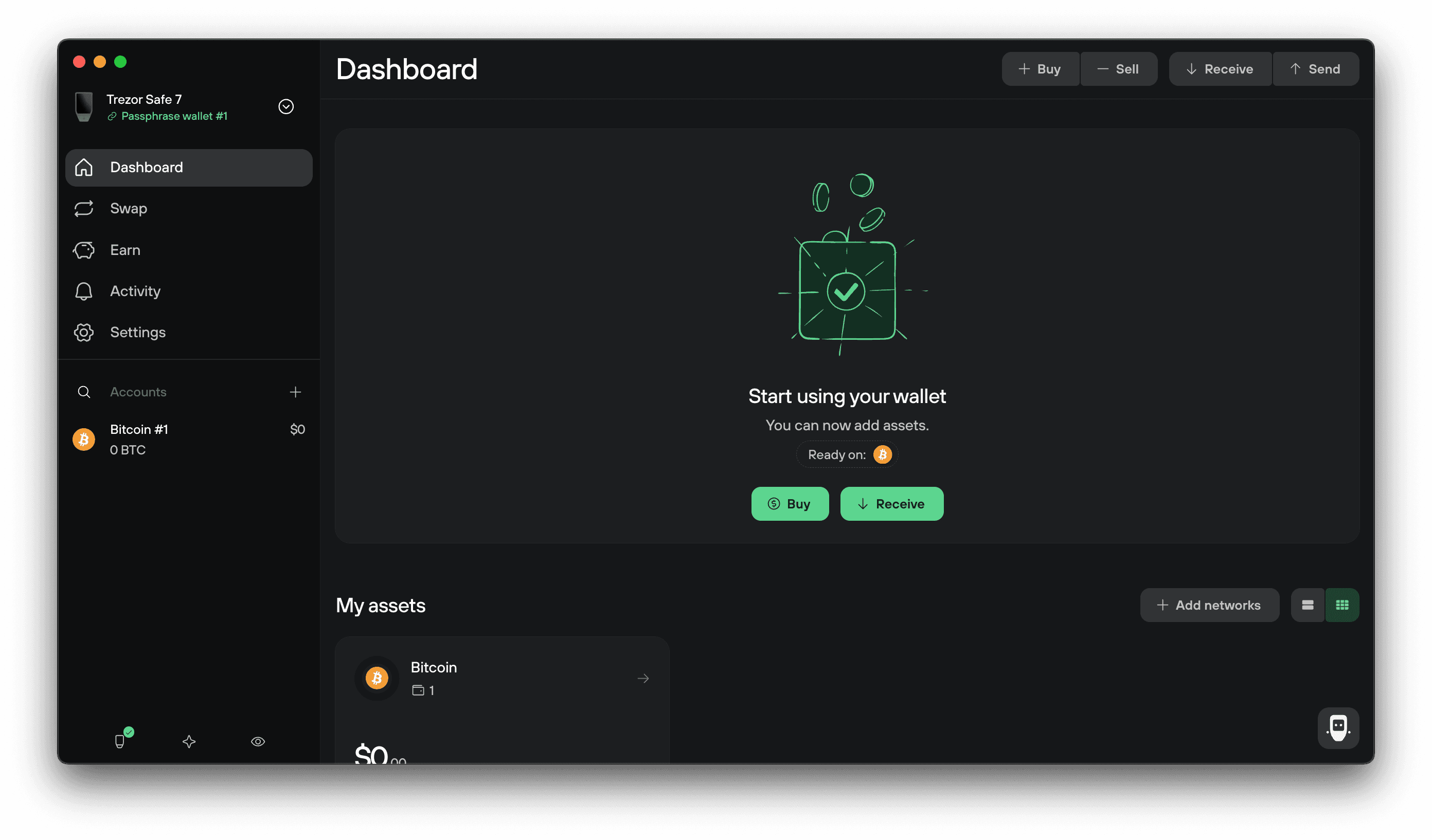
Both wallets stay in the wallet switcher while the app is open, so you can move between them by selecting the one you want.
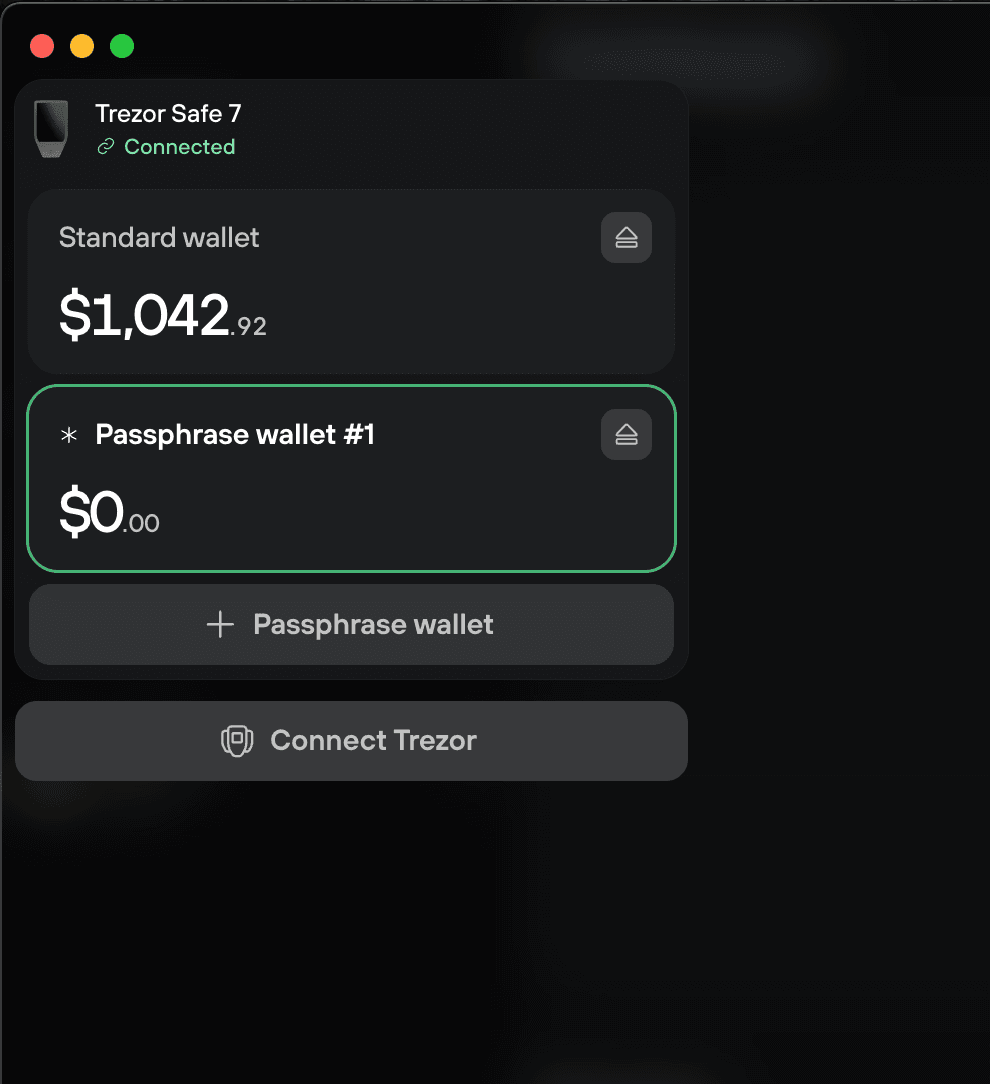
Opening a wallet you have used before on desktop
Select Open previously used instead of New passphrase when you reach that choice. Trezor Suite asks for the passphrase once instead of twice.
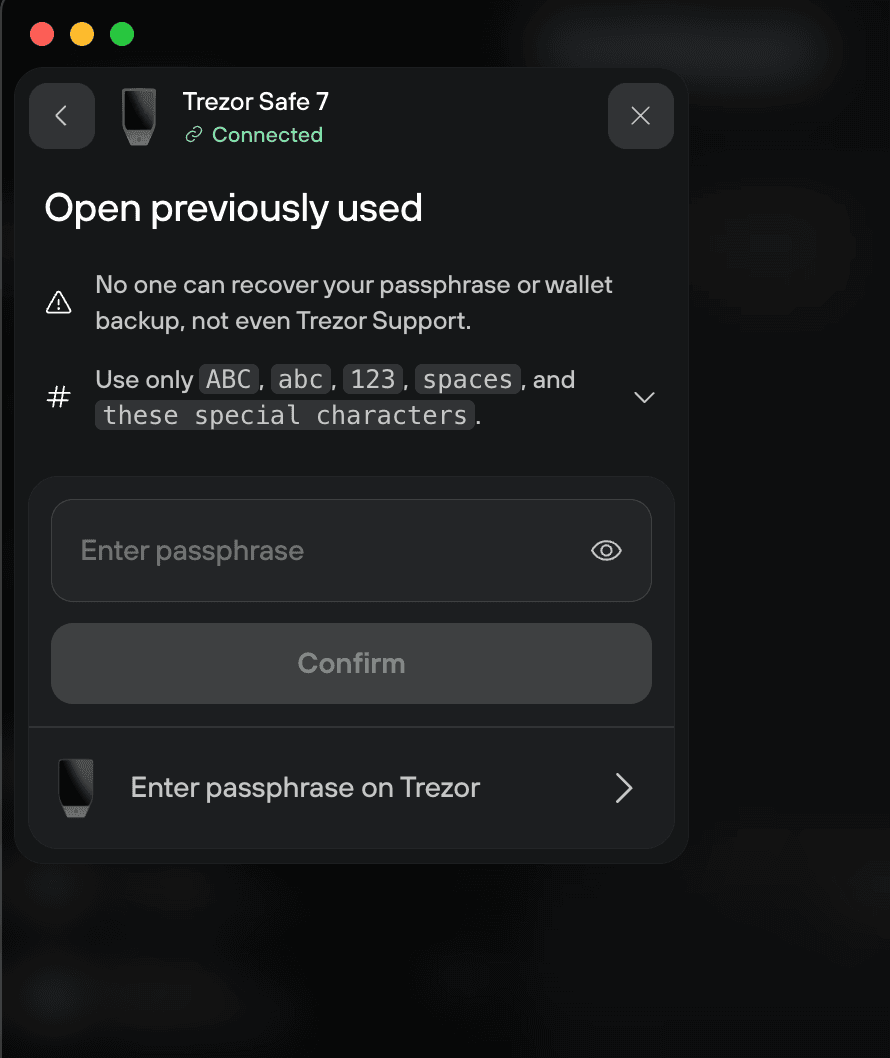
Enter your passphrase, confirm it on your Trezor, and the wallet opens with its balance and history.
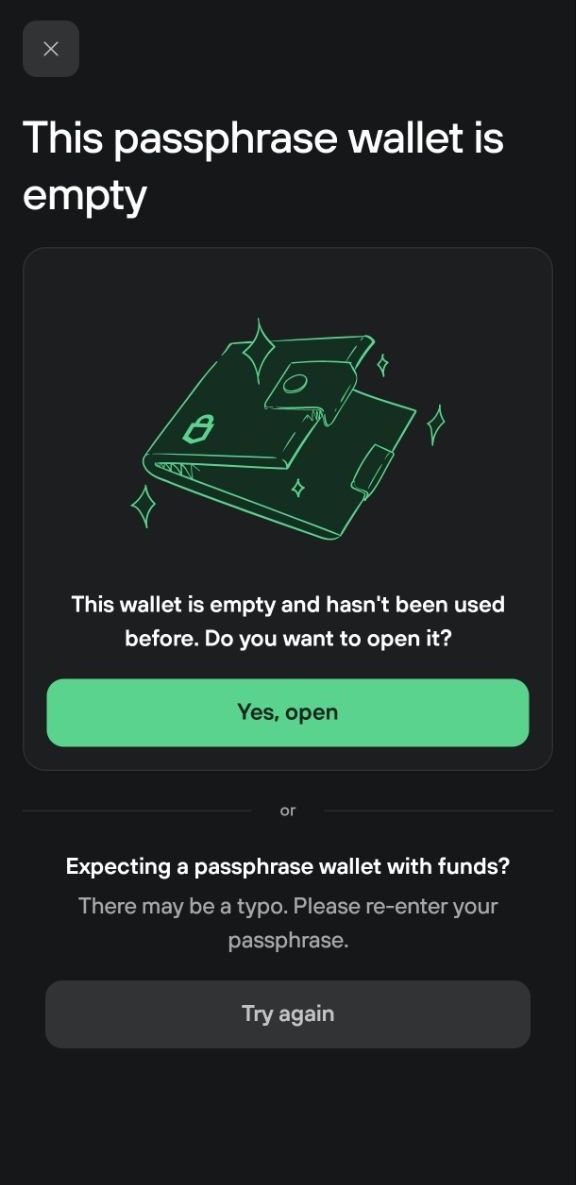
If Trezor Suite finds nothing, it tells you the wallet is empty.
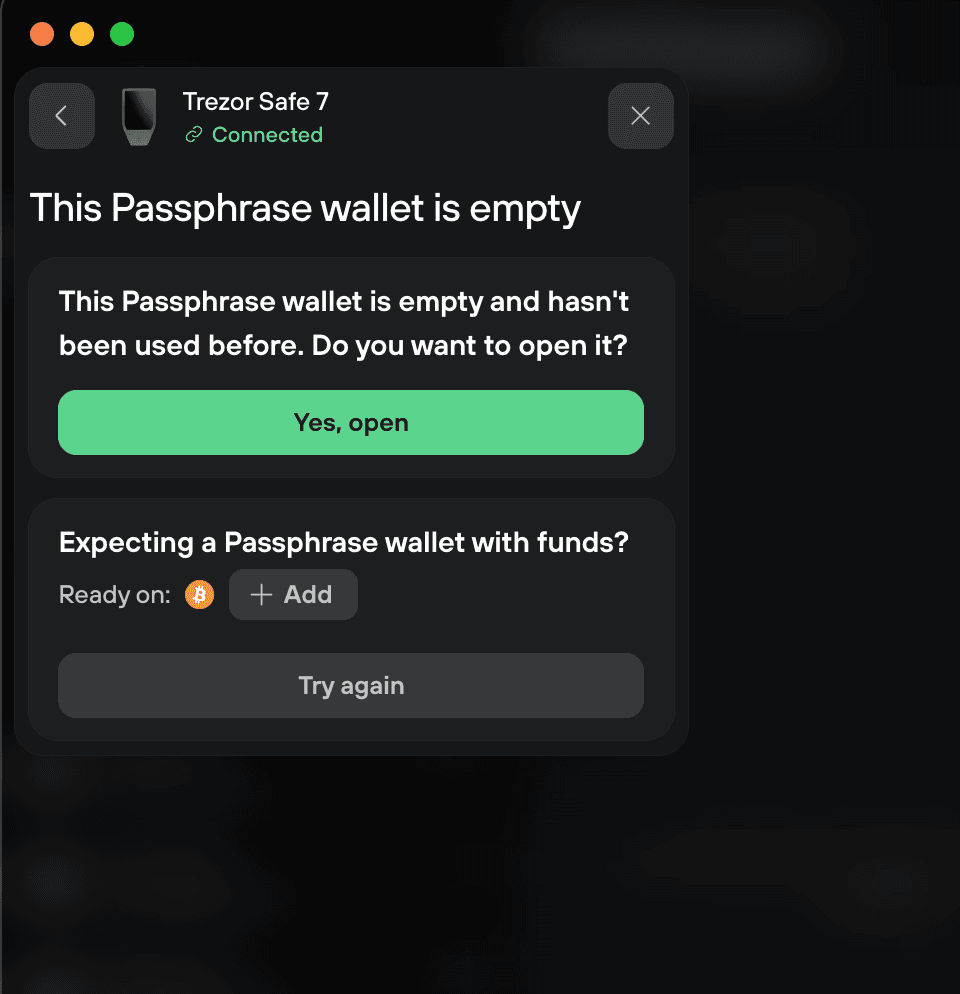
Select Try again and re-enter the passphrase. If your funds are on a network you have not enabled yet, select + Add next to Ready on to add it.
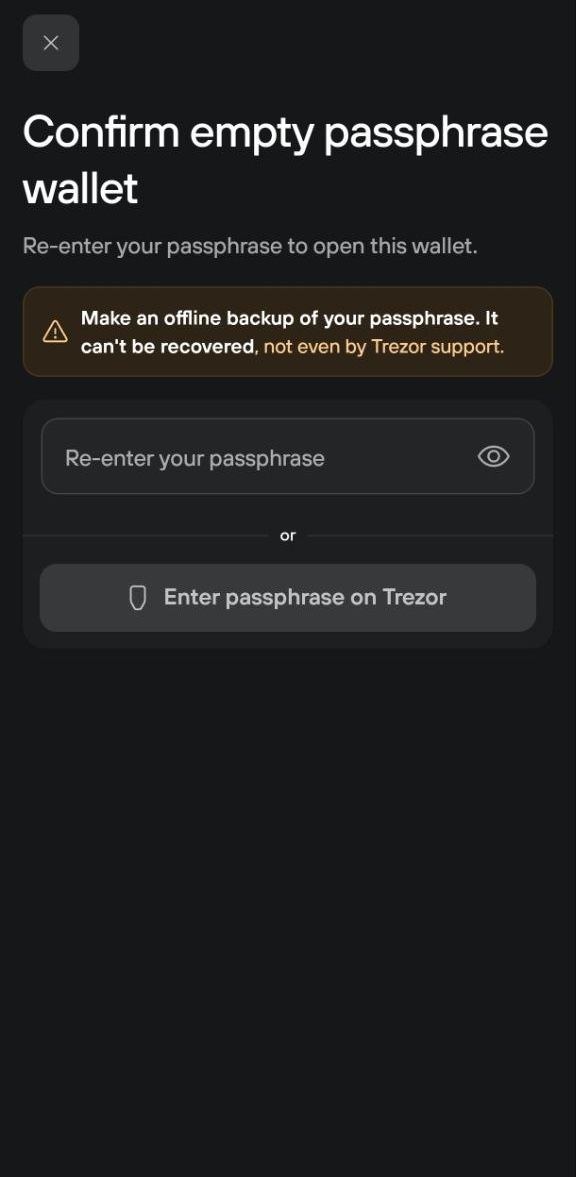
Selecting Yes, open opens a new, empty wallet instead. Trezor Suite shows the best practices, then asks you to enter the passphrase a second time to confirm it.
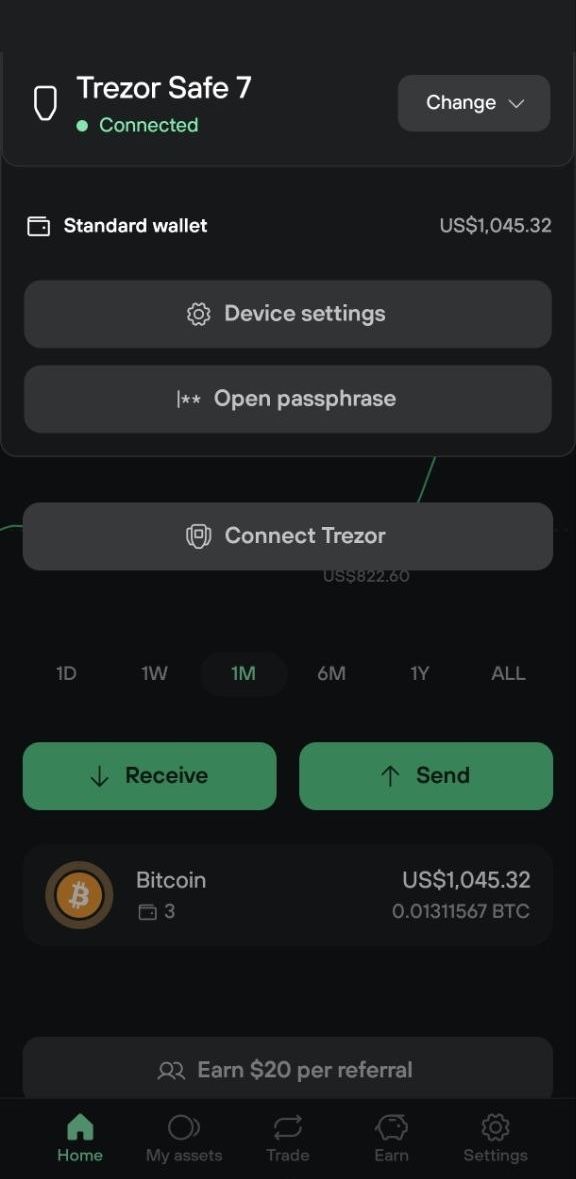
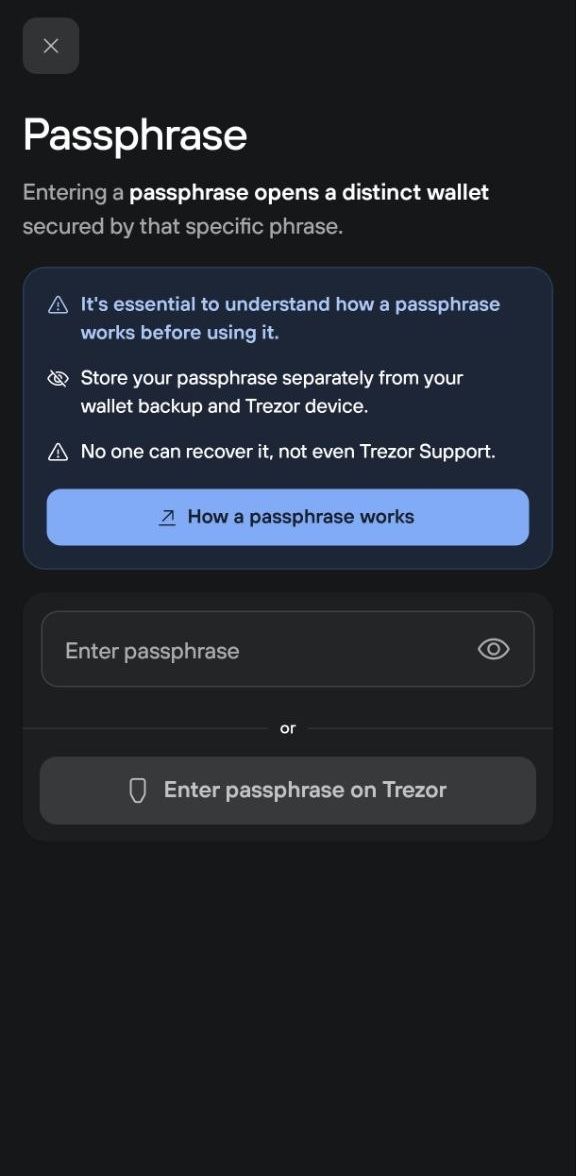
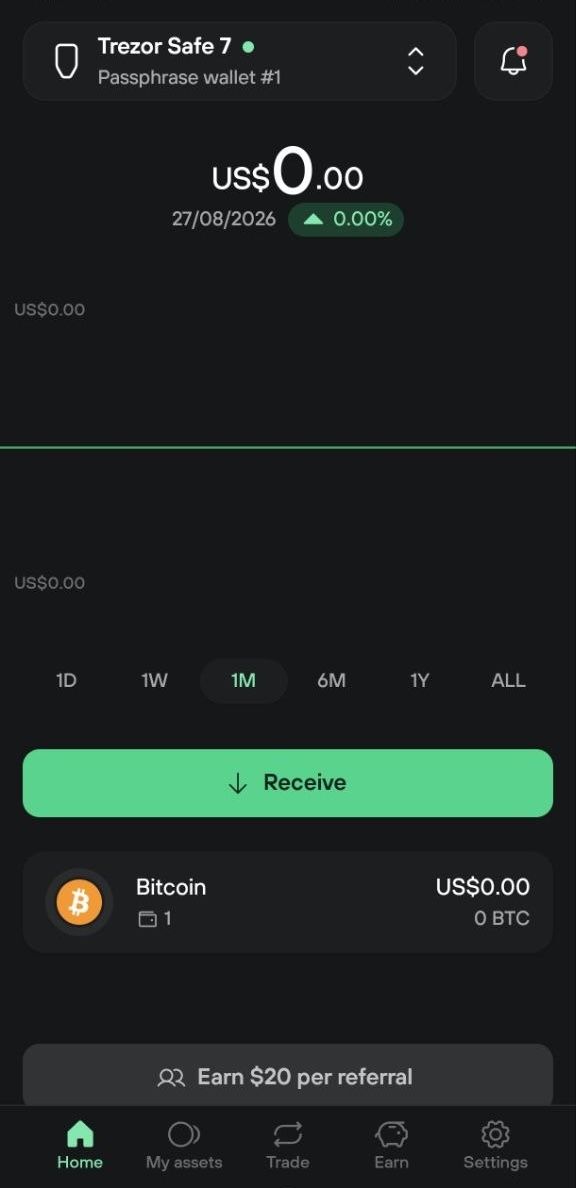
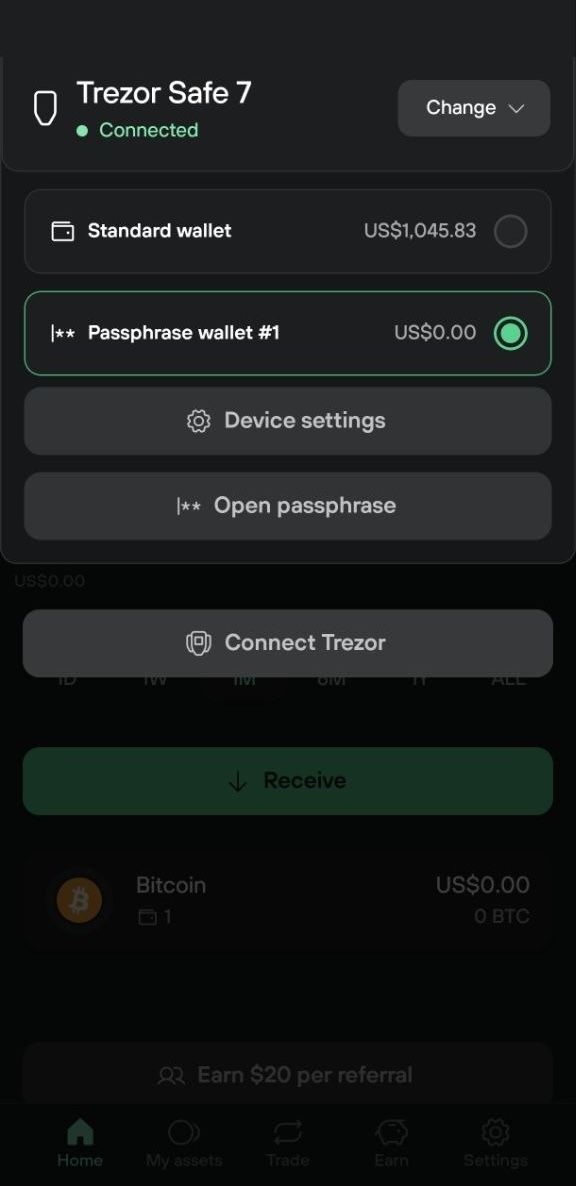
If the wallet is empty when you expected funds
Trezor Suite reports a passphrase wallet as empty when it finds no balance and no transaction history. Two different things cause that.
-
The passphrase does not match the one you used before. Select Try again and re-enter it from your written copy, one character at a time.
-
Your funds are on a network that is not enabled. The passphrase is right, but Trezor Suite isn't loading the networks you use. Add the network from the Ready on row on the empty-wallet screen, or in Settings → Networks, then check again.
For more help, see Passphrase and hidden wallet issues.
Test recovering your passphrase wallet
Test your passphrase by reopening the wallet from your written copy and confirming you land in the same wallet.
1. Record your first receive address
In your passphrase wallet, open the first account in the coin you plan to use. Go to Receive and select Verify to display the first address of the account on your Trezor. Write down its last 8 characters, plus the coin, next to your passphrase.
2. Eject your wallets
Eject both wallets from Trezor Suite.
On desktop: select the eject icon on each wallet card in the wallet menu on the top left.
On mobile: go to Settings → Eject wallets and select the eject icon.
3. Open the passphrase wallet again
Connect your Trezor, then open the passphrase wallet again. Enter the passphrase from your written copy, not from memory.
4. Compare
Open the same account and check the first receive address on your Trezor device. If it ends in the same 8 characters, your written passphrase reproduces the correct wallet and you can move funds in.
You can repeat this check any time. Display the receive address on your Trezor and compare it to what you wrote down.
Sending and receiving
A passphrase wallet sends and receives like any other wallet. Open it first, then follow Send crypto in Trezor Suite or Receive crypto in Trezor Suite.
When both wallets are open in Trezor Suite, the send form names the destination underneath the address, for example Passphrase wallet #1.
Before you move a significant amount into a passphrase wallet, test that you can reopen it. See Test recovering your passphrase wallet.
Where you can type your passphrase
Typing the passphrase on the device keeps it off your computer or phone. Not every model can do it.
- Trezor Safe 7, Trezor Safe 5 and Trezor Model T support on-device passphrase entry using the touchscreen. Trezor Safe 3 supports on-device entry using its buttons.
- Trezor Model One has no on-device passphrase entry. Type it in Trezor Suite on the connected computer or phone.